Node - Calculation
Overview
The Calculation node performs calculations on input values and returns a new result that can be referenced by subsequent workflow nodes. It does not modify the original field values.
How is a Calculation node different from a Formula field?
- Calculation across records and worksheets: A Calculation node can use field values from different records and worksheets in the same calculation. A formula field can use only fields within its worksheet.
- Calculation timing: A Calculation node runs as part of a workflow after changes to a record are saved. A formula field calculates its result directly as fields are edited.
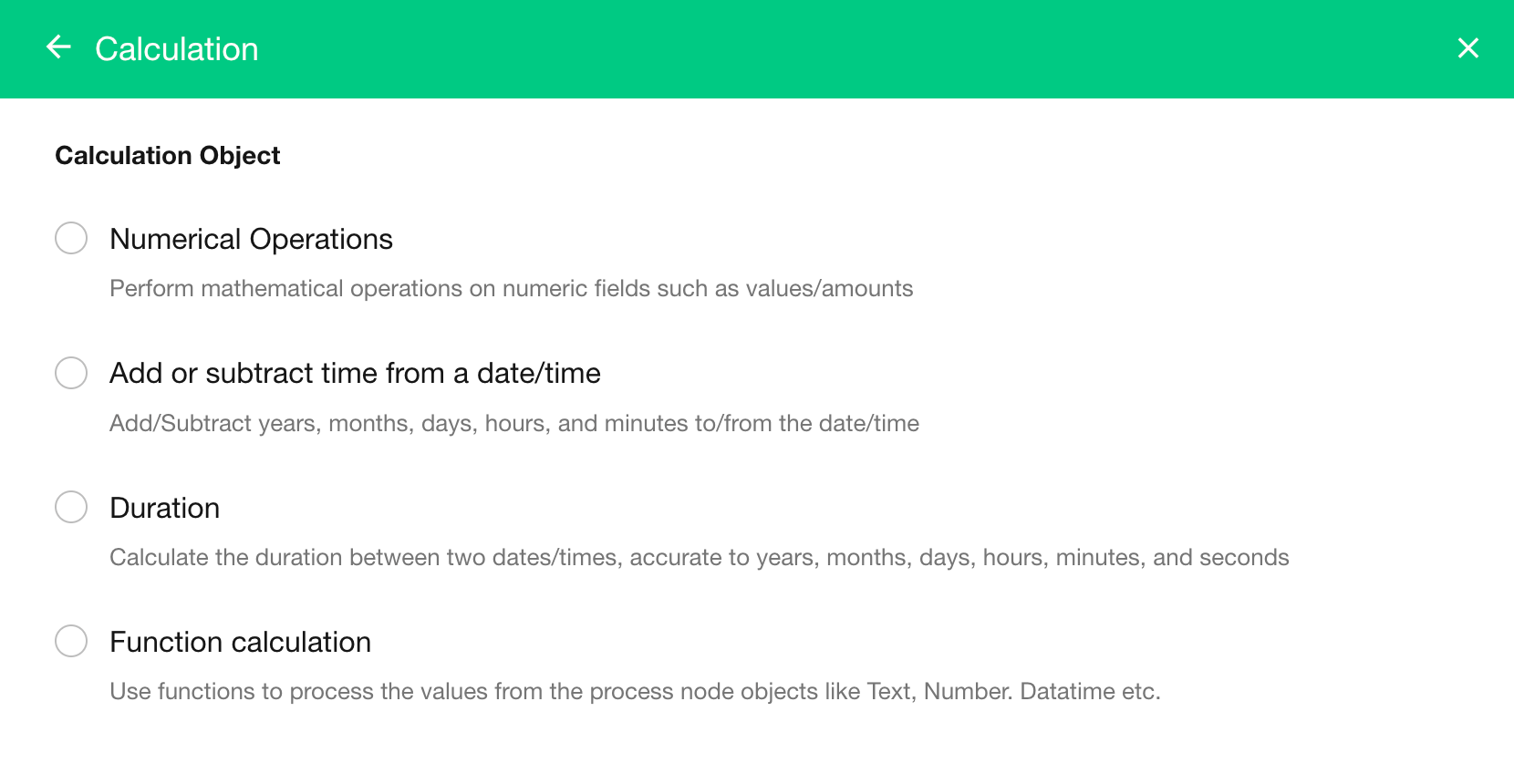
The Calculation node supports the following types of calculations:
- Calculate numeric and currency values
- Calculate the duration between two dates
- Add or subtract time from a date
- Process values using functions
When Calculation Results Are Generated
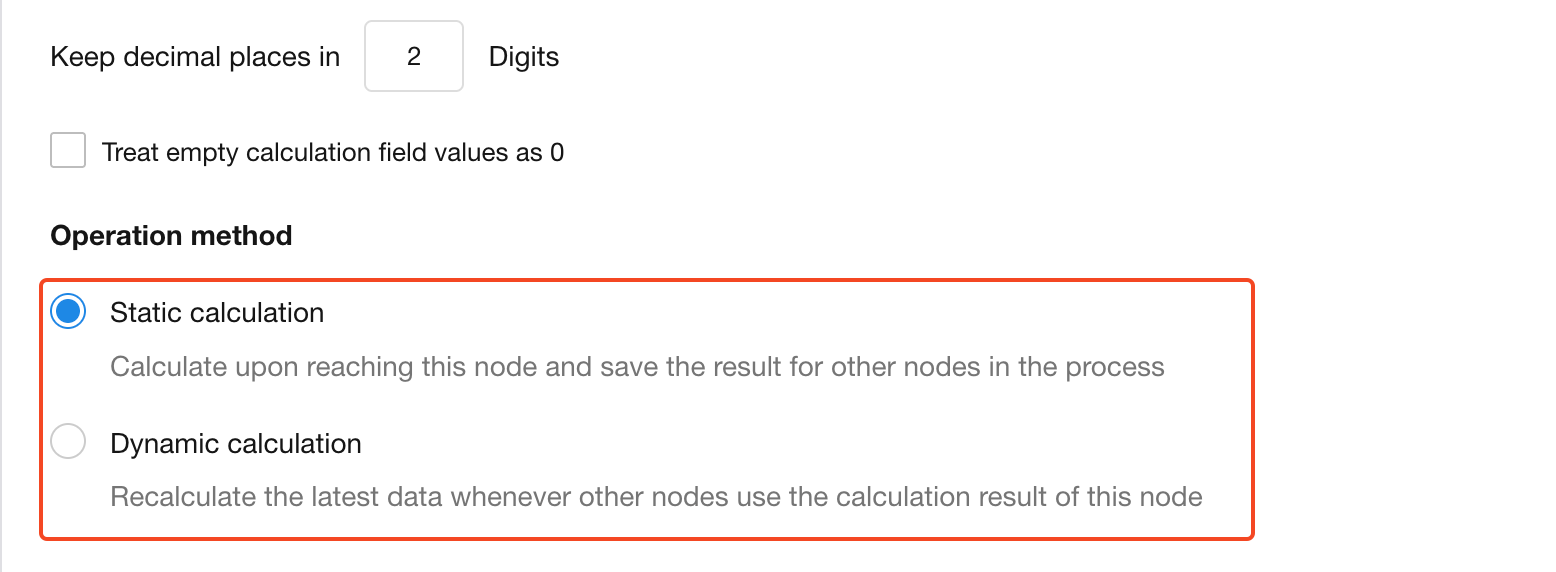
Calculation results can be generated in either of the following ways:
-
Static calculation
The result is calculated and saved when the workflow reaches the Calculation node. Subsequent nodes reference this saved result.
If any source values change afterward, the saved result does not change.
-
Dynamic calculation
The result is not calculated when the workflow reaches the Calculation node. Instead, it is calculated when a subsequent node references it.
If the source values change between subsequent nodes, each node may receive a different result.
Calculate Numeric and Currency Values
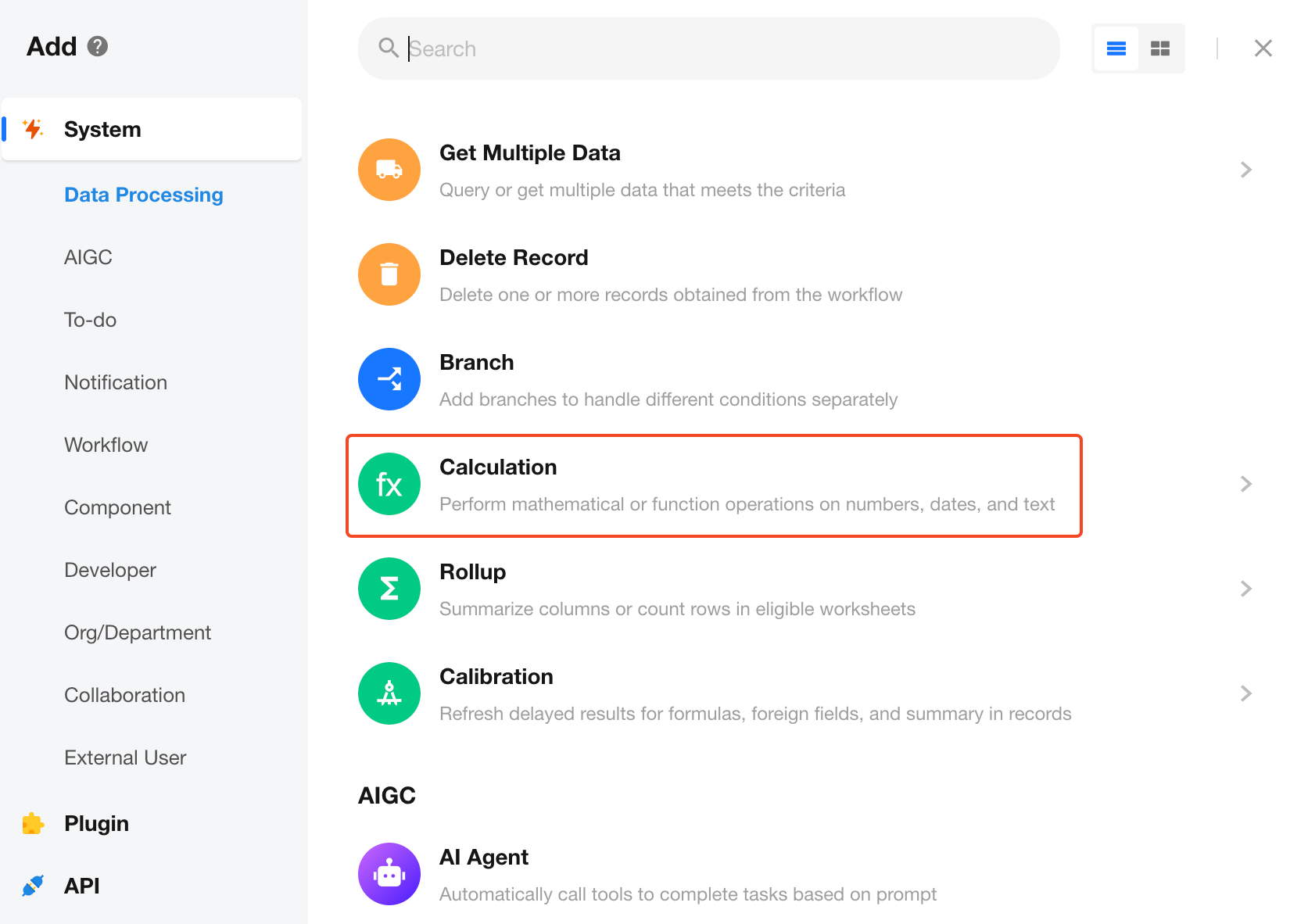
Add a Calculation Node
Add a Calculation node and select the numeric calculation type.
Select Values to Calculate
Select numeric or currency fields from records returned by previous nodes.
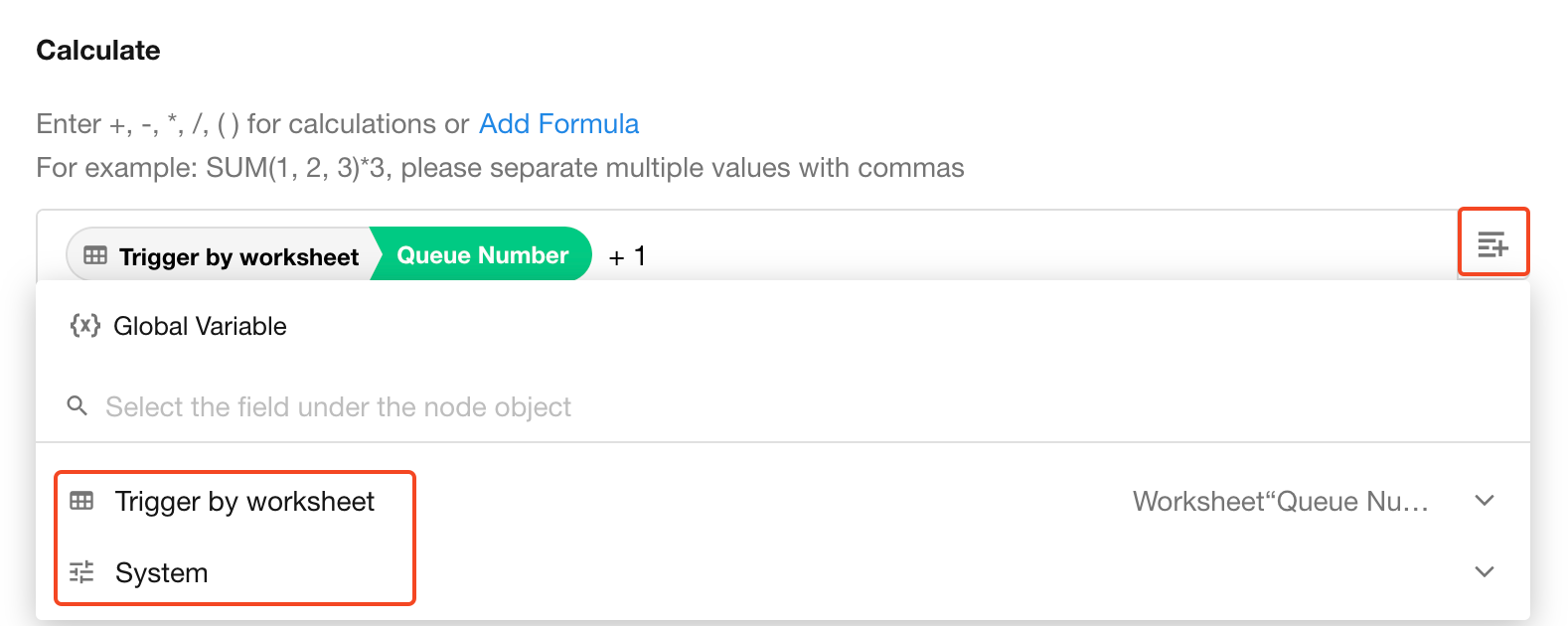
You can also use fixed values in the calculation.
Define the Formula
You can create a custom formula using operators such as +, -, *, /, and parentheses, or use built-in system formulas.
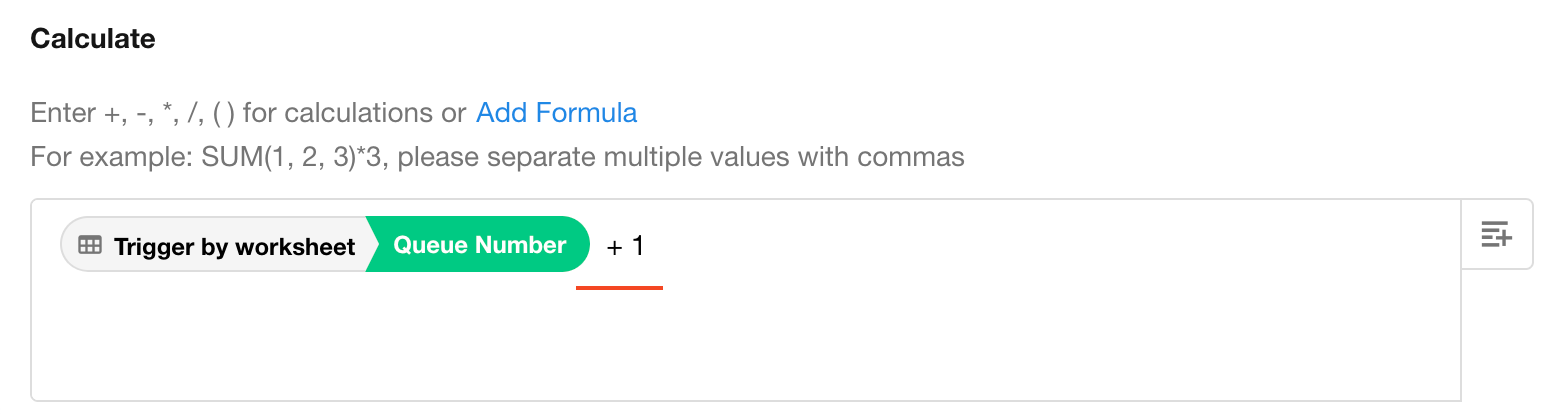
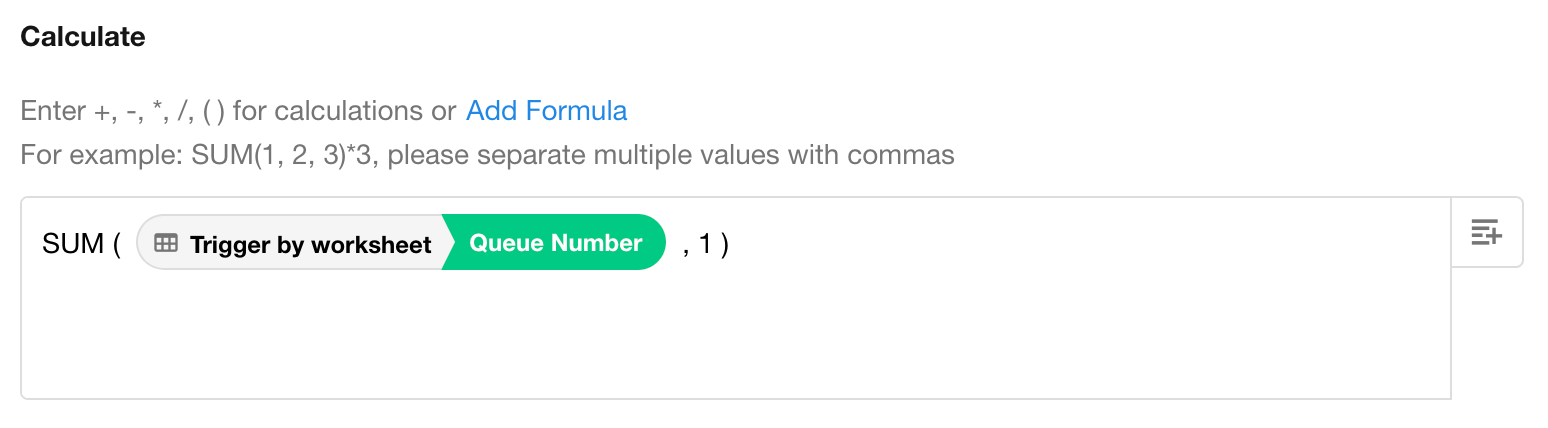
For example, either approach below can be used to calculate the latest queue number.
-
Custom Formula
-
System Formula
Notes:
- Results are rounded to two decimal places by default.
- In a system formula, separate fields within parentheses with commas.
- In a custom formula, include the required operators, such as
+,-,*, or/.- If a referenced field has been deleted, the calculation returns an empty result.
Treat Empty Fields as 0
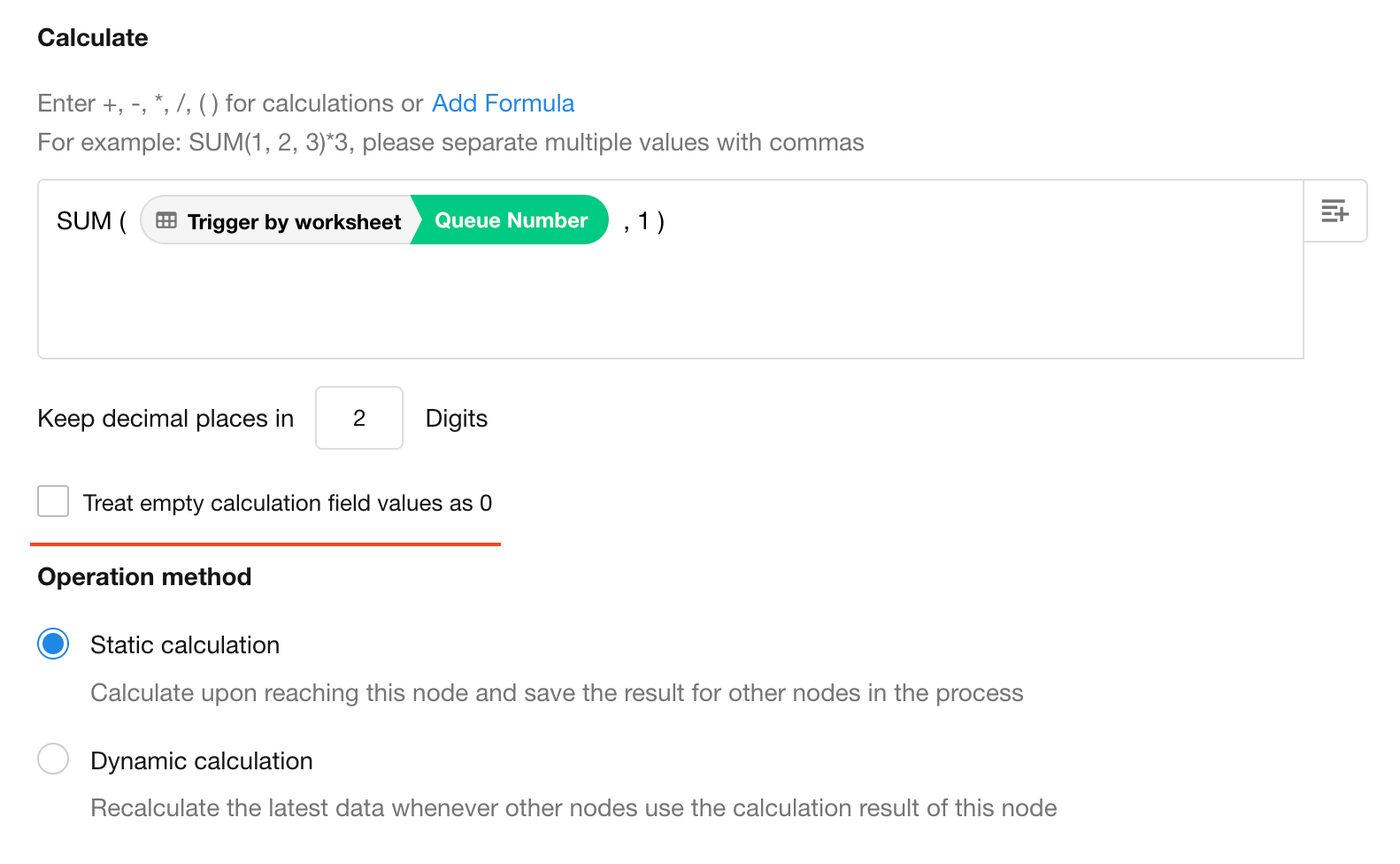
In a custom formula such as Number Field 1 + Number Field 2 + Number Field 3, the result is empty if any of the fields are empty.
Enable Treat empty calculation field values as 0 to use 0 in place of empty values so the calculation can continue.
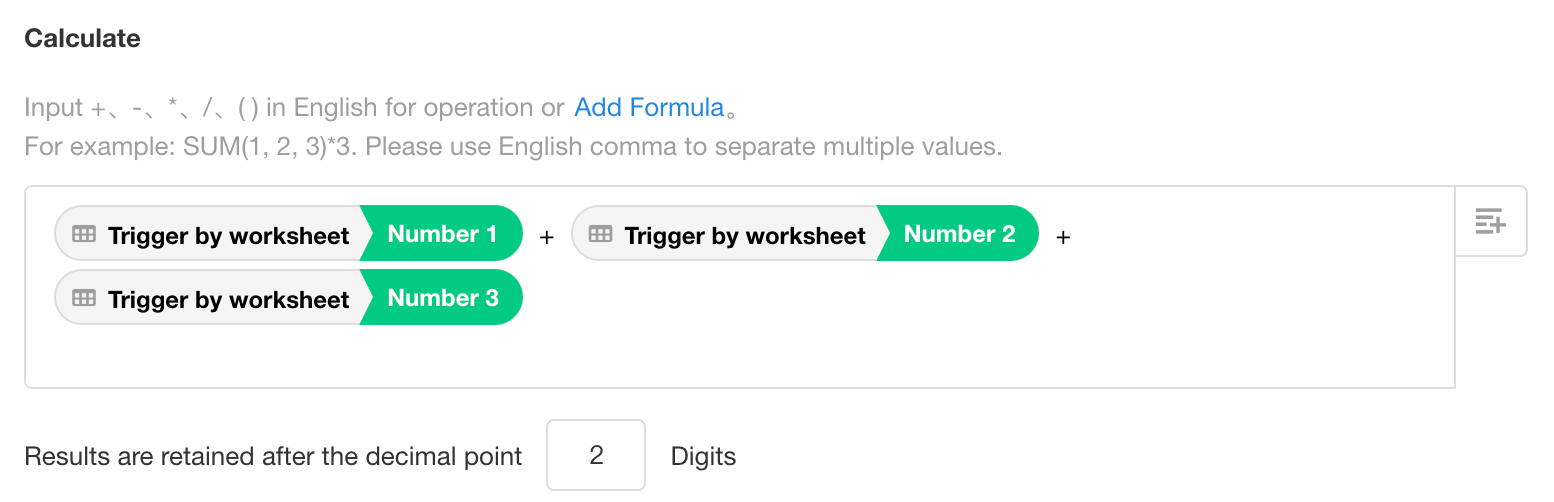
If an empty field is used as the denominator, the calculation always returns an empty result.
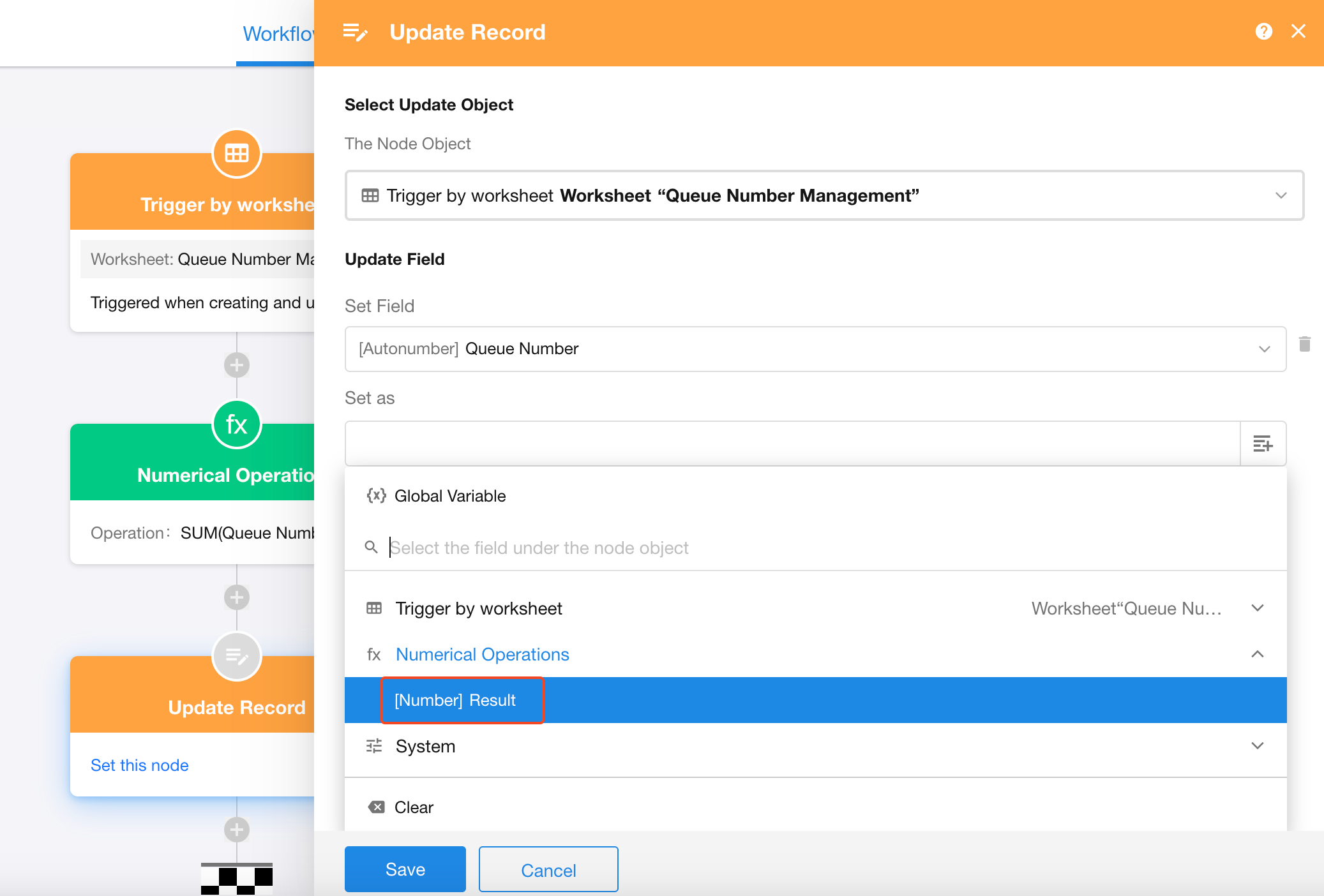
Use the Result in Subsequent Nodes
Subsequent nodes can reference the output of the Calculation node directly.
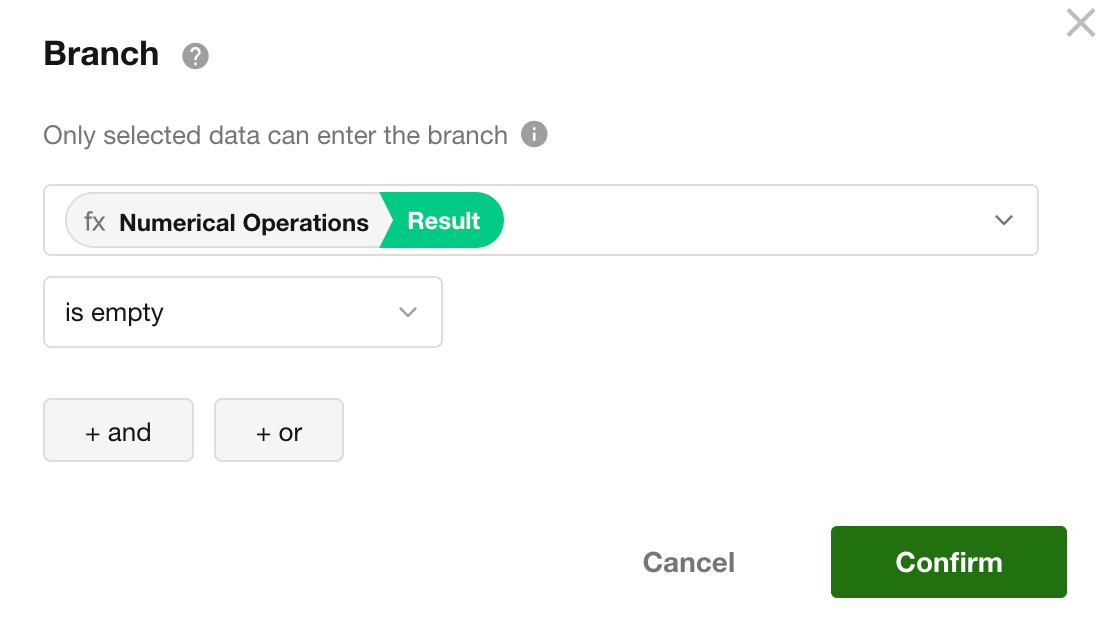
If the result may be empty, you can use it as a condition to route the workflow through different branches.
Add or Subtract Time from a Date
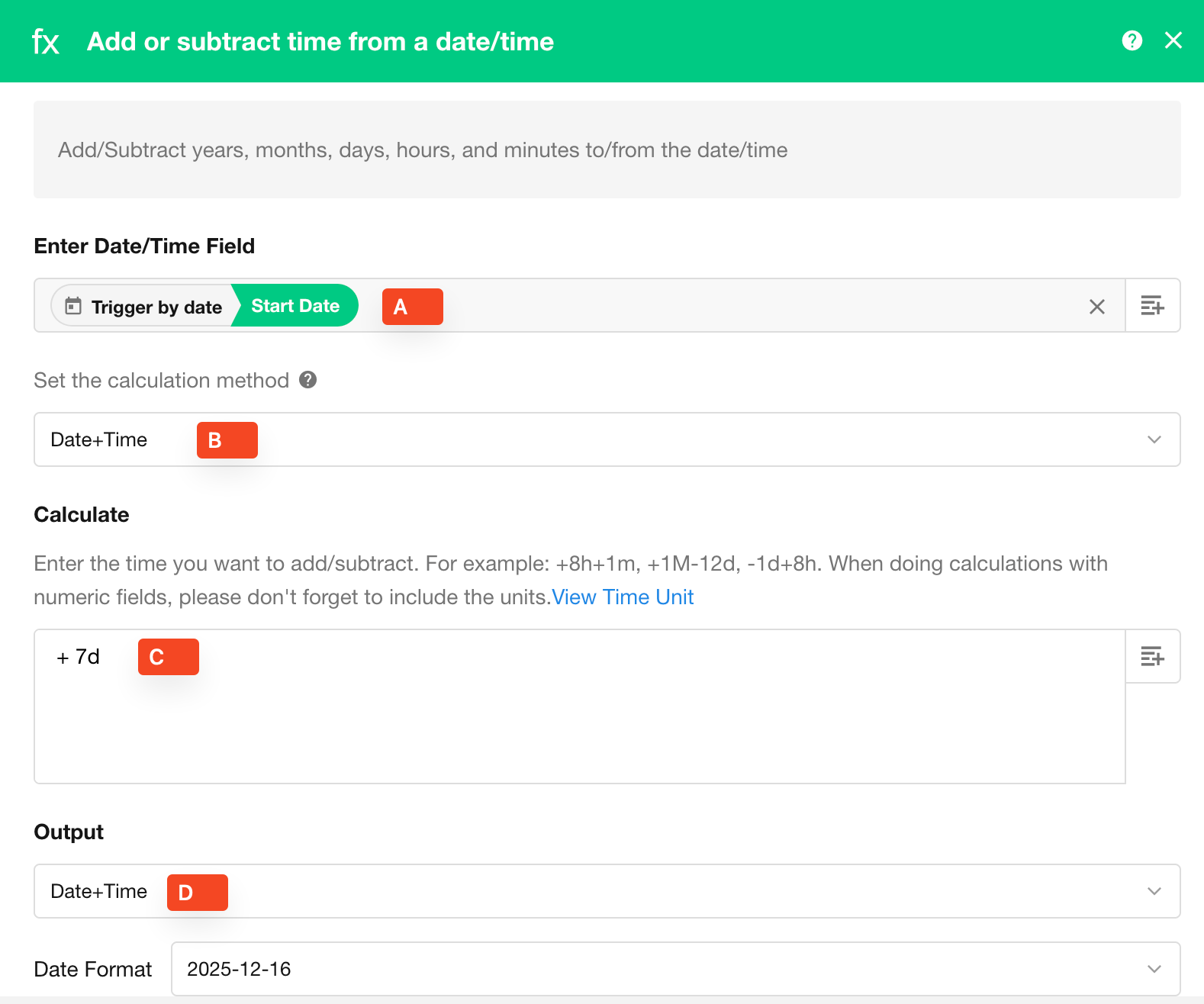
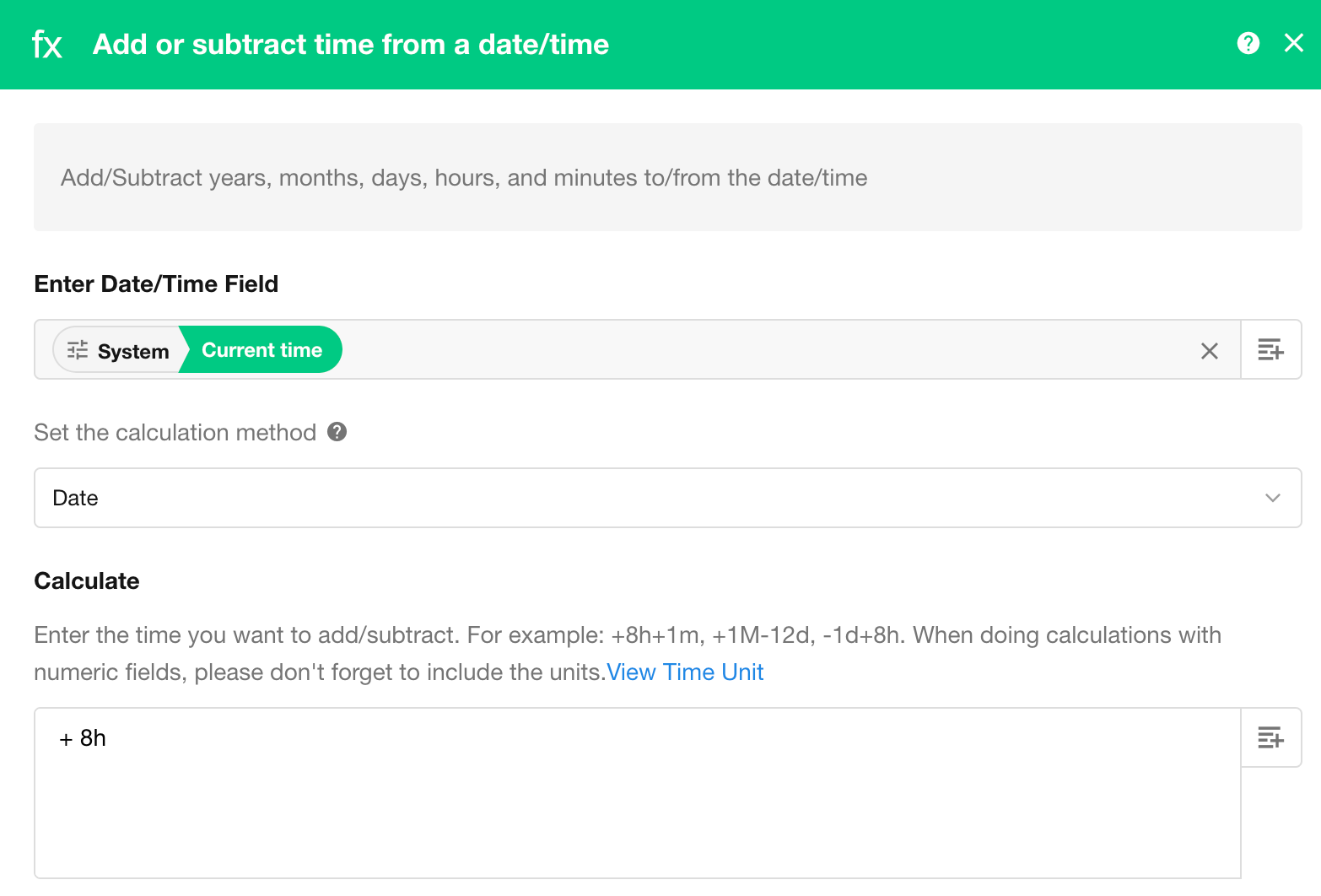
Configure the calculation as follows:
-
A - Date: Select the date field to use as the starting value.
-
B - Date Format: Specify whether to use the date only or both the date and time.
- Date: Only the date portion is used. For example, an input of
2021-11-11 12:50is treated as2021-11-11. - Date + Time: Both the date and time are used. For example,
2021-11-11 12:50is used as-is.
- Date: Only the date portion is used. For example, an input of
-
C - Formula: Specify the amount of time to add or subtract. In the example above, the formula adds 7 days to the selected date.
-
D - Output Format: Select the format of the calculated result.
Notes:
- A formula must begin with
+or-.Y,M,d,h, andmrepresent year, month, day, hour, and minute, respectively.Mandmare case-sensitive.- A fixed number must be preceded by
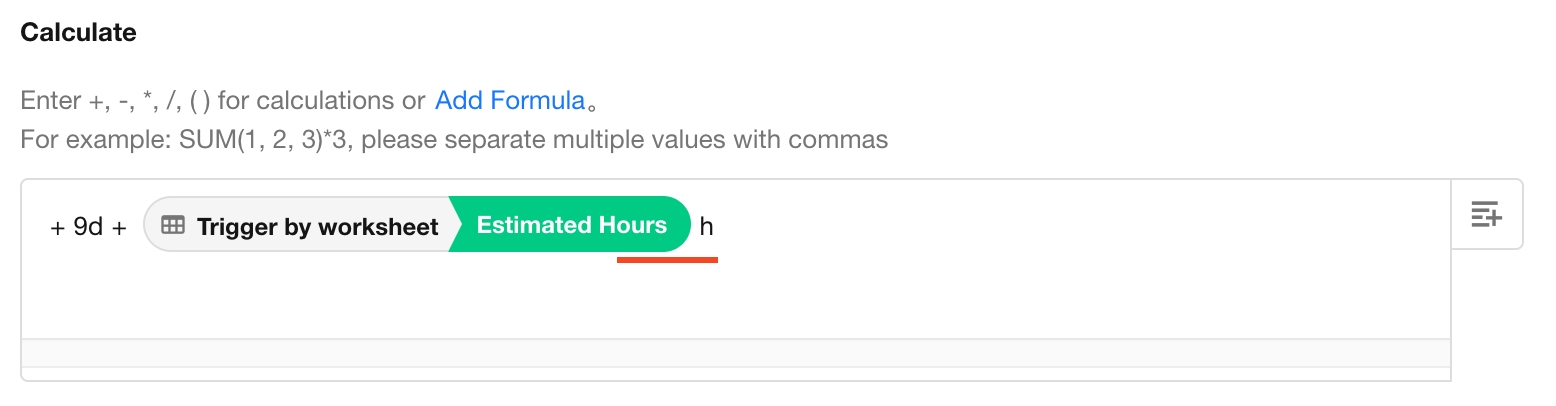
+or-and followed by a time unit (Y,M,d,h, orm). For example:+8h+1m.- A numeric field used in the formula must also be followed by a time unit.
- When inserting a numeric field from another node, enter the time unit immediately after the field without adding an operator between them. For example:
Example 1: Use Date Only
Input: 2020-10-12 13:50
Date format: Date
Formula: +7d+3h-2m
Because only the date is used, the input is treated as 2020-10-12 00:00.
After adding 7 days and 3 hours and subtracting 2 minutes, the result is:
Result: 2020-10-19 02:58
Example 2: Use Date and Time
Input: 2020-10-12 13:50
Date format: Date + Time
Formula: +3h
Result: 2020-10-12 16:50
Example 3: Get 8:00 AM on the Current Date
In this example, the current system time passed to the node is 2020-12-21 14:37.
With Date selected, only the date portion is used, so the calculation starts from 2020-12-21 00:00.
Using the formula +8h returns:
Result: 2020-12-21 08:00
Calculate the Duration Between Two Dates
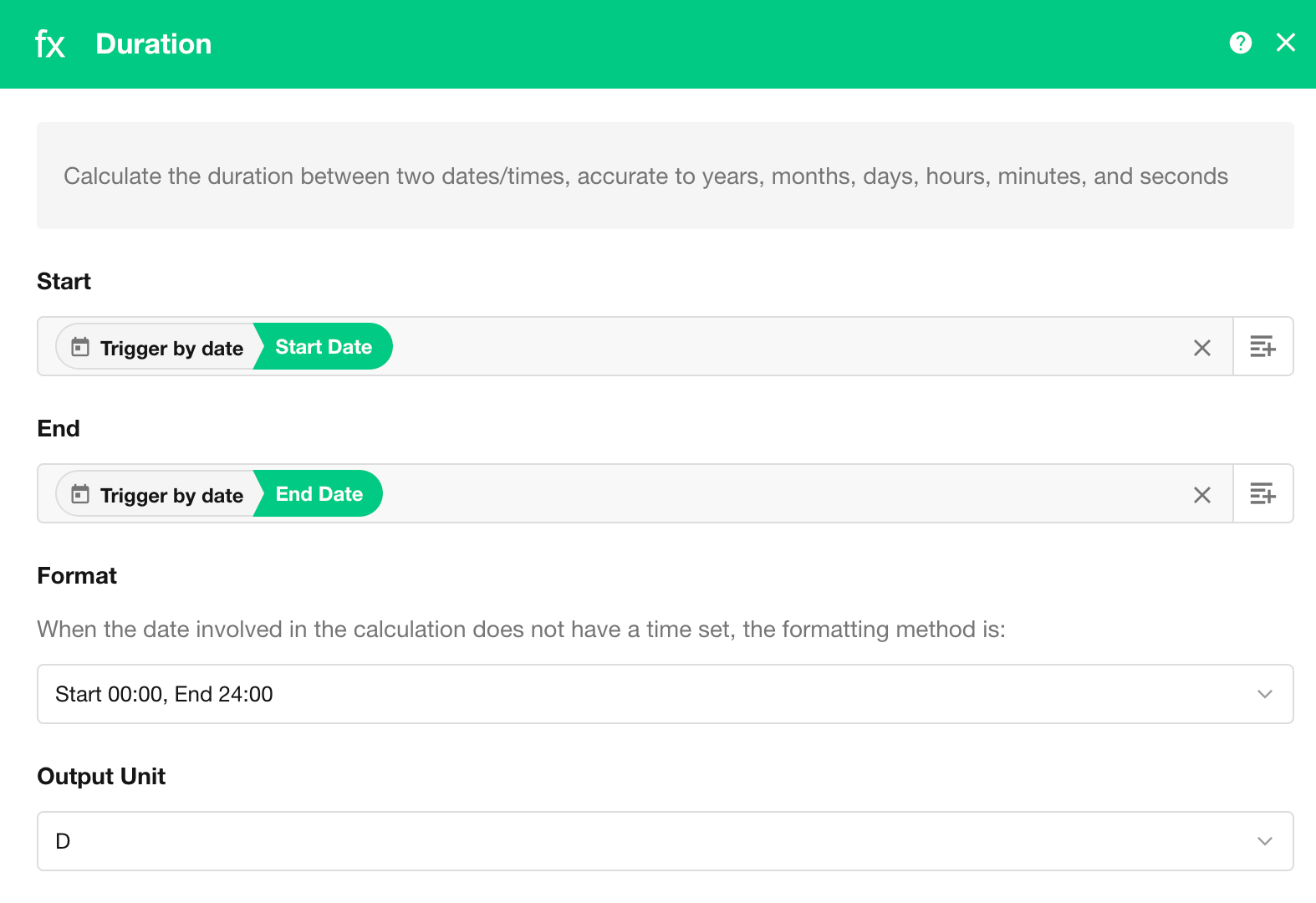
Select the fields containing the start and end dates, then specify how date-only values should be interpreted.
Two formats are available:
- Format 1: Start date at 00:00 and end date at 24:00
- Format 2: Start date at 00:00 and end date at 00:00
If a field contains only a date, HAP adds the time according to the selected format. If the field already includes a time, its actual time is used.
Example 1
Start date: 2020-12-13
End date: 2020-12-14
Output unit: Days
- With Format 1, the start is treated as
2020-12-13 00:00and the end as2020-12-14 24:00. The result is 2 days. - With Format 2, the start is treated as
2020-12-13 00:00and the end as2020-12-14 00:00. The result is 1 day.
Example 2
Start date: 2020-12-13
End date: 2020-12-14 12:00
Output unit: Hours
Because the end date already includes a time, its actual time is used. The result is therefore the same with either format.
The calculation runs from 2020-12-13 00:00 to 2020-12-14 12:00.
Result: 36 hours
Use Functions
Functions can process text, numeric, date, and other values from workflow nodes and return the result in a specified format.
For example:
- Use
YEAR()to extract the year from a date. - Use
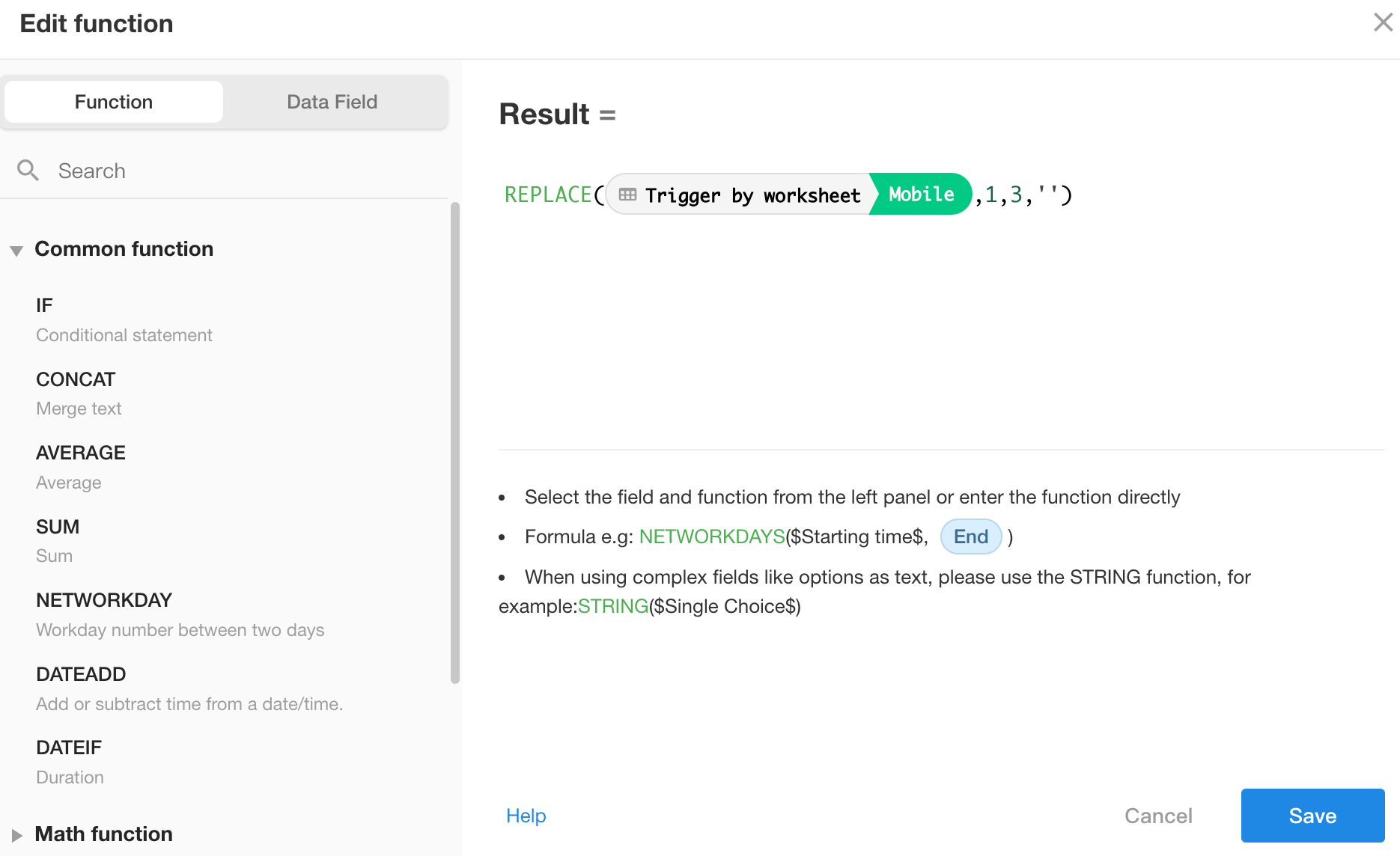
REPLACE()to remove+86from a phone number. - Use
DISTANCE()to calculate the distance between two positioning fields.
Example: Use a function in a Calculation node to remove +86 from a phone number.
Configure the Calculation node
-
Add a Calculation node and select the function calculation type.
-
Enter the formula.
For details about supported functions, see Function Reference.
-
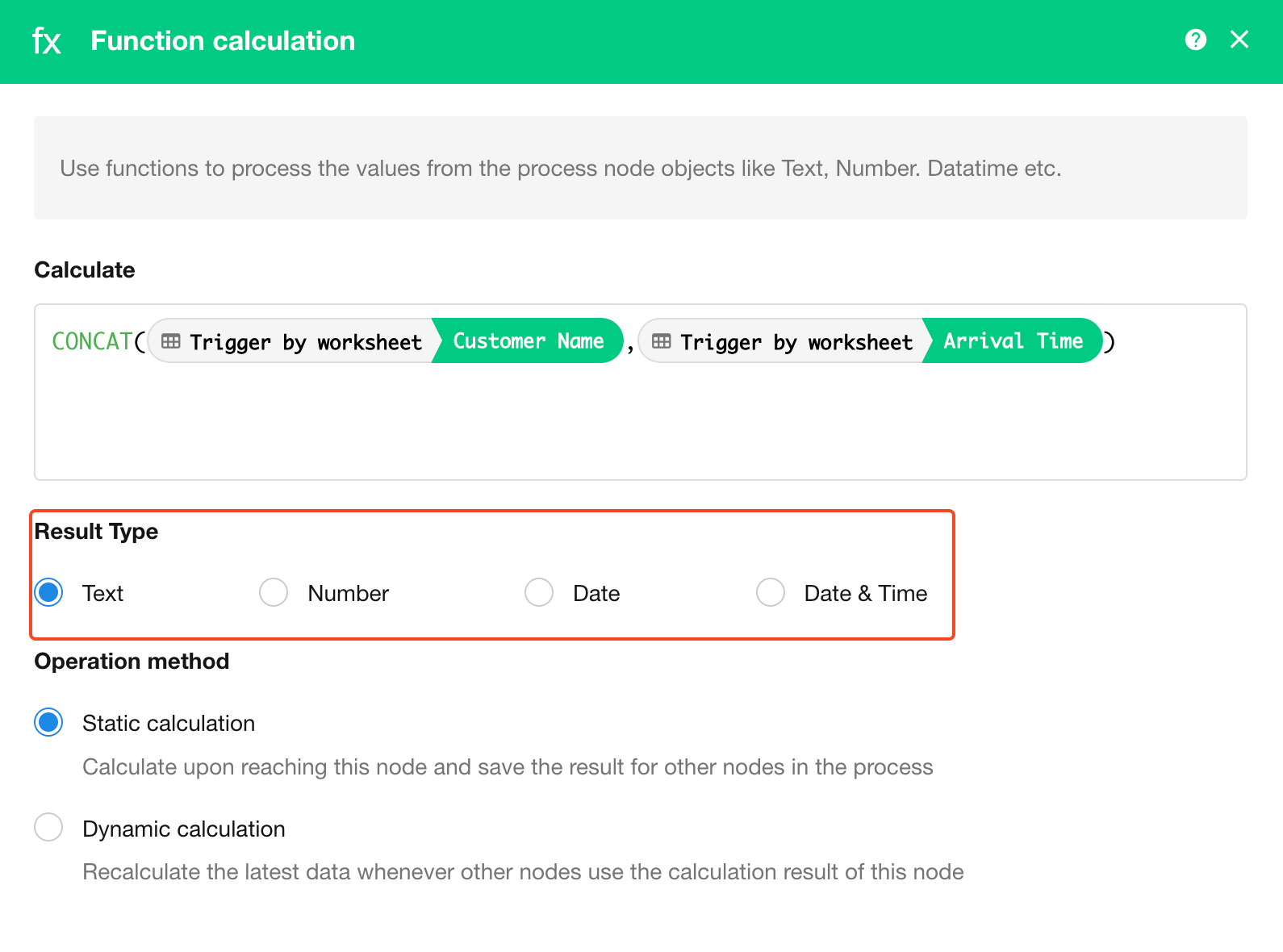
Select the output type for the result.
-
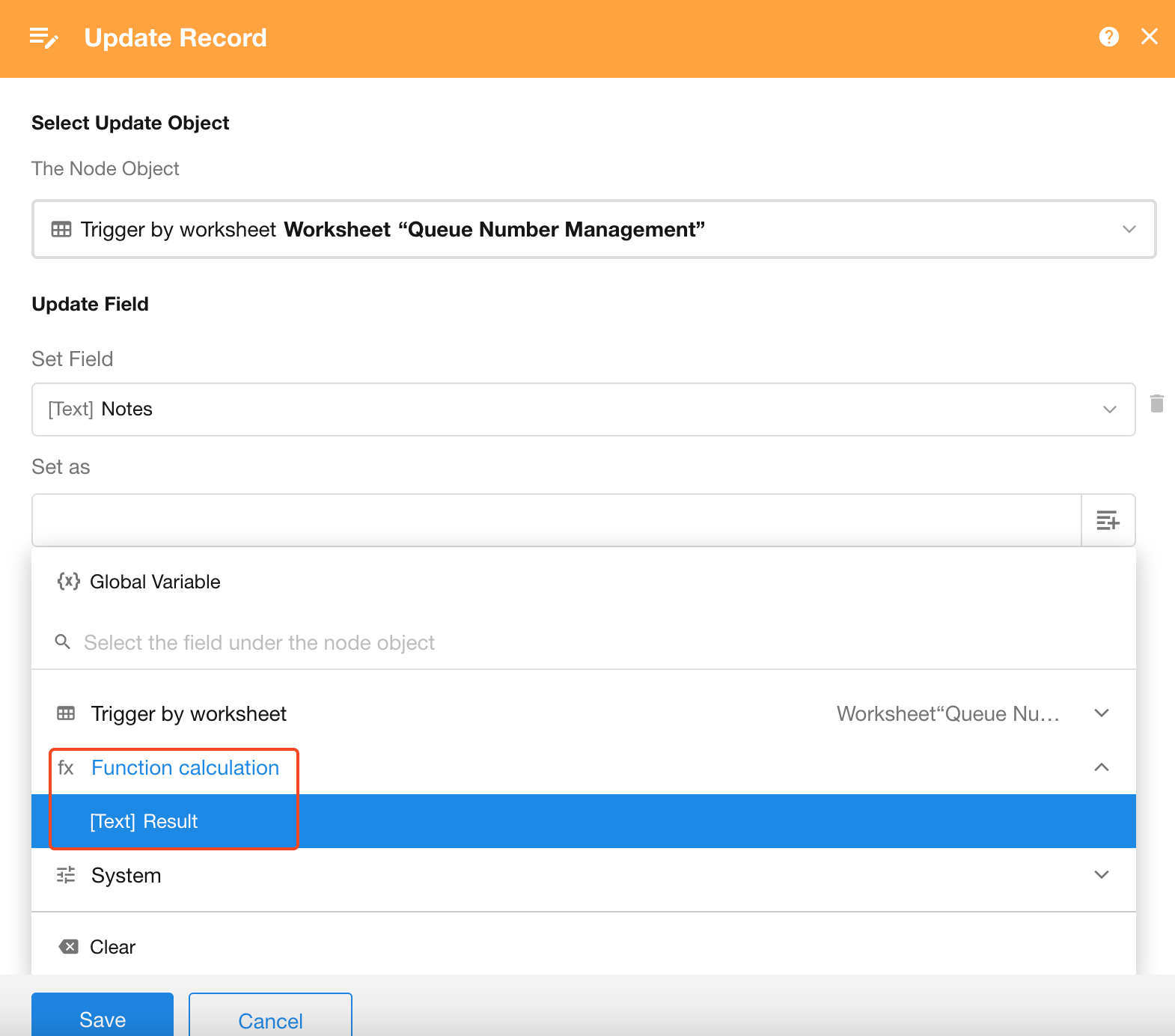
Reference the result in subsequent nodes.
Notes
-
In addition to functions, formulas can use custom operators. For example, use
+to concatenate two fields.When using custom operators, the calculation returns an empty result if a referenced field has been deleted or its value is empty. In this case, use a built-in function instead. When using built-in functions, empty field values are treated as
0by default.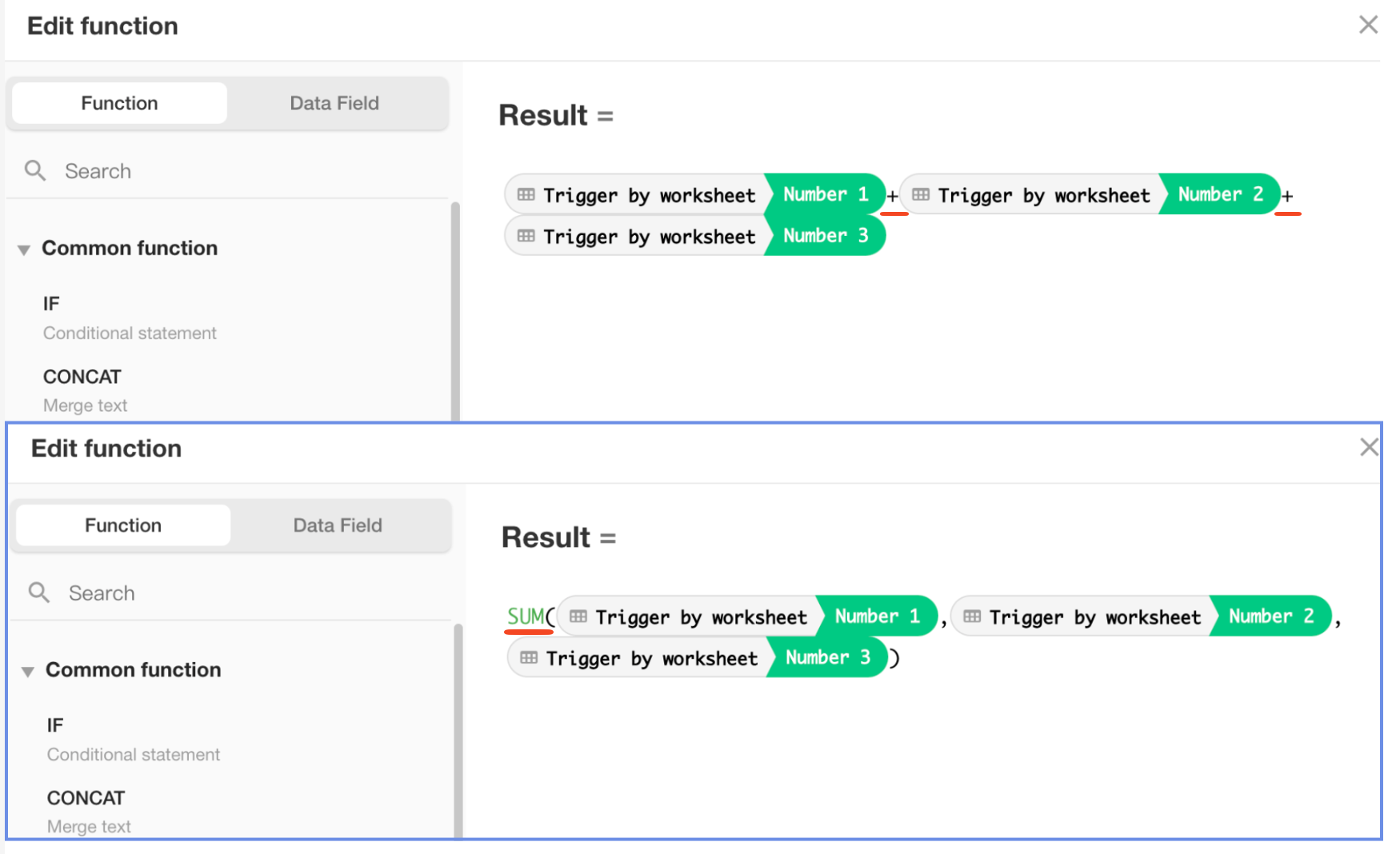
-
If a result cannot be converted to the selected output type, the node returns an empty result. For example,
1 + 1returns2, but if the output type is set to Date, the result is empty.
Was this document helpful?