Function Calculation
Similar to formulas in Excel, HAP provides a wide range of functions for data processing.
After configuring a calculation formula for a field, the system can automatically compute the field value when a record is created or updated—eliminating manual input and improving efficiency.
Functions can be used in the following areas:
-
Formula fields
-
Field default value settings
-
Calculation nodes in workflows
HAP supports five categories of functions: Math, Text, Date, Logical, and Advanced.
Scenario examples
-
1. Return different results using logical functions
When a field’s value depends on conditions from other fields, logical functions can be used to return different results.

-
2. Extract structured information using text functions
For example, extract a birth date from an ID number or structured string by parsing the year, month, and day segments, and then combining them into a date format.
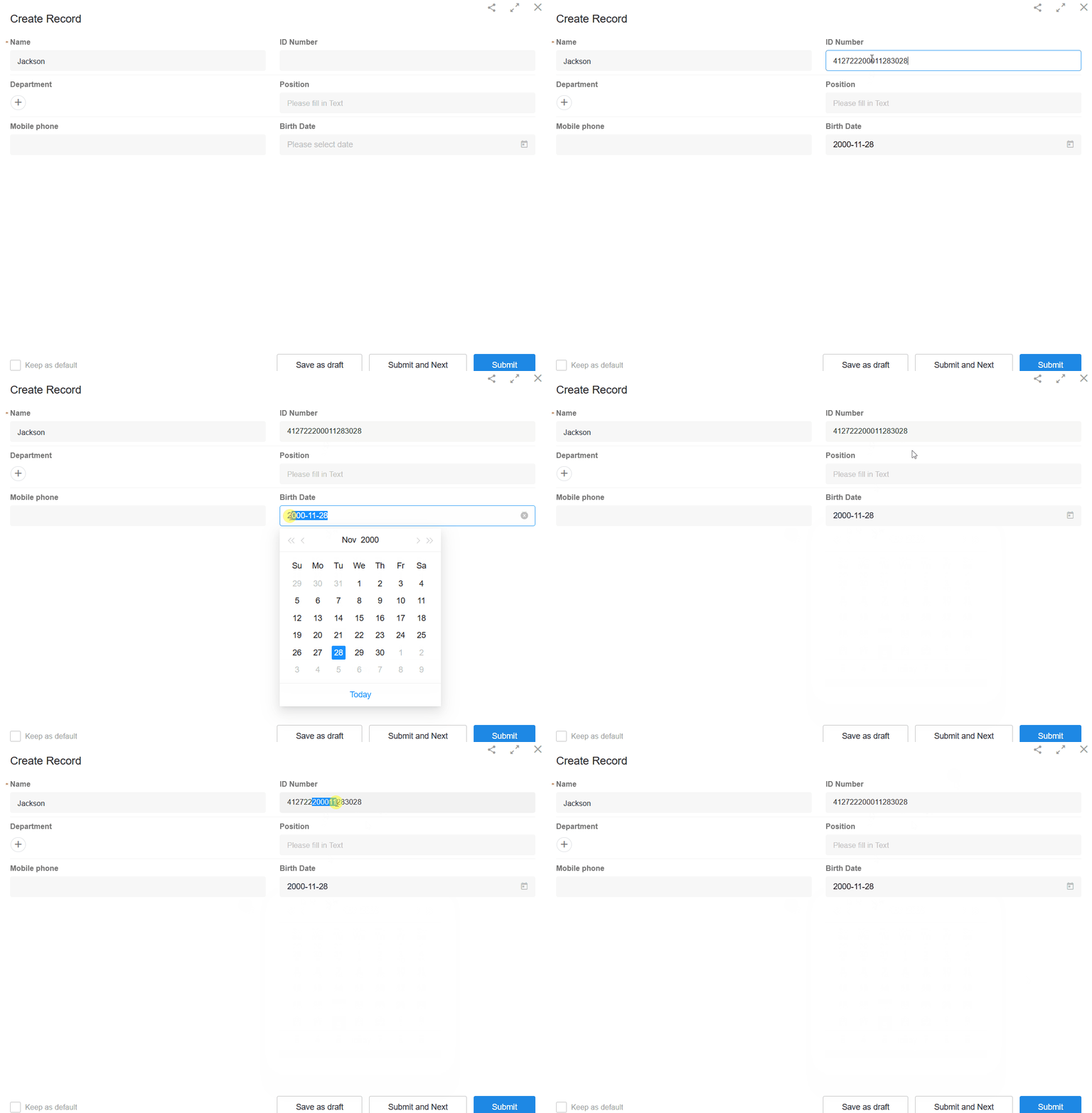
Configuration entry
Fields that support function-based default values:
Only the following field types support setting default values via functions:
- Text, Number, Currency, Date, Email, Phone
Other field types are not supported.
Fields supported as function parameters:
- Text, Number, Currency, Email, Phone, Date
- Single select, Multi select, Member, Department, Check item, Region/City, ID number
- Subform, relationship, foreign field (stored type)
Fields NOT supported as function parameters:
- Concat,auto-number, rich text, cascading, file, uppercase, signature
Set default values using functions
In the form editor, select a field → click Dynamic Default Value → choose Function Calculation.
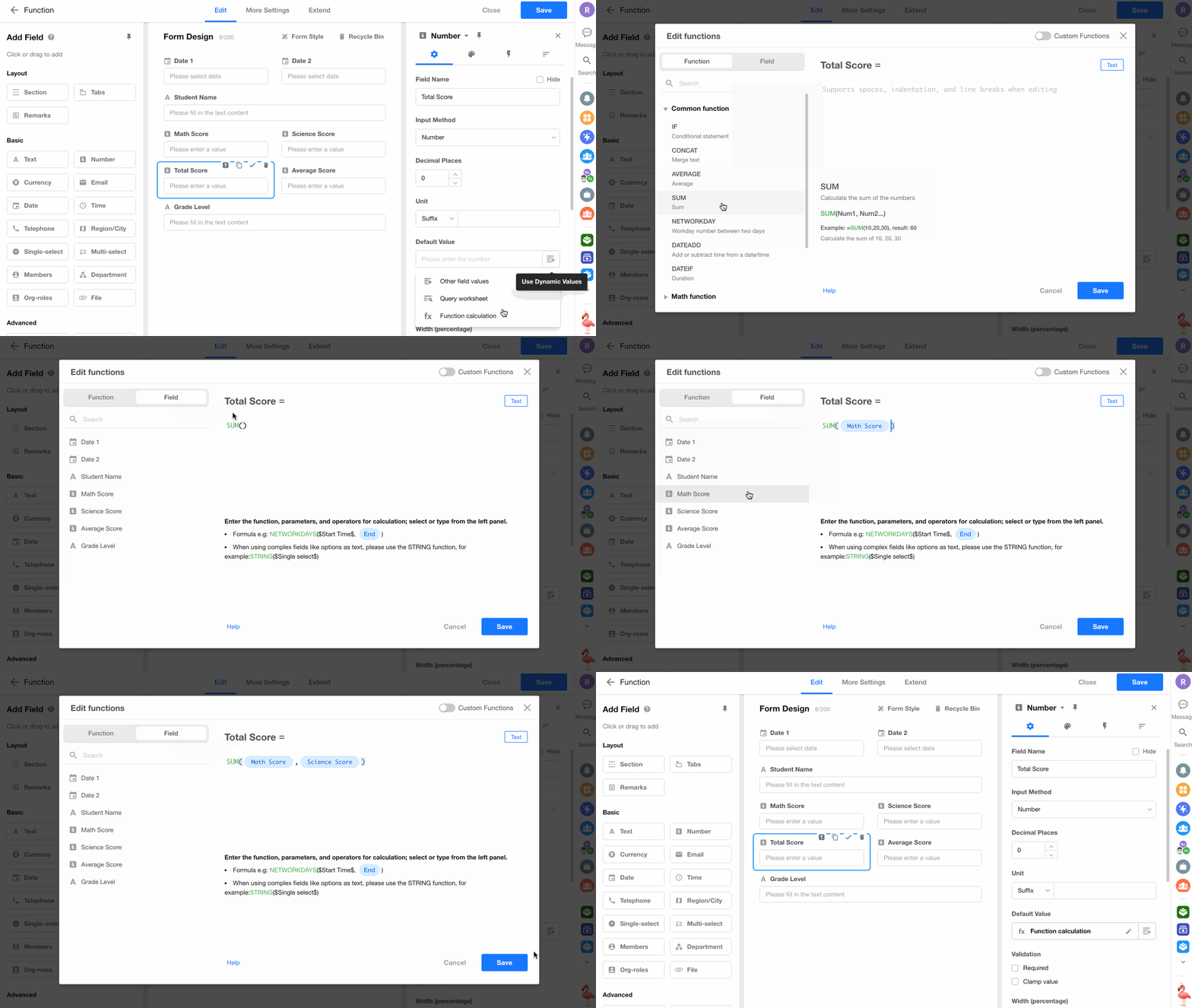
You can:
- Select functions and field parameters from the left panel
- Or manually enter formulas and static parameters
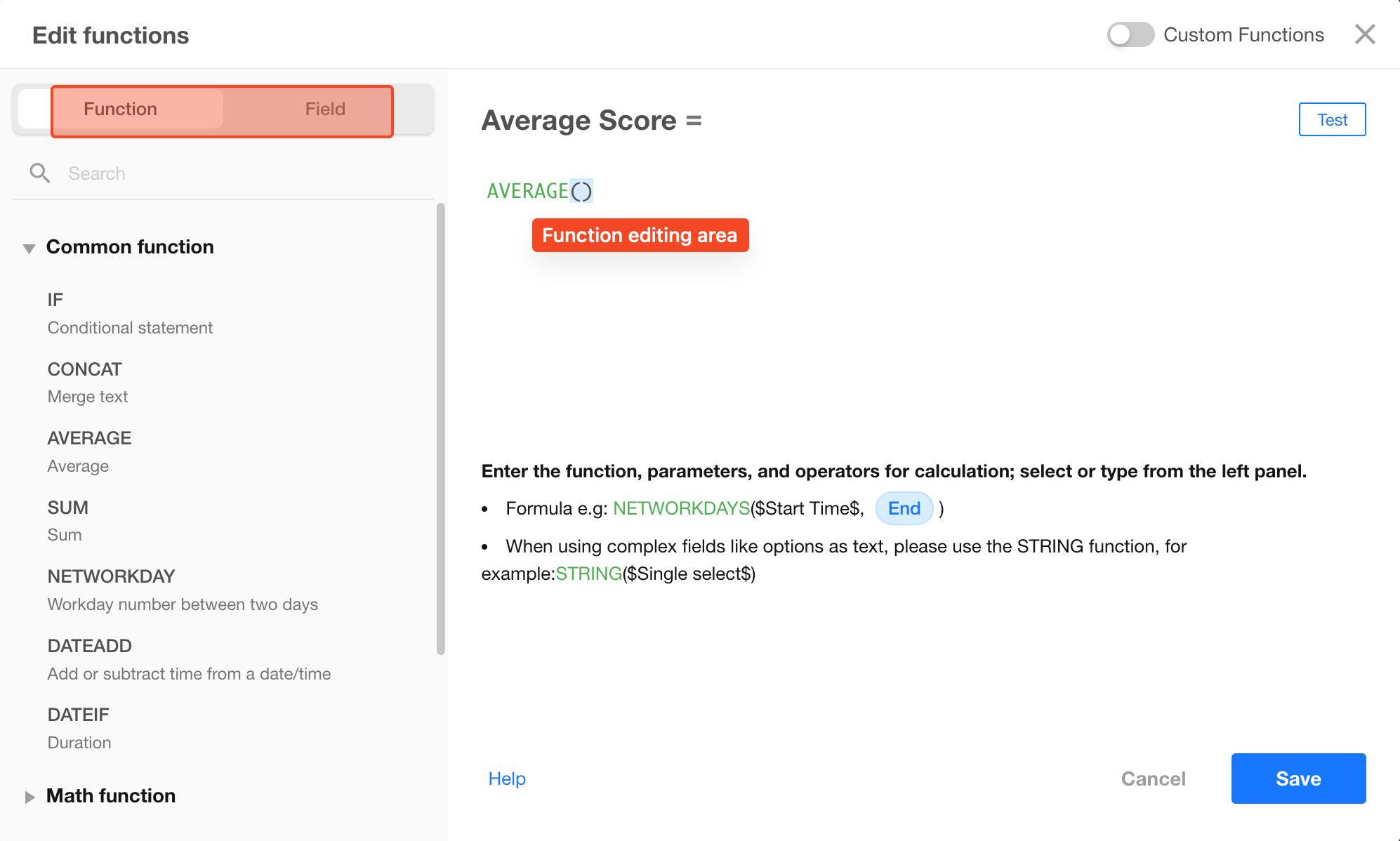
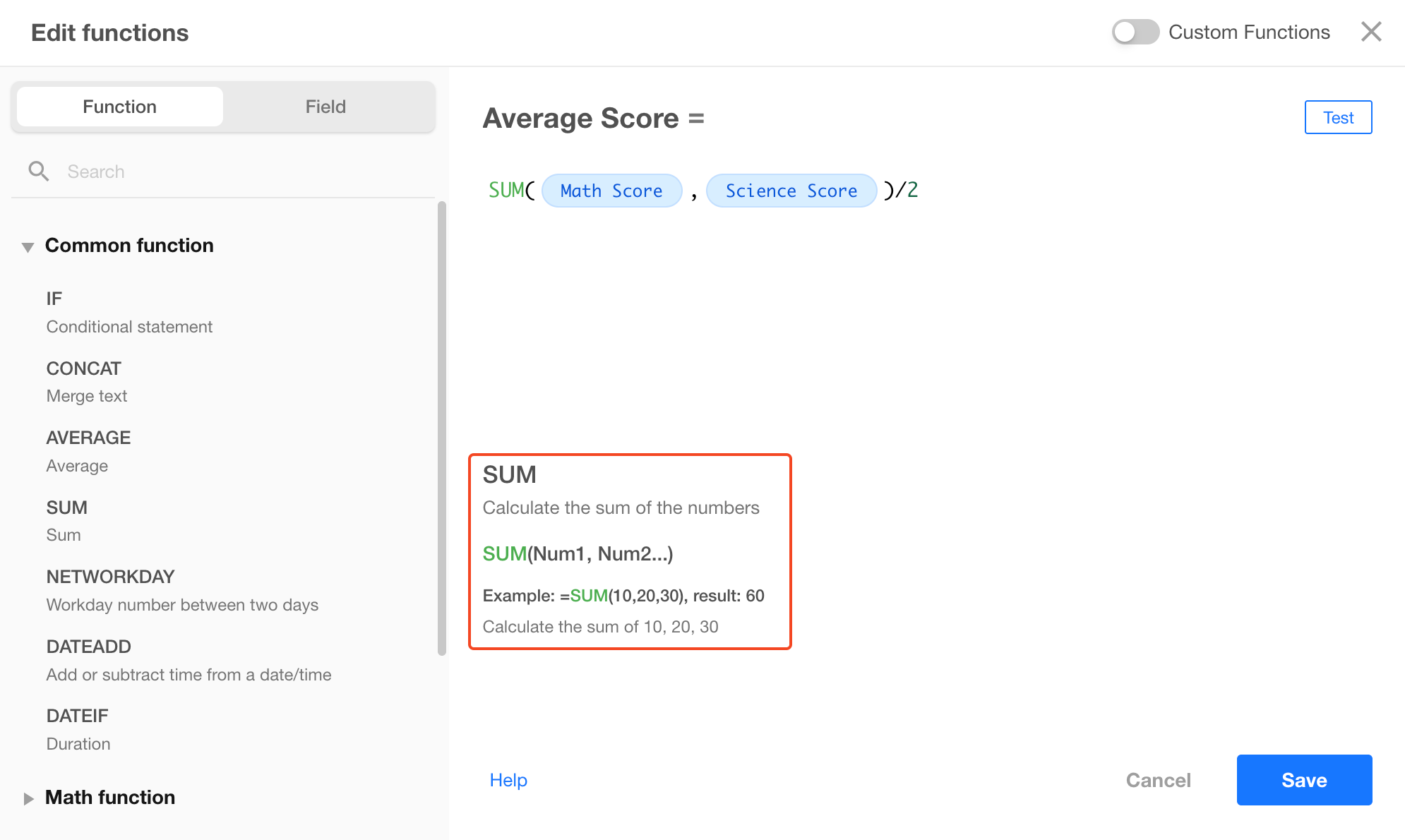
Components of a function formula
A function formula typically consists of:
Function name+Parameters+Operators+Parameter separators
- Parameters can be field values or static values
- Operators and separators must use English symbols
Example:
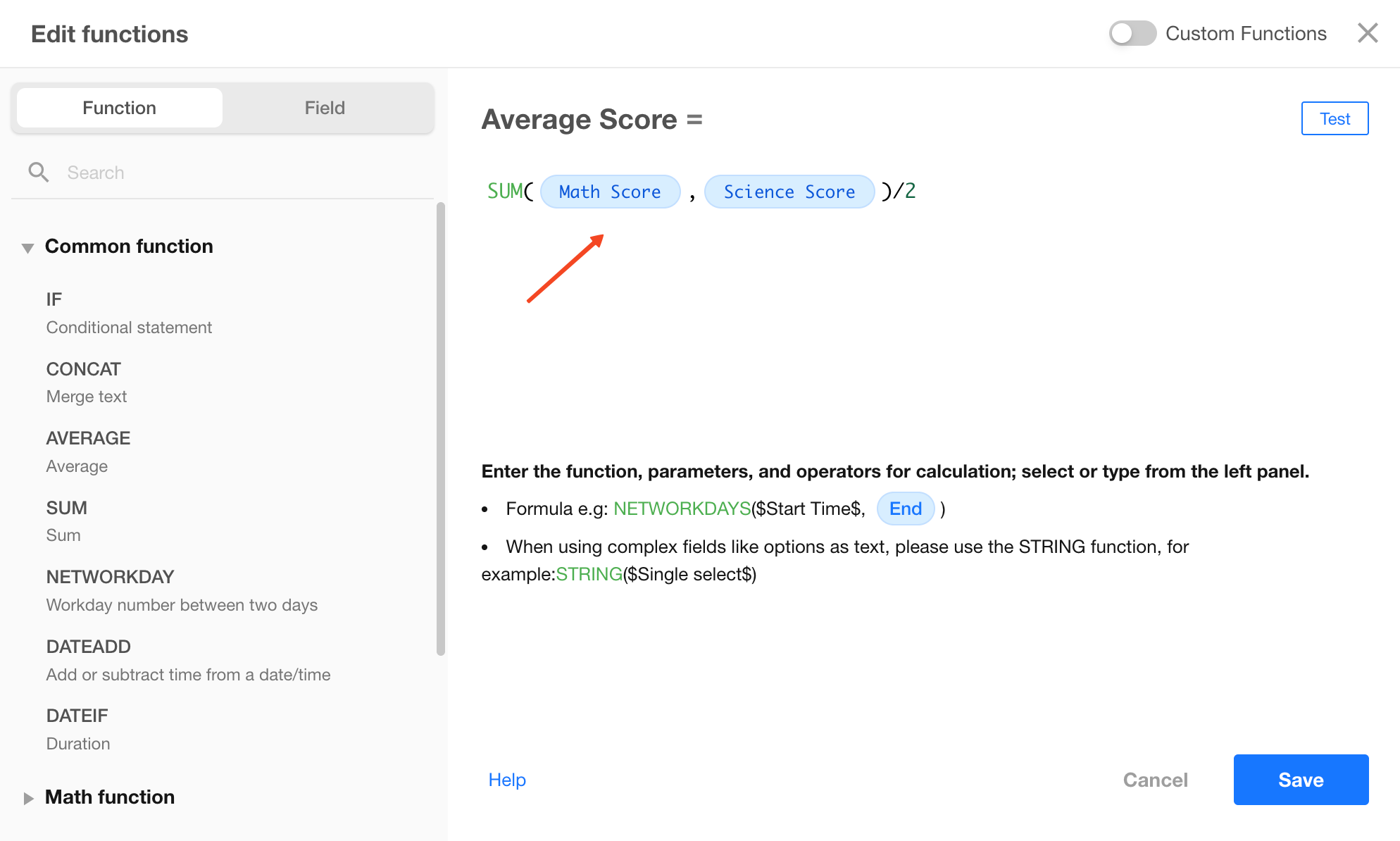
In practice:
- Not all components are required
- Multiple functions can be nested
Test formulas
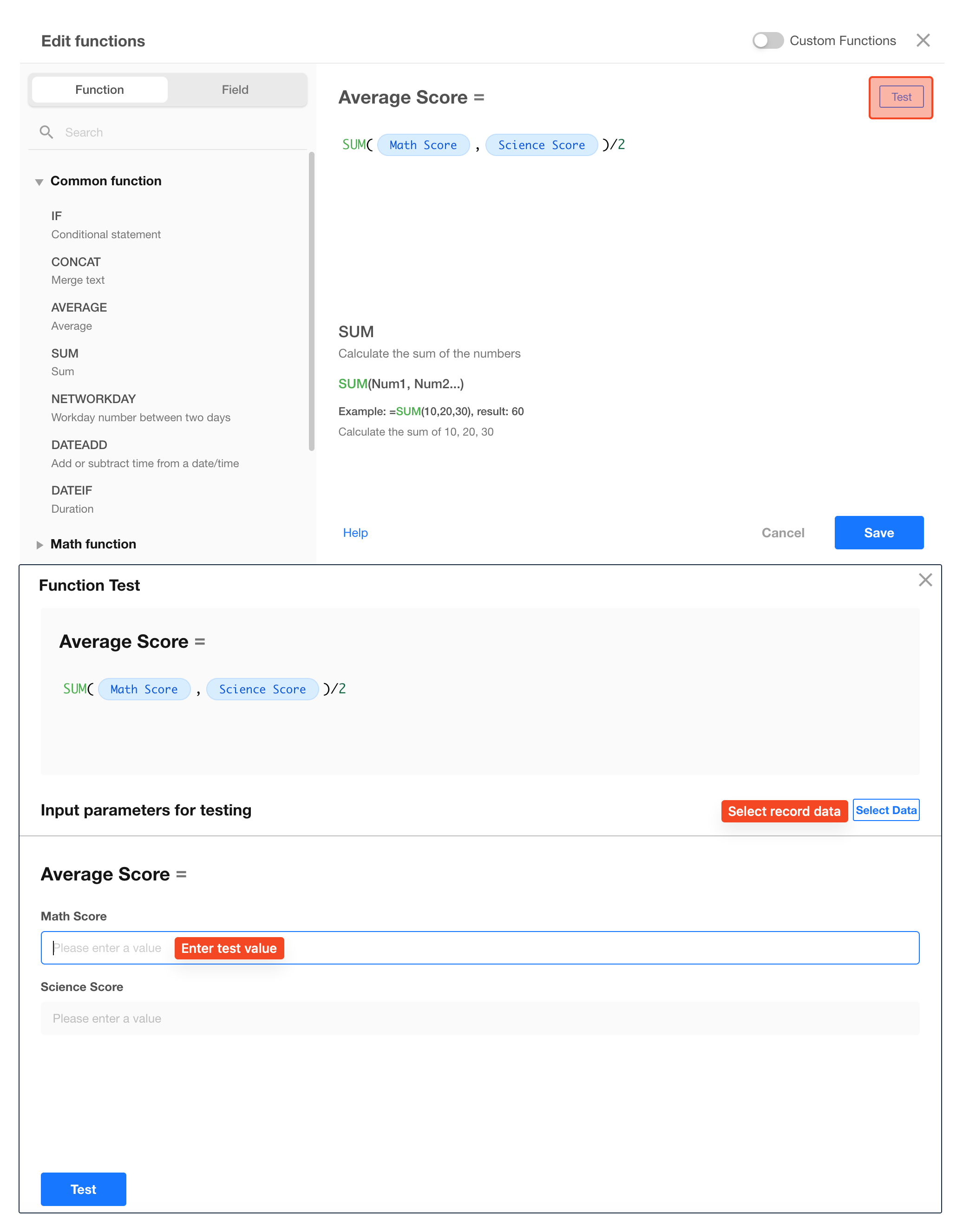
After configuring a formula, click Test to validate it.
You can either:
- Manually enter field values
- Select an existing record for testing
Writing formulas correctly
1. Select functions and parameters correctly
-
Functions can be selected from the left panel or entered manually (must be in uppercase)
-
Field parameters must be selected from the left panel
2. Choose the correct function type
Each function returns a specific data type.
When setting a default value, the function result must match the field type.
For example:
- If you use
DATENOW()for a Number field, the result will not be applied because it returns a date value.
3. Use operators correctly
| Description | Add | Subtract | Multiply | Divide | Greater than | Equal | Less than | Greater than or equal | Less than or equal | Not equal |
|---|---|---|---|---|---|---|---|---|---|---|
| Symbol | + | - | * | / | > | == | < | >= | <= | != |
Note: Use double equals (
==) for comparison, not=.Example:
IF(Status=='Approved',5,0)
4. Write parameters correctly
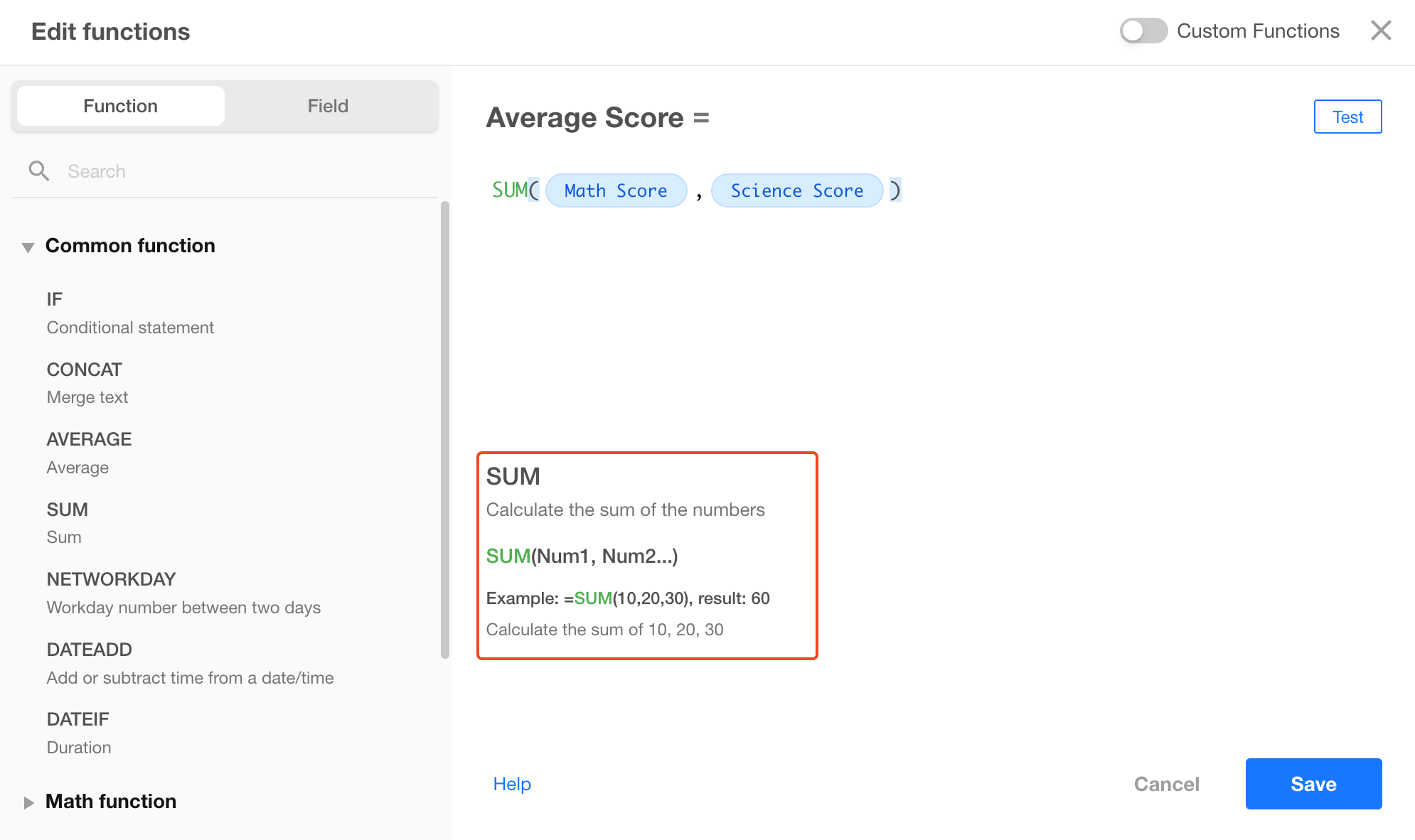
For example, in the function SUM(Field1, Field2), parameters must be numeric fields.
If a Date field is used, the calculation will fail and return an empty result.
Parameter types are explained in the examples below.
Most functions require parameters. There are three types:
1) Static parameters
Static parameters are fixed values used in every calculation.
-
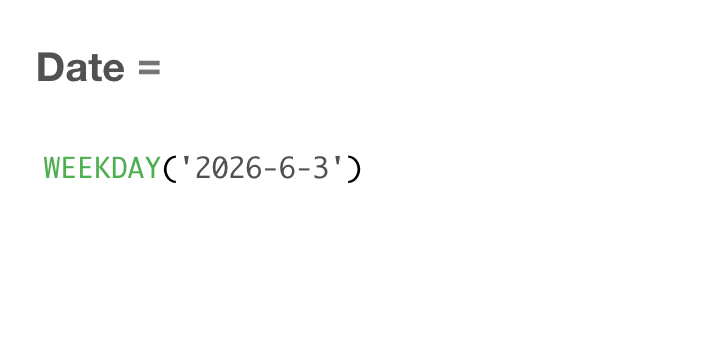
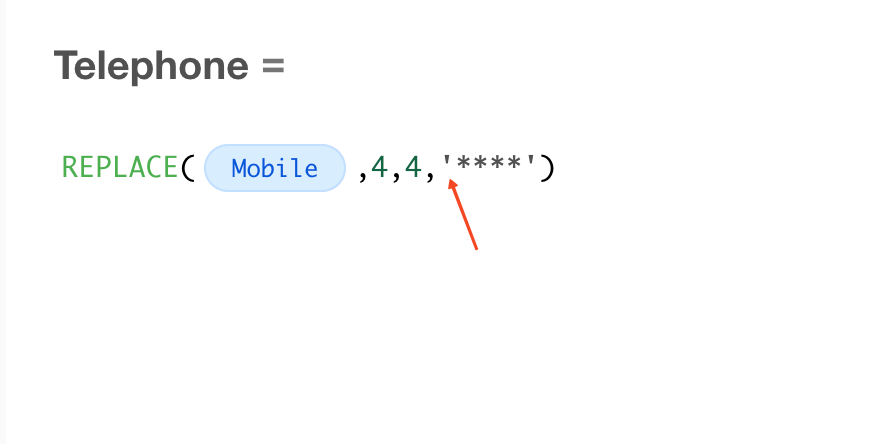
Text and date/time values must be enclosed in quotes
Text, date/time, and single select values are treated as text.
Use single quotes (or double quotes) around static values.Example 1: Get the weekday of a specific date
Example 2: Mask digits 4–7 of a phone number
-
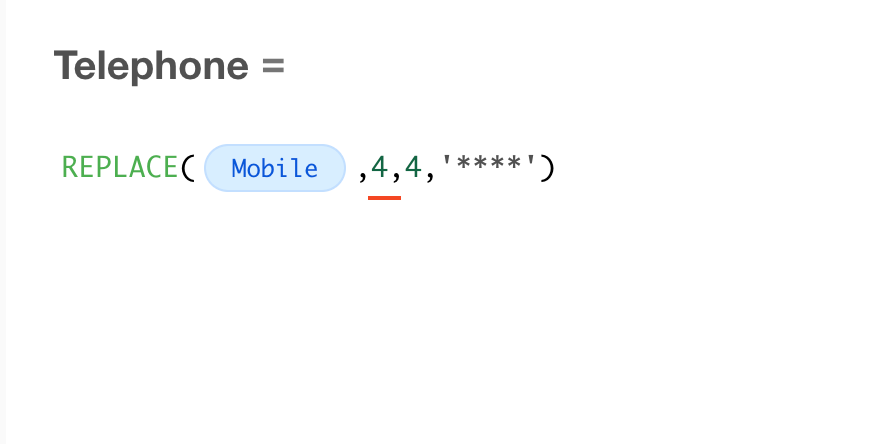
Numeric parameters are entered directly
Example: Specify a starting position when extracting part of a value
2) Dynamic parameters (field values or function results)
-
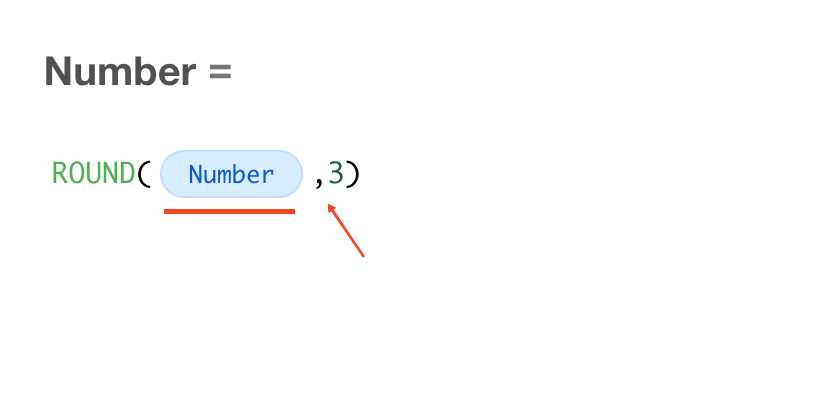
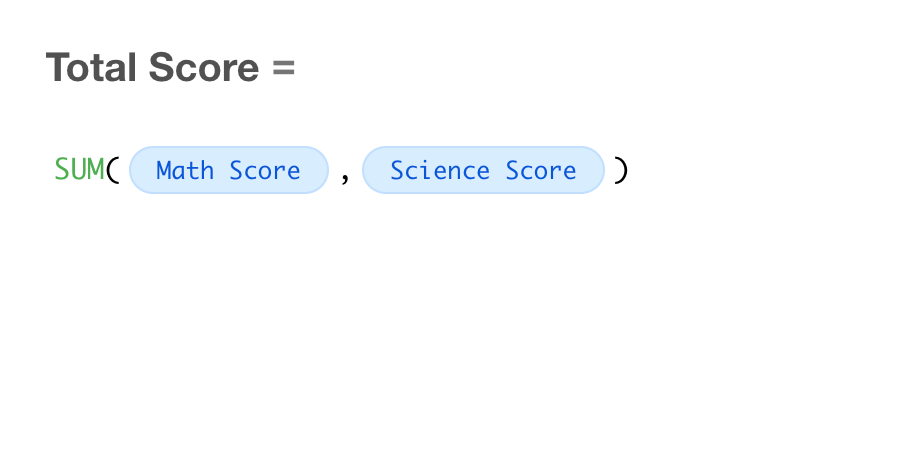
If the parameter is a field value, select it directly (no quotes required)
Example 1: Round a numeric field
Example 2: Calculate the sum of multiple numeric fields
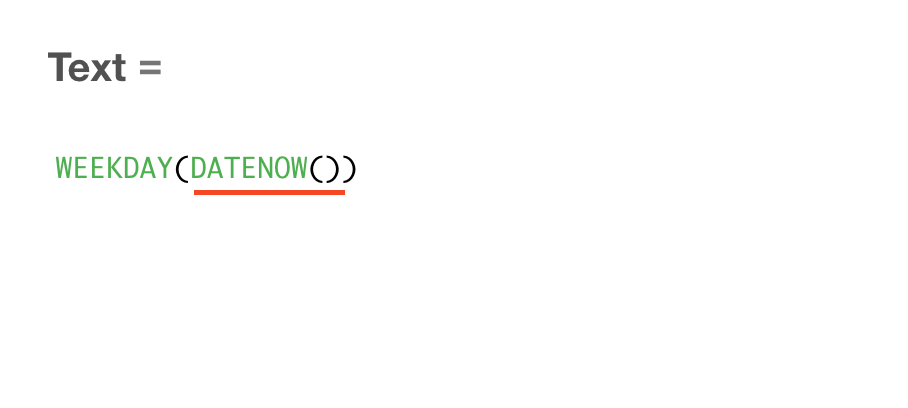
-
If the parameter is the result of another function, do not use quotes
Example: Get the weekday of the current date
3) Combining static and dynamic parameters
When combining static and dynamic values, use concatenation.
The result is treated as text, so no quotes are required around the final expression.
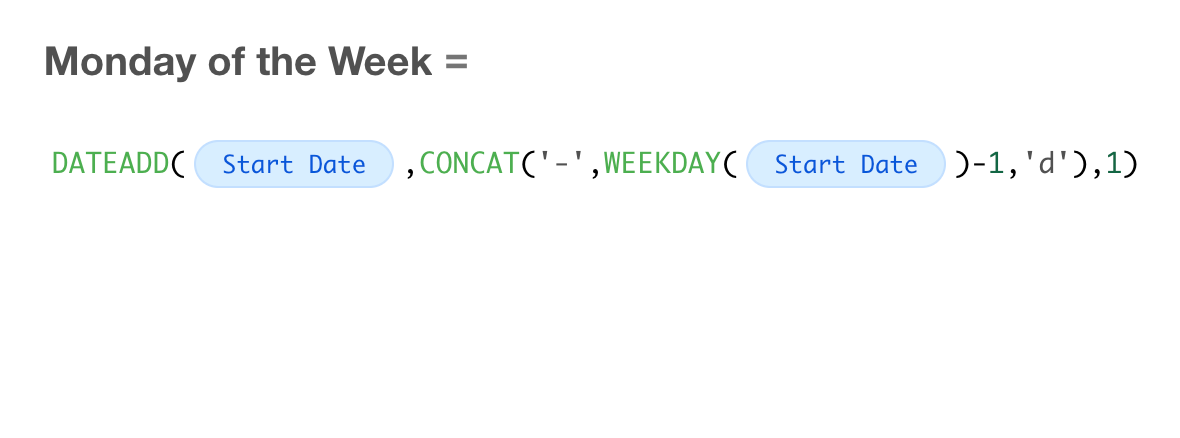
Example: Get the Monday of the week for a given date using DATEADD()
Function usage:
DATEADD(date, 'offset', format)
The offset parameter is a text expression (e.g., -1d, +3M).
Since the weekday is dynamic, use CONCAT to construct the offset.
Formula:
DATEADD(Date, CONCAT('-', WEEKDAY(Date)-1, 'd'), 1)
If the date is Thursday, the formula becomes: DATEADD(Date, '-3d', 1)
Function reference and examples
Was this document helpful?