Default Value Method 2 — Query Worksheet
When creating a record, you may need to reference existing data from the current worksheet or other worksheets.
By defining query conditions, the system can retrieve matching records from a specified worksheet and populate the field automatically.
This method is supported for:
- Standard fields
- Relationship fields
- Subform fields
Scenarios and configuration examples
1. Default values for standard fields
Scenario:
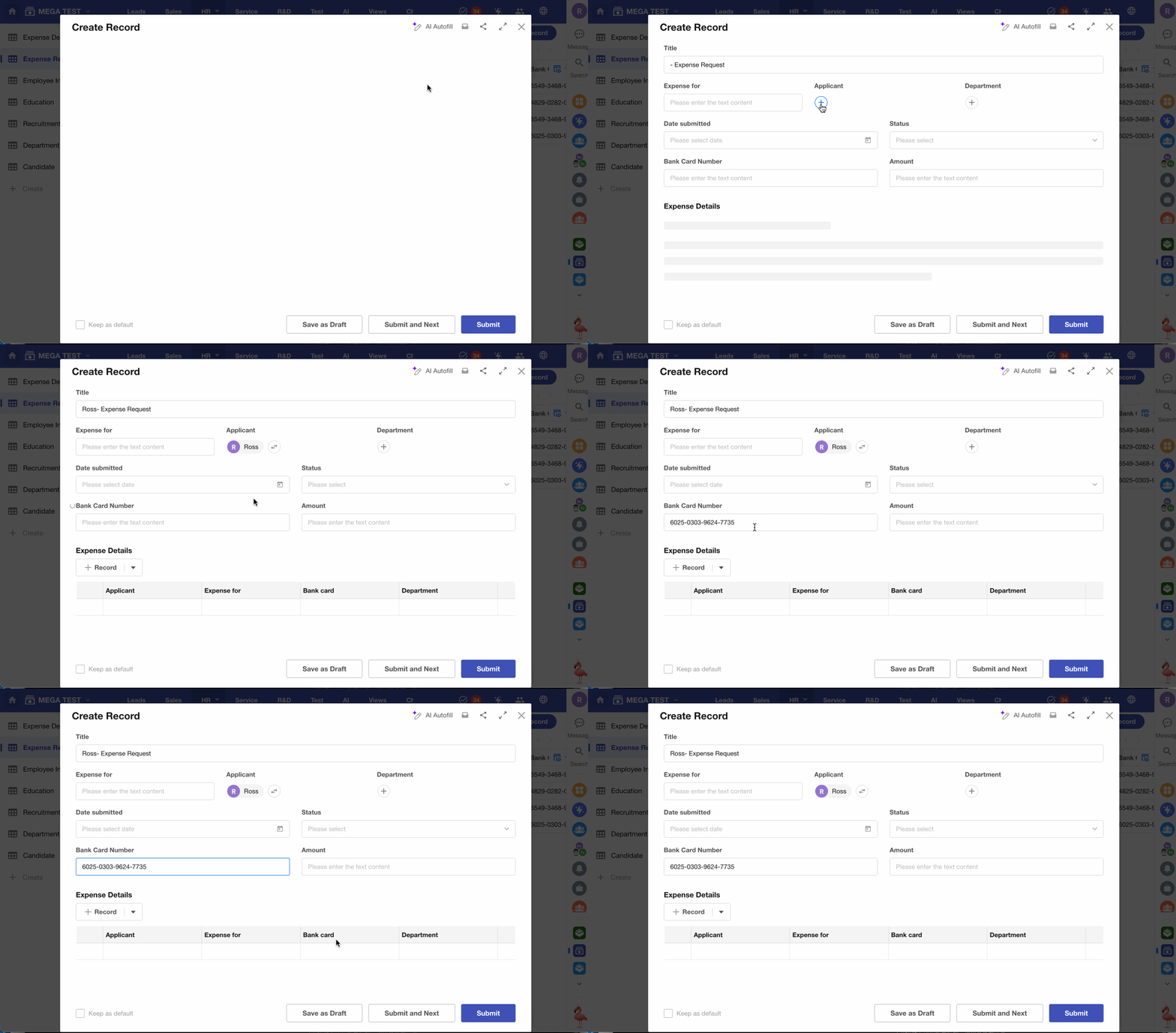
When submitting an expense request, the Bank Account Number and Account Name fields default to the values used in the employee’s most recent expense record.
1) Configure dynamic default value
For the Bank Account Number field, select Query Worksheet as the dynamic default value method.
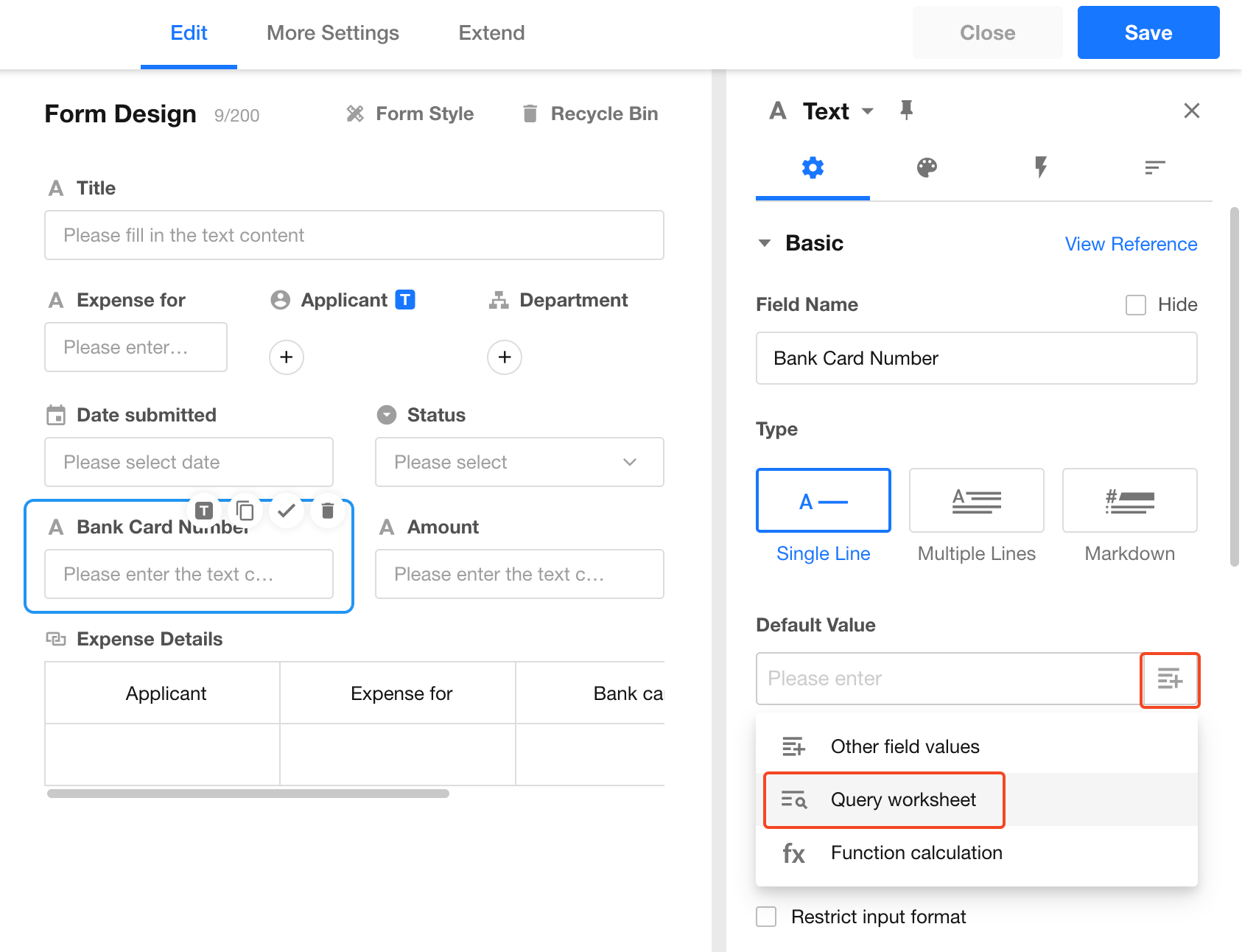
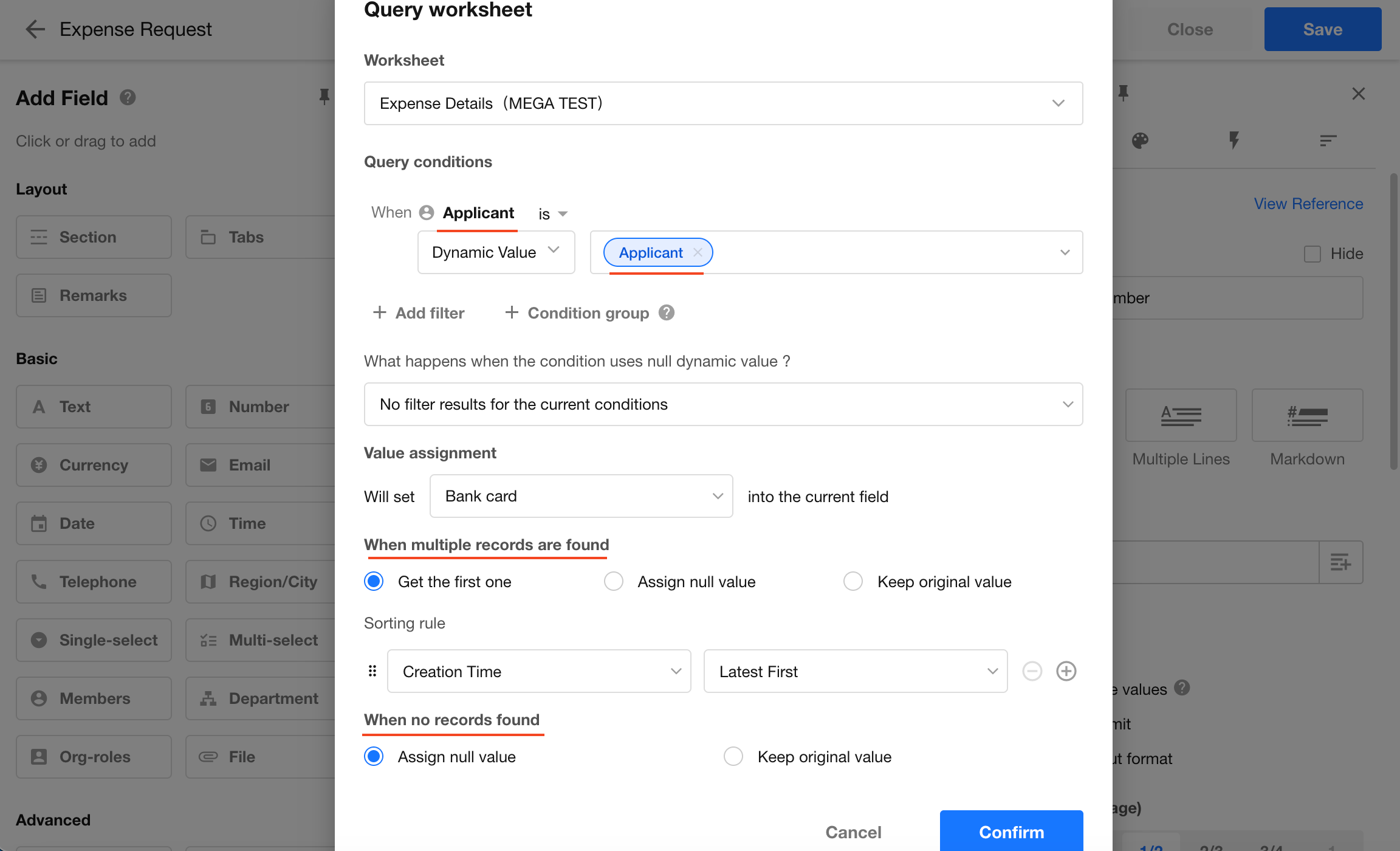
2) Configure query settings
-
When querying from a worksheet, the query scope includes all records in that worksheet
-
The query may return multiple records. You can choose to:
- Use the value from the first matched record
- Set the target field to empty (clear the field value)
- Keep the original value
-
If no record is found, you can choose to:
- Set the target field to empty
- Keep the original value
Result:
2. Default values for relationship fields
Scenario:
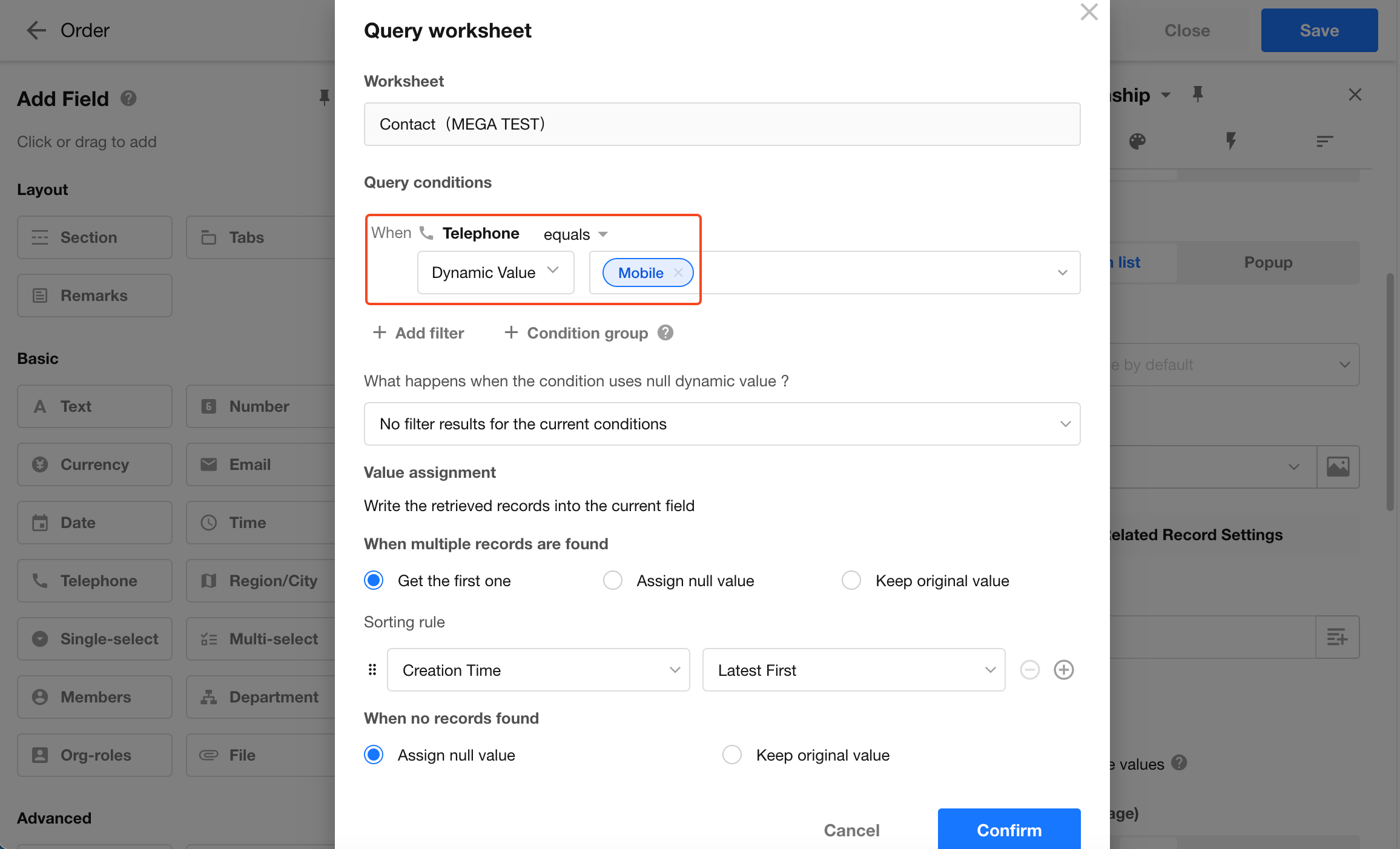
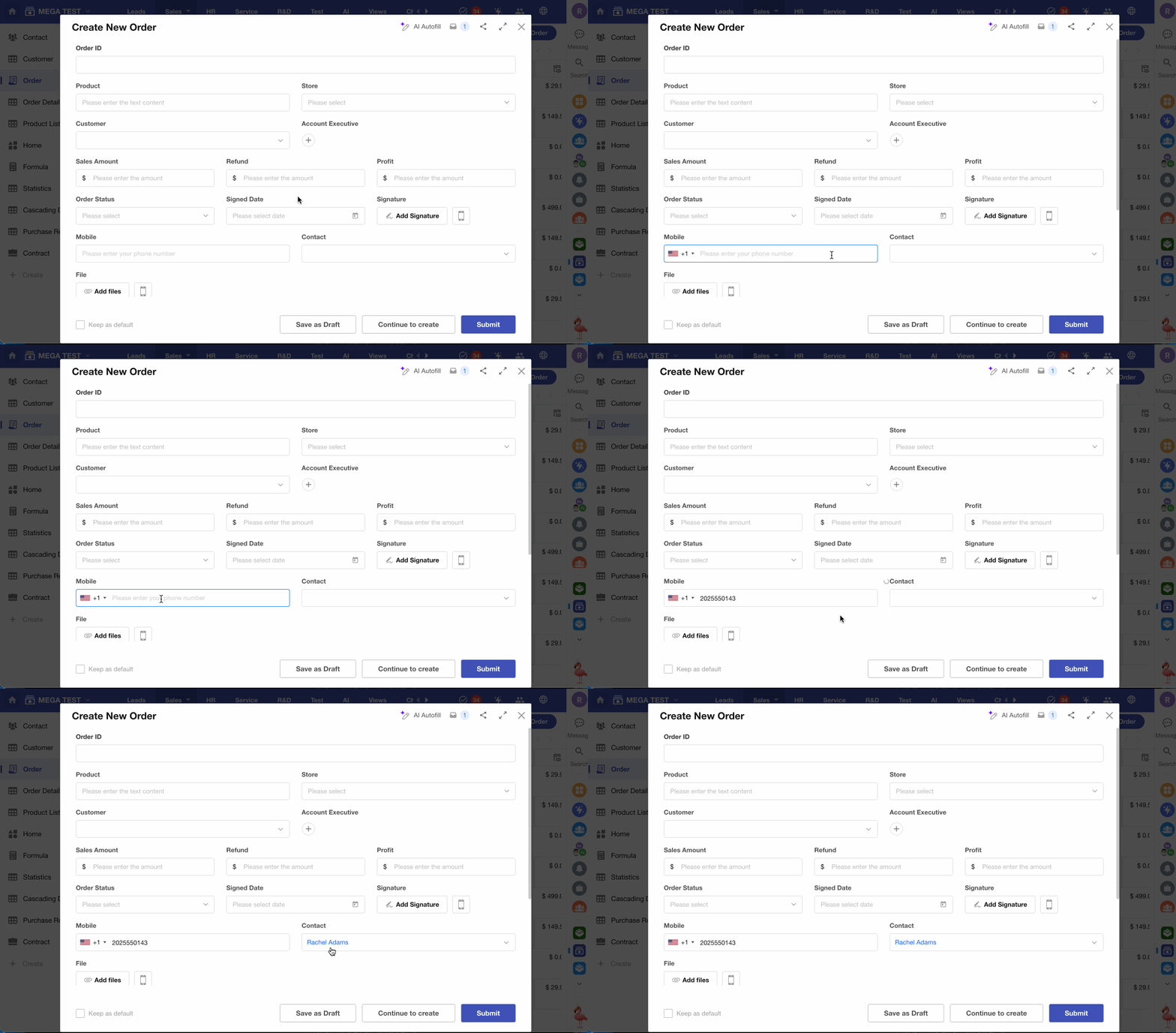
When creating an order, enter a phone number. The system searches the Contacts worksheet and automatically links the matching contact record if found.
1) Configure default value for the relationship field
Set the Contact field to use Query Worksheet.
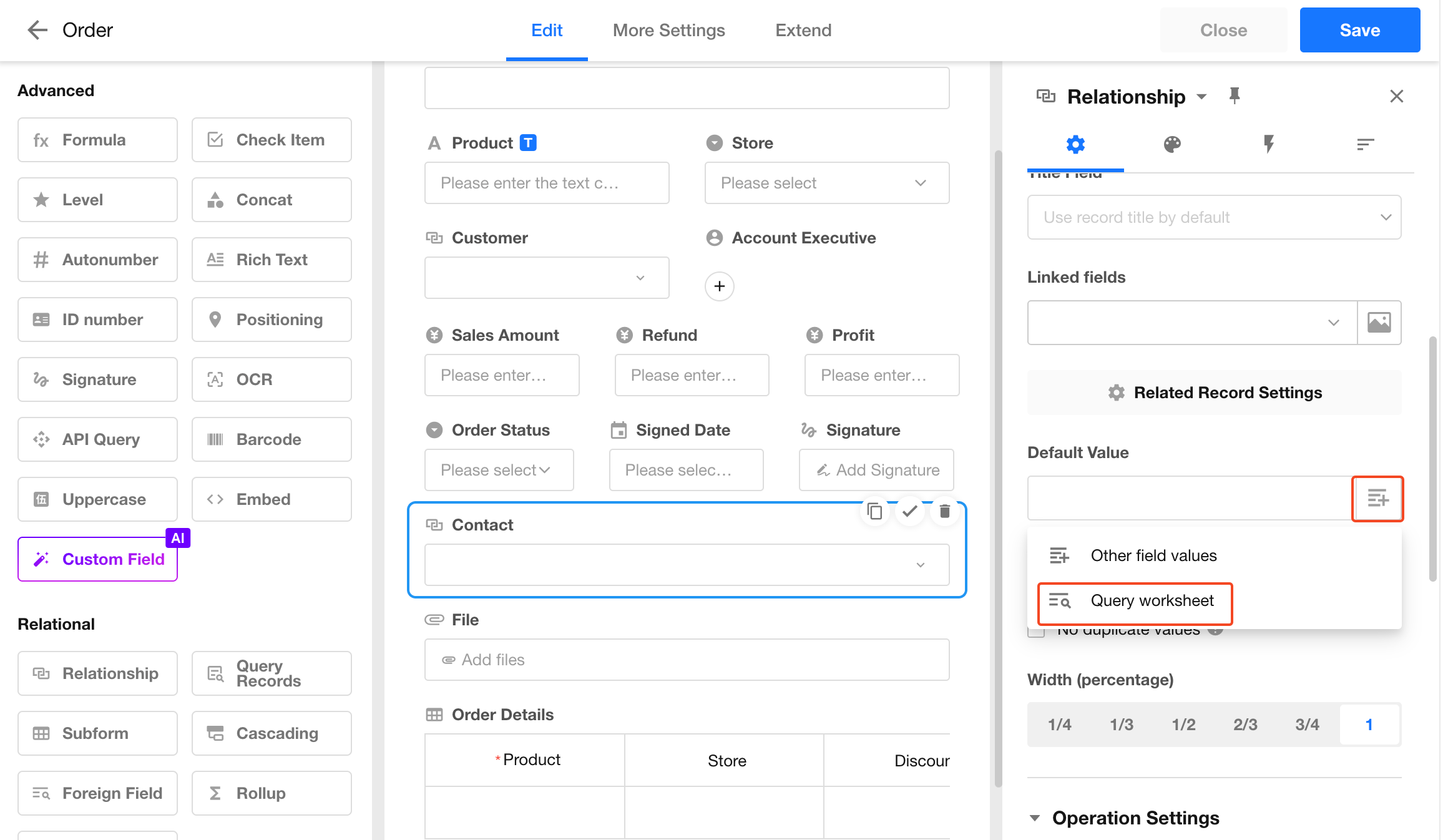
2) Configure query settings
- For relationship fields, you do not need to select the worksheet explicitly. Only the query conditions are required.
-
The query may return multiple records. You can choose to:
- Use the first matched record
- Set the field to empty
- Keep the original value
-
If no record is found, you can choose to:
- Set the field to empty
- Keep the original value
Result:
3. Default values for subform or relationship fields (table view)
Scenario:
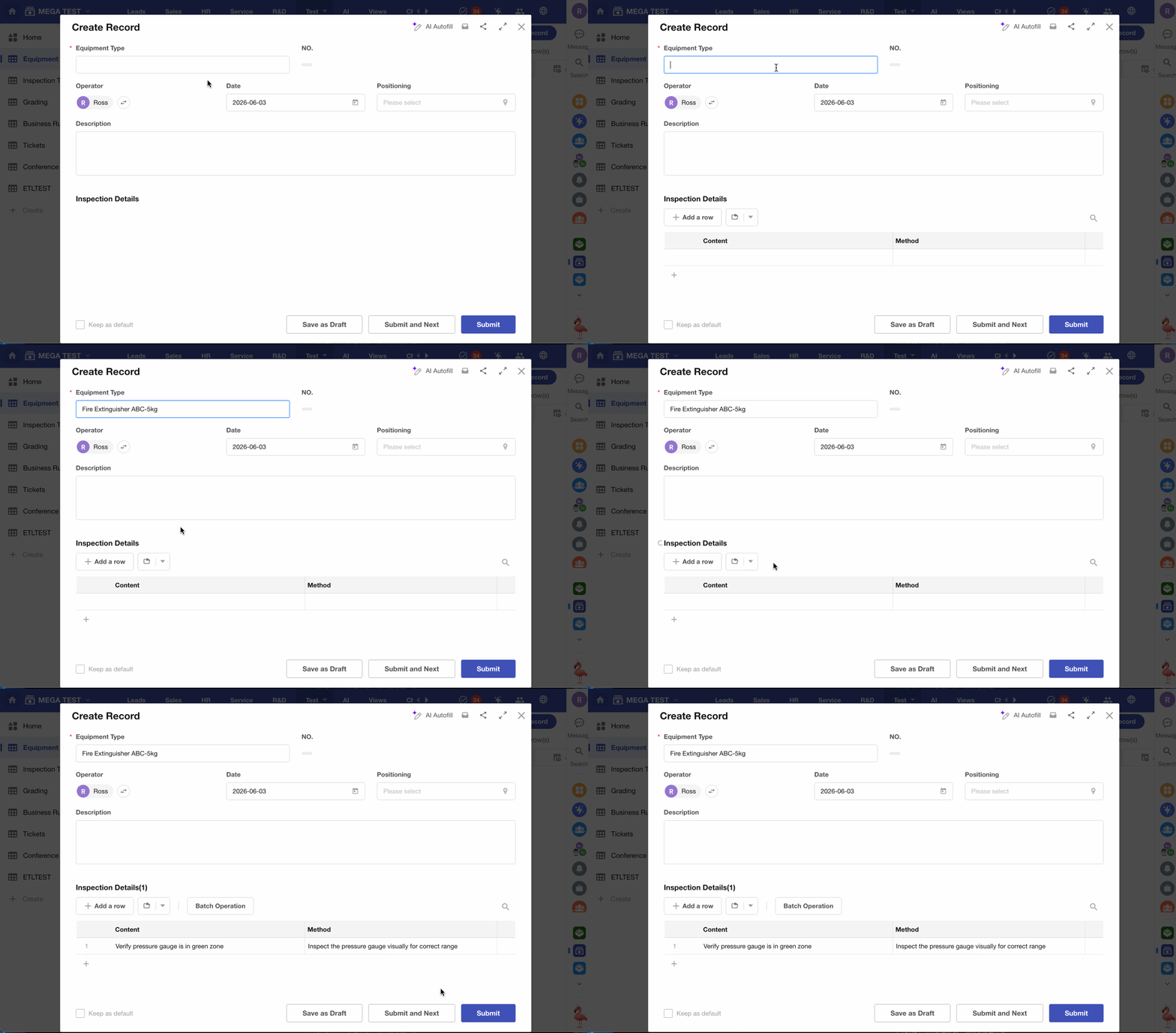
In an equipment inspection process, when creating an inspection record and selecting a device, the system retrieves multiple inspection items and methods from an Inspection Template worksheet, and automatically populates them into the subform.
1) Configure dynamic default value for the subform
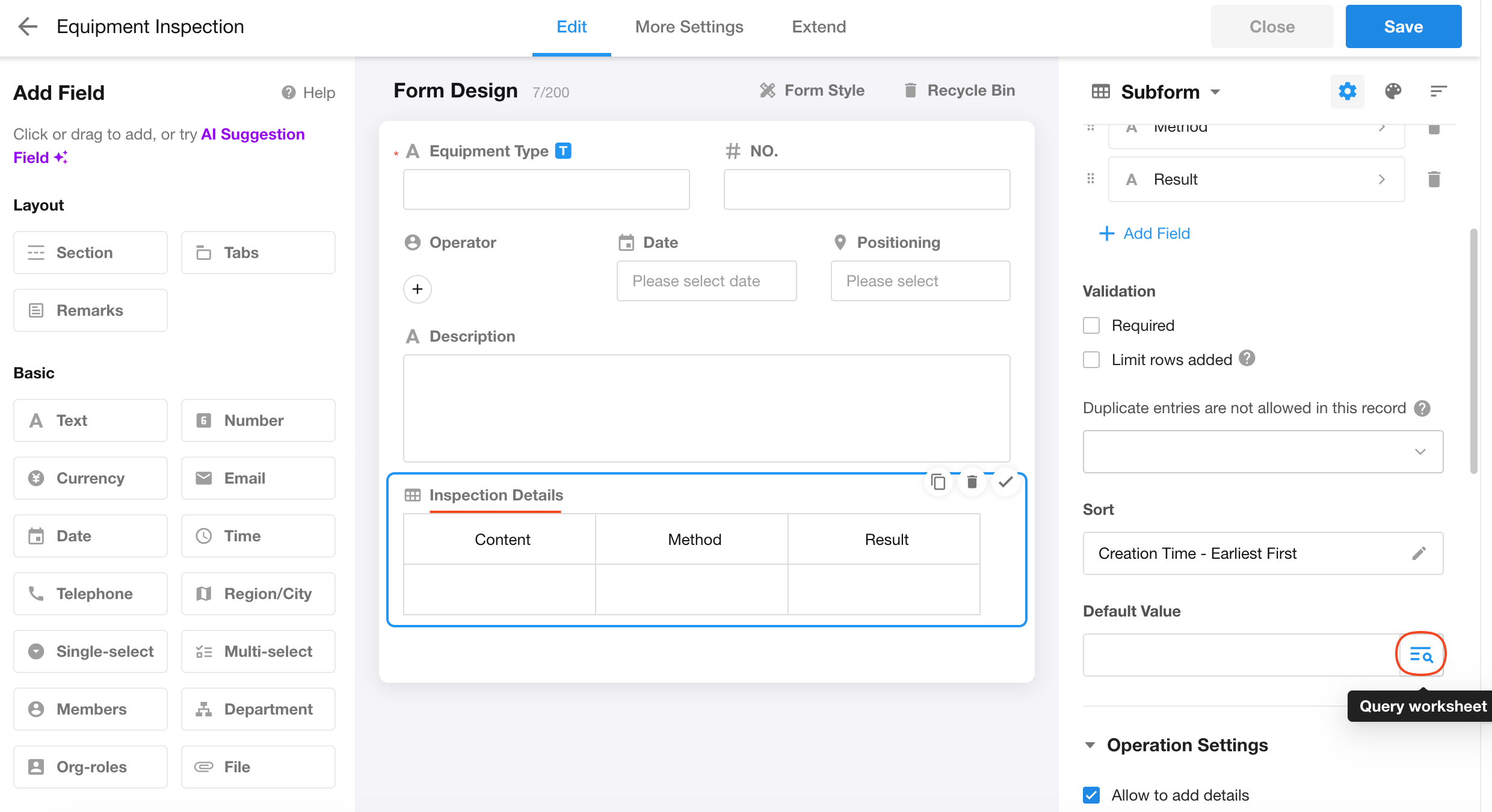
Subform fields do not support the Other field values method for default values.
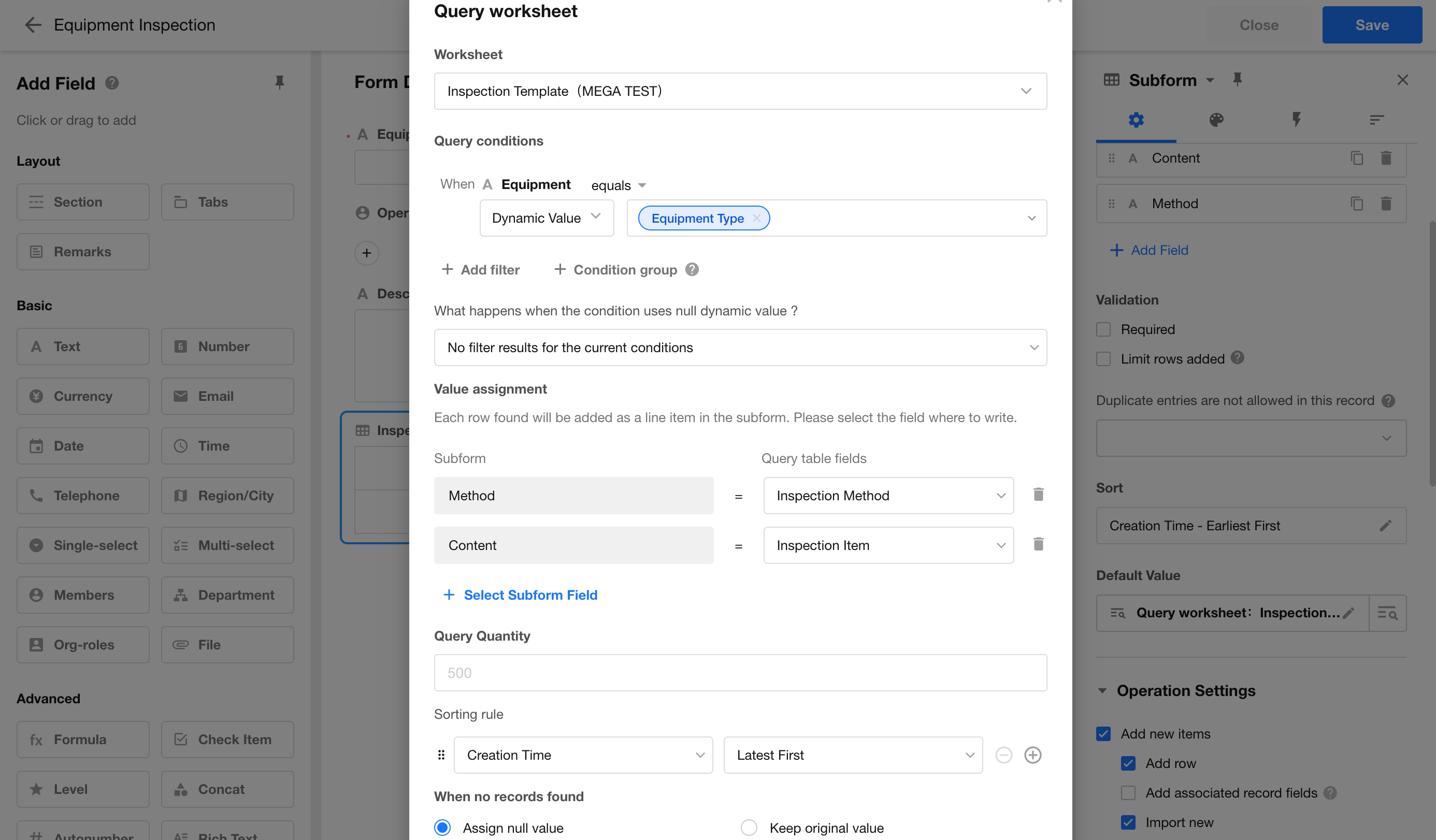
2) Configure query conditions
-
Select the Inspection Template worksheet as the data source
-
You can limit the number of records retrieved:
- Up to 500 records
- Up to 50 records in card display mode
-
If no records are found, you can choose to:
- Set the target field to empty
- Keep the original value
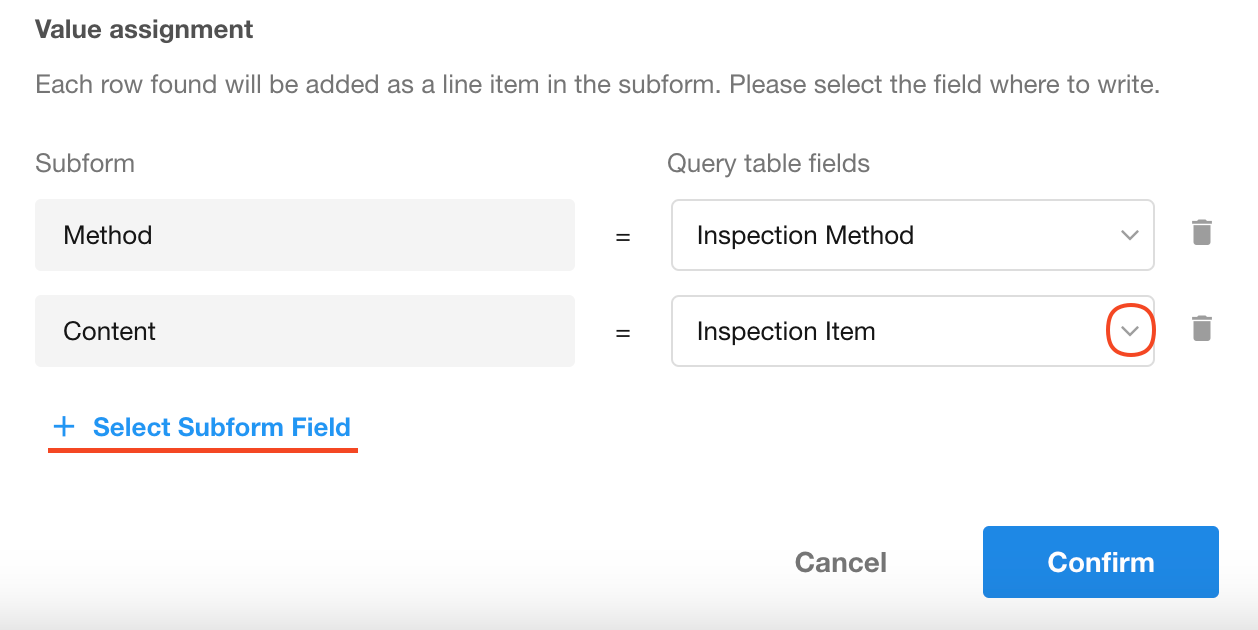
3) Configure field mapping
The queried data must be mapped to the subform fields.
- Left: fields in the subform
- Right: corresponding fields from the query result
Result:
Was this document helpful?