AI Action
Overview
AI Action is a quick entry point on the record detail page for starting AI-powered interactions.
When a user clicks an AI Action, a multi-turn conversation centered on the current record is initiated. The system automatically includes context such as record fields, discussions, and activity logs, and generates responses based on the configured prompts, models, and tools.
Each AI Action can be independently configured with its own purpose, prompts, model, tools, and scope, enabling tailored AI capabilities for different teams, industries, and business scenarios.
Entry Point
On the top action bar of a record detail page, you’ll see AI Action. Select an existing action to start a conversation.
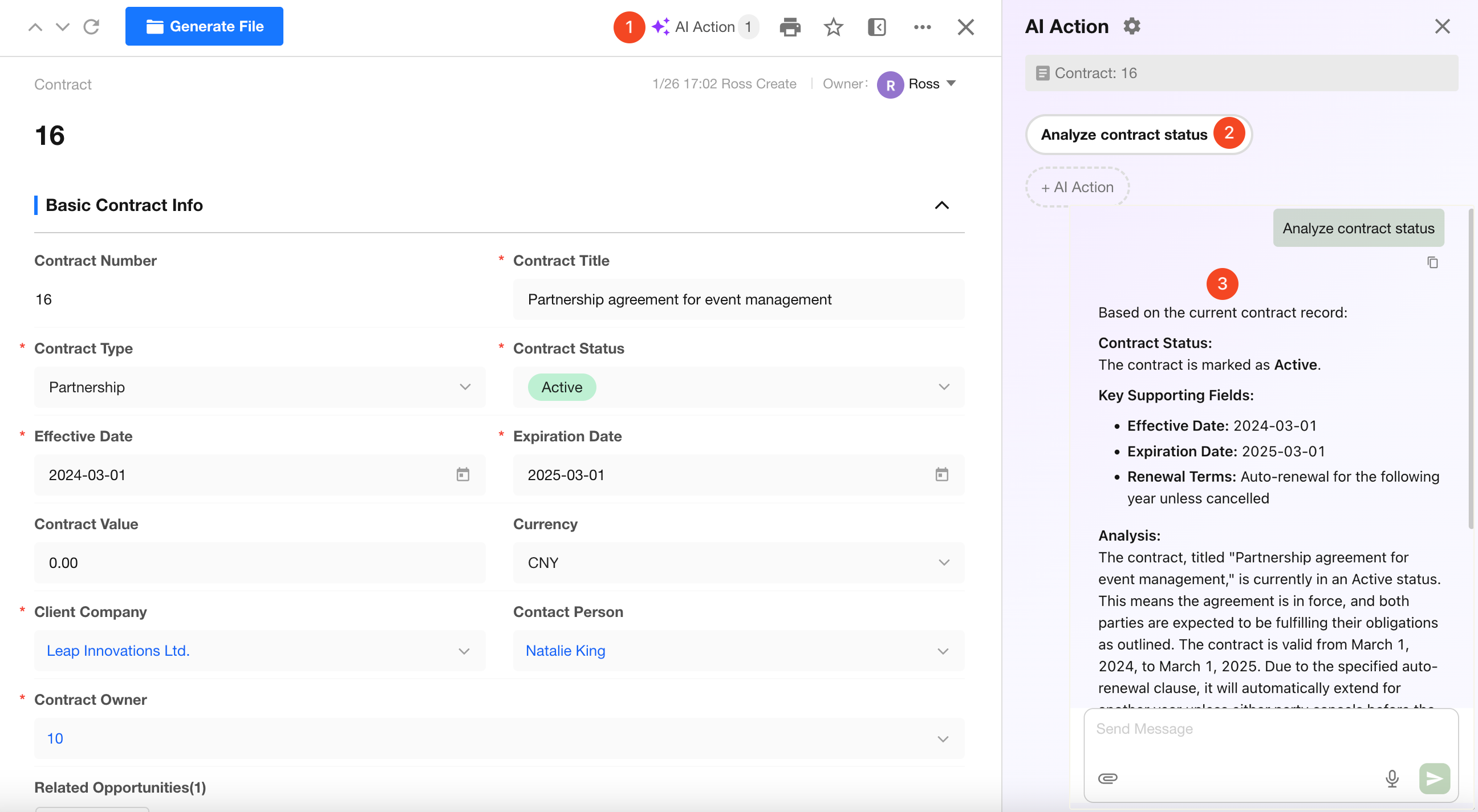
Use Cases
AI Actions are commonly used for:
- Summarizing record content
- Analyzing context and identifying key insights
- Recommending next steps
- Generating communication content and reports
- Enabling follow-up questions and discussions around the record
Configuration
Accessing AI Action Settings
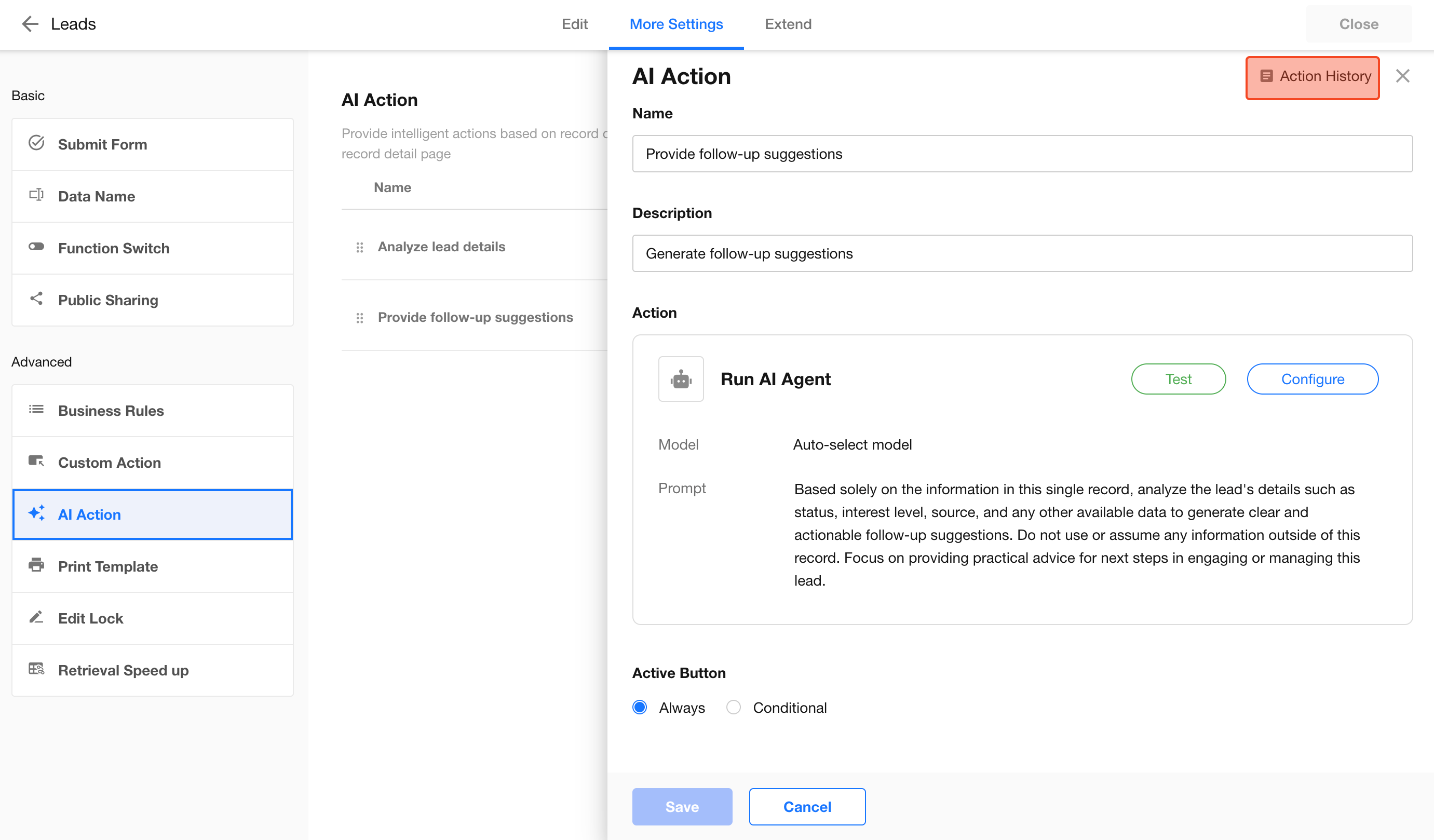
Go to [Form Settings] > [More Settings] > [AI Action], click + Add, and describe your goal in the dialog. Click Create—the system will auto-create the AI Action.
You can also select from AI-suggested actions.
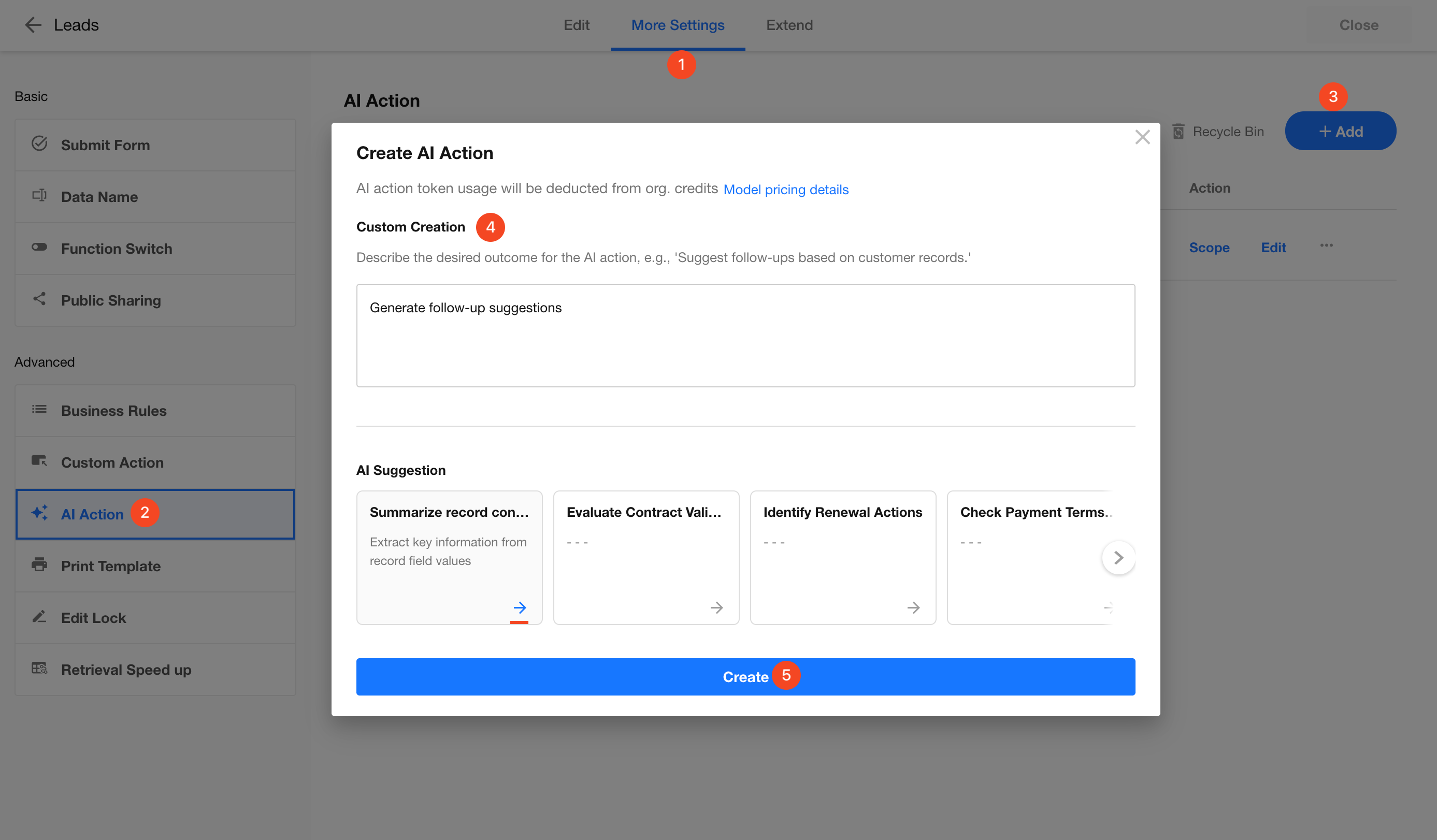
Configuring an AI Action
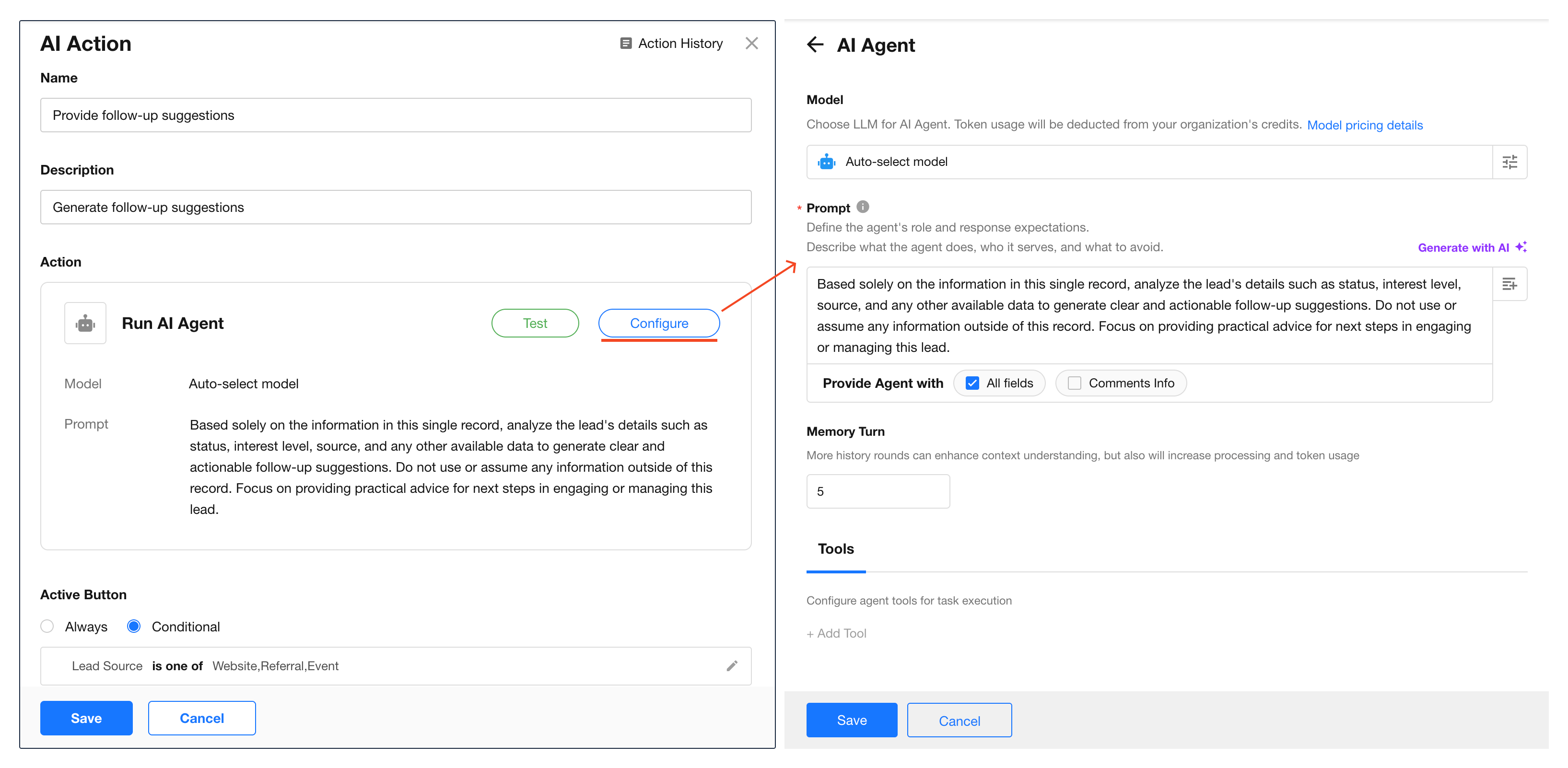
After creation, the configuration panel opens automatically. You can edit the action name, description, enable conditions, and the AI Agent settings.
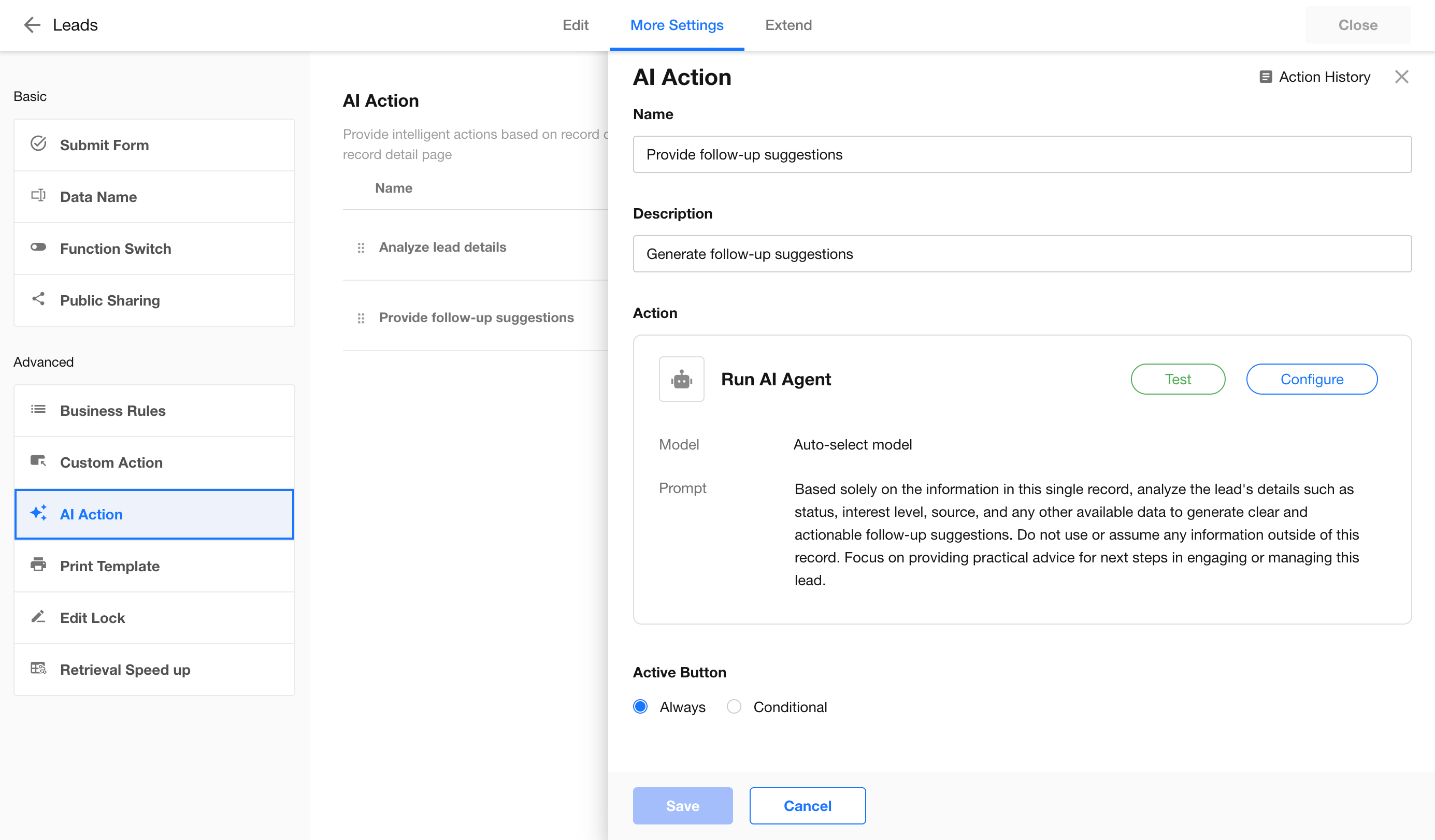
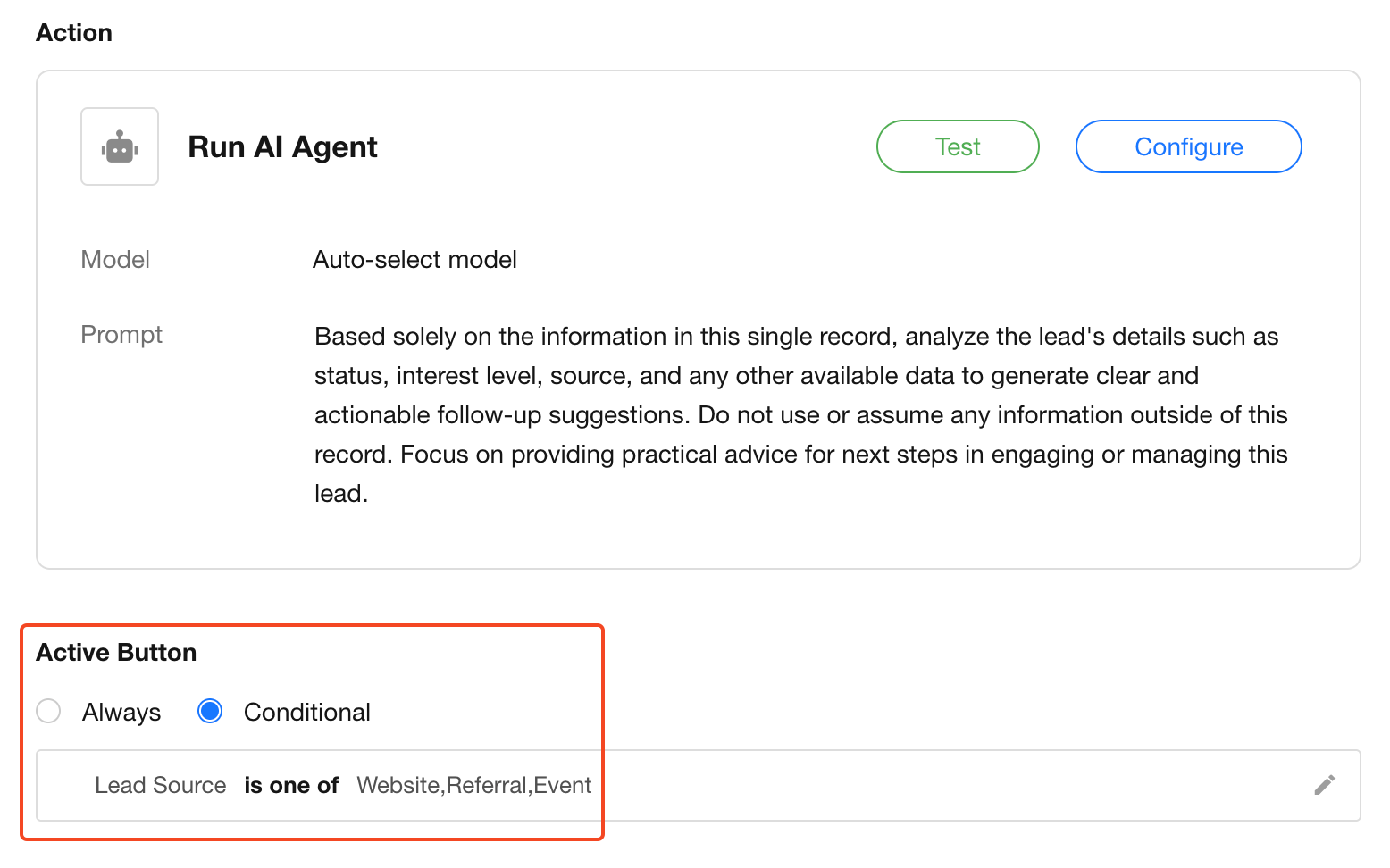
Enable Conditions
To limit which records can use the action, configure filter conditions. Records that don’t meet the conditions cannot use this AI Action.
AI Agent Configuration
Click Configure on the action card to switch models, edit the prompt, adjust memory turns, enable predefined response styles, and add tools.
See AI Agent Node for details.
Key Configuration:
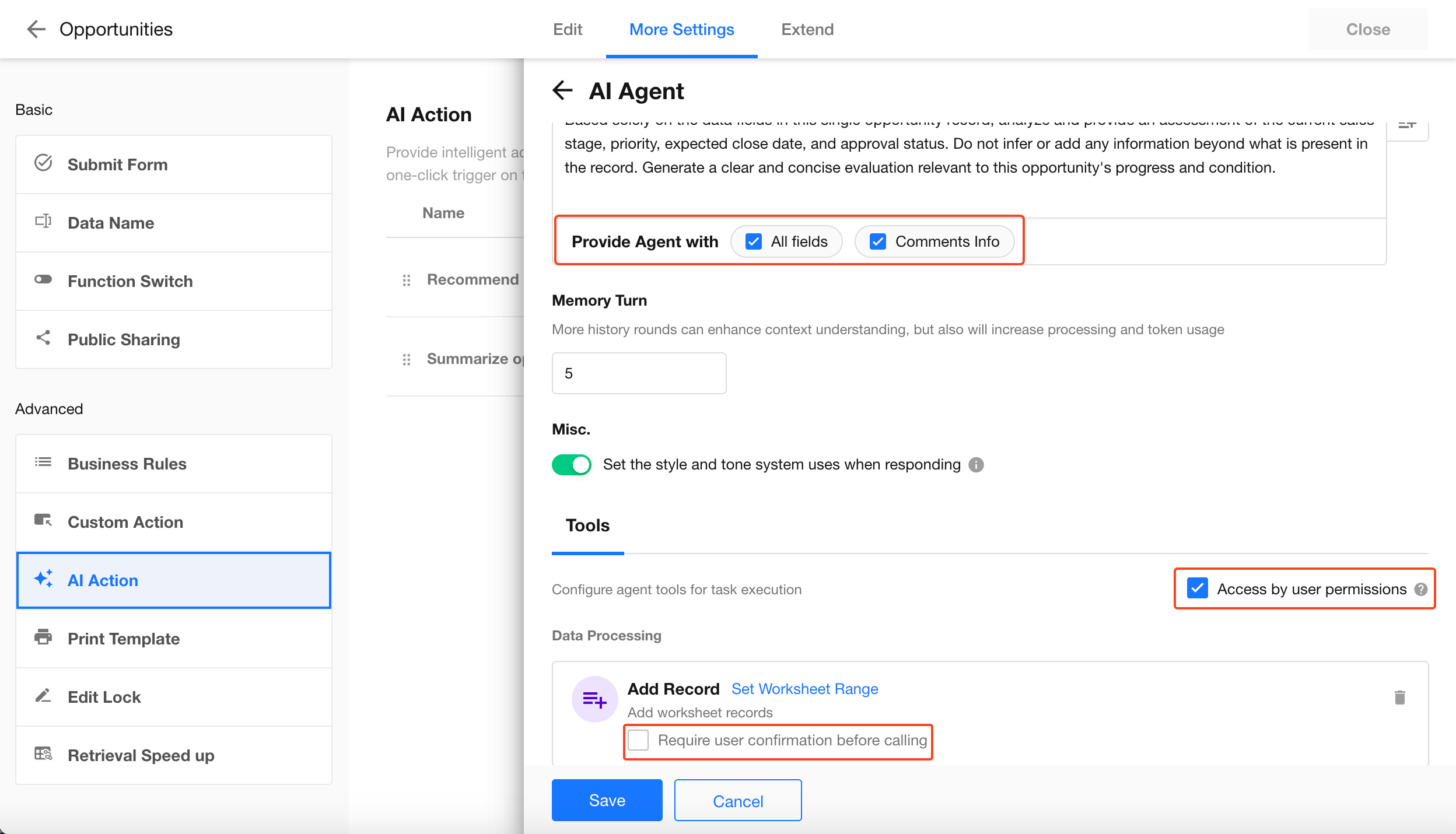
1. Full Context Analysis: Provide Complete Context to the Agent
In the prompt, you can define the scope of context available to the Agent:
-
All Fields:
When enabled, the Agent can access all fields of the current record. Suitable for scenarios requiring full data analysis. -
Comments Info:
Allows the Agent to incorporate discussions or comments associated with the record, producing responses that better reflect the communication context and improve accuracy and naturalness.
2. Security and Permissions: Dual Protection Before Execution
In the Agent tool configuration area, two key security controls are available:
-
Access Based on User Permissions:
Ensures that all data operations performed by the Agent are restricted to the current user's permissions, preventing unauthorized access or modifications. -
User Confirmation Required Before Execution:
Acts as a safeguard mechanism. When the Agent attempts to perform actions such as Add Reocrd or Update Record, the system will prompt for user confirmation instead of executing directly. The user must approve before the action proceeds.
Testing
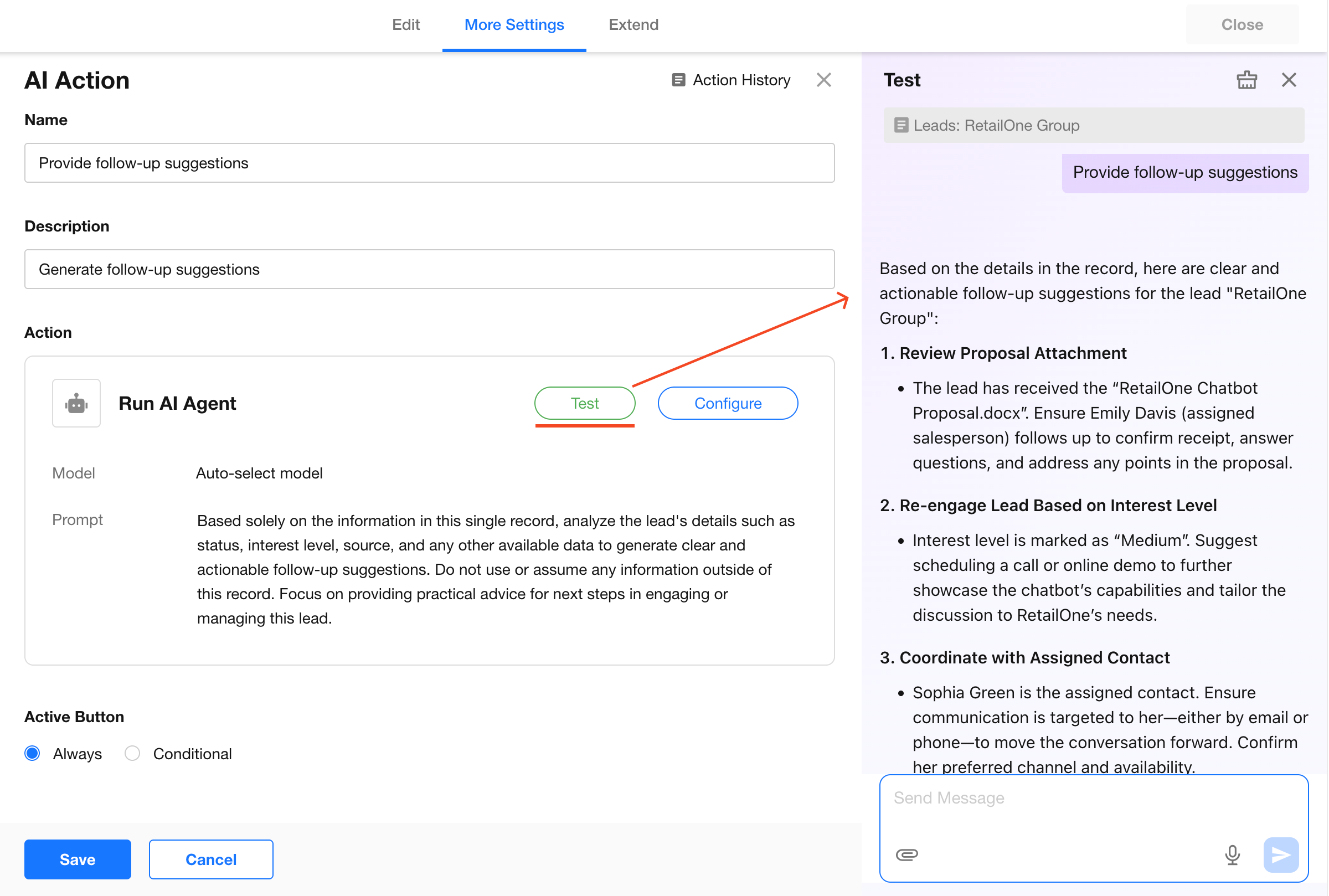
Click Test on the action card and select a record to quickly validate the configuration.
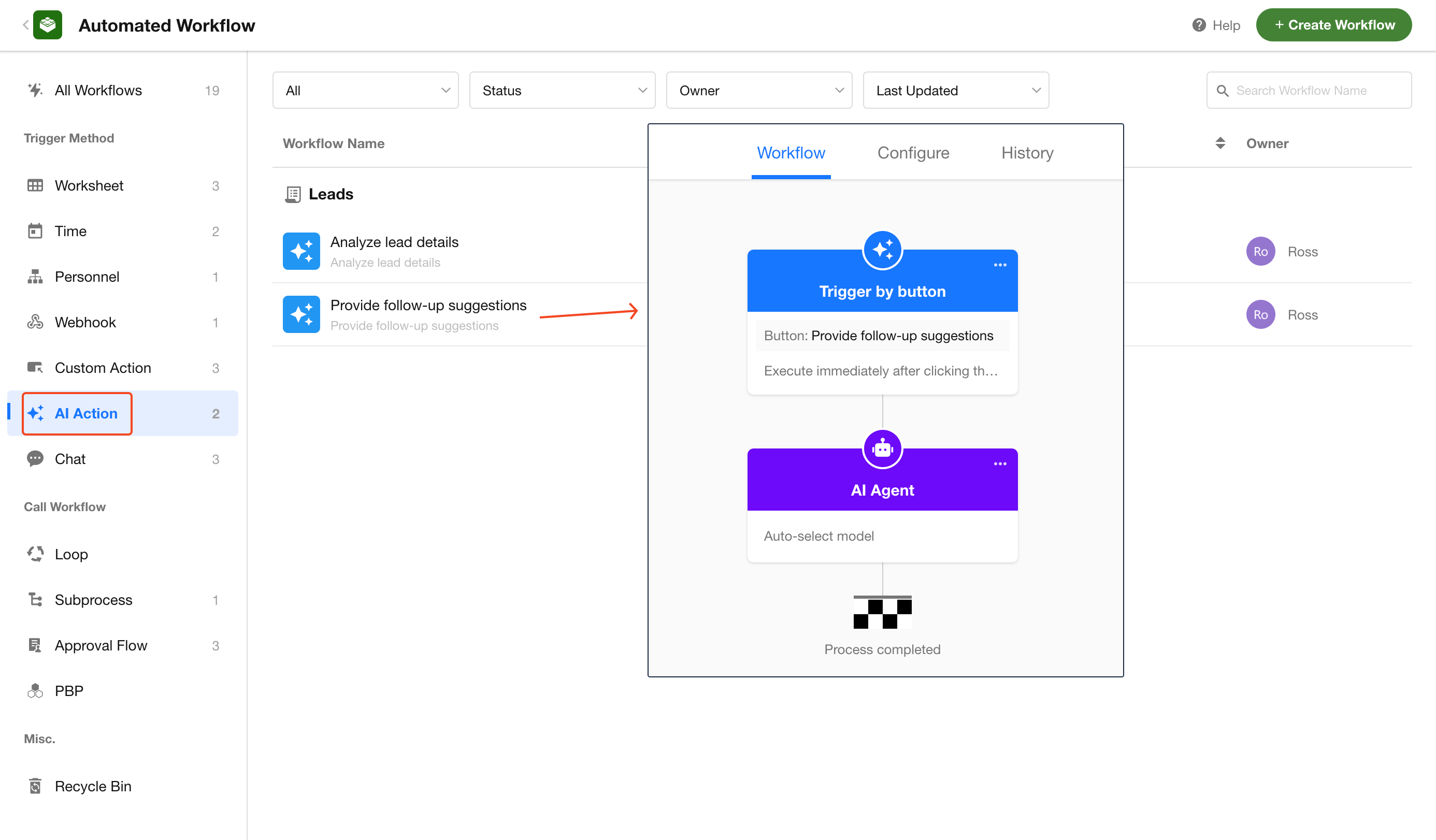
AI Action Workflow
AI Actions are powered by workflows. When an AI Action is created, a corresponding workflow is generated automatically. No additional nodes can be added.
Execution flow: Click action → context injection → execute per configuration → continuous output.
Action History
Click Action History in the top-right corner of the AI Action page to view past conversations.
You can also view execution history within the AI Action workflow.
Permissions
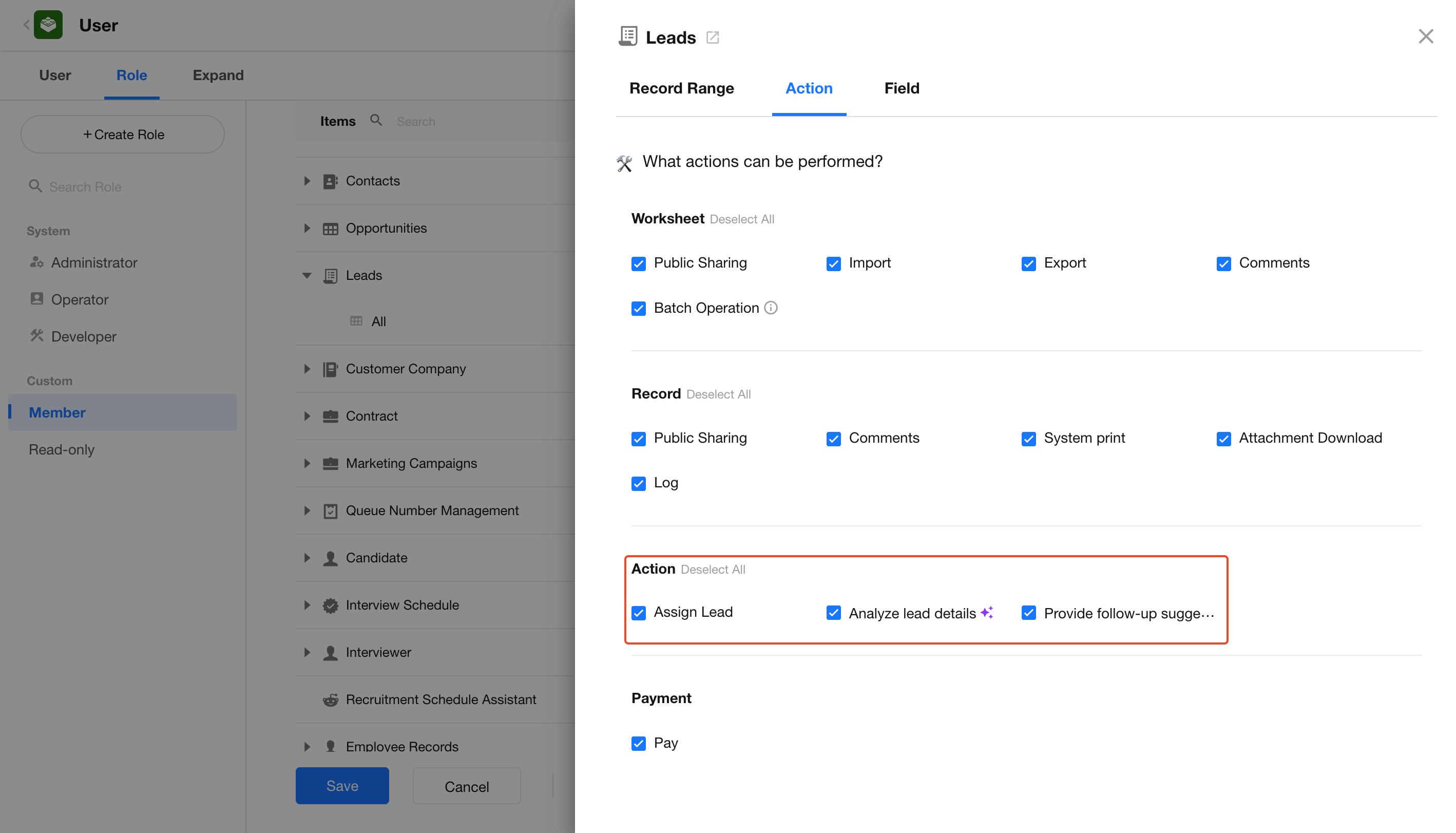
In Role & Permission, under Access Selected App Items, configure which AI Action are available to each role.
Was this document helpful?