Mingo, Your AI Assistant
Mingo is HAP's built-in AI assistant. Press M at any time to open Mingo for building applications, managing business data, or getting help with product features.
Mingo currently provides the following AI capabilities:
- AI Application Builder
- AI Worksheet Generation
- AI Sample Data Generation
- AI Record Creation
- AI Application Optimization
- AI Data Query
- Product Help & Q&A
Billing: Product Help Q&A is available free of charge. All other Mingo AI features consume Tokens and are billed using either AI Free Credits or organization credits. AI Free Credits are used first. Once they are exhausted, charges are deducted from the organization's credits. Organization administrators can disable credit-based billing for Mingo AI features by navigating to Org Admin > Home > Credits > Manage.
Usage: Role-based permissions for controlling access to Mingo are not currently supported.
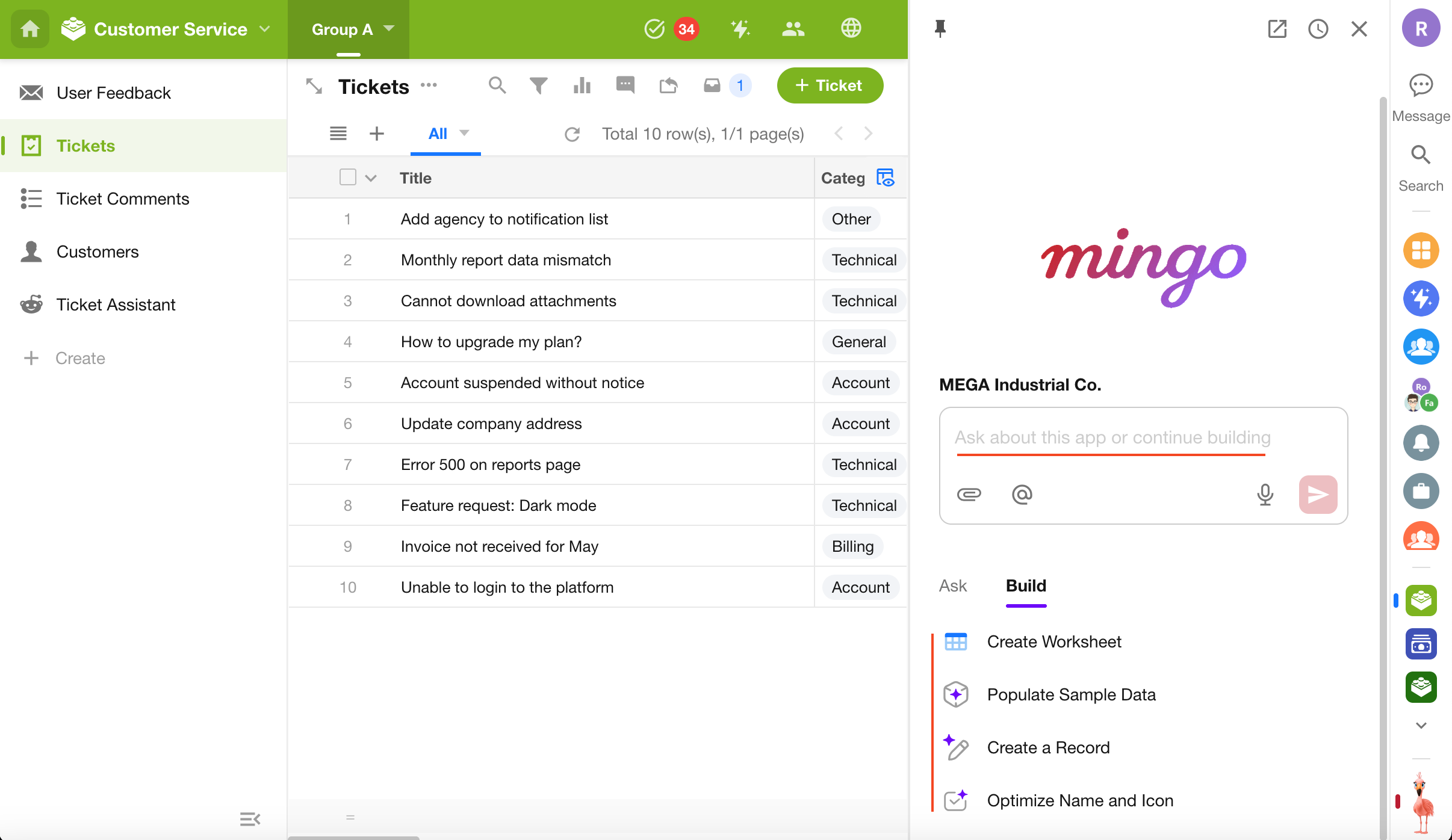
AI Application Builder
AI Application Builder consists of two phases: Planning and Application Generation.
- Planning: Mingo clarifies requirements through conversation and generates a previewable, editable application plan.
- Application Generation: After the plan is confirmed, Mingo automatically creates the application and displays progress in real time.
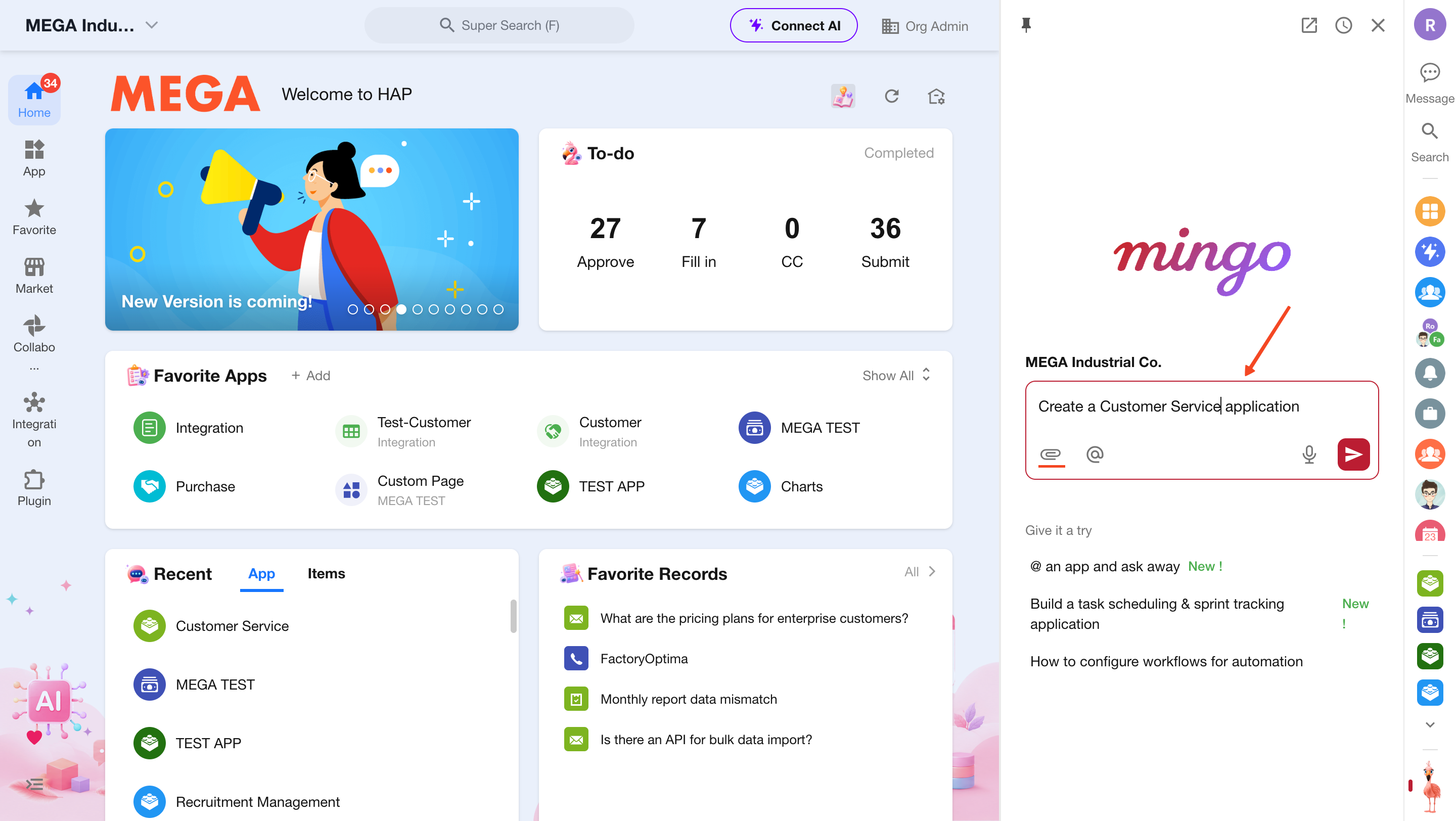
1. Enter Your Requirements
In the Mingo chat window, enter your application requirements directly or upload a requirements document and send it.
You can also select Create with AI when creating a new application from the homepage. Mingo will automatically open and guide you through the creation process.
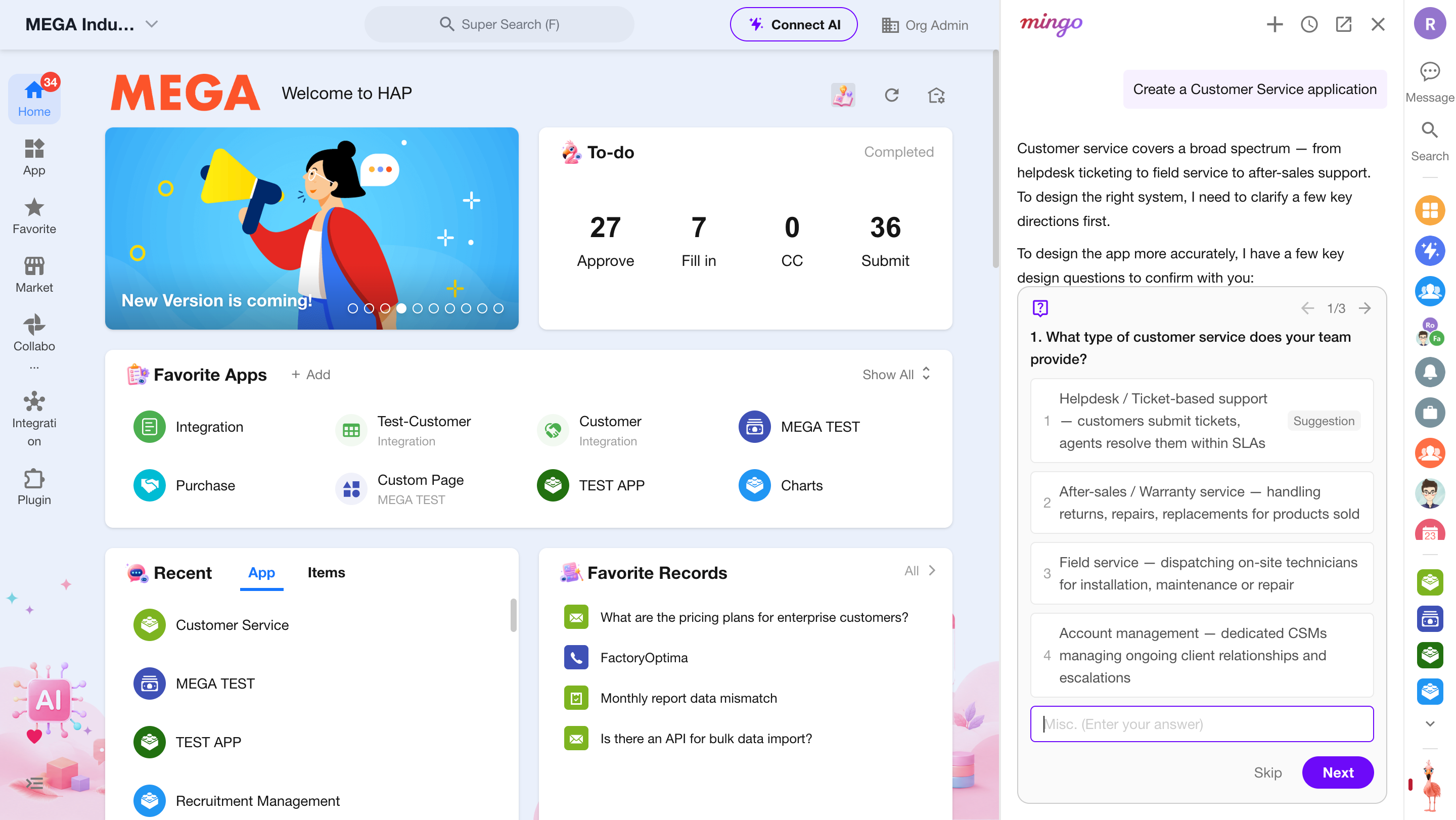
2. Confirm Key Information
To generate a more accurate solution, Mingo will ask a series of design-related questions based on your requirements. You can select from the suggested options or enter your own answers.
After confirming the details, click Next.
3. Generate an Application Plan
Based on your requirements and confirmed information, Mingo generates a complete application plan.
If adjustments are needed, simply provide additional instructions and Mingo will revise the design accordingly.
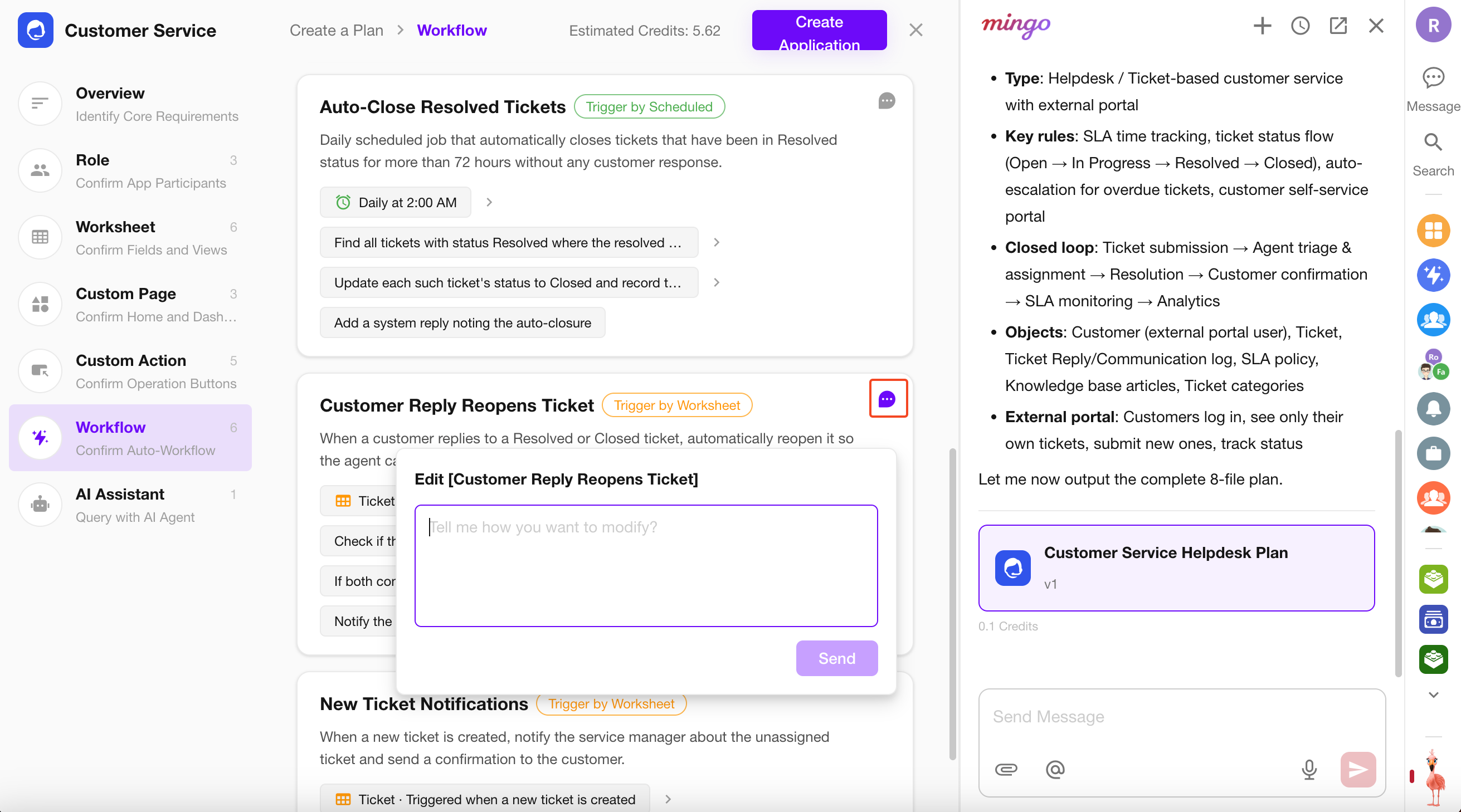
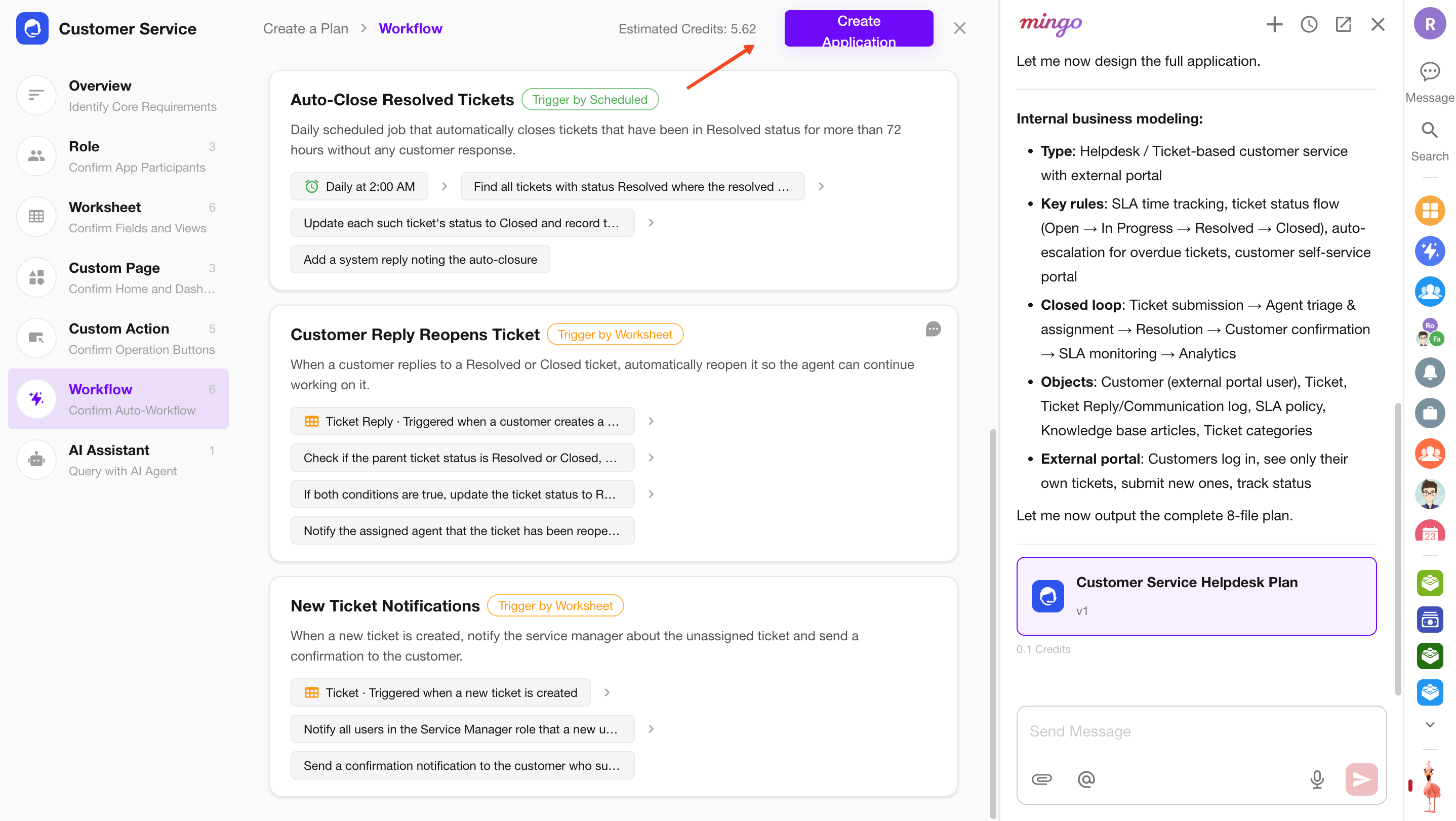
4. Generate the Application
After confirming the plan, click Create Application to begin creating the application automatically.
The estimated credit consumption for the application will be displayed next to the Create Application button.
AI Worksheet Generation
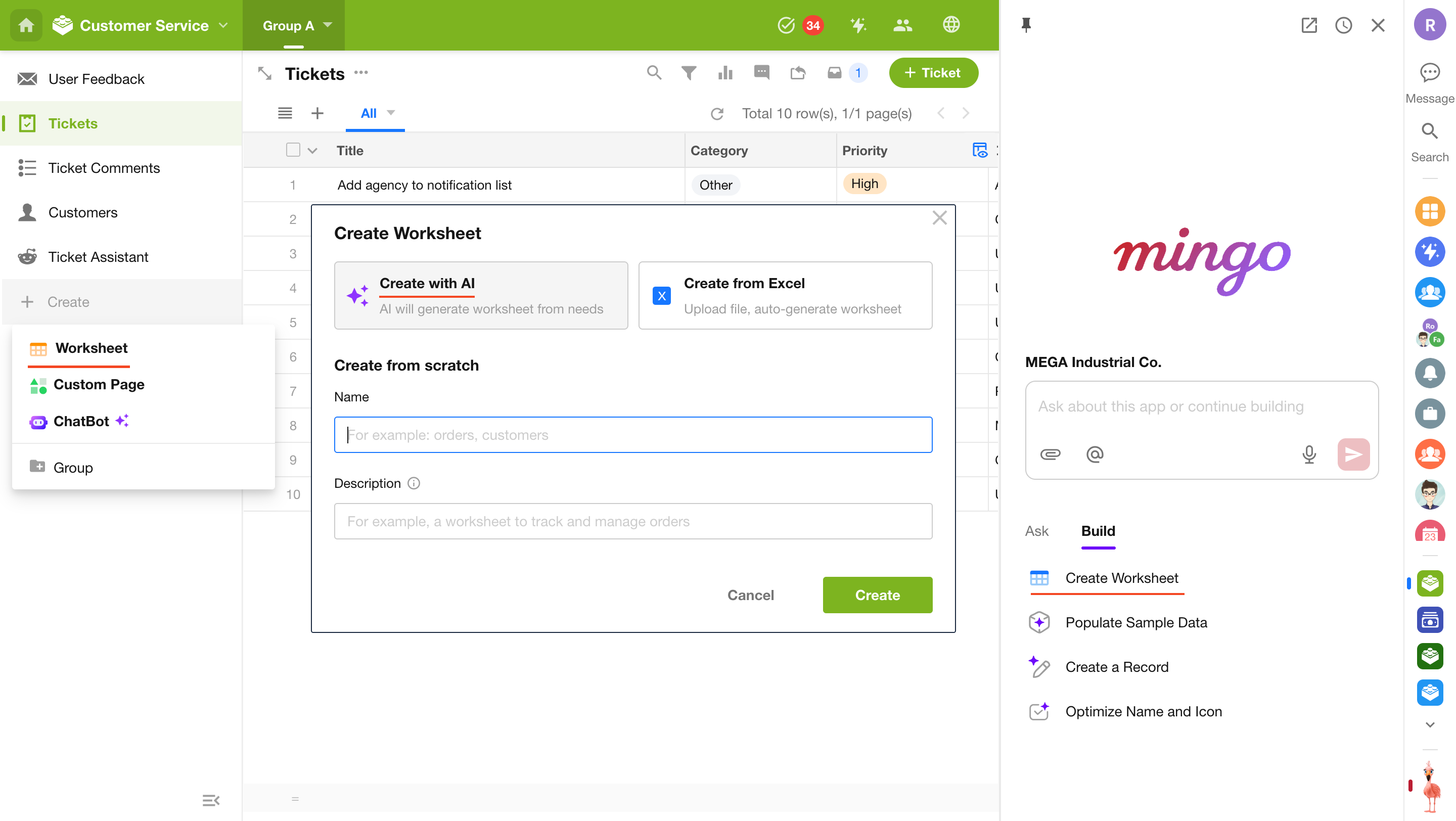
Press M within an application to open Mingo, switch to the Build tab, and select Create Worksheet.
Alternatively, choose Create with AI when creating a worksheet, and Mingo will open automatically.
1. Describe the Worksheet
Enter the worksheet you want to create along with a description, or select from the recommended list.
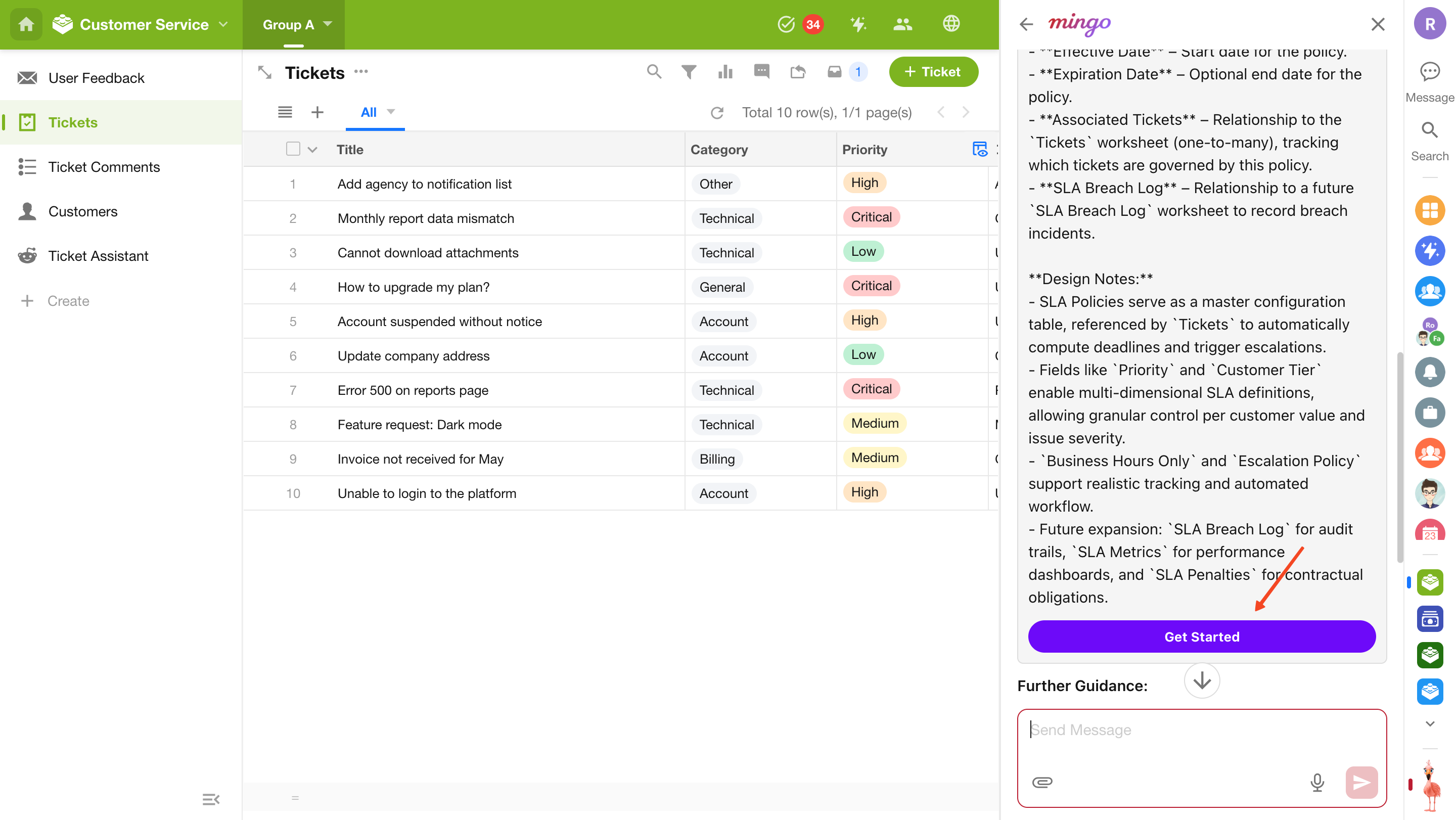
Mingo will generate the proposed fields and relationships. After reviewing the design, click Get Started. If necessary, continue refining your requirements through conversation.
2. Generate Fields Automatically
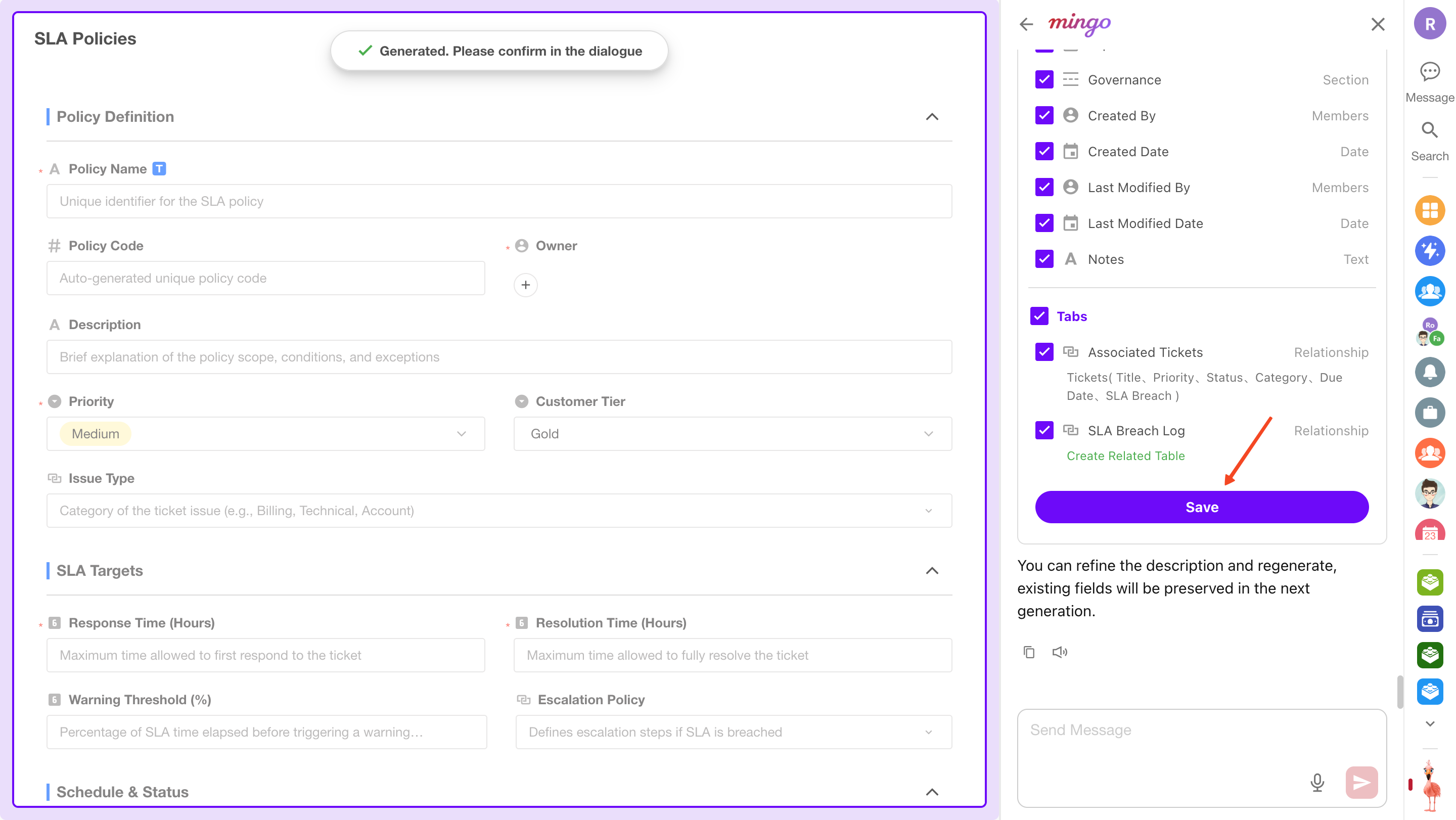
After confirmation, Mingo automatically creates fields and configures their properties. Click Save to complete worksheet creation.
Features include:
- Automatic generation of icons, fields, and layouts
- Automatic configuration of field properties, such as option values for gender fields
- Relationship fields require manual target selection after creation
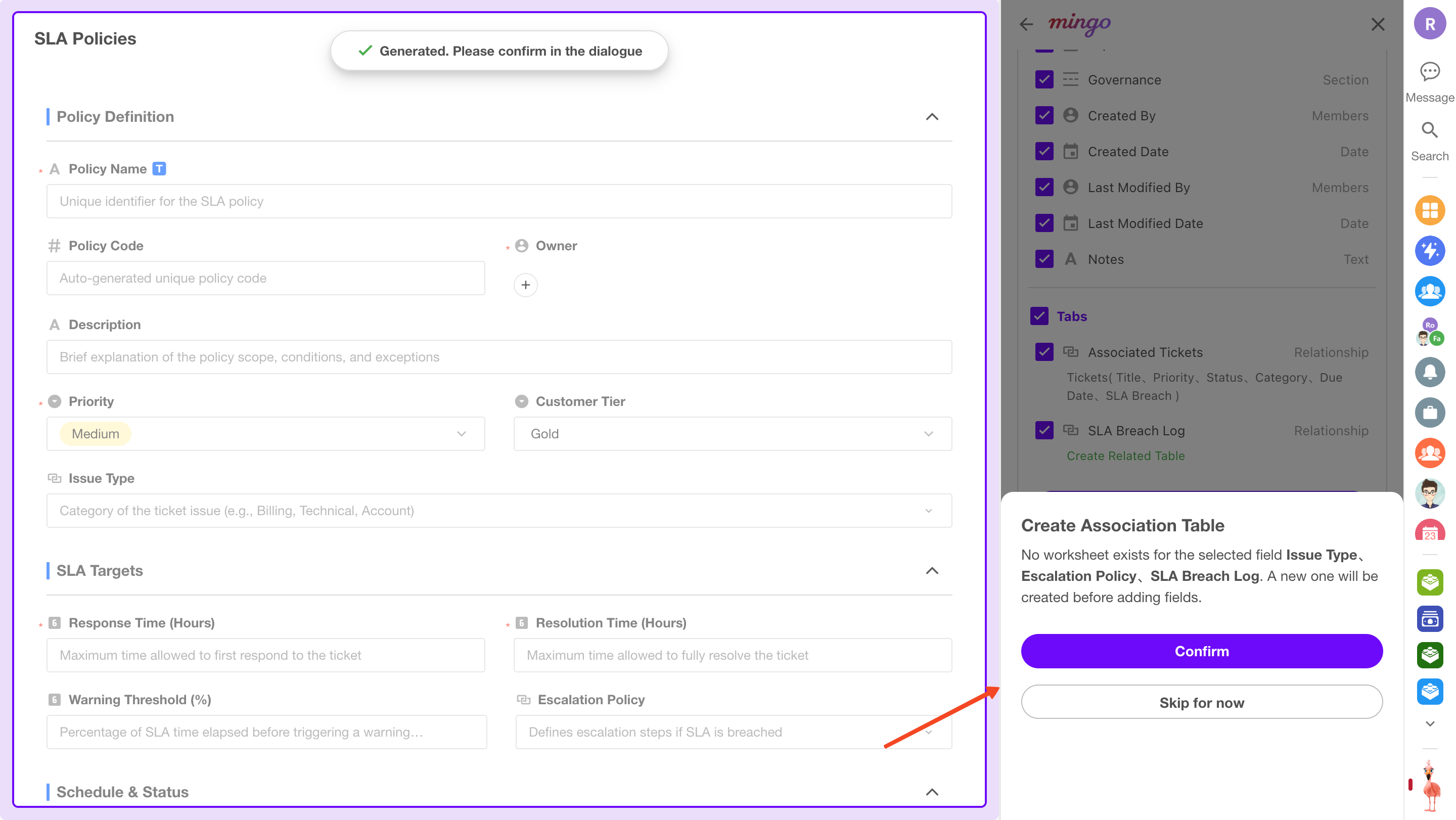
3. Generate Related Worksheets (Optional)
If related worksheets have not yet been created, Mingo can continue generating them automatically. You may also choose to skip this step and save the current worksheet.
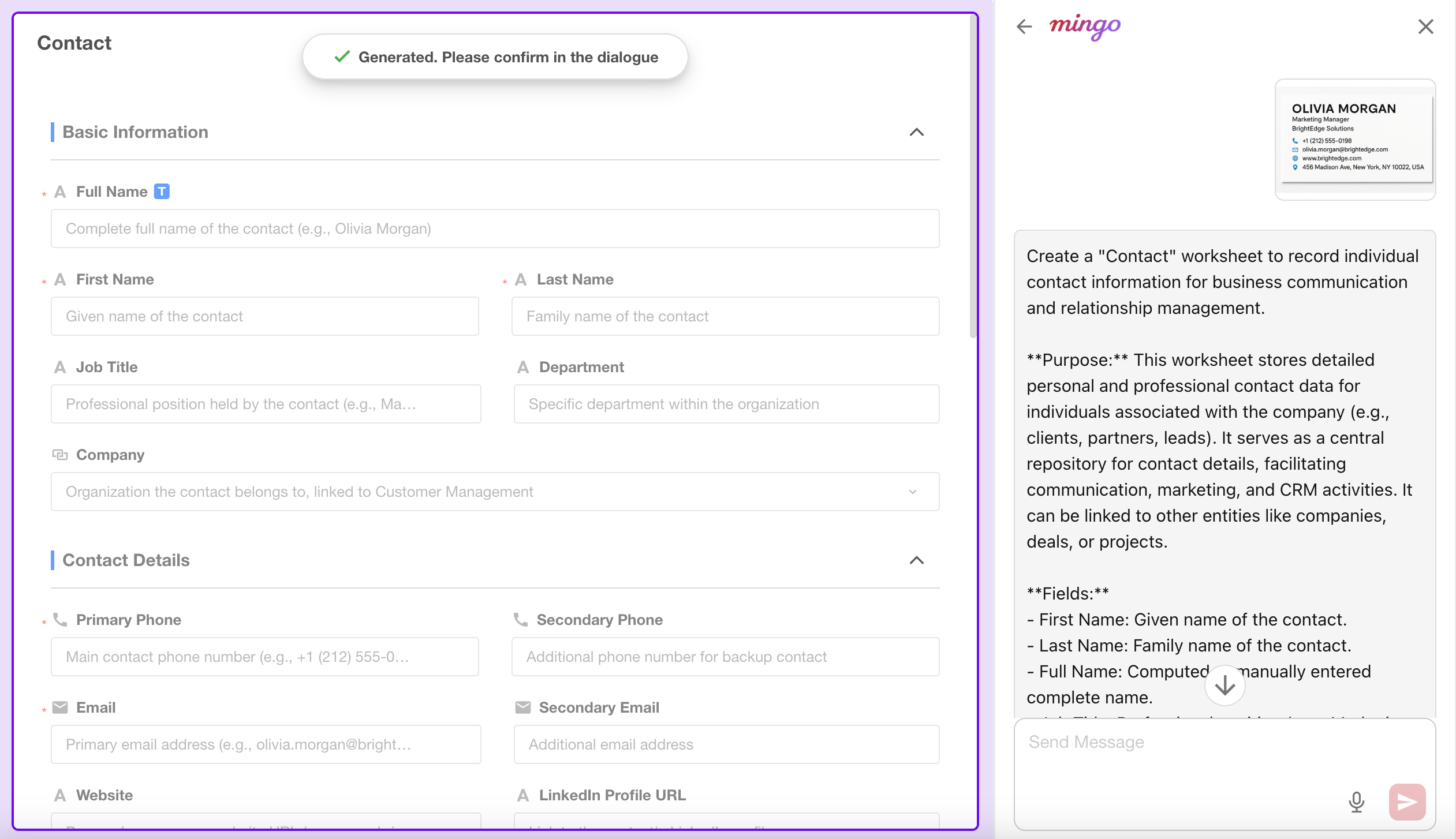
4. Create a Worksheet from an Image
Mingo can analyze uploaded images, recognize table structures, and assist in generating worksheets.
AI Sample Data Generation
Mingo can generate high-quality sample data for worksheets, making testing and demonstrations easier.
Open Mingo from any worksheet and select Populate Sample Data. If the current view contains no records, an AI Generate Sample Data option is also displayed.
Only application administrators, operators, and developers can generate sample data.
Generated sample data is fictional and intended for testing purposes only.
Sample data is generated for all non-read-only fields in the worksheet.
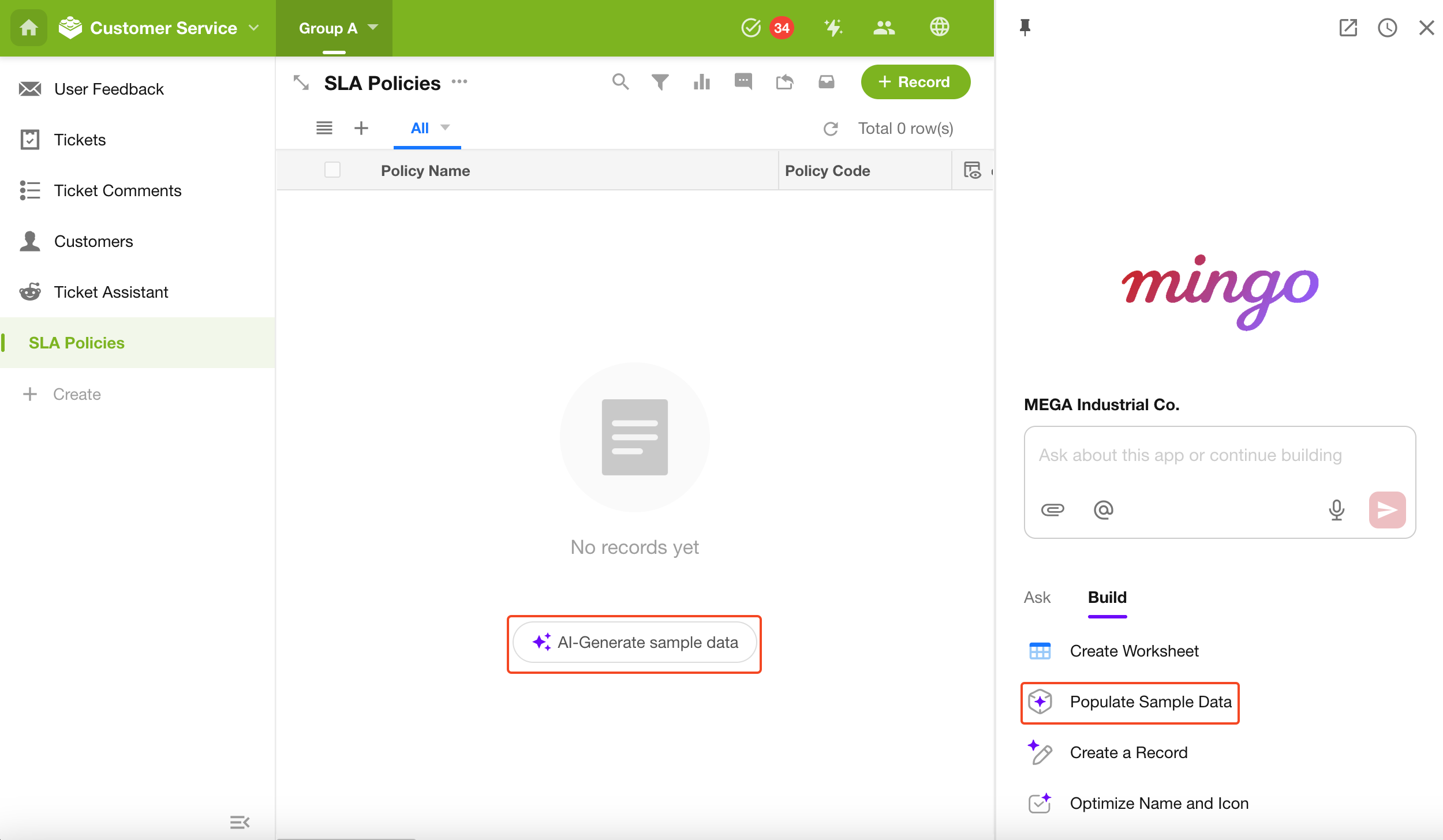
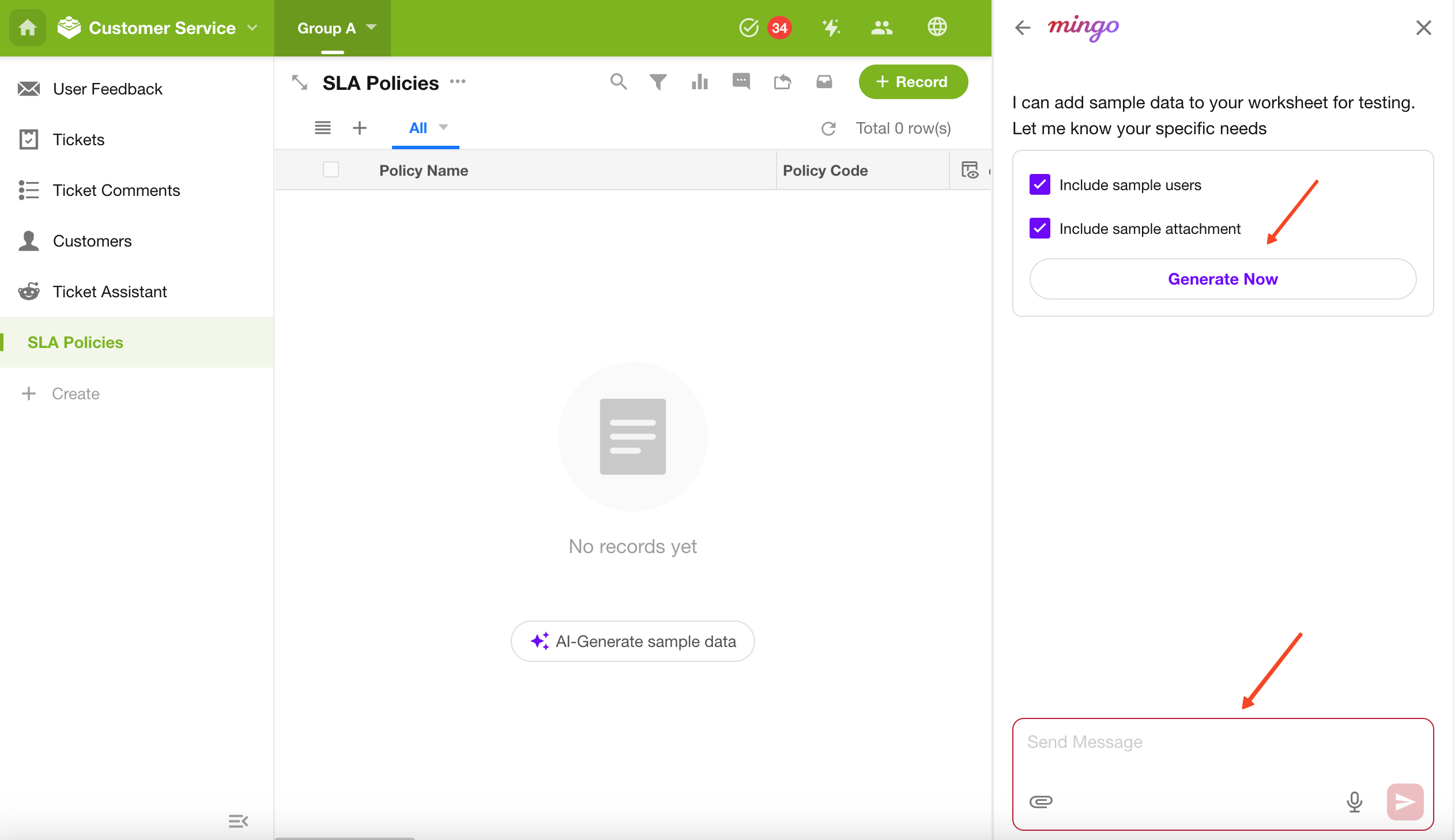
1. Enter Requirements or Generate Directly
Specify requirements for the sample data, or simply click Generate Now.
2. Preview and Continue Generating
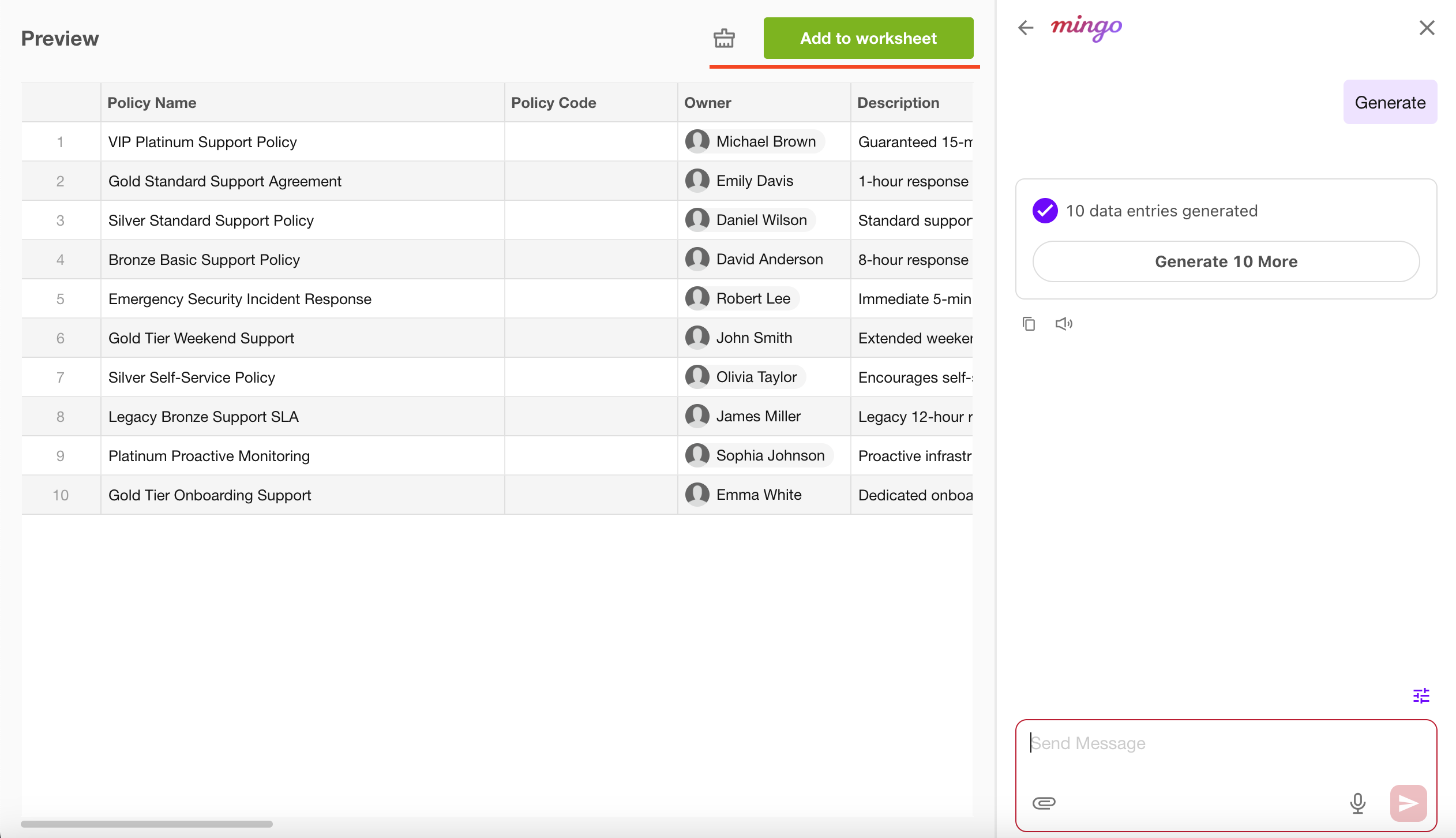
Generated data appears on the left for review. If the results meet your needs, click to continue generating. You can also provide additional instructions to generate alternative datasets.
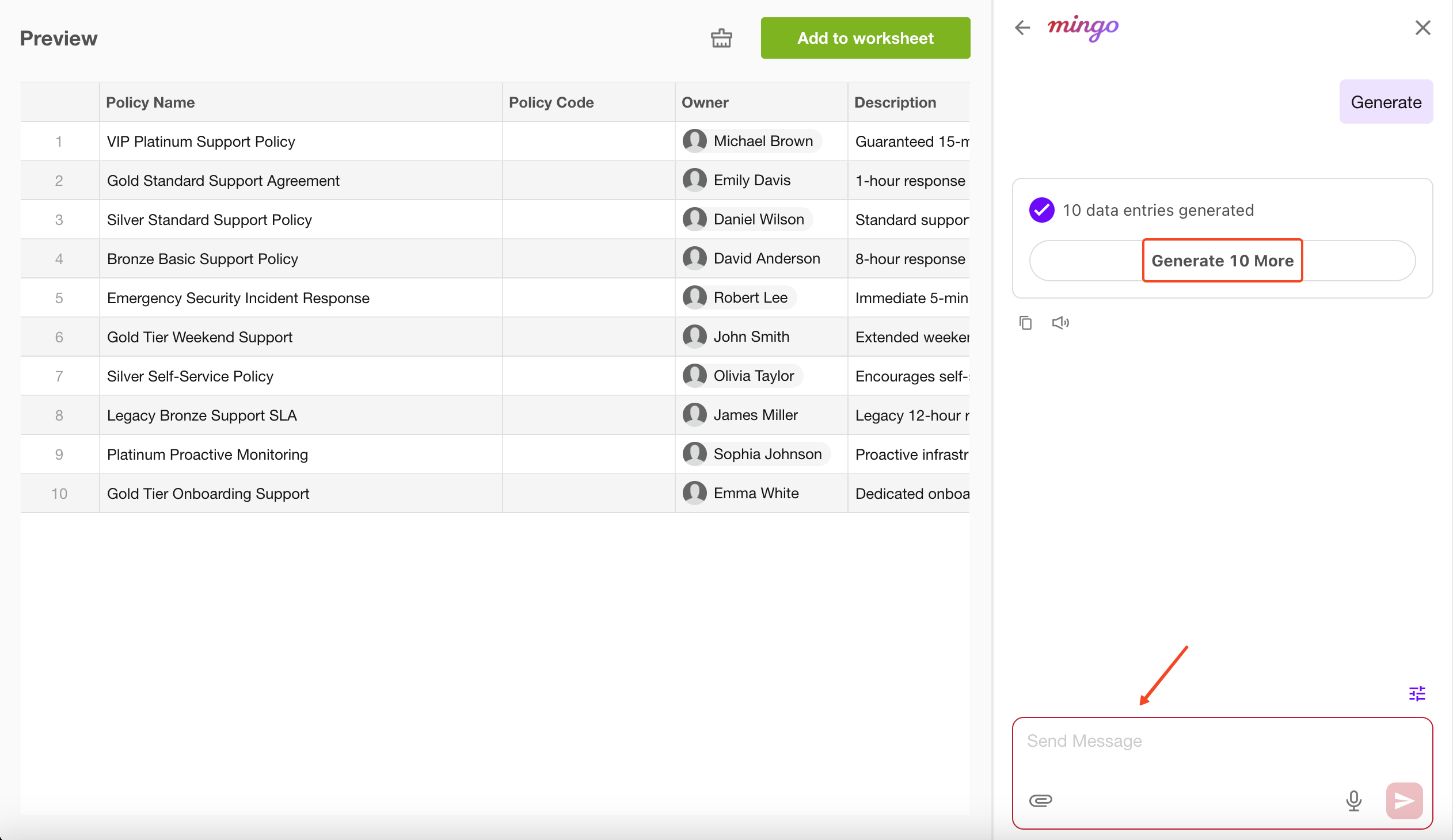
3. Add to Worksheet or Clear
To save the generated data as records, click Add to Worksheet.
If the results do not meet your expectations, click Clear and provide new instructions.
AI Record Creation
Mingo can analyze text input and uploaded files, then automatically populate the corresponding form fields.
1. Open the AI Record Creation Window
Click AI Auto Fill in the upper-right corner of the record creation page.
Alternatively, press M on a worksheet page and select Create a Record.
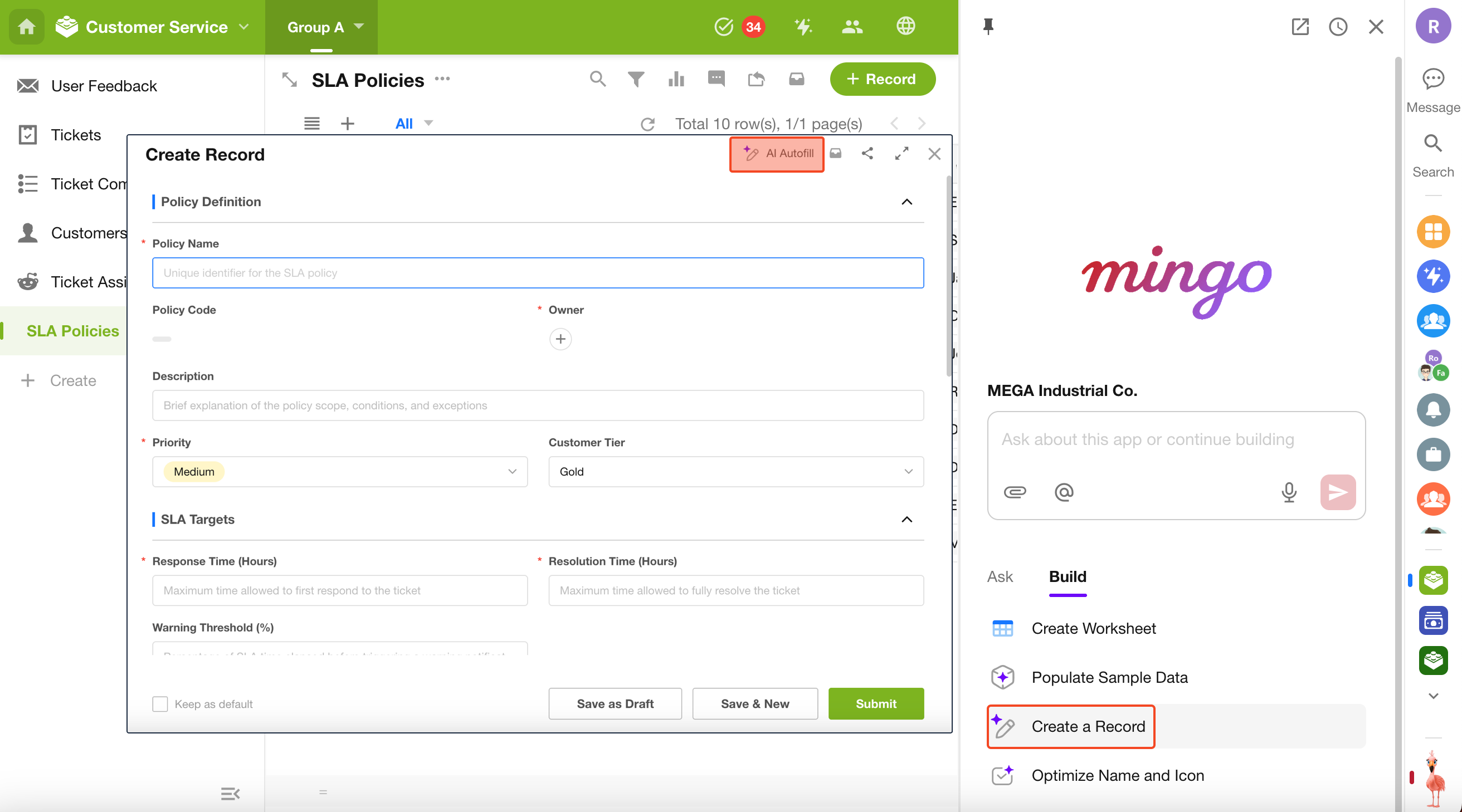
2. Process Text Input
Enter a block of text, optionally enable Smart Fill, and send the request.
- With Smart Fill enabled, AI can infer additional information or perform web searches to populate as many fields as possible. AI-generated values are marked with ✨.
- With Smart Fill disabled, only information explicitly provided by the user is written to fields without additional enrichment.
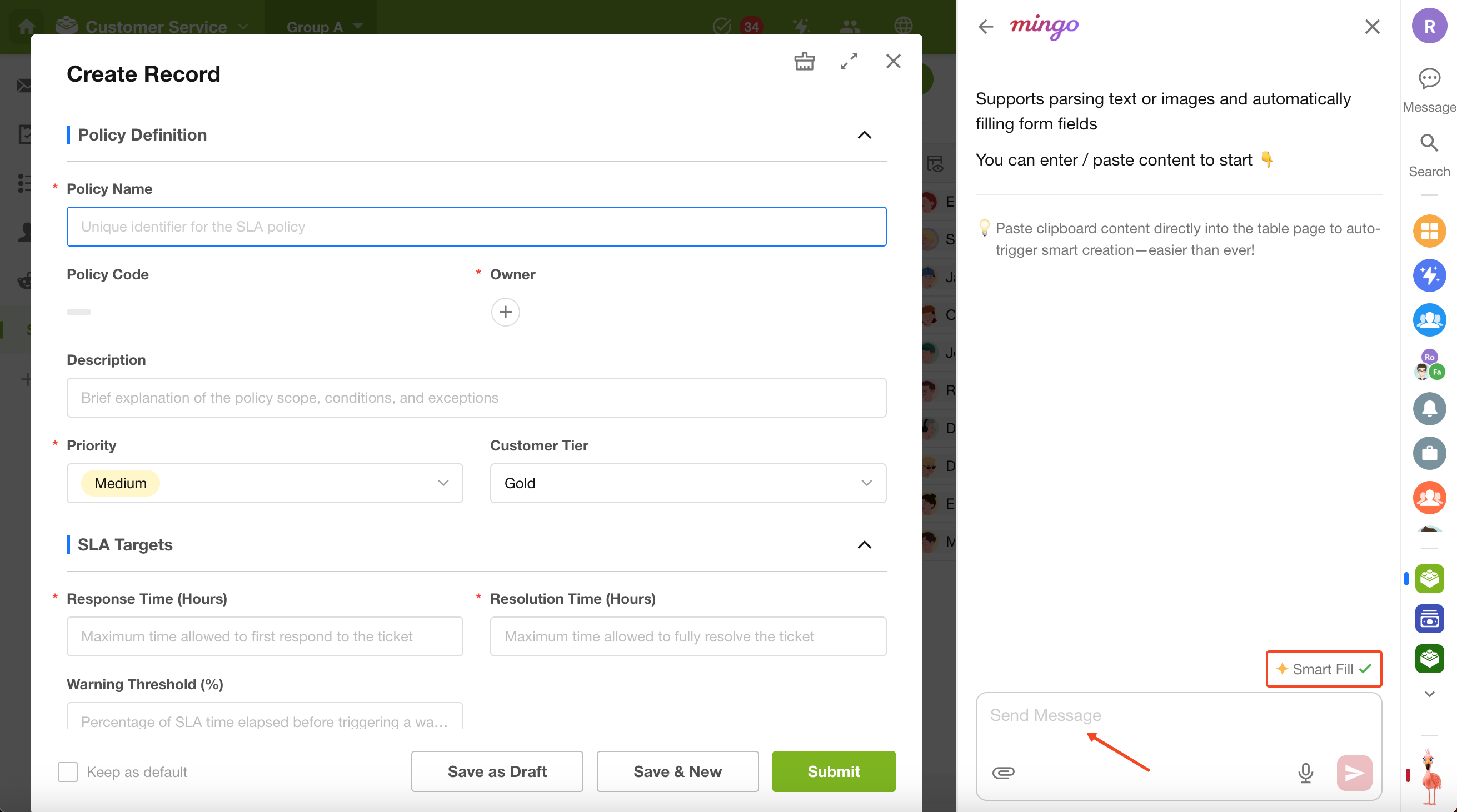
3. Review and Submit
Mingo automatically extracts information and populates recognizable fields.
Review the generated content and click Submit to create the record.
To remove generated content, click Clear. You can also send messages within the Mingo conversation.
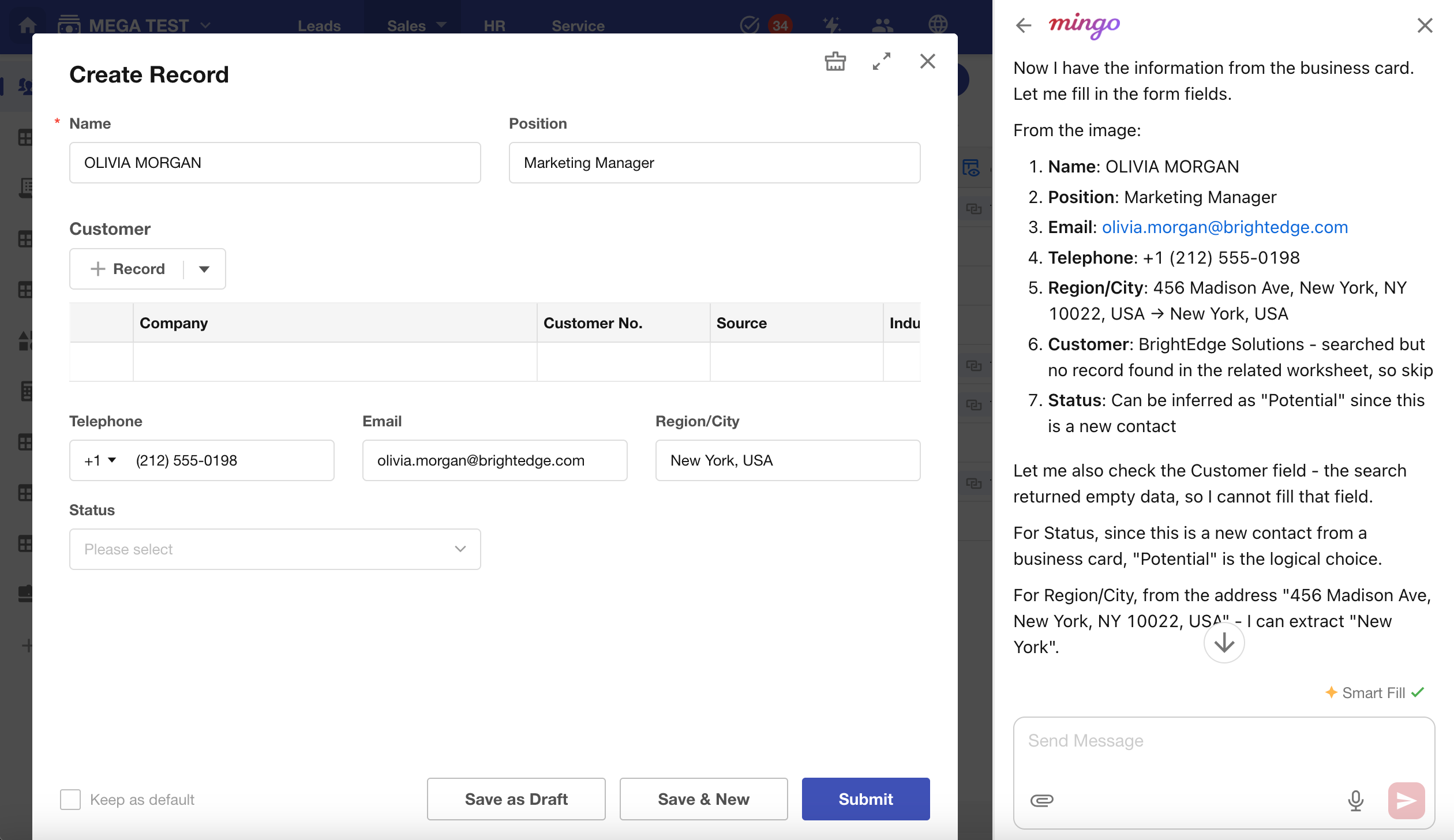
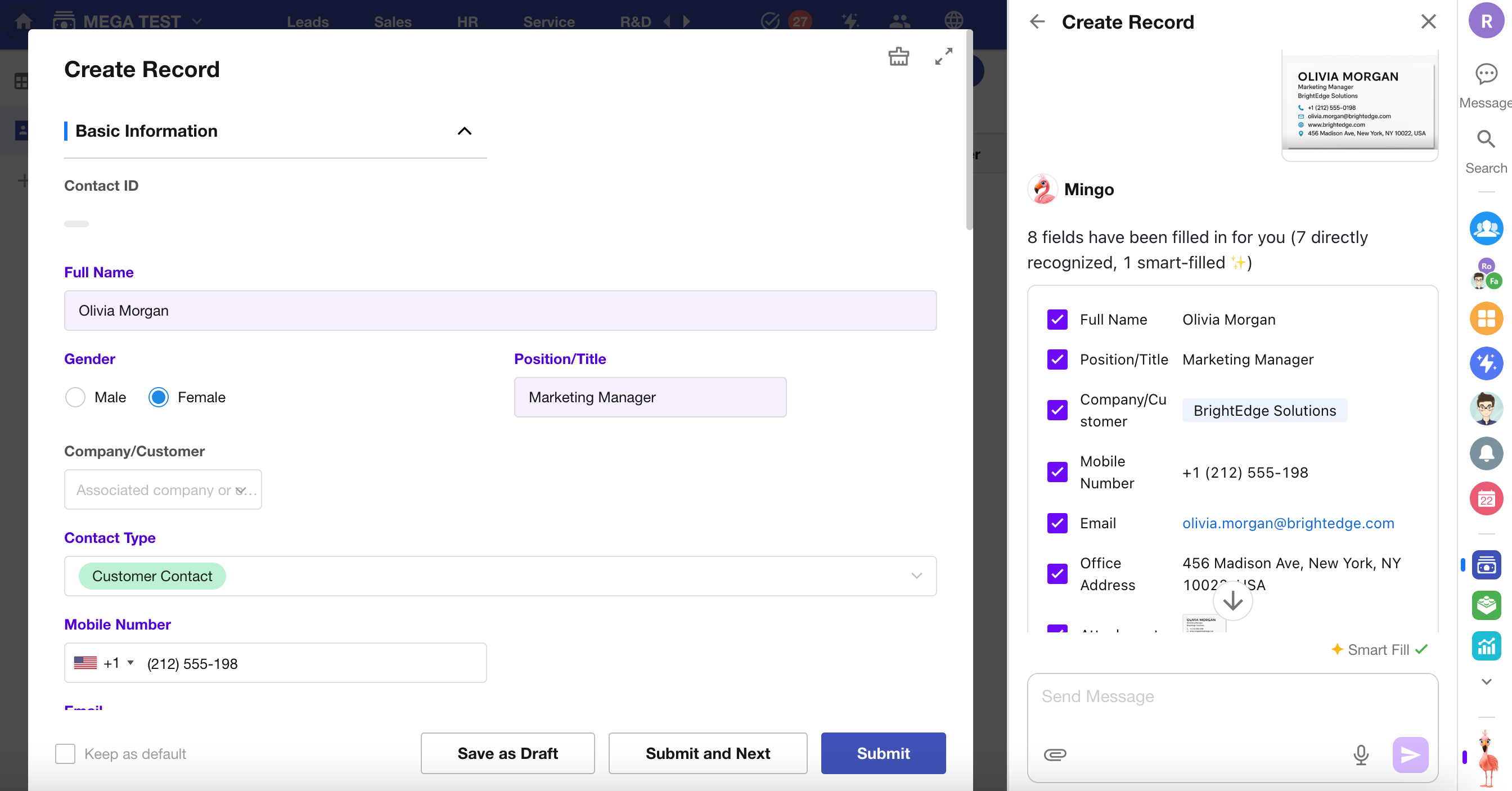
4. Create Records from Images
Mingo can analyze image content and populate records automatically.
For example, when a business card image is uploaded, Mingo can extract contact information and populate the corresponding fields in a Contacts record.
AI Application Optimization
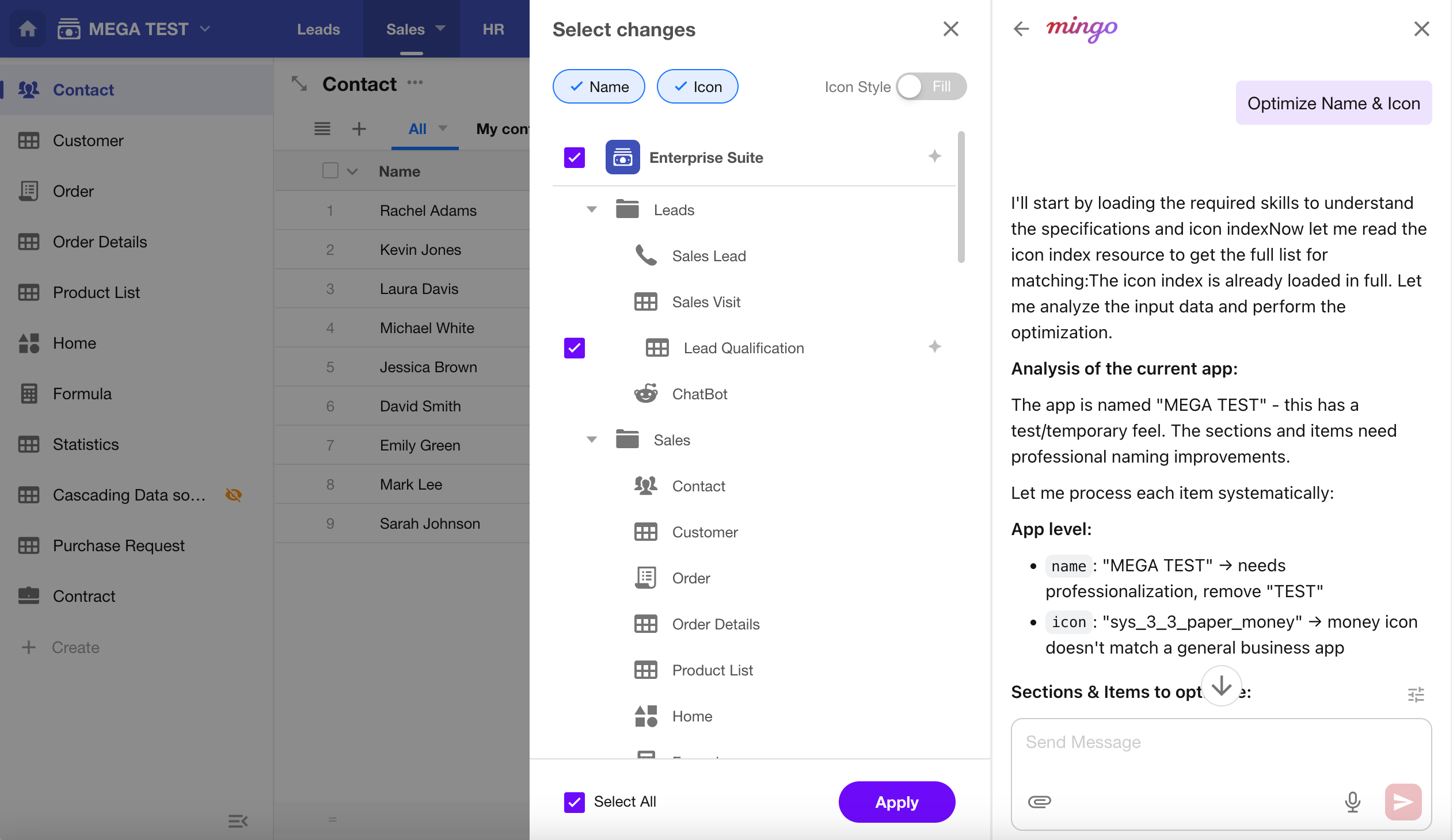
Mingo can intelligently improve application names and icons based on the current application configuration.
Open Mingo and select Build > Optimize Name and Icon.
You can also provide specific instructions, such as requesting a shorter application name or an icon that better reflects your industry.
Data Query and Analytics
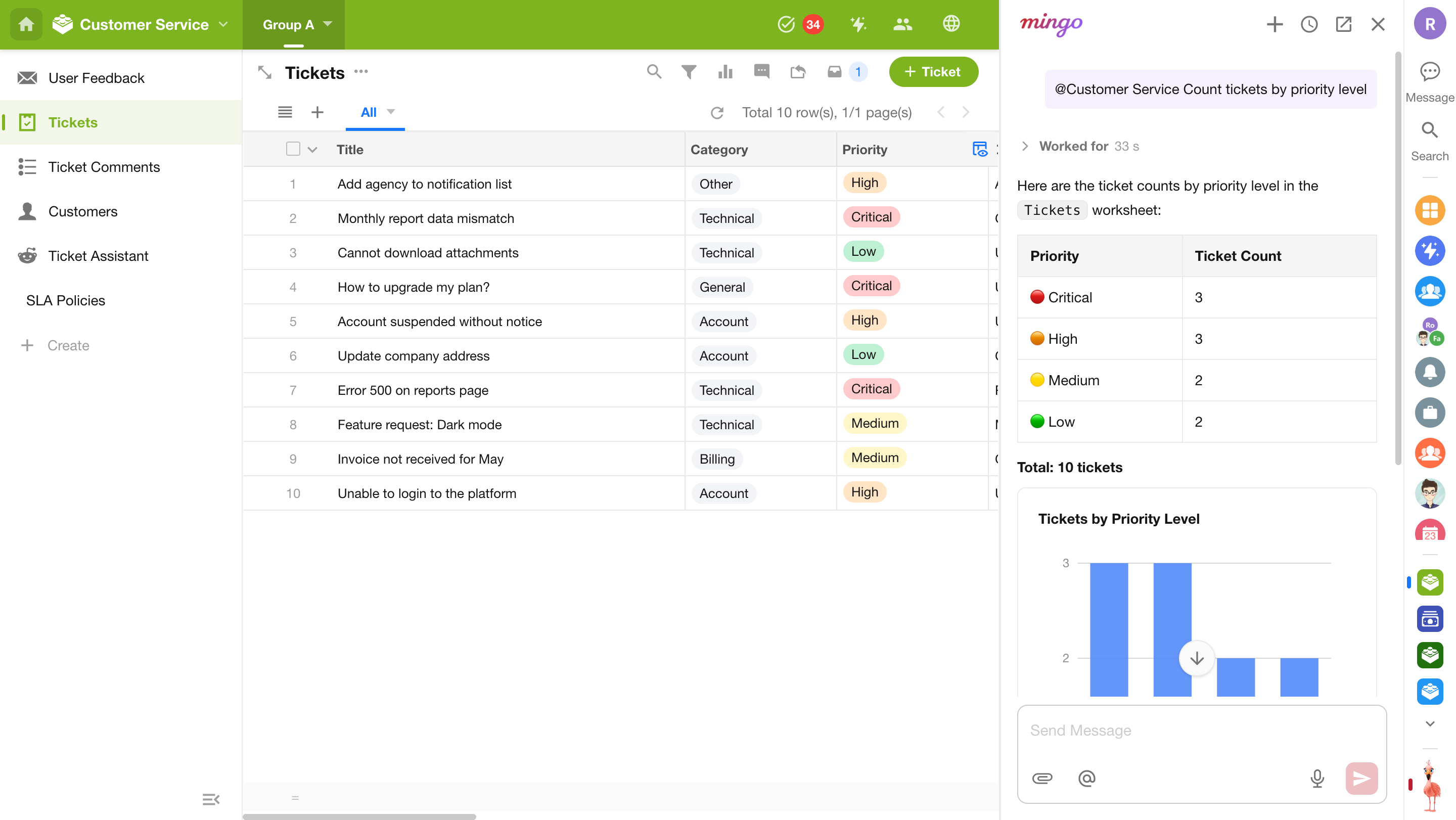
Mingo lets you query, summarize, and analyze application data using natural language. Instead of manually configuring views, filters, or charts, simply ask a question in plain language. Based on your permissions, Mingo retrieves the relevant data and presents the results as text, tables, or charts.
Mingo can help you with:
- Application Information: View the applications in your organization, including the purpose, modules, and form structure of a specific application.
- Worksheet Structure: Explore worksheet fields, field types, option values, and relationships between worksheets.
- Record Data: Query record lists, individual record details, related records, and subform data based on specified conditions.
- Personal and Team Data: Understand queries such as "my," "my department," "my manager," and "my direct reports," then retrieve data based on the current user's identity, department, and reporting hierarchy.
- Approval Tracking: Check pending approvals, current workflow nodes, assignees, processing progress, and record change history.
- Attachment Content: Read and analyze content from Word, Excel, PowerPoint, PDF, text, and image attachments, then generate summaries or answer questions based on the content.
- Vector Knowledge Base: Retrieve information such as FAQs, policies, and other knowledge from the application's Vector Knowledge Base.
- Statistics and Aggregation: Perform grouping, counting, summation, ranking, trend analysis, and percentage analysis by dimensions such as department, user, time, and status.
Results can be presented as text, tables, or charts. You can also open the related records directly for more details.
AI-Generated Charts
When querying and analyzing application data, Mingo can automatically generate charts based on the results, making it easier to visualize data distributions, trends, comparisons, and business processes.
Mingo prioritizes returning a text summary and data table, with charts provided as a visual aid. If the results are not suitable for visualization, only text or tables are returned.
Supported chart types
Mingo supports a wide range of statistical charts, including pie charts, column charts, bar charts, line charts, area charts, funnel charts, rose charts, radar charts, word clouds, heatmaps, KPI cards, gauge charts, and dual-axis charts.
It also supports generating structural diagrams, including flowcharts, entity relationship diagrams (ERDs), state diagrams, Gantt charts, timelines, mind maps, and quadrant charts.
Example prompts
- Show the total sales amount for each salesperson this month and generate a column chart.
- Analyze monthly order volume for this year and display the results as a line chart.
- Show the conversion rate for each opportunity stage.
- Generate a mind map of the application, worksheet, and field hierarchy.
- Show the percentage distribution of ticket types this month.
- What's the current progress of the projects I'm responsible for?
- Which orders are overdue this month?
- Who is currently handling this purchase order?
- What is each team's total sales this quarter?
- What are the key terms in this contract PDF?
Product Help & Q&A
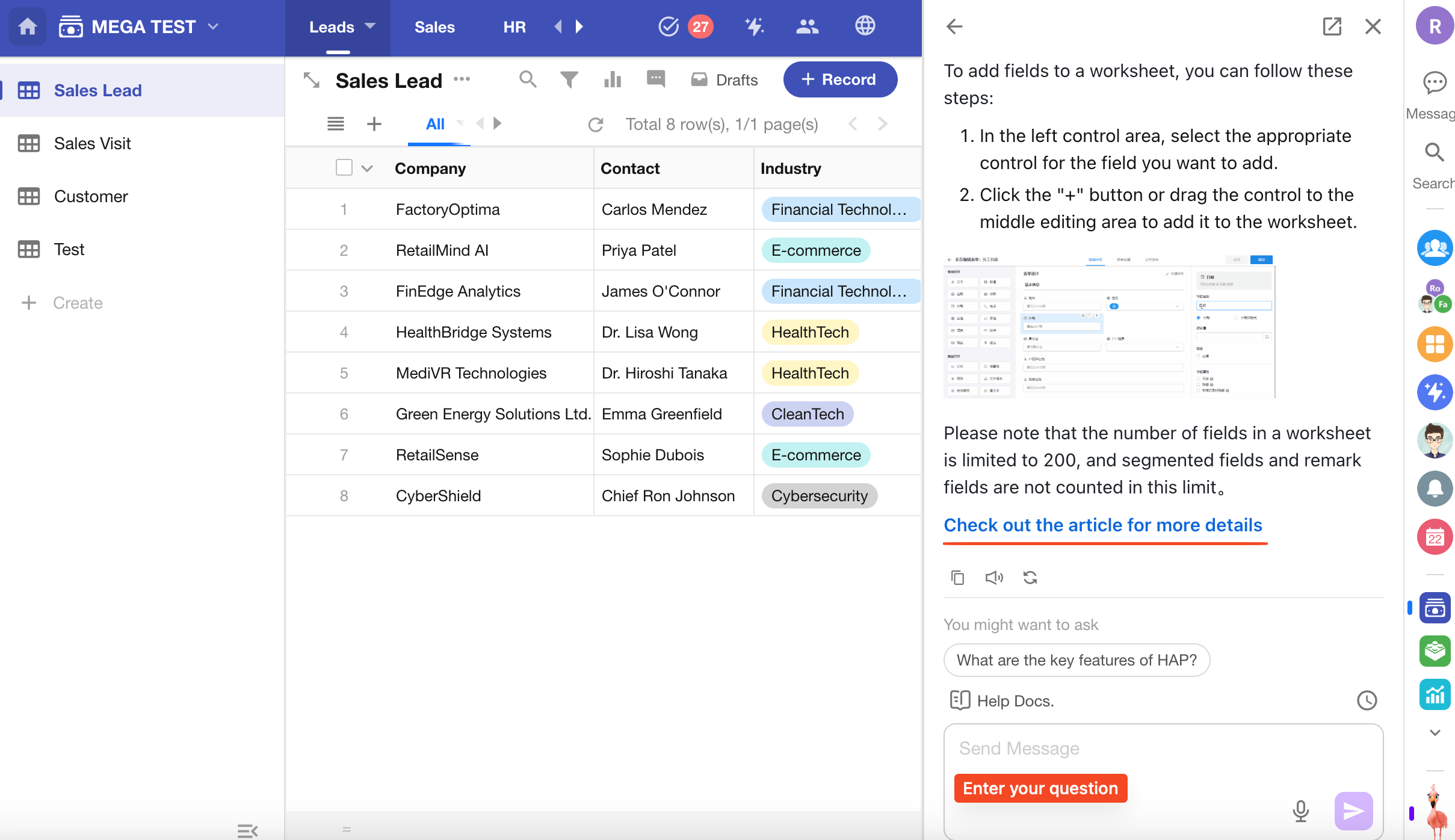
Press M to open Mingo and ask product-related questions directly.
Mingo generates answers based on the knowledge base and provides links to the original documentation, making it easy to access more detailed help content.
Mingo Conversations
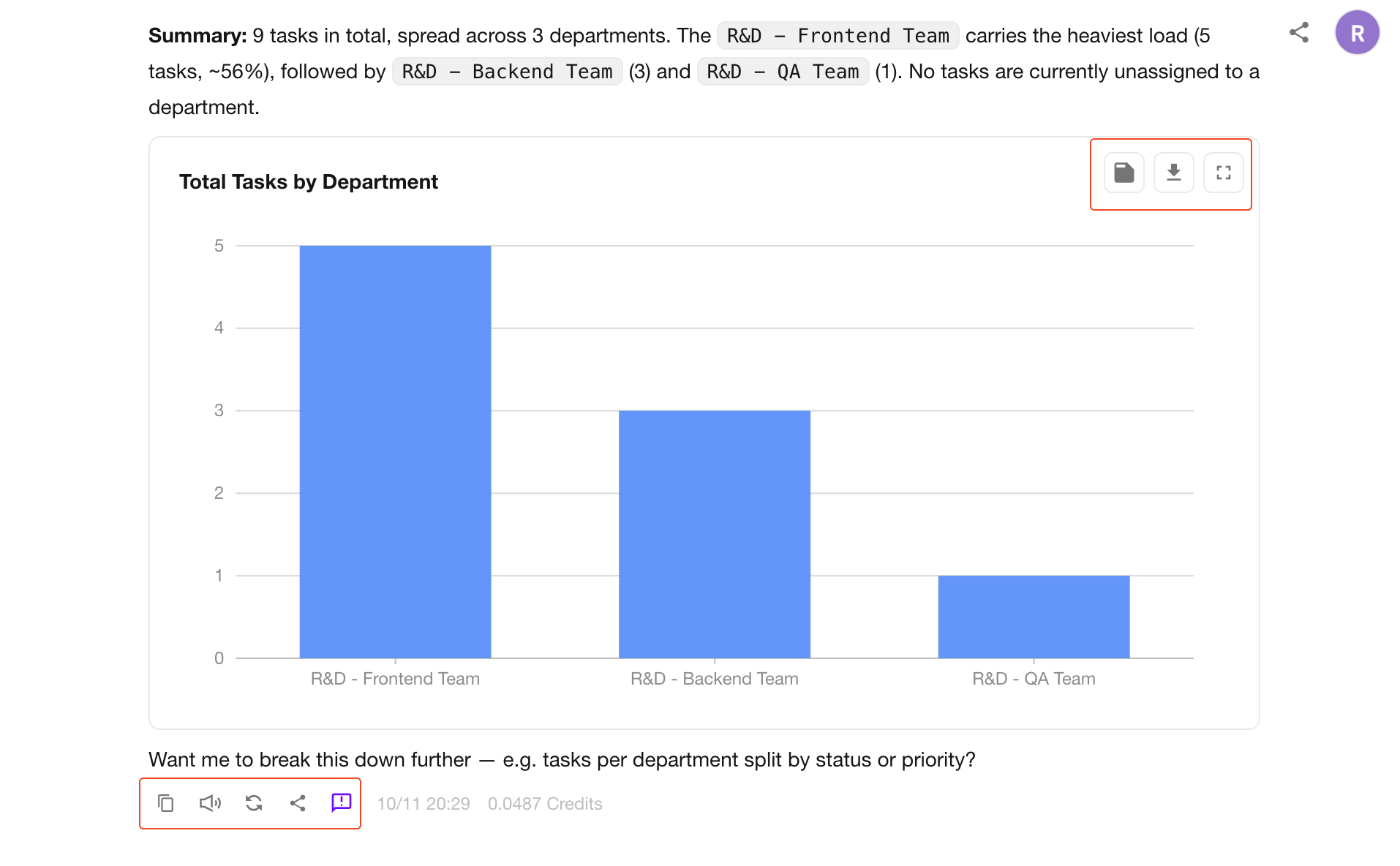
You can chat with Mingo by entering text or uploading file attachments. You can also copy messages, listen to responses, regenerate responses, and share conversations.
Message Actions:
- Copy: Copy the selected message.
- Read Aloud: Listen to Mingo's response and stop playback at any time.
- Regenerate: Generate a new response to the same message.
- Share: Select one or more conversation exchanges to share. Each exchange includes a user message and Mingo's response. Shared conversations can be accessed by signed-in organization members or made publicly accessible via a link.
- Feedback: Report issues or suggest improvements.
- Chart Actions: View generated charts in full screen or download them.
File Limits and requirements:
- Maximum Files: Up to 5 files per message.
- File Size: Images up to 5 MB each; documents up to 10 MB each.
- Document Length: Up to 50,000 words across all uploaded documents. Content exceeding this limit is ignored.
- Supported Formats: Word, WPS, PDF, PPT, TXT, Markdown, JSON, XML, YAML, LOG, PNG, JPG, and other supported file formats.
Was this document helpful?