Connect AI
Connect AI enables HAP to connect with external AI Agent tools, allowing AI to understand and use HAP capabilities within authorized scopes. This helps streamline application building, data queries, workflow automation, API development, and more.
In HAP, you can install and configure MCP, CLI, and Skills through the Connect AI portal.
Connection Methods
HAP currently supports three connection methods:
- MCP — Connect HAP as an MCP Server to AI Agent tools.
- CLI — Access HAP capabilities through terminal commands. Supports applications, worksheets, workflows, approvals, Contacts, calendars, group chats, and more. Ideal for local terminals, server-side scripts, and automation workflows.
- Skills — Install HAP-specific skills that enable AI to operate HAP more effectively. Skills support CLI commands, MCP services, and APIs, covering the entire lifecycle from application creation and data management to custom development.
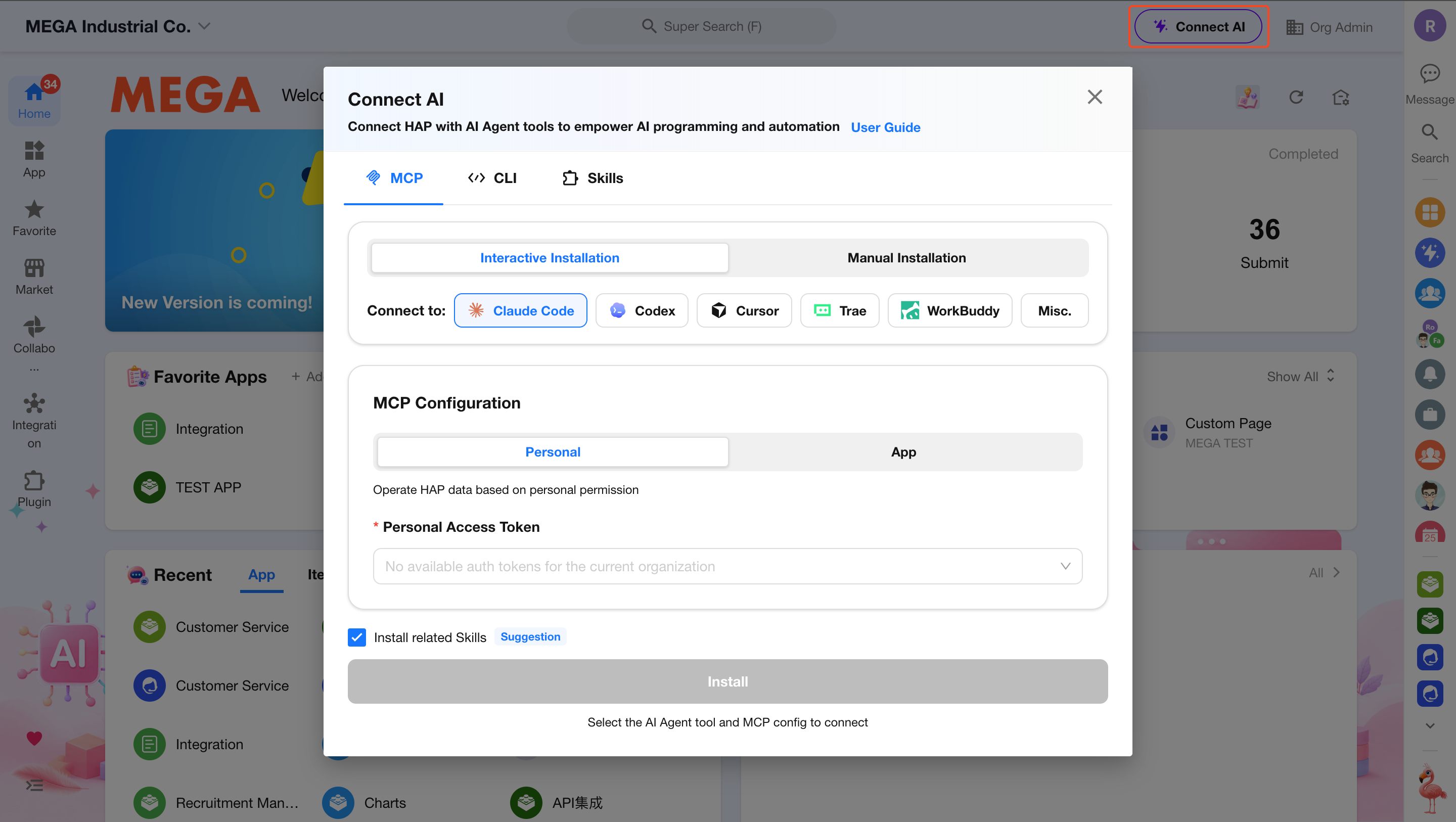
Access Path: Click Connect AI in the upper-right corner of the HAP homepage to open the configuration page.
MCP Installation
After connecting an MCP-compatible AI Agent tool, the AI can access HAP within the authorized scope and perform tasks such as data queries, application configuration, and workflow operations.
Installation Steps
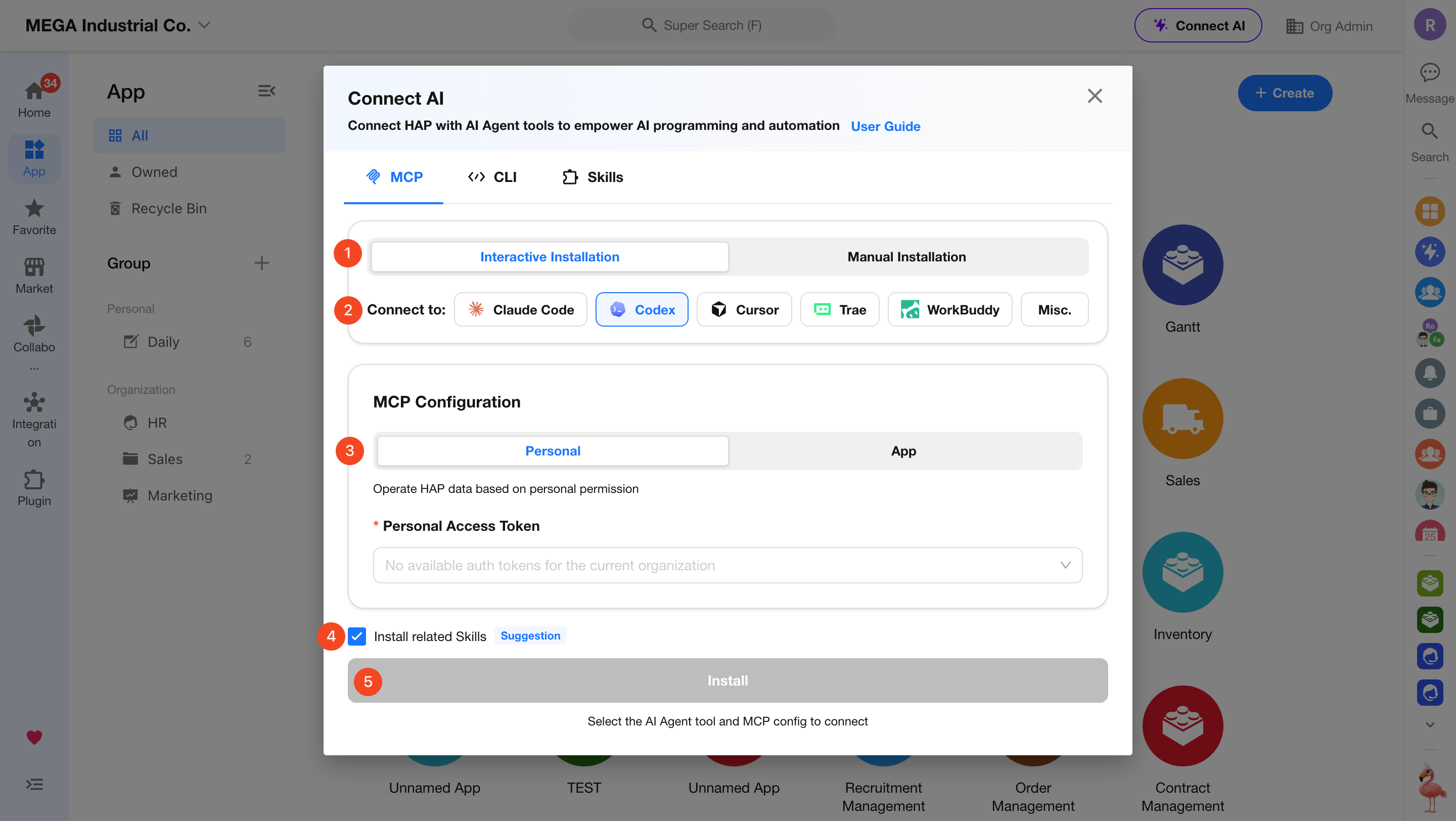
1. Choose an Installation Method
MCP supports both Interactive Installation and Manual Installation. Interactive Installation is recommended.
2. Select an AI Tool
Choose the AI Agent tool you want to connect. HAP automatically generates the appropriate installation instructions based on the selected tool.
If your tool is not listed, select Misc..
3. Configure Access Scope
MCP supports two authorization modes:
- Personal
- Application
Personal Access
The AI tool accesses HAP using the current user's permissions. A Personal Access Token is required.
Application Access
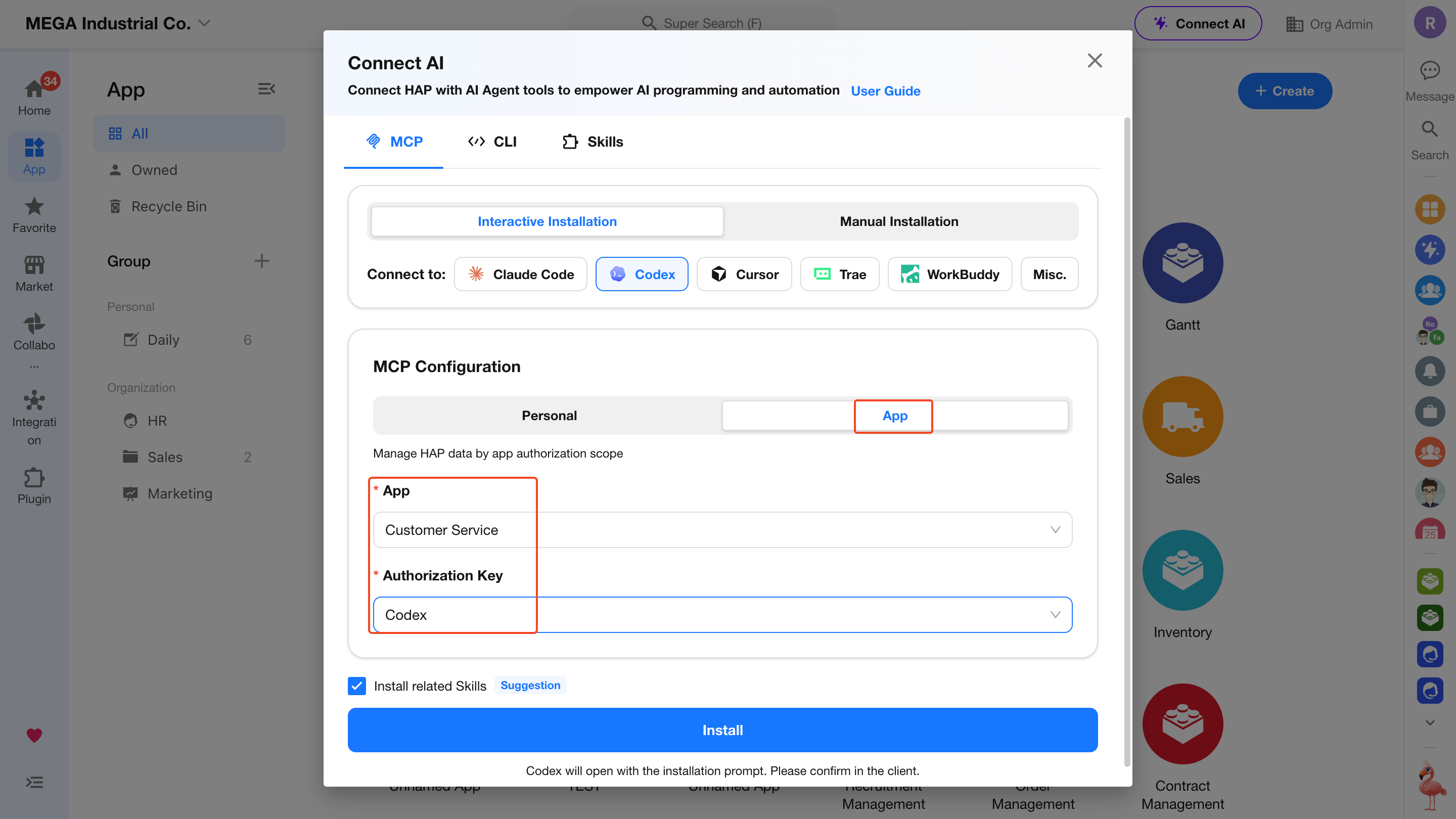
The AI tool accesses HAP using a predefined application authorization scope. An application and authorization key must be selected.
For details on creating and managing Personal Access Tokens and Application Authorization Keys, see Access Credentials.
4. Install Related Skills (Optional)
Enable Install Related Skills if needed. Skills help AI tools better understand HAP concepts and operational workflows.
5. Complete Installation
HAP generates installation instructions based on your selections.
Interactive Installation
- Click Install to open the target AI tool and automatically populate the installation prompt.
- Confirm and execute the installation.
- Alternatively, copy the generated prompt and paste it into the AI tool manually.
Manual Installation
- Copy the generated installation command.
- Run it in a terminal and follow the prompts.
📖 For more information about the MCP protocol, including its architecture, evolution, and common use cases, see MCP Server.
CLI Installation
CLI is HAP's command-line interface that enables direct access to HAP capabilities through terminal commands. It is ideal for batch operations, scripting, and repeatable automation tasks.
Compared with MCP's conversational workflow, CLI is better suited for developers and automation scenarios. It supports applications, worksheets, workflows, approvals, Contacts, calendars, group chats, and more.
Prerequisites
CLI access is controlled by an organization-level policy.
If CLI access is not enabled, an organization administrator must enable the CLI Access Policy under Org Admin > Security > Data & Access before it can be used.
Installation Steps
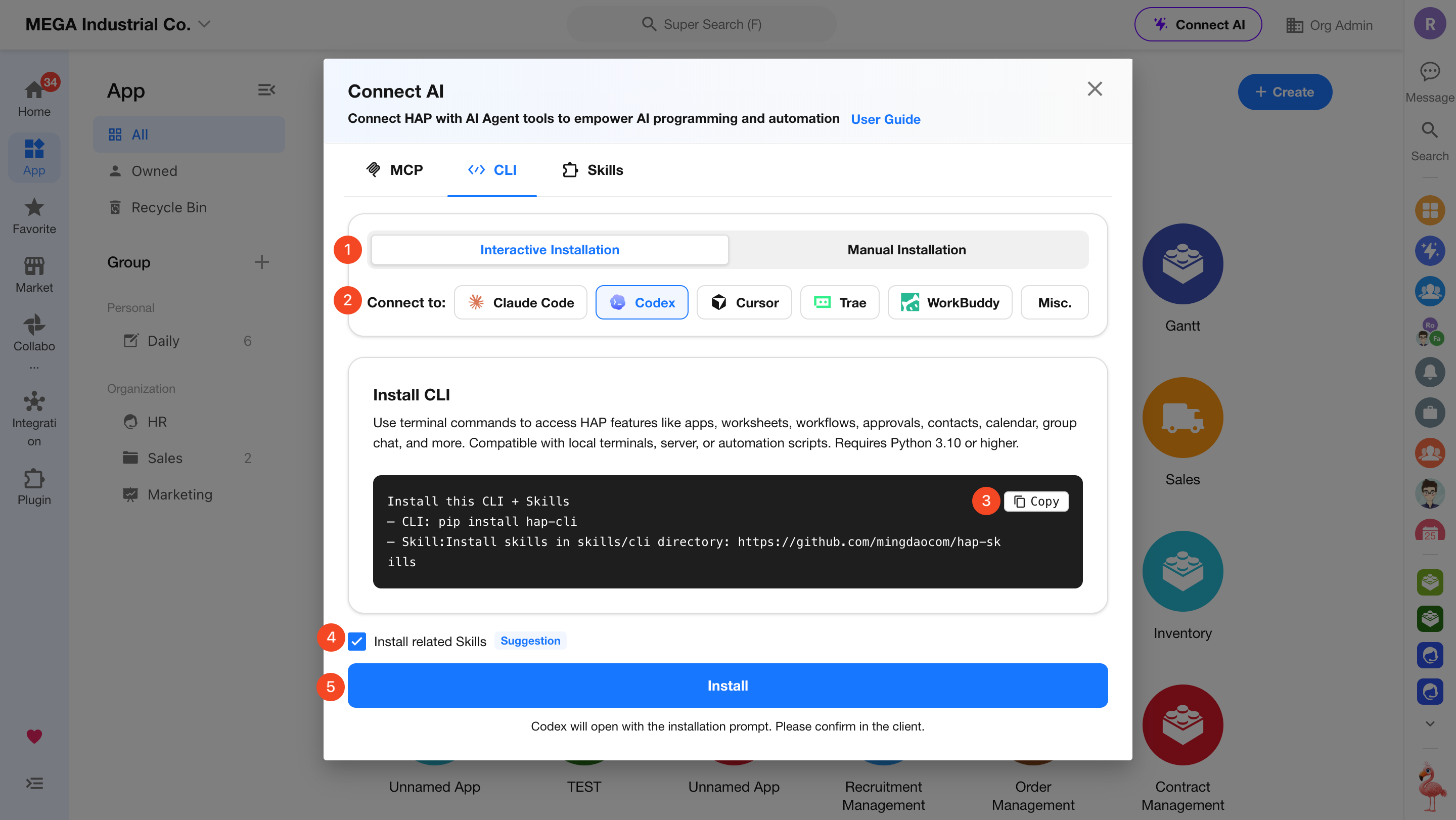
1. Choose an Installation Method
CLI supports both Interactive Installation and Manual Installation.
2. Select an AI Tool
Choose the AI Agent tool you want to connect. HAP automatically generates the appropriate installation instructions based on the selected tool.
If your tool is not listed, select Misc..
3. Install Related Skills (Optional)
Optionally install companion Skills during setup.
4. Complete Installation
Interactive Installation
- Click Install to open the target AI tool and automatically populate the installation prompt.
- Confirm and execute the installation.
- Alternatively, copy the generated prompt and paste it into the AI tool manually.
Manual Installation
- Copy the generated installation command.
- Run it in a terminal and follow the prompts.
Using CLI
After installation, you can directly execute HAP commands from a terminal.
You can also combine CLI with Skills, allowing an AI Agent to execute CLI commands through natural-language instructions.
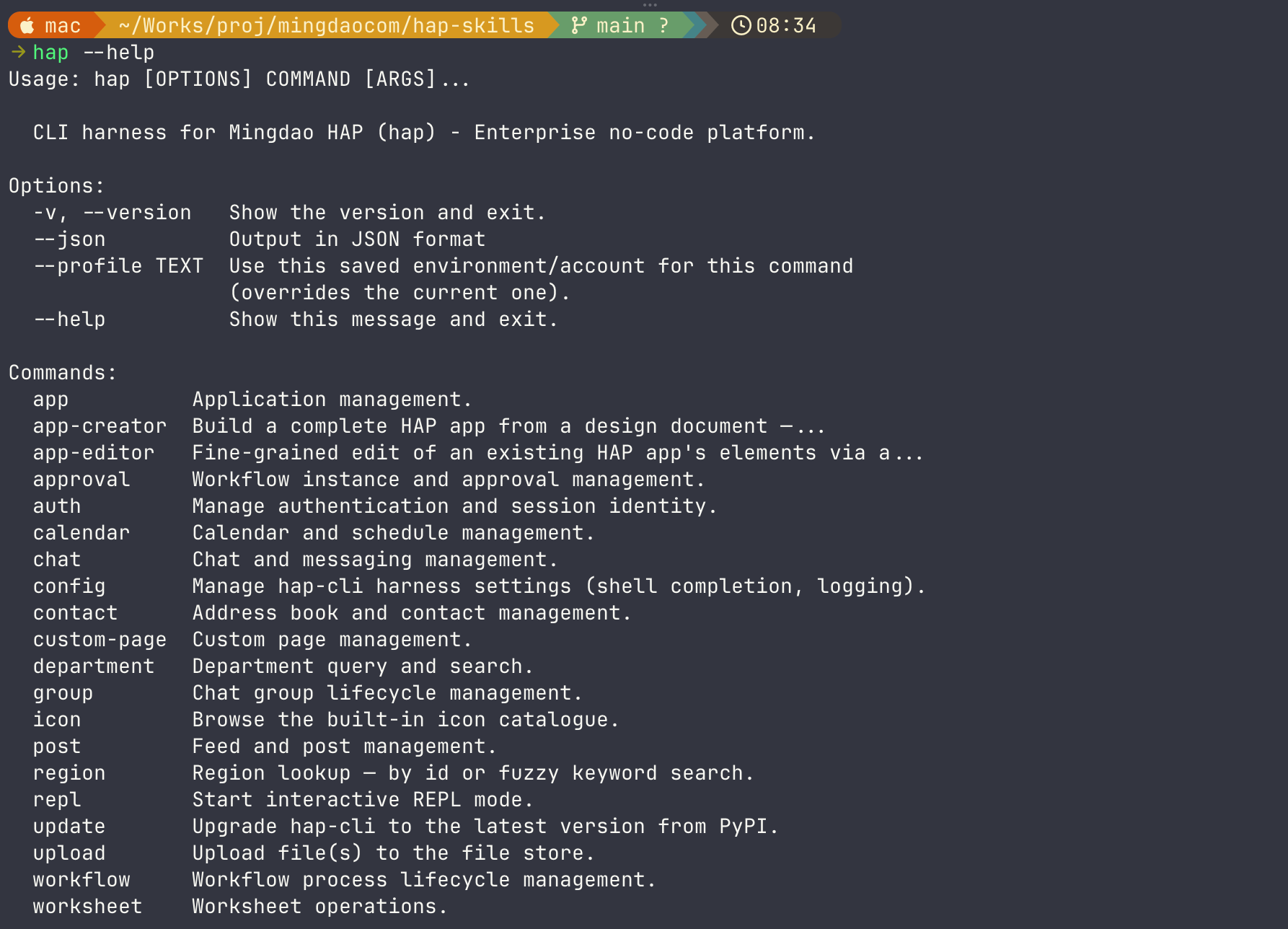
📖 For installation, sign-in instructions, command references, and examples, see the CLI Guide.
Skills Installation
Skills provide AI with specialized knowledge for operating HAP.
After installation, AI can more accurately determine which HAP capabilities to use, how to pass parameters, and when to request confirmation before performing high-risk actions such as modifying or deleting data. This enables AI to complete tasks such as application creation, application management, and data querying more accurately and reliably.
Available Skills
MCP Skill (Intelligent Application Building)
Built on MCP services, allowing AI Agents to interact directly with HAP.
Suitable for:
- Intelligent application building
- MCP service configuration
MCP service configuration must be completed before use.
After installation, users can achieve the same end-to-end application-building experience available through Mingo in local AI clients.
CLI Skill (Command-Line Operations)
Built on HAP CLI, enabling AI to operate HAP directly through terminals and scripts.
Suitable for:
- Creating applications
- Managing applications
- Querying data
CLI must be installed and authenticated before use.
API Skill (API Development)
Built on HAP V3 APIs and designed for application-level custom development.
Suitable for:
- API integrations
- Custom view plugin development
- Front-end application development
API authentication must be configured before use.
Installation Steps
Go to Connect AI > Skills, select the desired Skill, click Install, and follow the instructions.
For manual installation, simply copy the generated command and run it in a terminal.
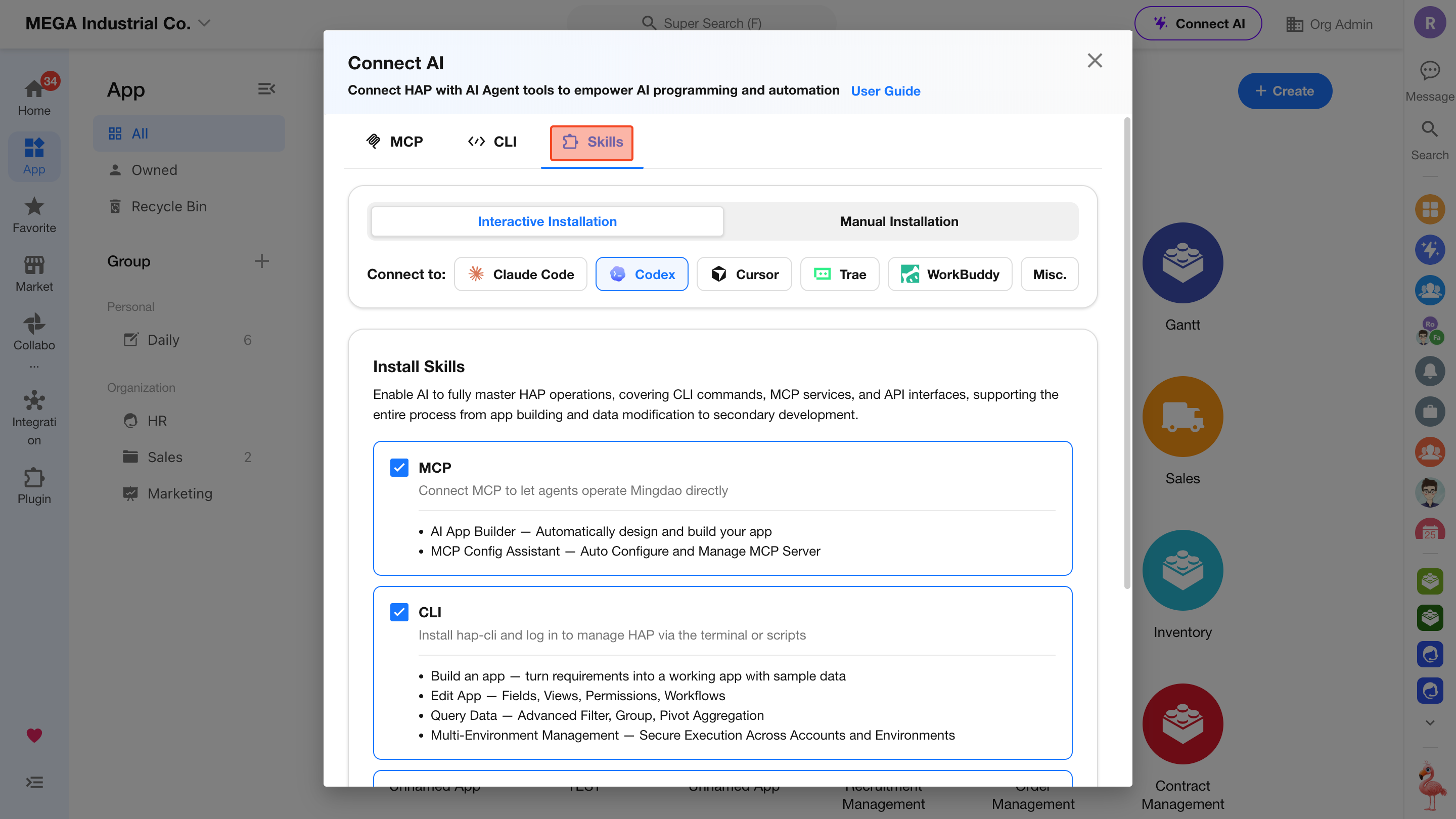
If Install Related Skills was selected during MCP or CLI installation, you typically do not need to install the Skills separately.
For a complete list of HAP Skills, see HAP Skills.
Access Credentials
Access credentials define the identity and permission scope used when external AI tools connect to HAP.
Depending on the authorization model, you can use either a Personal Access Token or an Application Authorization Key.
Personal Access Tokens
A Personal Access Token (PAT) represents the current user's identity and is suitable for personal-scope access.
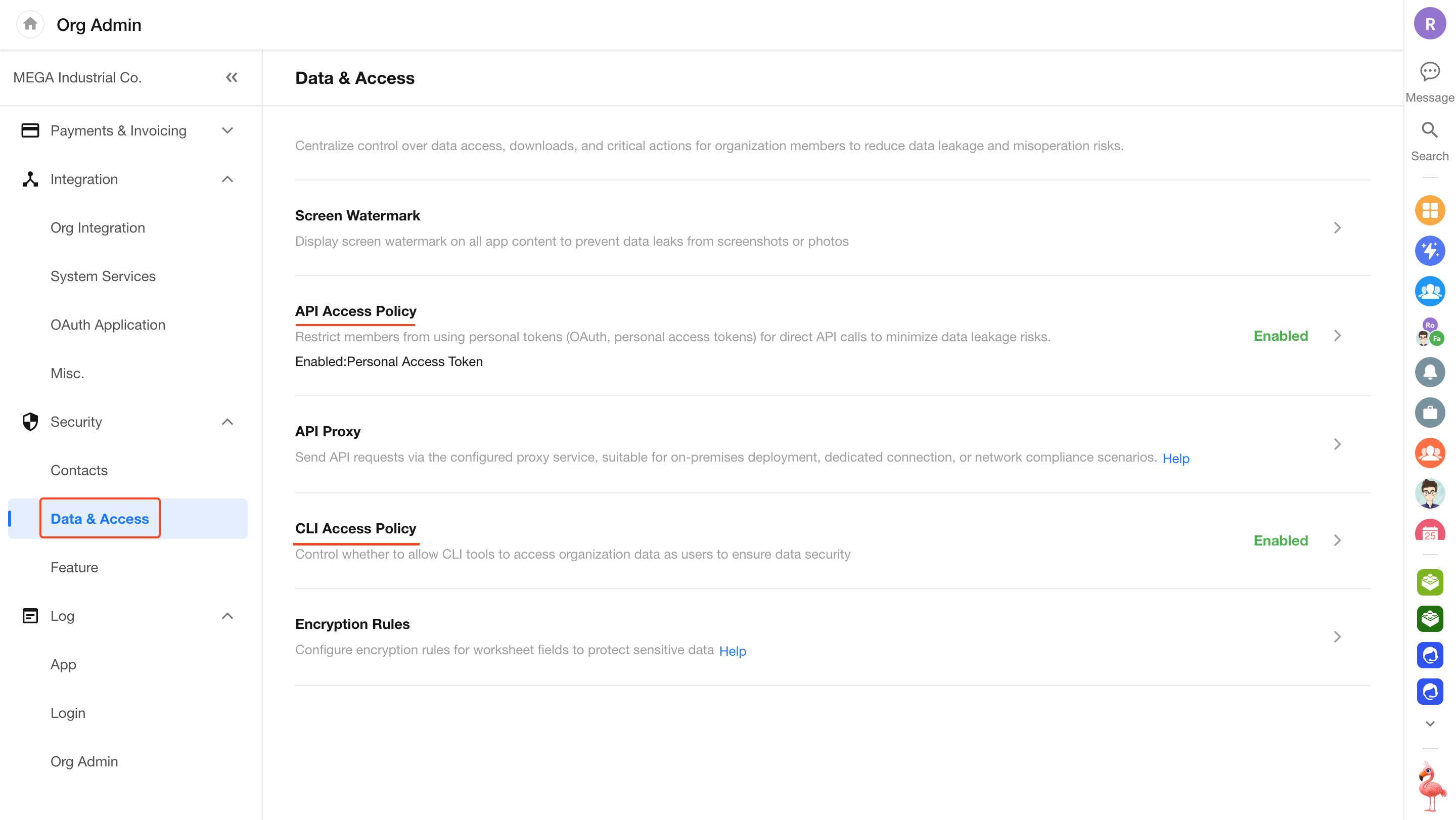
Prerequisites
Before using a Personal Access Token or Application Authorization Key, ensure that API Access Policy > Personal Access Token is enabled in Organization Management.
Access Path
Click your avatar and go to:
Manage My Account > Personal Access Token
Then click Add.
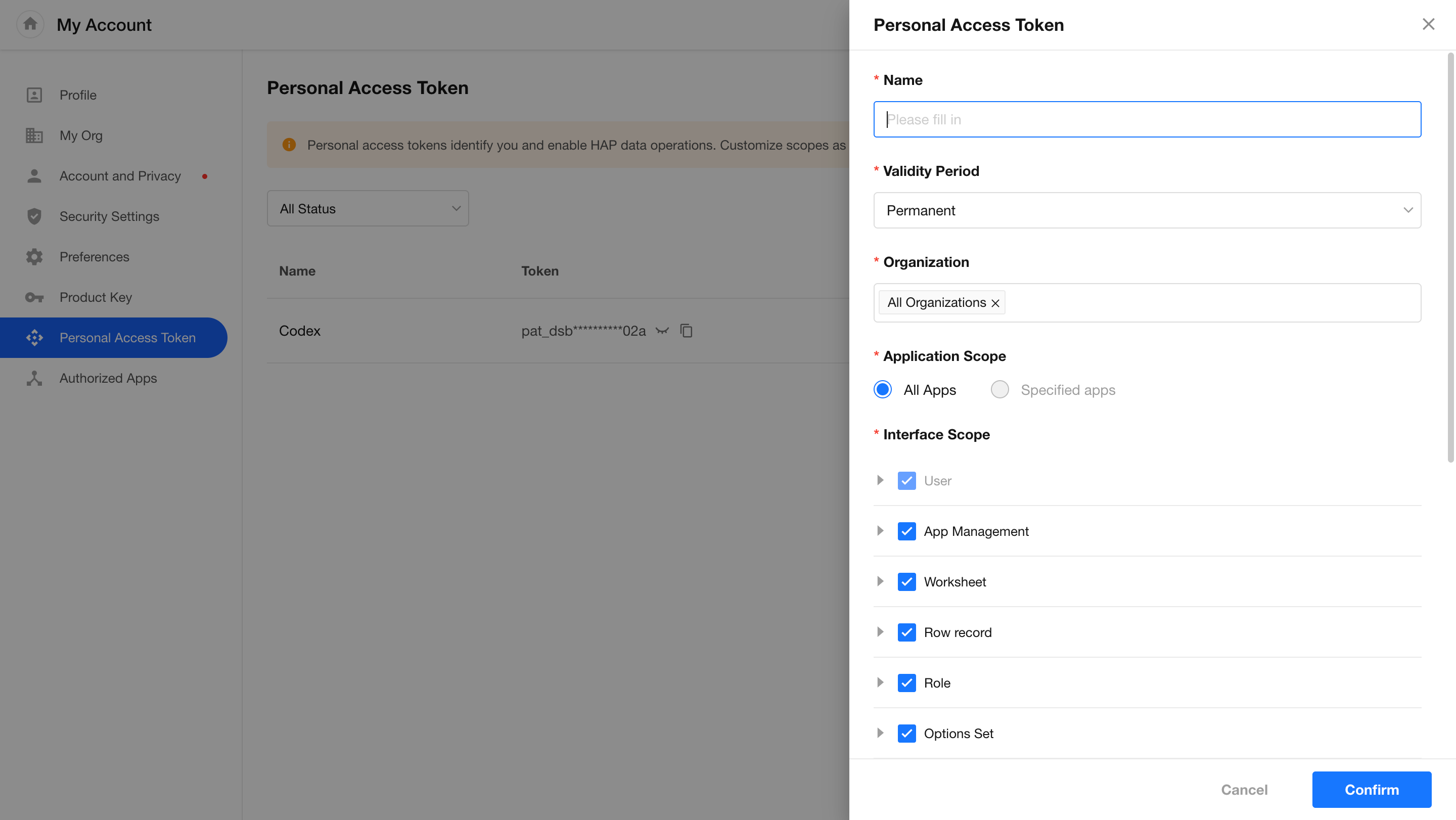
When creating a Personal Access Token, configure:
- Name
- Expiration period
- Organization
- Application scope
- API scope
To select specific applications, first select the organization that contains those applications.
After the token is created, it becomes available under the Personal authorization mode when configuring MCP.
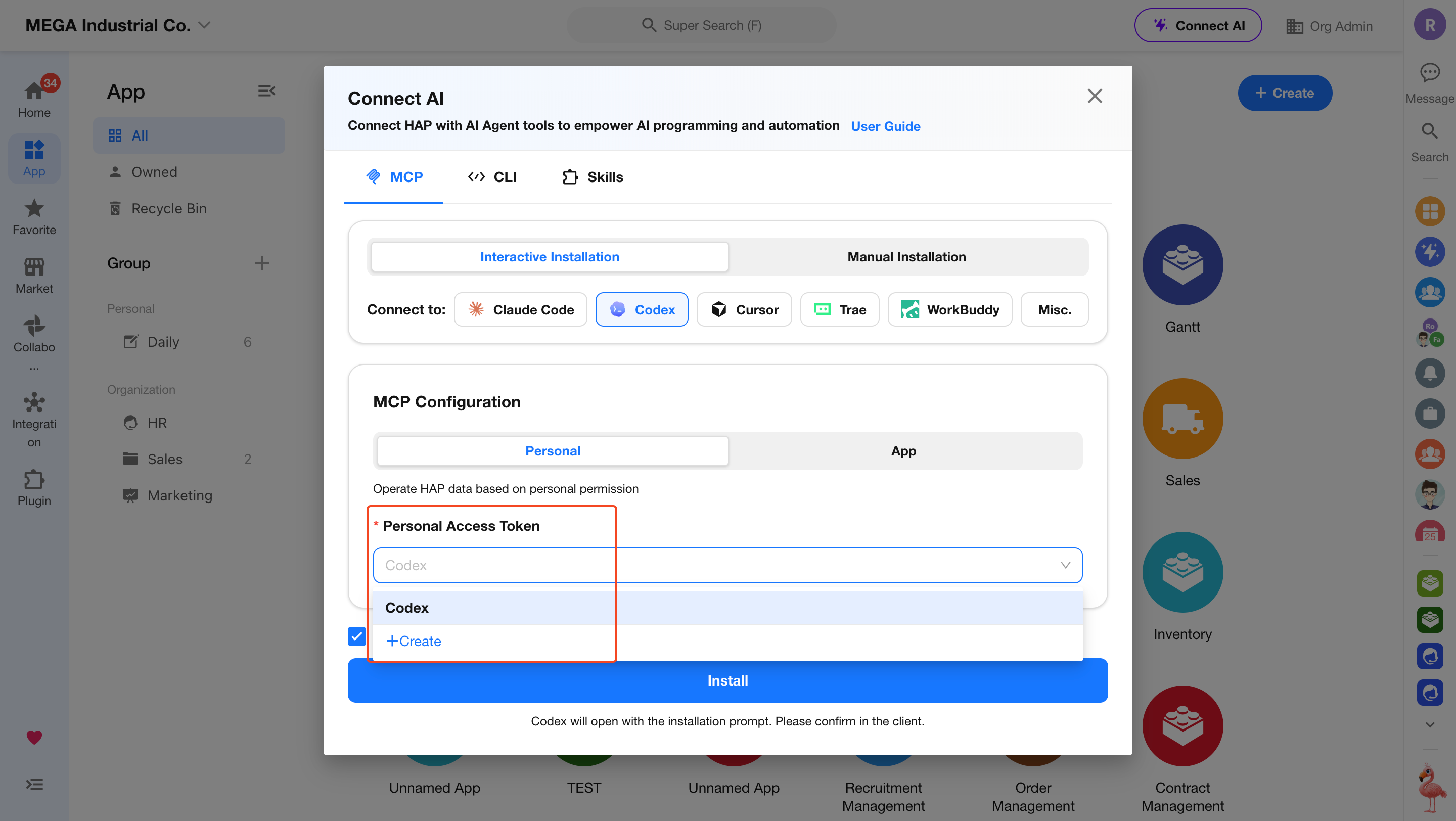
For API details, see the PAT documentation:
https://apidoc2.mingdao.com/application_v3/pat/en/
Application Authorization Keys
An Application Authorization Key represents an application-level identity and is suitable for application-scope access.
Access Path
Open the application's API Documentation page and click Create Authorization Key under Authorizatio Management.
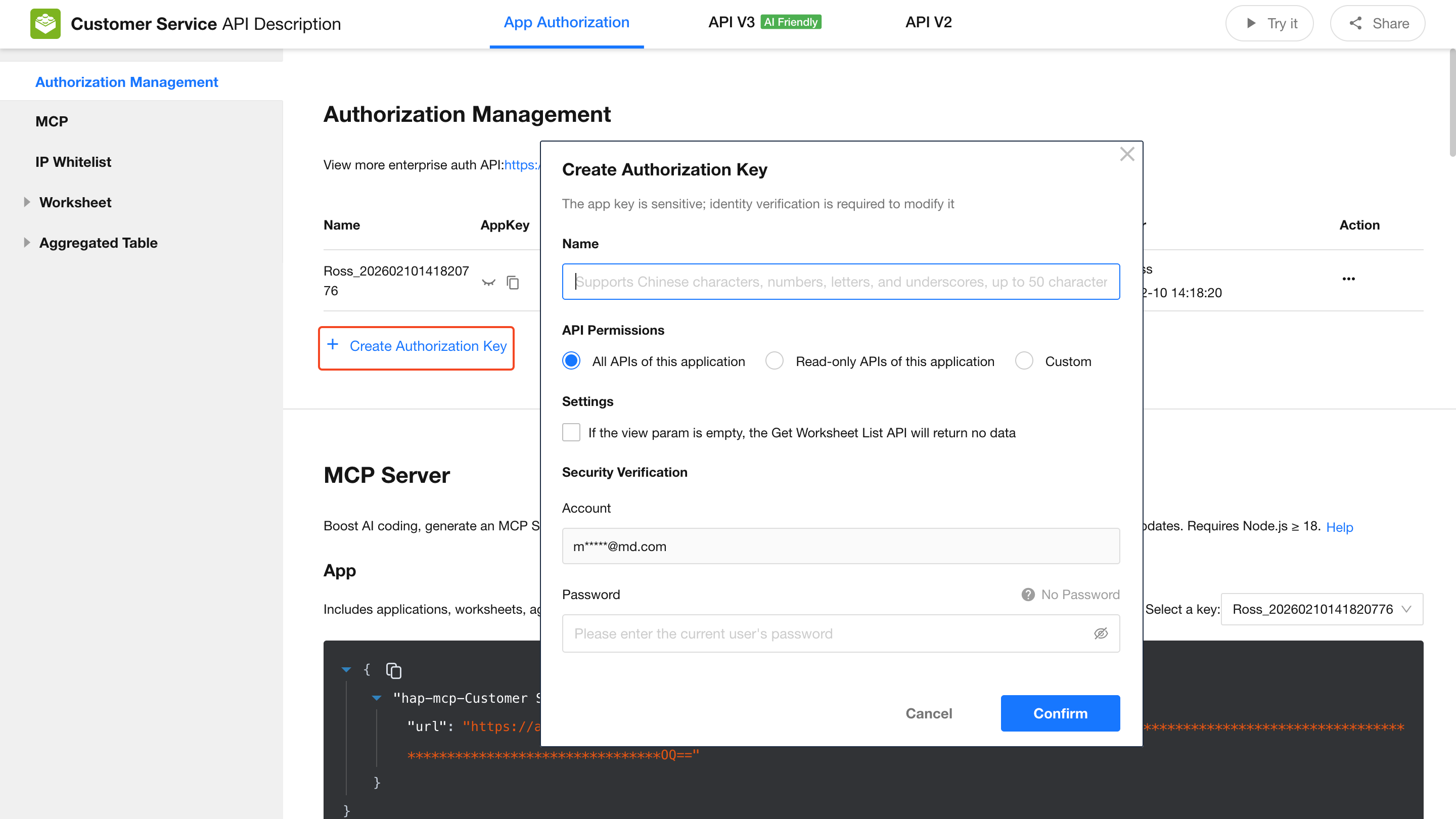
After the authorization key is created, it can be selected along with the corresponding application when using Application authorization mode in MCP.
Was this document helpful?