Vector Knowledge Base
Overview
The Vector Knowledge Base is HAP’s built-in semantic retrieval infrastructure. By vectorizing worksheet records, attachments, and discussions, it enables AI Agents and workflows to retrieve relevant knowledge based on semantic understanding—rather than simple keyword matching—delivering an intelligent experience.
Use Cases:
-
Asking “How do I apply for leave?” returns a record titled “Paid Leave Policy”
-
Asking “What is the contract amount limit?” locates the relevant clause in an attached contract template
-
Asking “How are fees calculated?” retrieves content related to “Billing Rules”
1. Create and Configure a Vector Knowledge Base
1.1 Entry Point
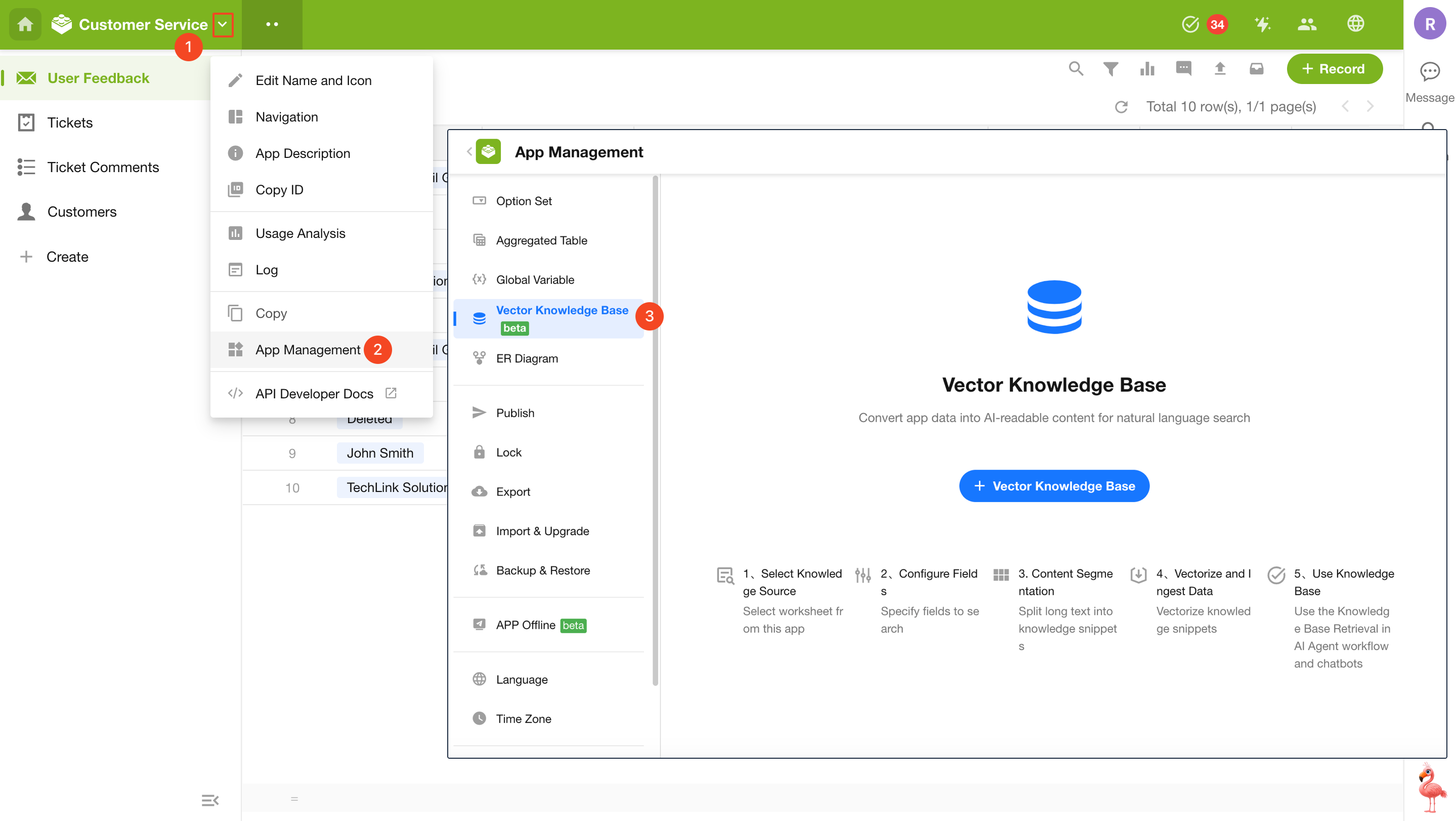
Application administrators can navigate to App Management > Vector Knowledge Base and click + Vector Knowledge Base to start creating.
A knowledge base can only use worksheets within the current application as its knowledge source. Multiple knowledge bases can be created within a single application, and the same worksheet can be referenced by multiple knowledge bases.
1.2 Select Knowledge Sources
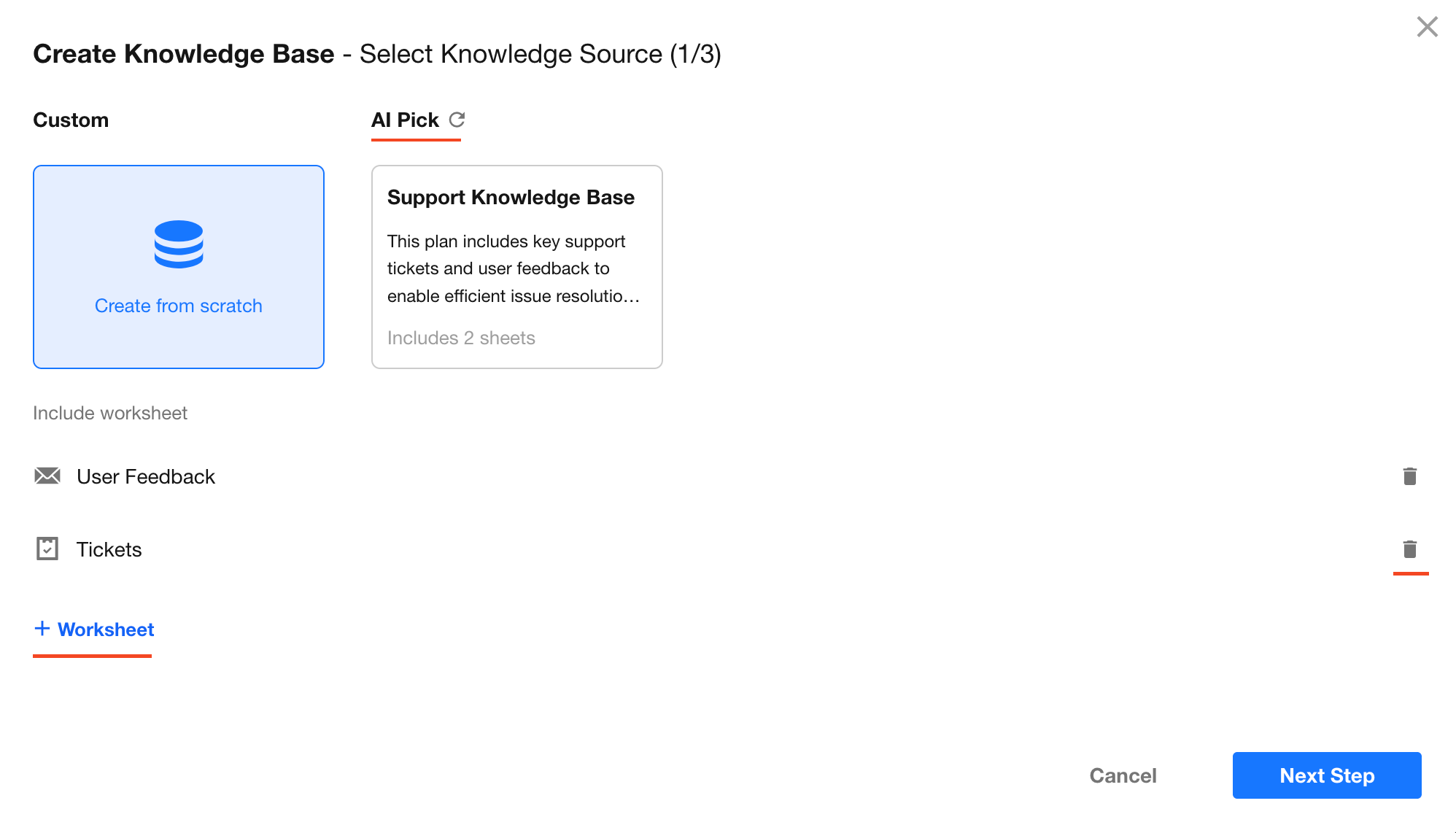
In the creation dialog, select one or more worksheets within the application to be vectorized.
AI Recommendation:
The system automatically analyzes the application structure and recommends multiple knowledge base configurations. You can directly select AI-generated knowledge sources.
1.3 Configure Vectorization Fields
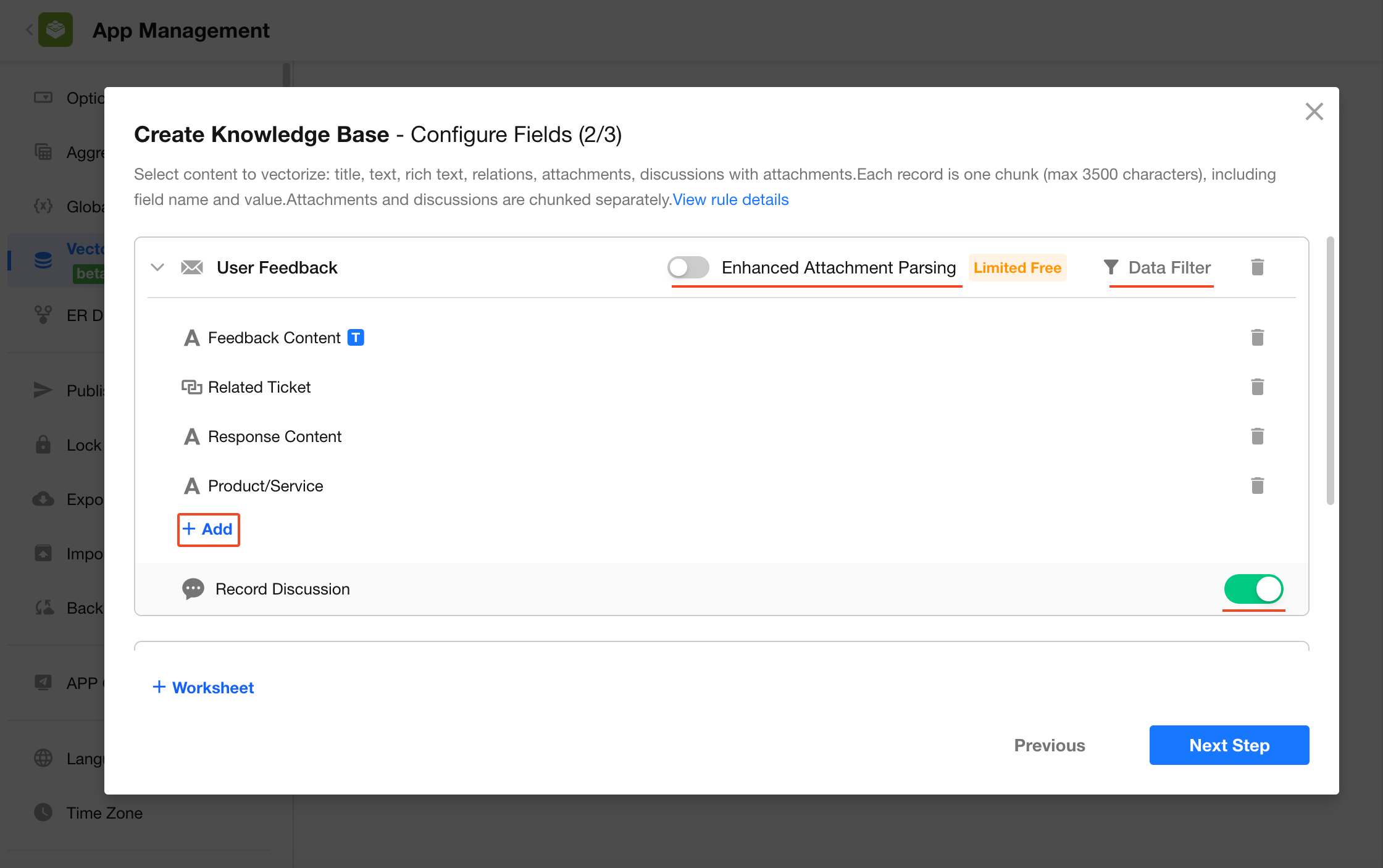
Define which content from each worksheet should be provided to AI:
-
Supported fields:
Text, Concat, Title field, Rich Text field, Cascading (single select), Relationship (single record), Foreign Field – data storage (Text, Concat, Rich Text, File), and File fields (supports doc, docx, xls, xlsx, ppt, pptx, rtf, pdf, txt, csv, md formats)Recommendation:
Select only fields relevant to business knowledge. Including too many unrelated fields (such as Record ID, Created Time, Auto Number) may increase chunking cost and reduce retrieval accuracy. -
Record discussions:
When enabled, discussions and attachments within records will also be included in vectorization, enriching business context. -
Data filtering:
Apply filter conditions to vectorize only records that meet specific criteria (e.g., “Status = Published”). Supported filter fields include option, level, and check item fields. -
Enhanced attachment parsing:
When enabled, CSV, XLSX, DOCX, PPTX, and PDF files are processed using a vision model to improve accuracy in reconstructing complex layouts and tables.
1.4 Confirm Creation
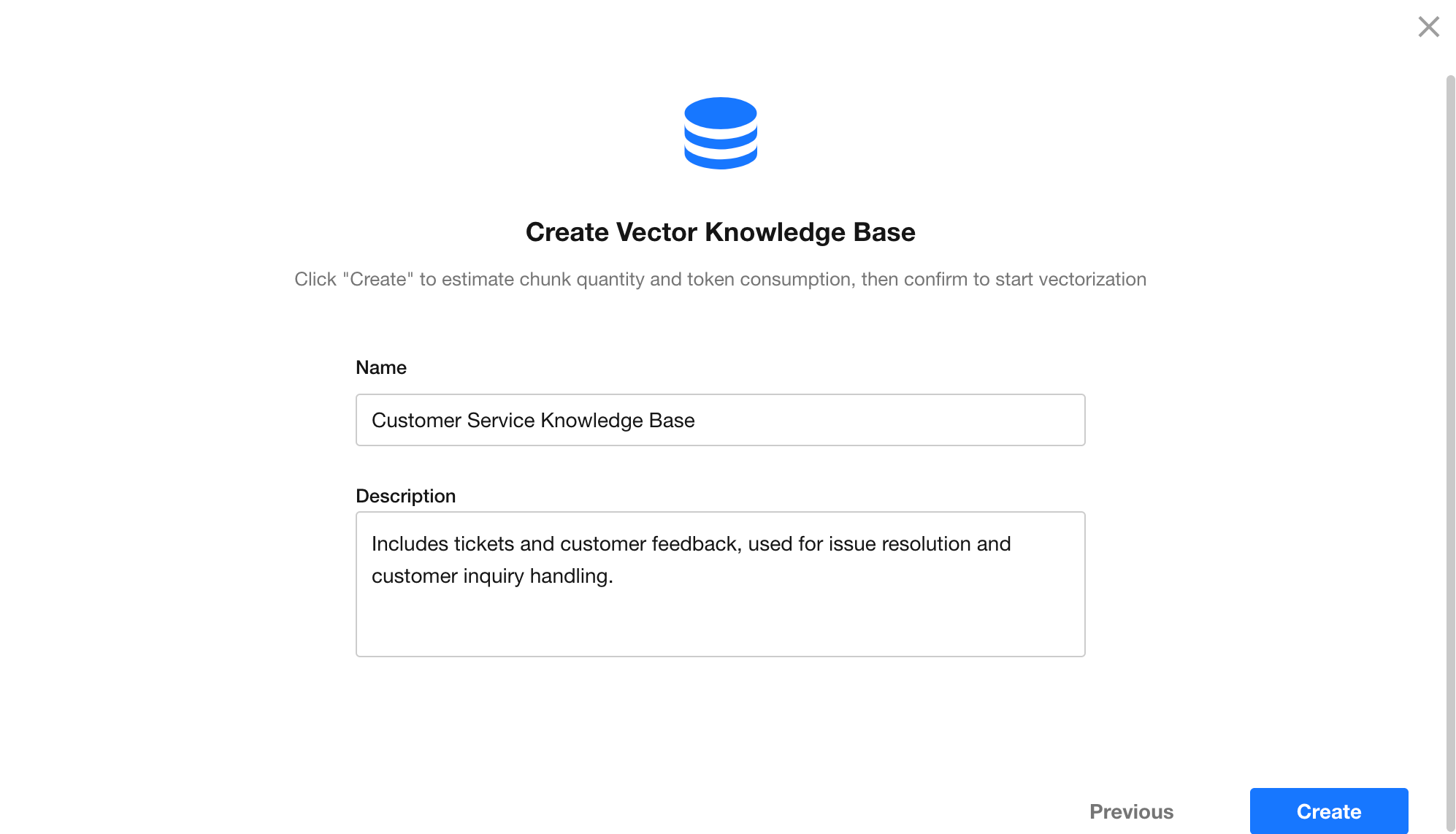
Enter a name and description for the knowledge base, then click Create. The system will begin parsing and chunking the selected content.
The knowledge base name and description are used by the AI Agent to understand what information the knowledge base contains. It is recommended to provide clear and specific descriptions.
1.5 View Chunked Content
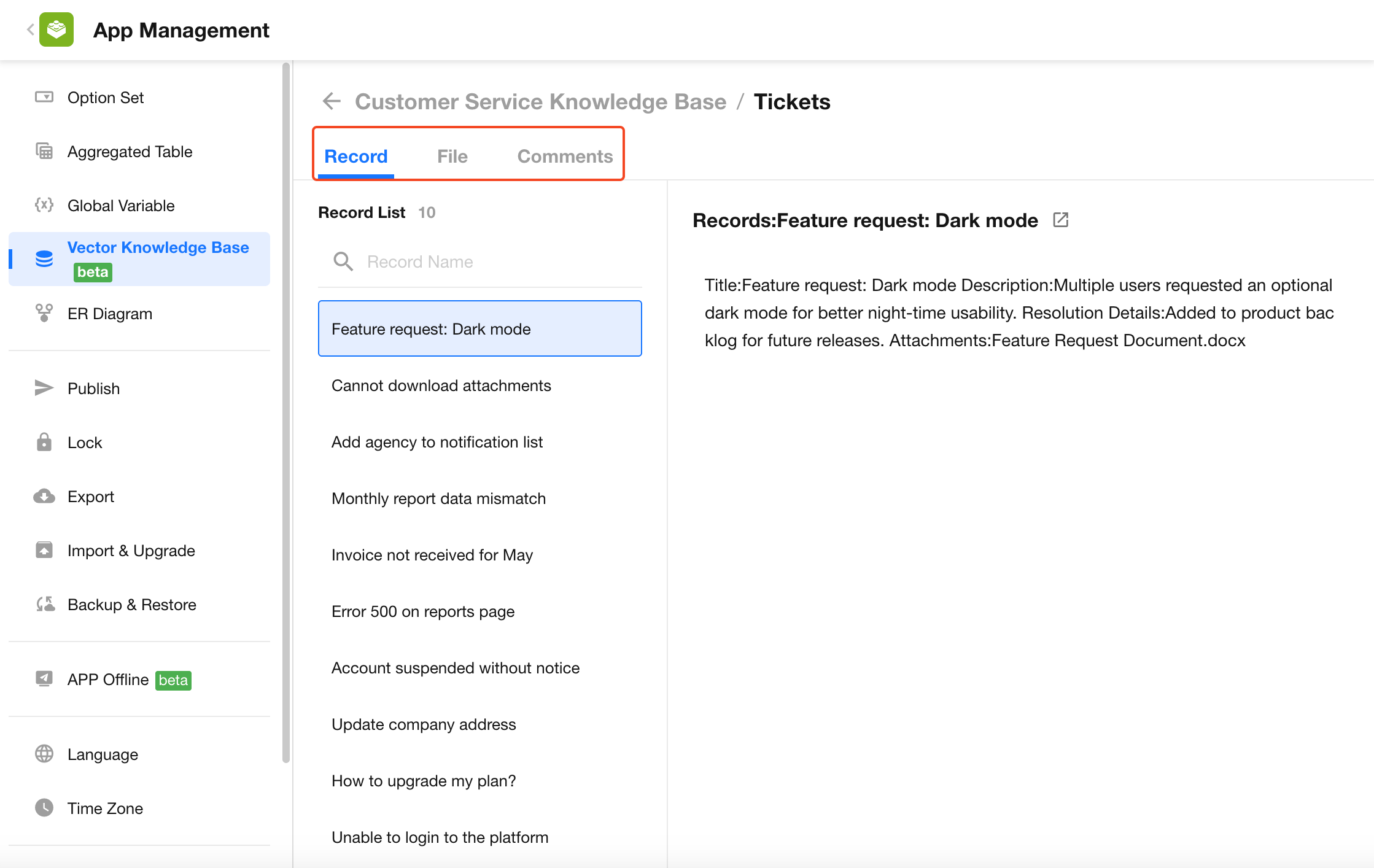
Once chunking is complete, a system notification will be sent. You can preview chunk results for each worksheet. Different content types are processed as follows:
-
Record chunks:
Field names and values are concatenated and split into chunks, with a maximum of 3500 characters per chunk -
Attachment chunks:
Content is first split by paragraphs (up to two levels). Paragraphs exceeding 1000 tokens are further split -
Discussion chunks:
Each discussion message is stored as an independent chunk
1.6 Start Vectorization
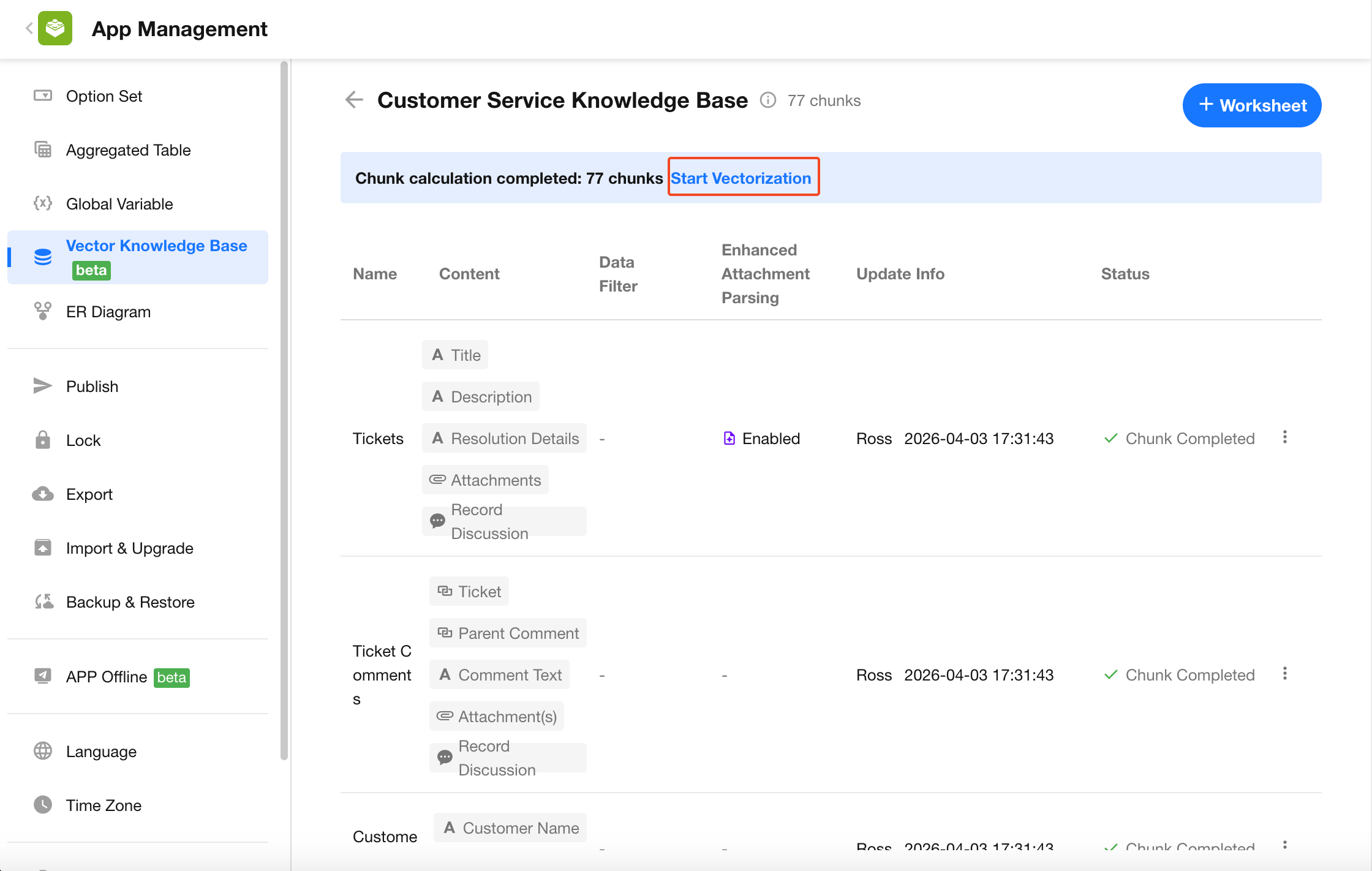
Vectorization does not start automatically. You must manually click Start Vectorization.
-
Vectorization in progress
Uses the Qwen3-Embedding-0.6B model for vectorization. During this process, worksheet records cannot be added, deleted, or modified. You can click Cancel Initialization to stop the process. All vectorized data will be cleared, and the system will revert to the chunking-completed state. -
Vectorization completed
Once all worksheets are vectorized, the system will notify you via the bottom-left status card and system messages. The knowledge base is then ready for retrieval.
2. Manage Knowledge Bases
2.1 Knowledge Base Management
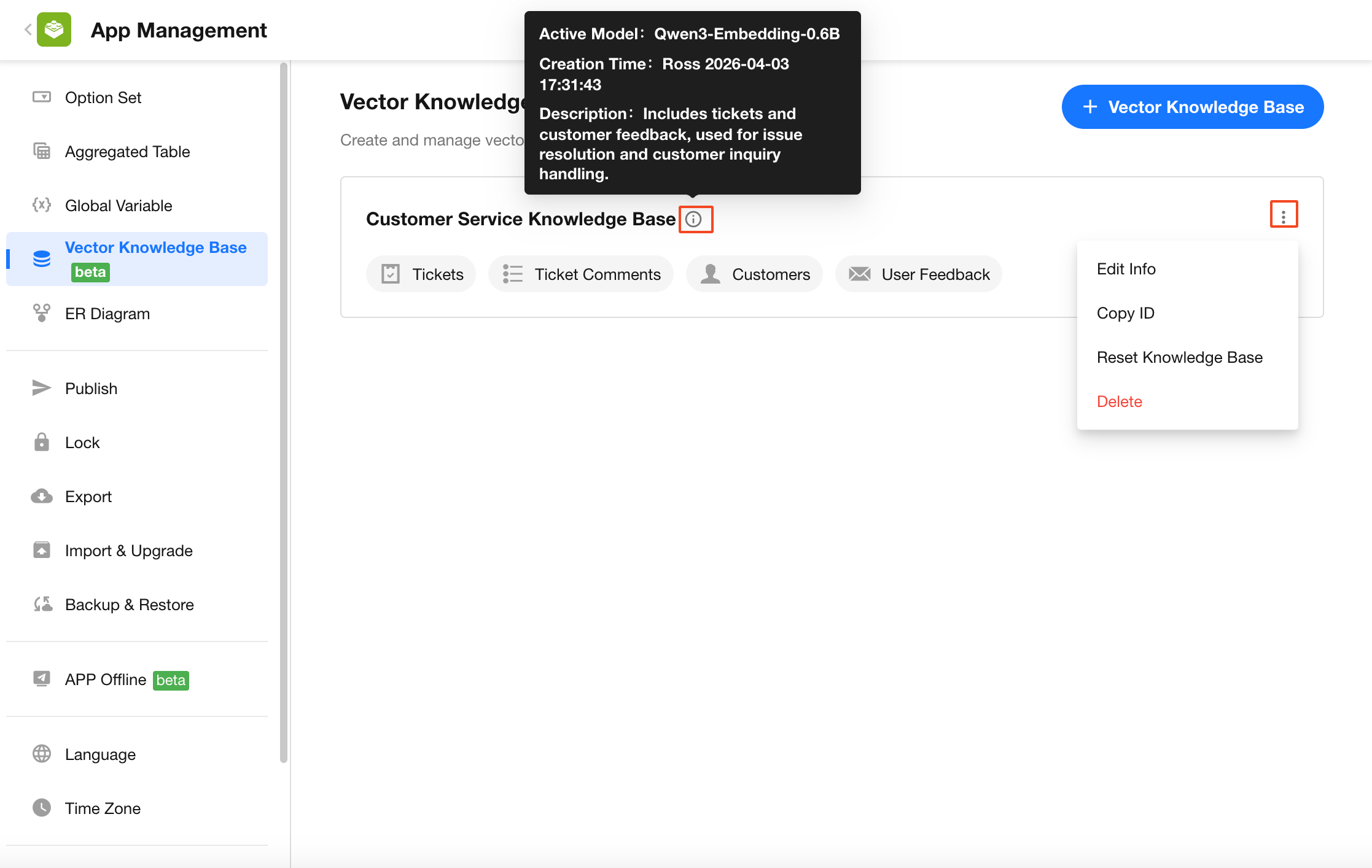
In addition to standard operations such as renaming a knowledge base and copying ID, the following actions require special attention:
-
Reset Knowledge Base:
Rebuilds the entire knowledge base after vectorization. All existing vectorized data will be cleared, and the knowledge source will be re-parsed and re-chunked. After chunking is complete, you must manually confirm to start vectorization again. -
Delete Knowledge Base:
Permanently deletes all vectorized data. This action cannot be undone.
Click the description icon next to the knowledge base name to view details such as the model used and creation time.
2.2 Knowledge Source Management
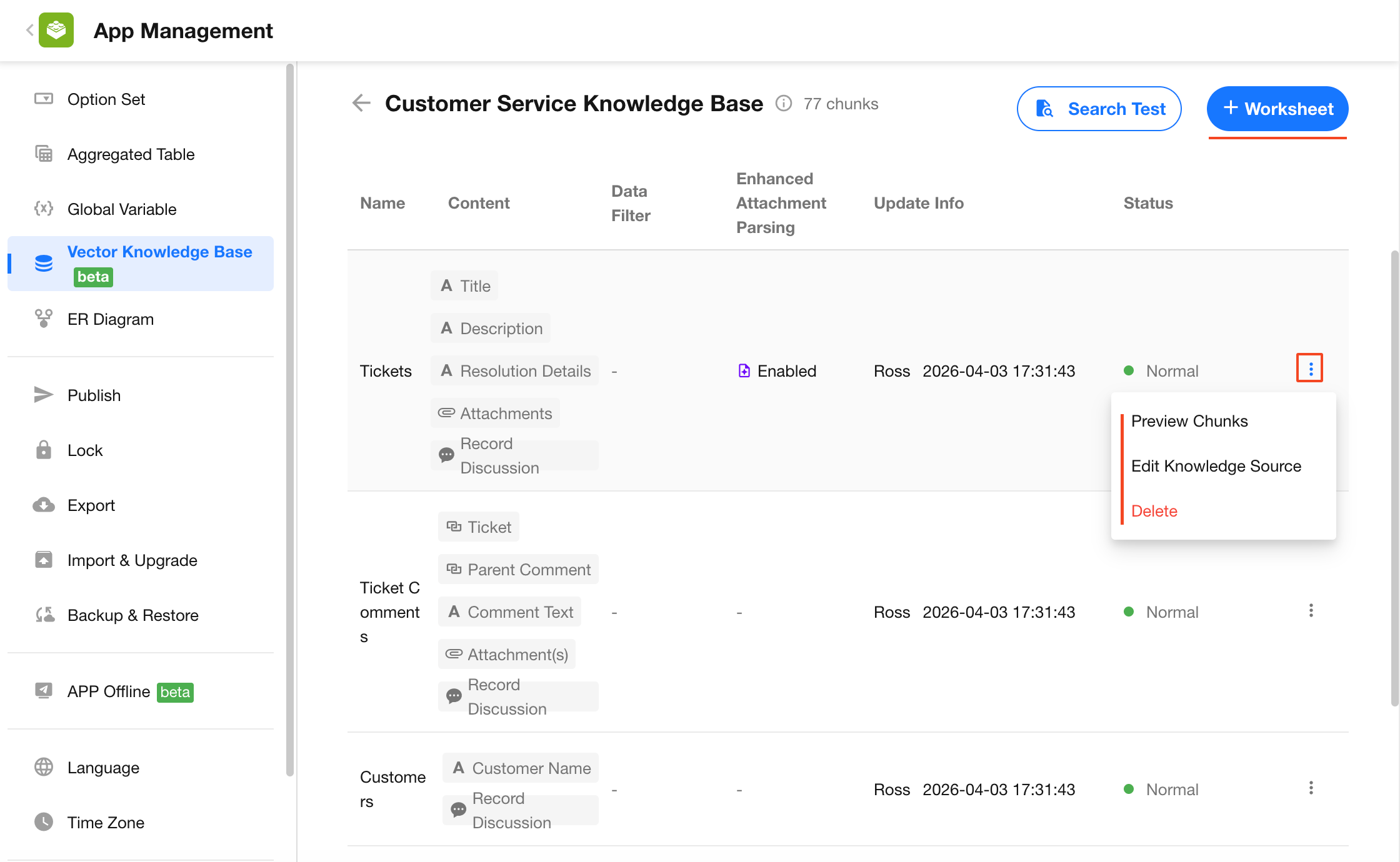
In the knowledge base detail page, you can manage individual knowledge sources:
-
Add worksheet:
Add new knowledge sources -
Chunk preview:
View chunked data by record, attachment, or record discussion -
Adjust knowledge source:
Modify vectorization fields or filter conditions. When saving, you can choose whether changes take effect immediately (triggering re-chunking and vectorization). By default, changes do not apply immediately. -
Remove knowledge source:
Deletes all vectorized data associated with the selected worksheet
2.3 Retrieval Testing
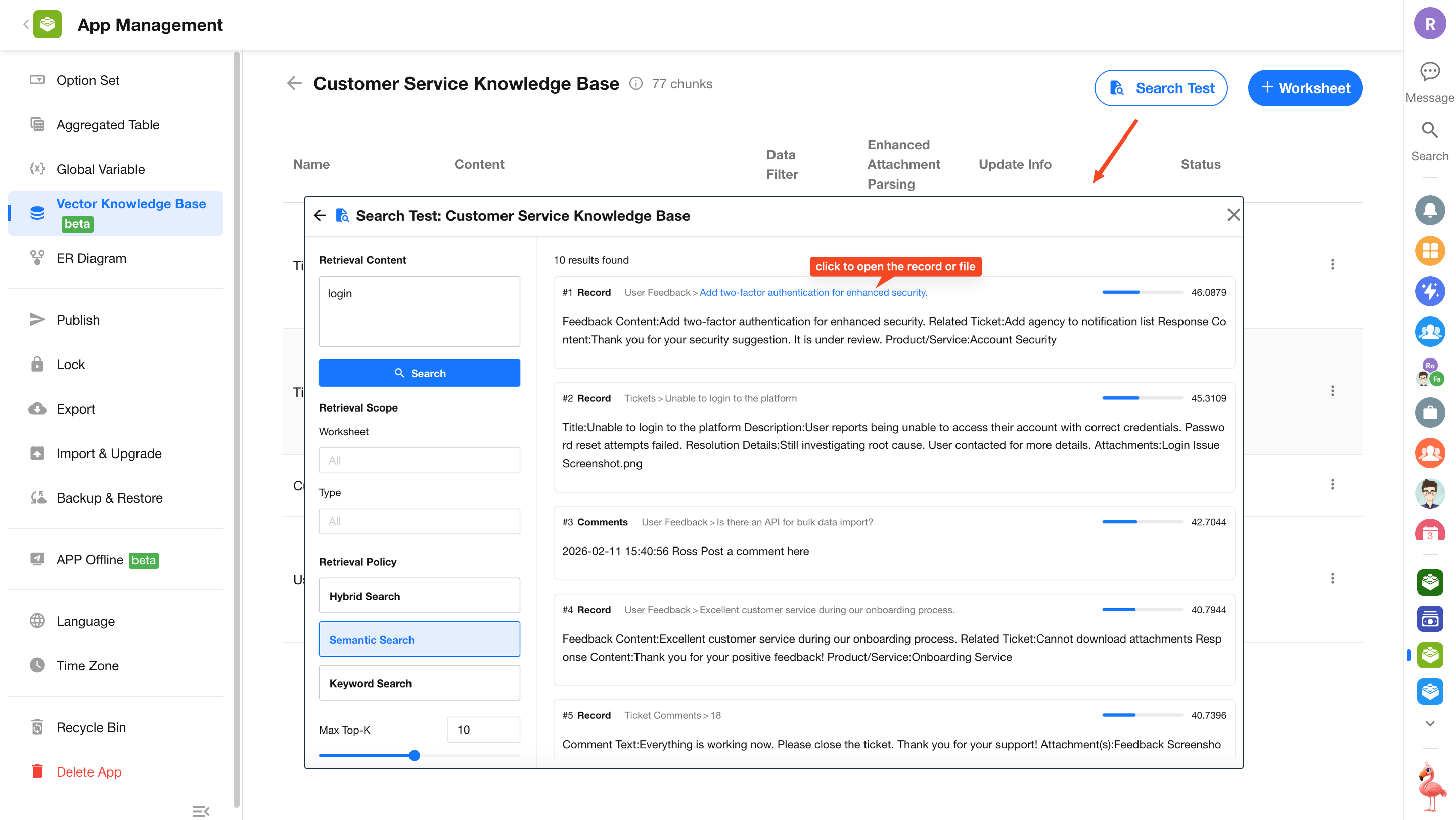
The knowledge base detail page provides a retrieval testing feature to simulate search results. Results are ranked and display content type and source information. Clicking the source allows you to open the original record or attachment directly.
Supported retrieval modes:
-
Semantic search:
Matches based on semantic similarity rather than exact keywords. Suitable for Q&A and knowledge queries with varied phrasing. -
Keyword search:
Based on full-text search with exact keyword matching. Suitable for searching specific IDs, proper nouns, or technical terms. -
Hybrid search:
Combines semantic and keyword retrieval for balanced ranking. Suitable for most general scenarios.
Configurable parameters:
-
Top K:
Returns the top N most relevant content chunks (maximum: 20) -
Minimum relevance score (semantic retrieval only):
Filters out results below the specified threshold (range: 0–1)
2.4 Automatic Data Sync
When records in a worksheet are created, updated, or deleted, the corresponding knowledge base is automatically updated—no manual action is required.
Note: Application export, import, duplication, upgrade via import, backup and restore do not sync knowledge base configurations.
3. Use Knowledge Bases
3.1 Knowledge Retrieval Node
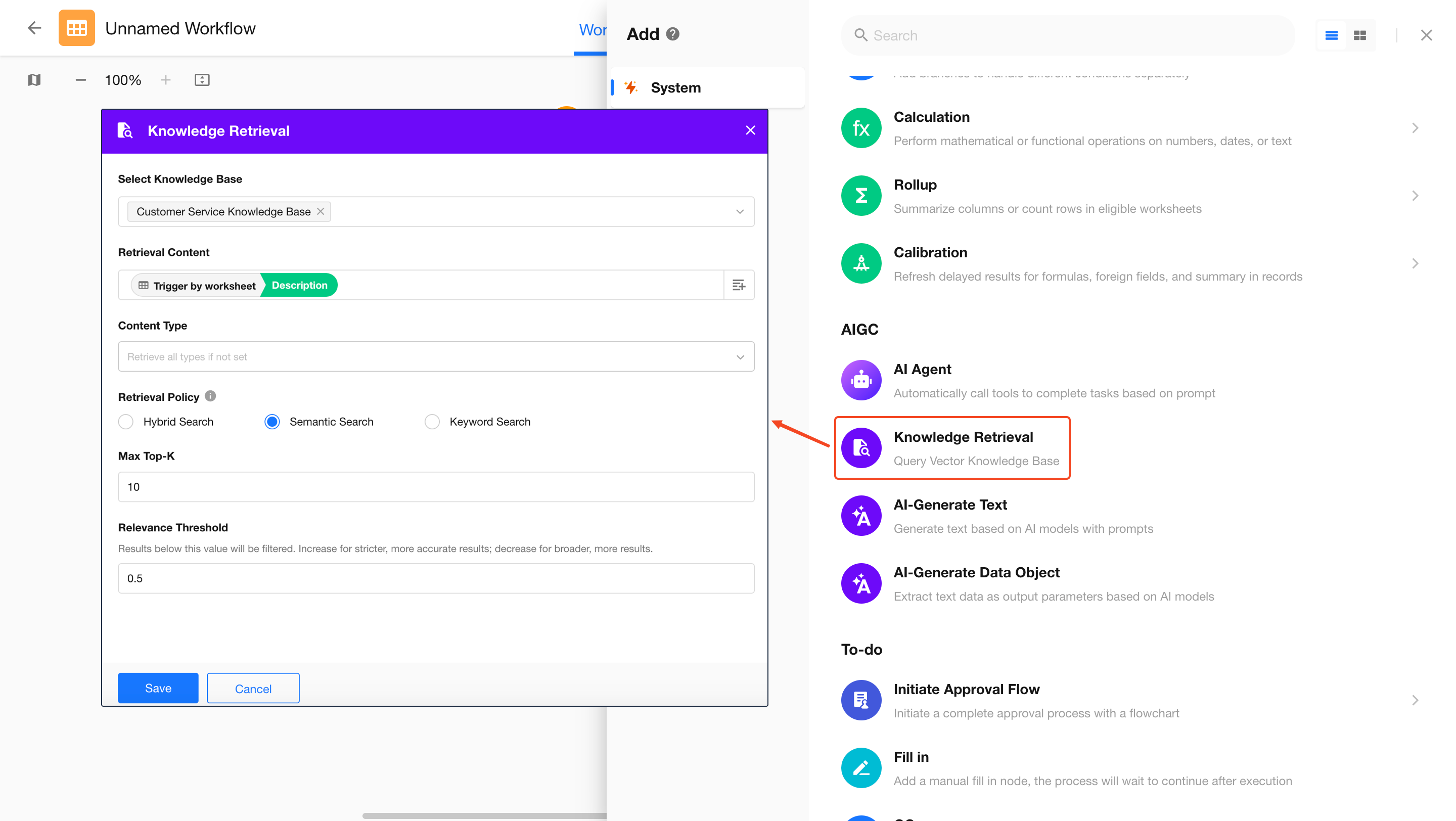
1. Add a “Knowledge Retrieval” node
-
Select knowledge base
You can select multiple knowledge bases across applications as needed. -
Content type
By default, all content is retrieved (records, record discussions, attachments in records, attachments in discussions). You can restrict retrieval to specific content types. -
Retrieval strategy and parameters
Supports semantic, keyword, and hybrid retrieval. Refer to the “Retrieval Testing” section above for details. -
Output results
After execution, the node outputs an array of objects, each containing:- Content snippet: The matched chunk text
- Source information: Includes knowledge base name, worksheet name, record ID, or attachment name
- Relevance score: Indicates how closely the content matches the query (higher score = higher relevance)
2. Use retrieval results in subsequent nodes
The retrieved results (array format) can be used in multiple ways:
-
Assign to fields:
Write the most relevant content into worksheet fields for storage or display -
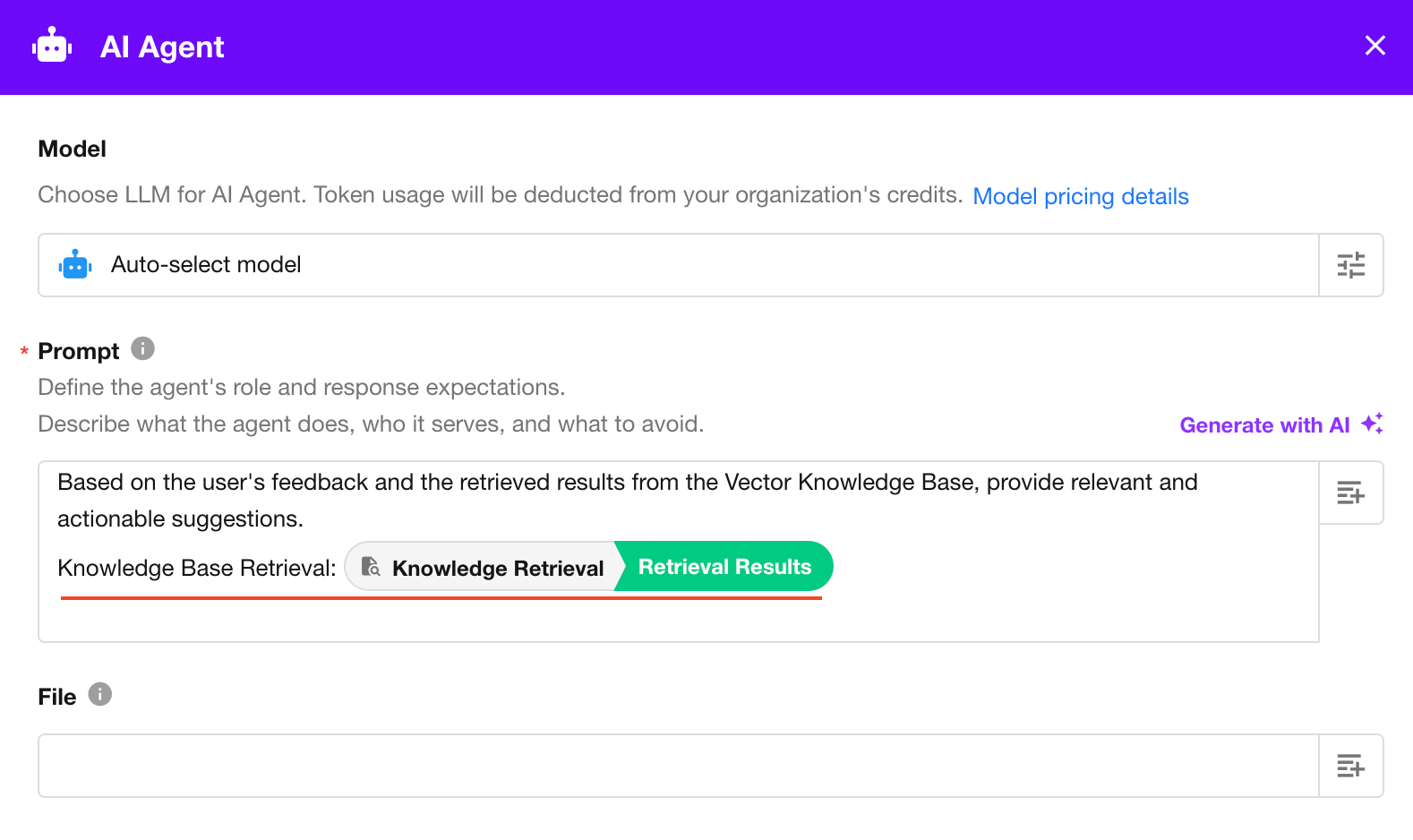
Use with AI Agent node:
Provide retrieval results as external knowledge to enable accurate Q&A, summarization, or ticket handling based on private knowledge bases -
Conditional branching:
Trigger different workflow branches based on relevance score or whether results are returned
Tip: It is recommended to fine-tune parameters in “Retrieval Testing” before applying them to workflow nodes for optimal results.
3.2 AI Agent Node
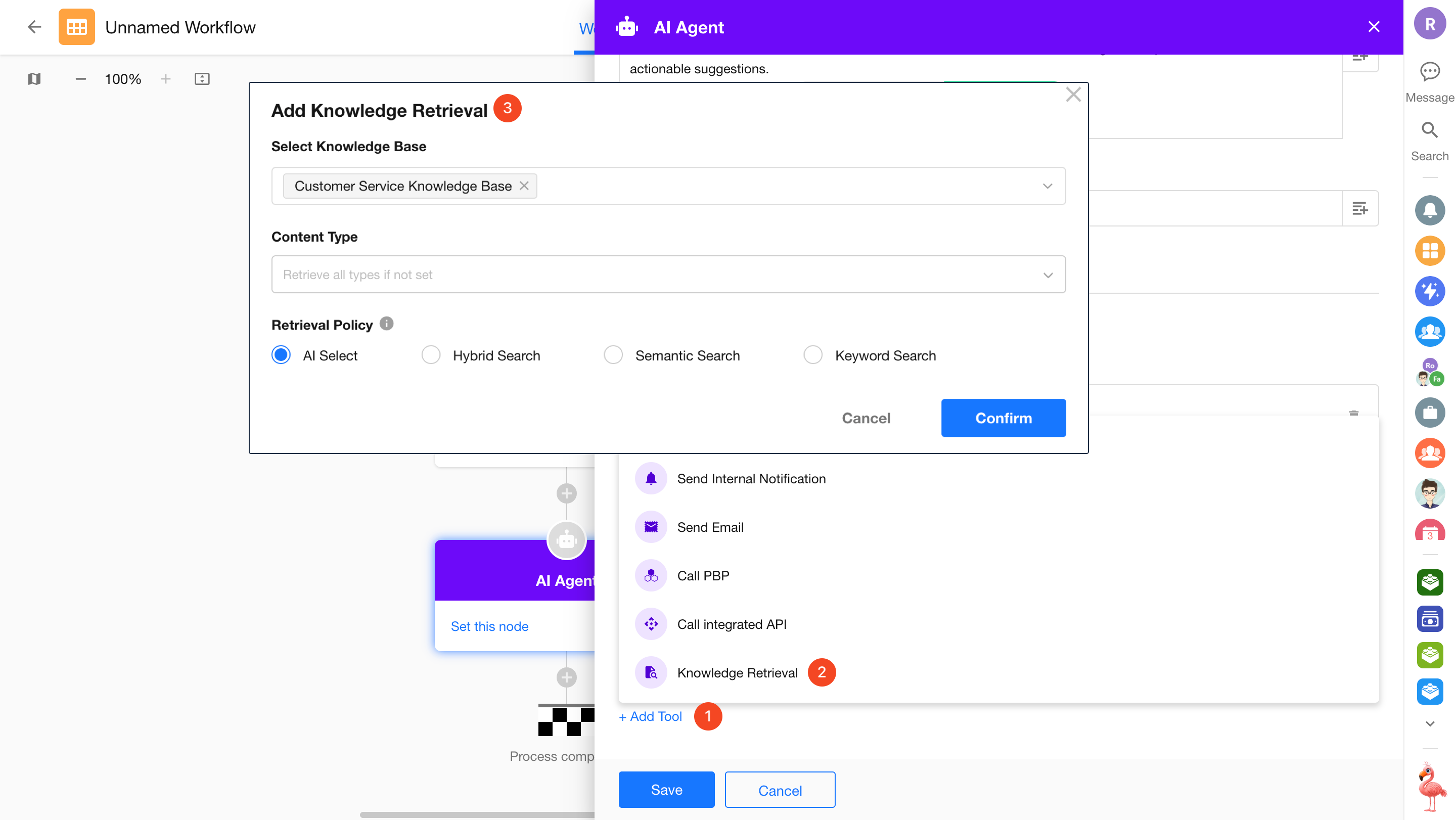
The AI Agent node can query knowledge bases during task execution using the “Knowledge Base Retrieval” tool. It supports querying multiple knowledge bases across applications.
Two configuration modes are available:
-
AI-driven:
The Agent automatically determines the retrieval strategy and parameters for each query. -
Custom:
Manually configure retrieval strategy and parameters.
4. Billing
4.1 Included Quota by Edition
The Vector Knowledge Base feature is available only in paid editions. Each edition includes the following quota per subscription cycle:
| Edition | Included Chunk Quota | Description |
|---|---|---|
| Free | Not supported | - |
| Standard | 100,000 chunks | Suitable for basic knowledge retrieval |
| Professional | 200,000 chunks | Suitable for mid-sized knowledge bases |
| Ultimate | 500,000 chunks | Supports large-scale, multi-scenario AI applications |
Note: A chunk is the unit of measurement for vectorization. Records, attachments, and discussions are parsed and split into chunks, each counted individually. The total number depends on data volume and chunking strategy.
4.2 Usage and Expansion
-
View Usage
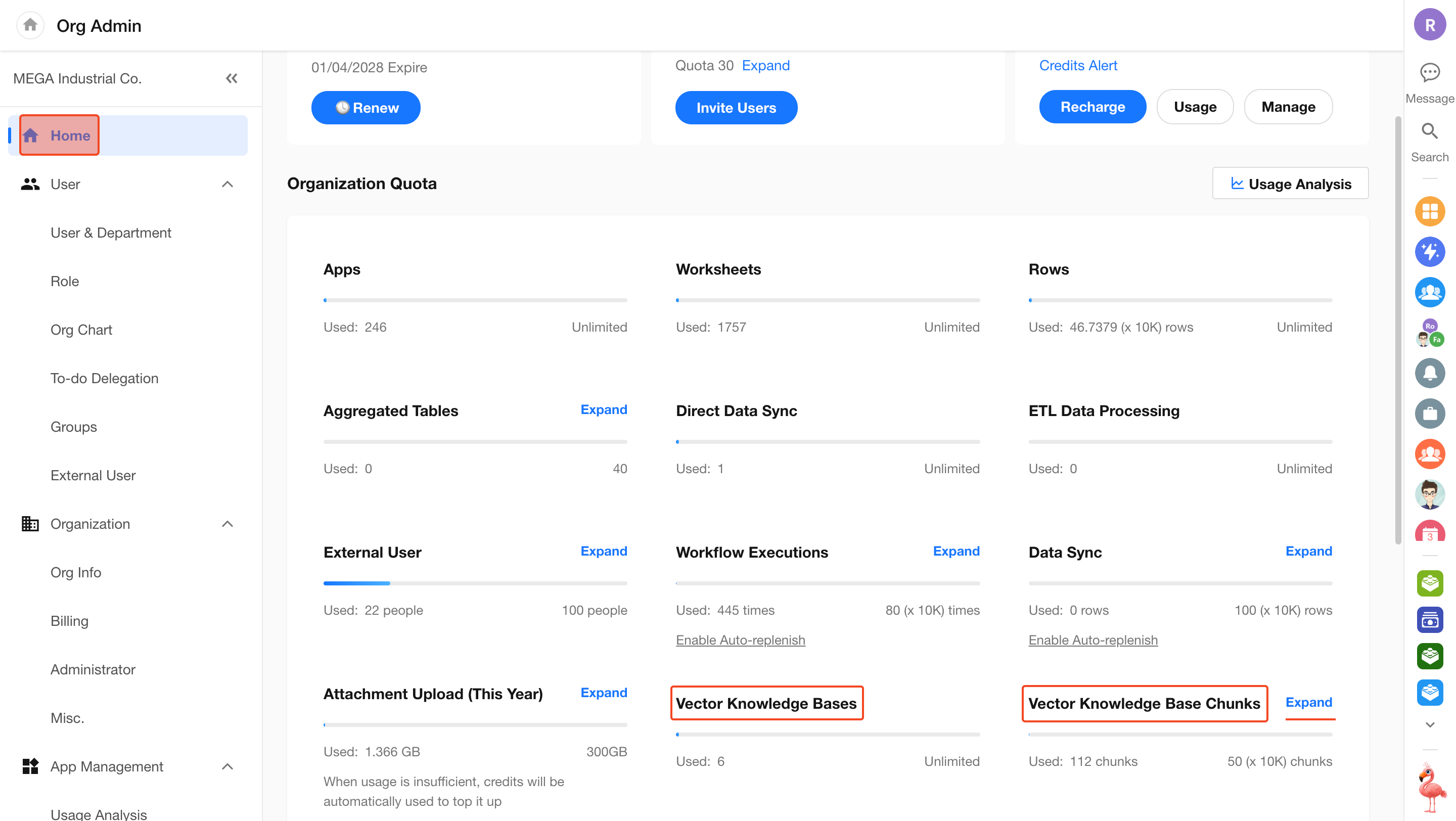
In the Organization Admin Console > Home, under Organization Quota, you can view:
- Number of created knowledge bases
- Current vector chunk usage, with an option to expand capacity
-
Purchase Additional Capacity
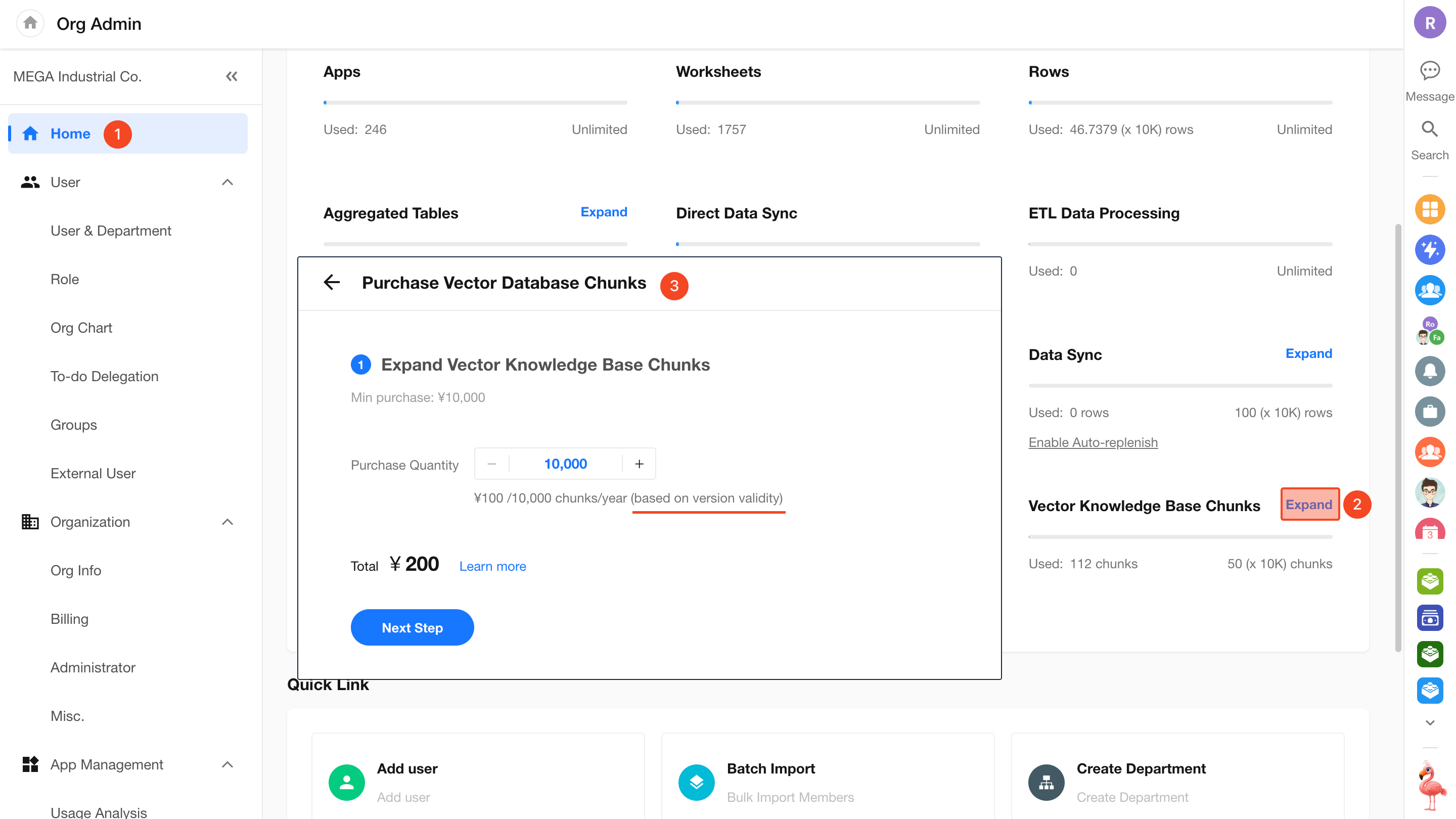
When the included quota is used up, you can purchase additional chunk packages:
- Pricing: ¥100 / 10,000 chunks / year
- Validity: Matches the current subscription cycle and expires together with the plan
-
Quota Exceeded
When total usage exceeds the quota:
- Existing knowledge base content remains searchable
- New data will not be vectorized or synced
- Creating new knowledge bases or adding worksheets as knowledge sources will be restricted
- System notifications and SMS alerts are sent to organization administrators at 80%, 95%, and 100% usage
-
Subscription Expired
- All knowledge base features become unavailable (including creation, retrieval, and workflow nodes)
- Existing knowledge base data is retained for 30 days, after which it is permanently deleted
Was this document helpful?