Application Maintenance
Overview
After an application is in production, updates or changes may be required due to business needs—for example, modifying workflows or adjusting worksheet structures. If live data is created or modified during testing, it may lead to incorrect workflows or data inconsistencies.
To prevent this, you can mark the application as “Under Maintenance”, temporarily restricting access for regular users.
1. Entry to Application Maintenance
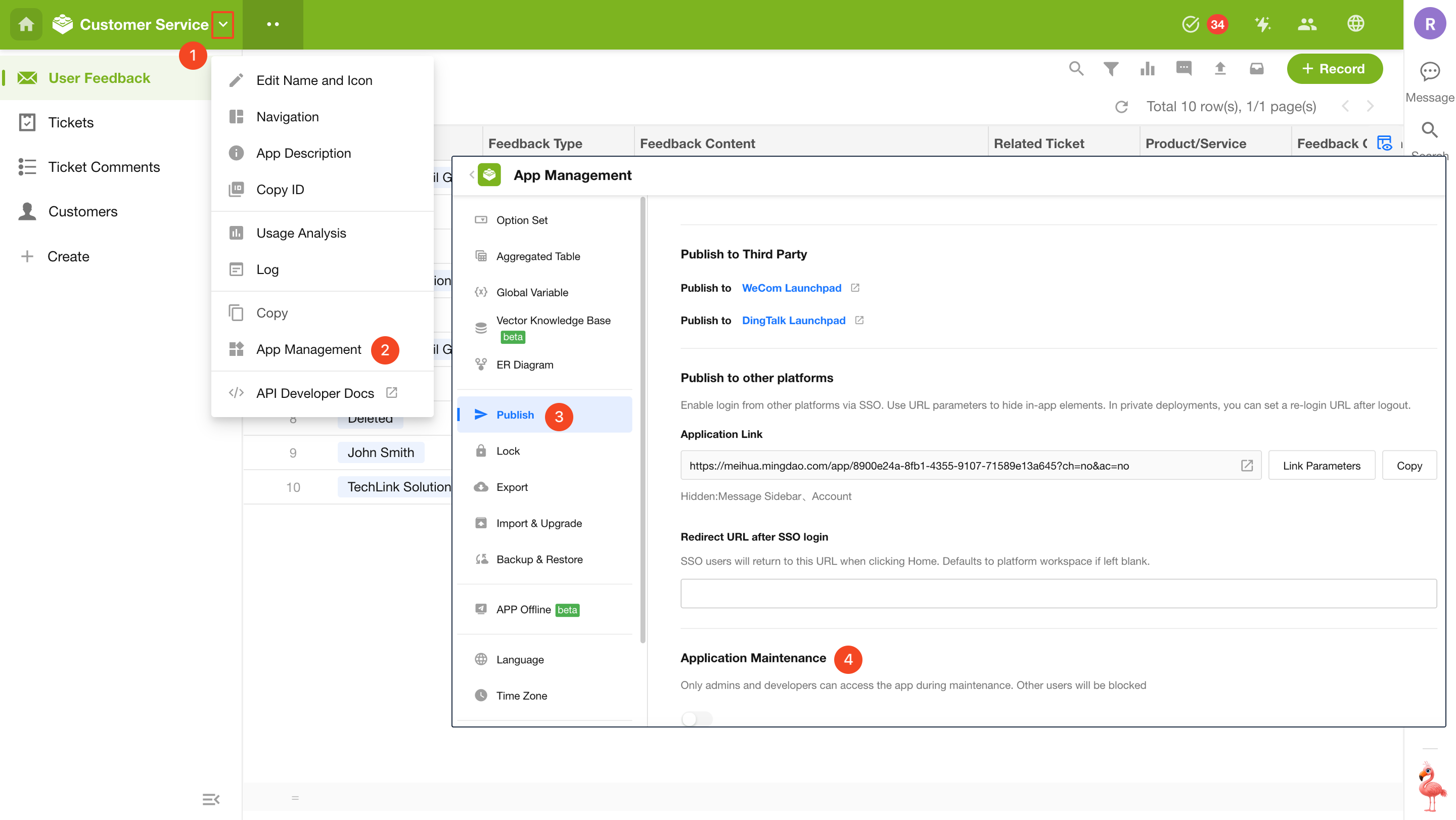
Go to App Management > Publish, then enable Application Maintenance.
2. Create an Announcement
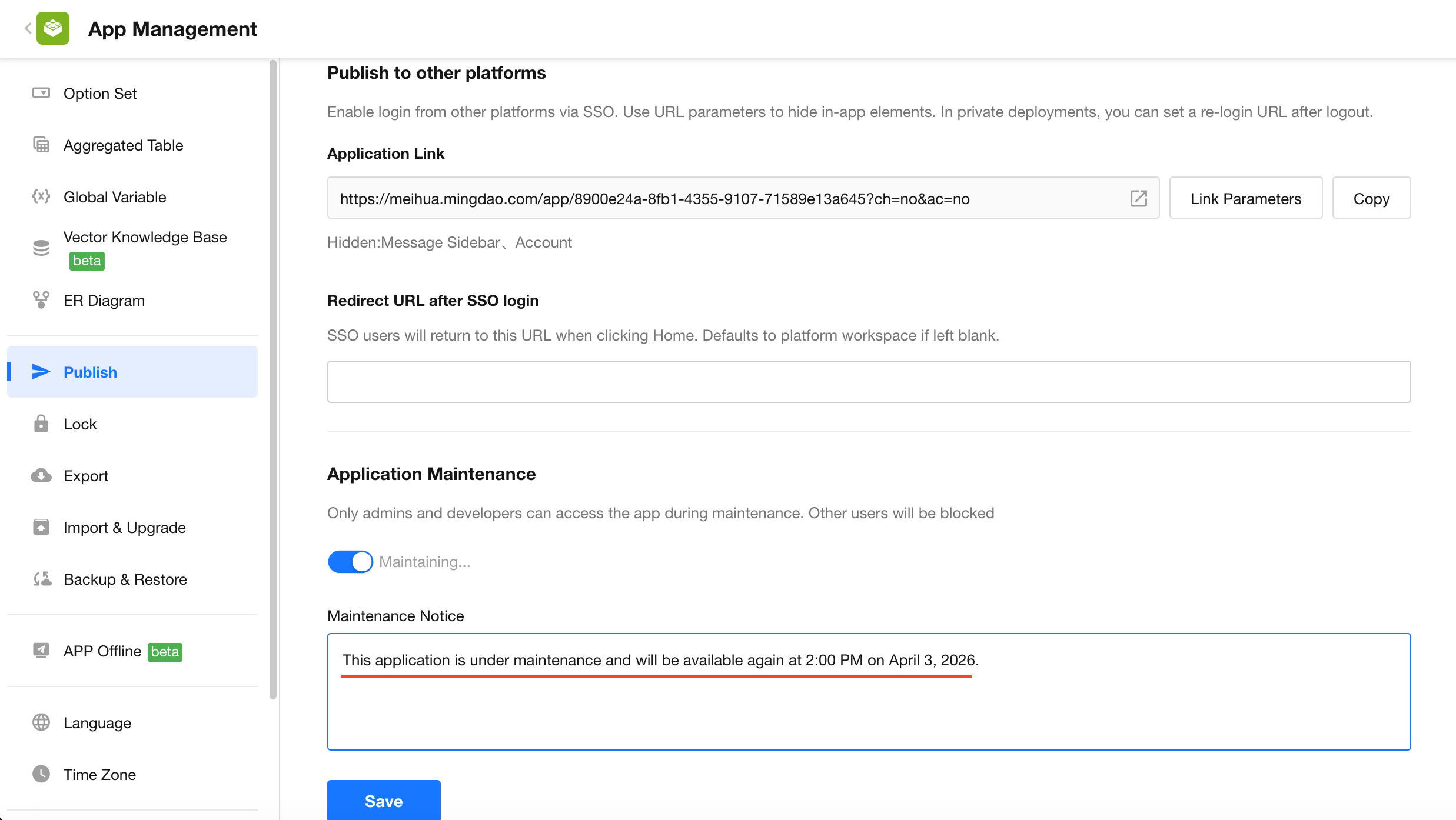
When the application is under maintenance and unavailable to users, you can provide an announcement explaining the reason, expected recovery time, and other details.
3. Display Effects
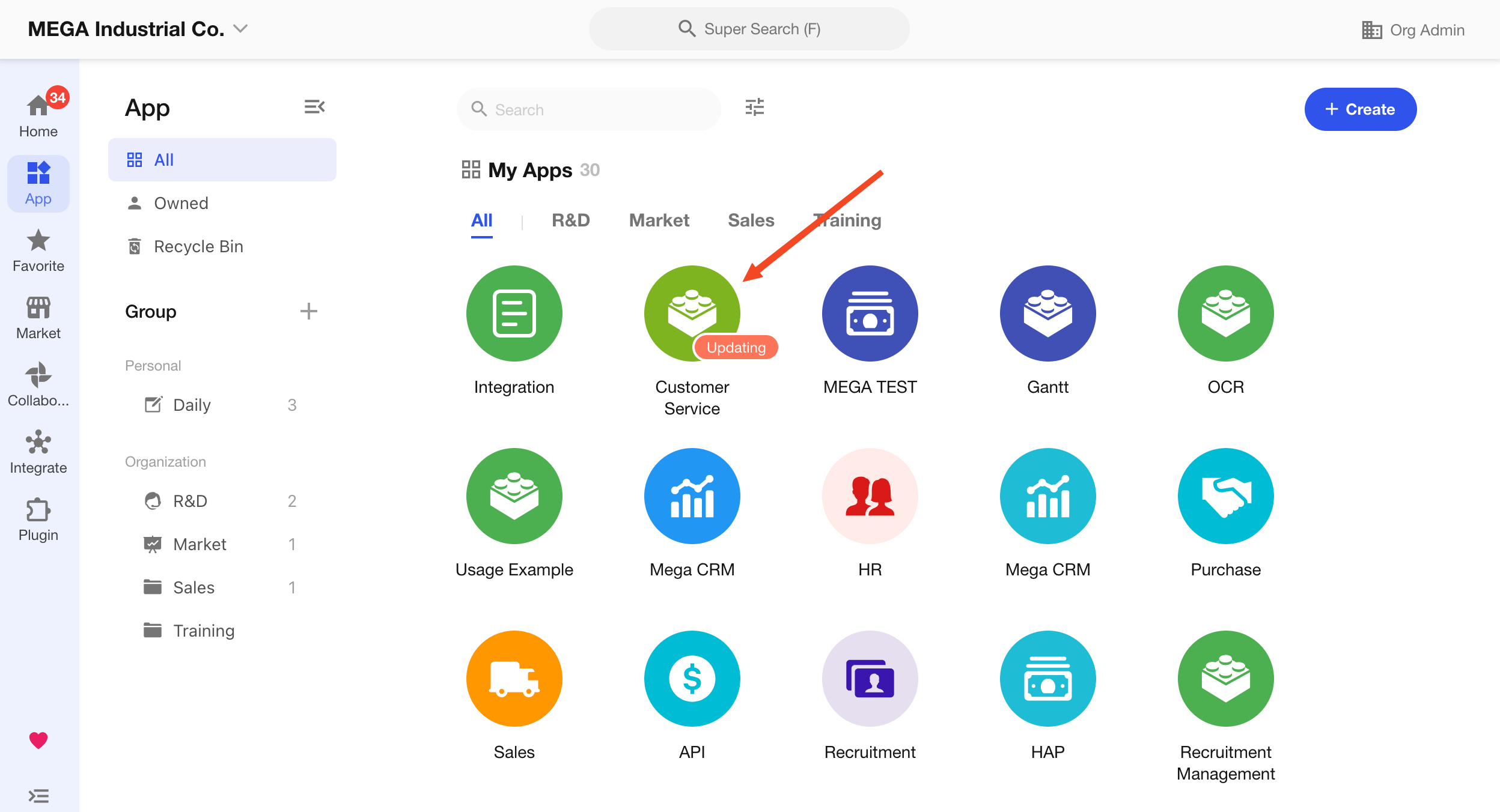
What regular users see on the homepage:
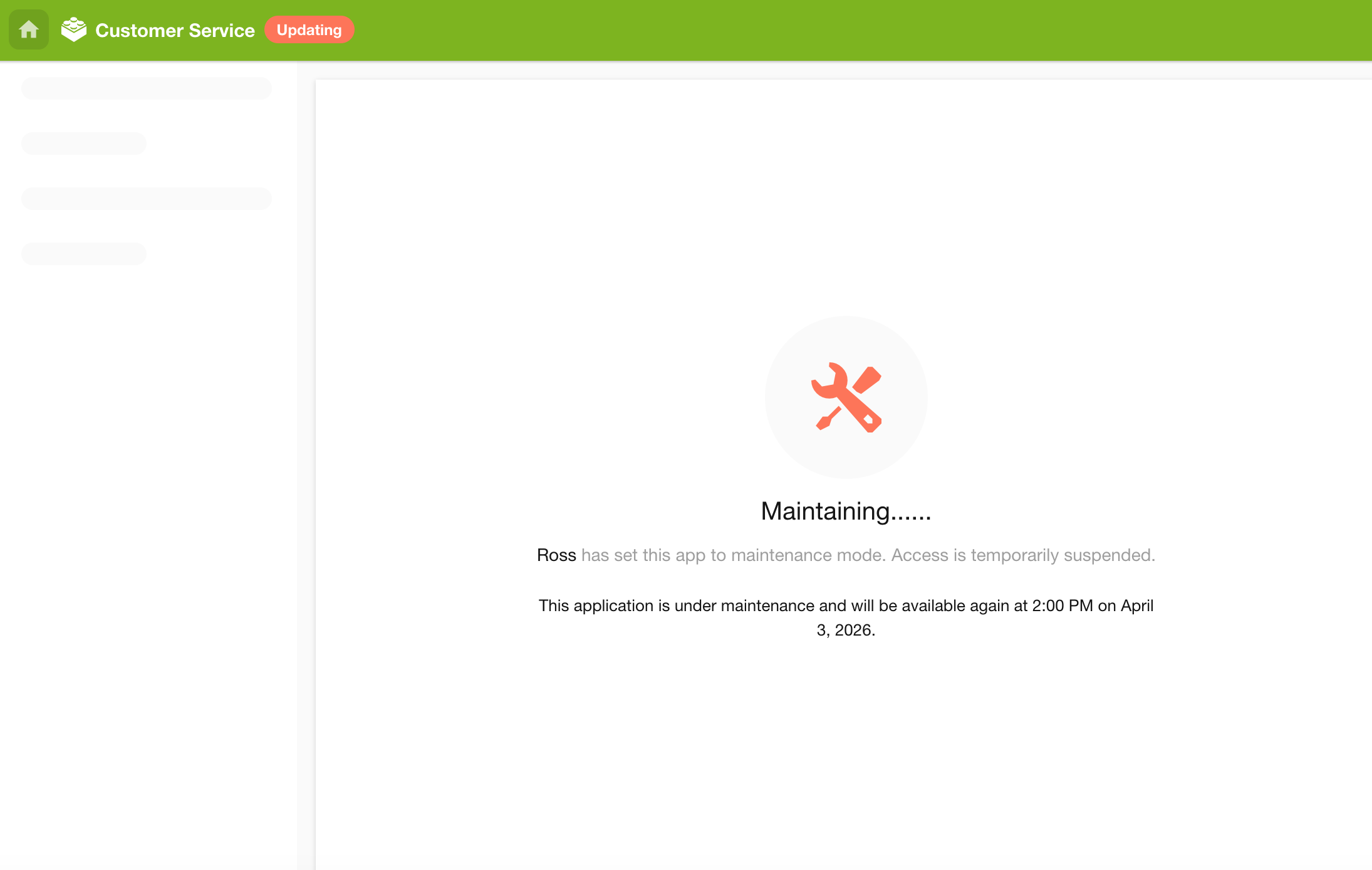
What regular users see when entering the application:
Application administrators can continue to use the application as usual.
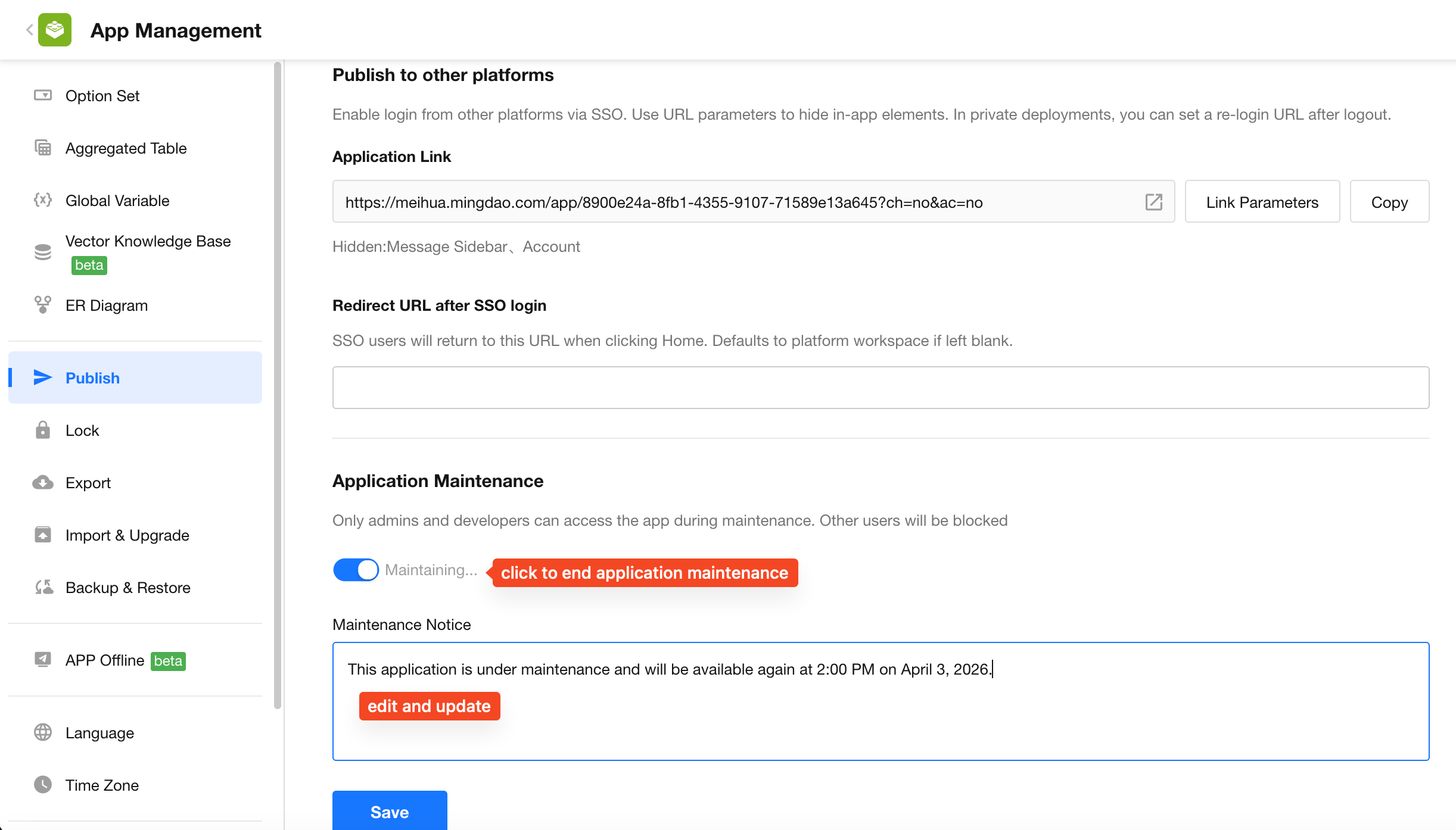
4. Update Maintenance Status
After maintenance is completed or if you need to update the announcement, you can modify the maintenance settings as shown below.
5. Notes on Application Maintenance
-
Only application administrators can enable or manage maintenance mode
-
During maintenance, the following roles and features remain unaffected:
-
Application administrators are not affected and can continue to use the application normally. Regular members and external portal users cannot access the application.
-
Workflows in the application continue to run normally
-
Worksheet APIs remain available
-
Published public forms, public queries, shared records, and shared views remain accessible
-
Was this document helpful?