Application Grouping
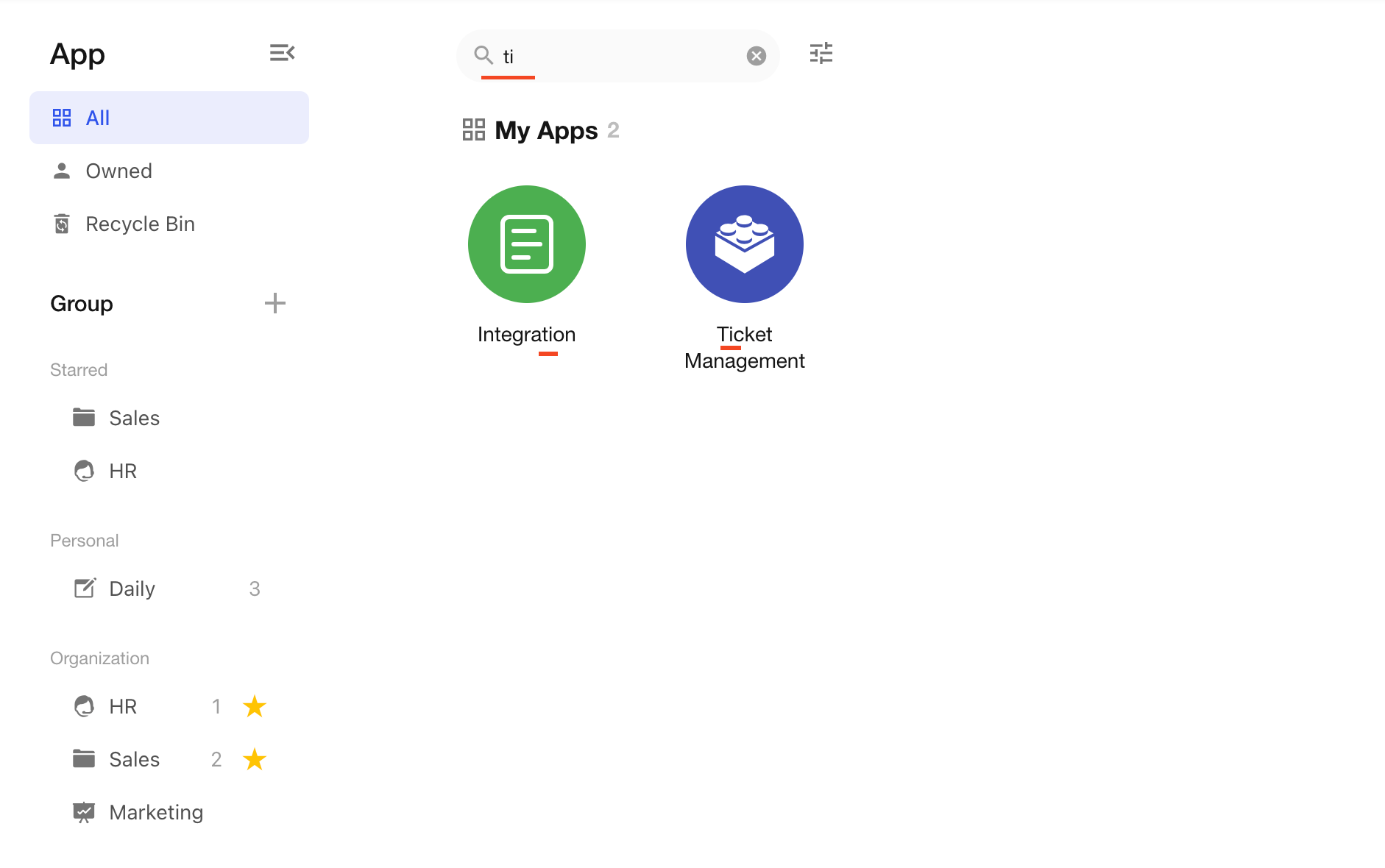
On the HAP application page, applications can be organized into groups (such as personal groups and organization groups). You can also quickly find target applications using search.
1. System Groups
In the application display area on the application page, applications are organized into system groups and custom groups.
There are three system groups:
- All: All applications you have joined within the current organization
- Owned: Applications in the current organization where you are the owner
- External Collaboration: Applications from other organizations that you have joined
Custom groups include two types: personal groups and organization groups, with no limit on the number.
1. All Applications
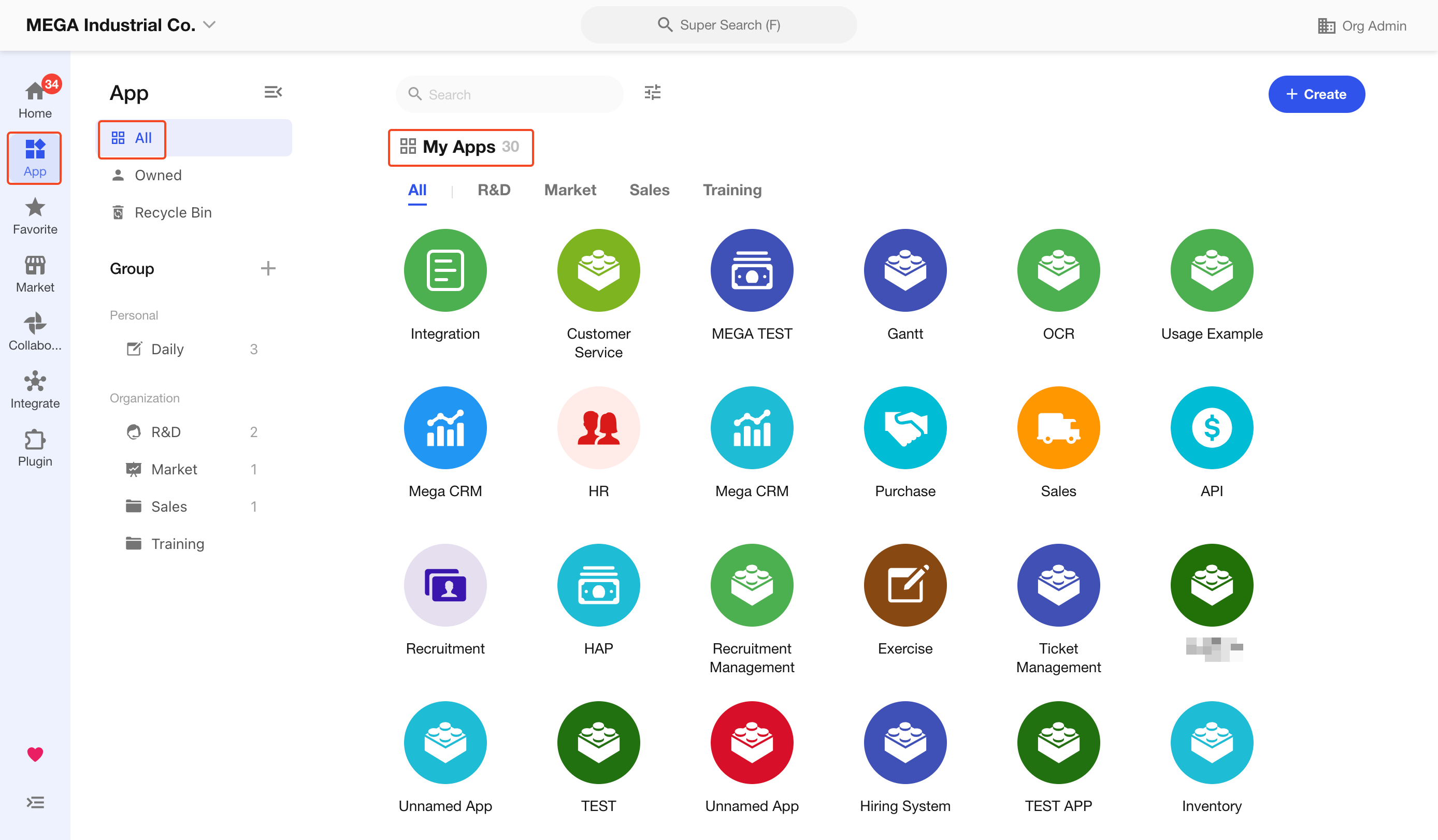
All applications you have joined within the current organization are displayed in a flat list. As shown below, this group displays all applications you have joined in the MEGA Industrial Co. organization.
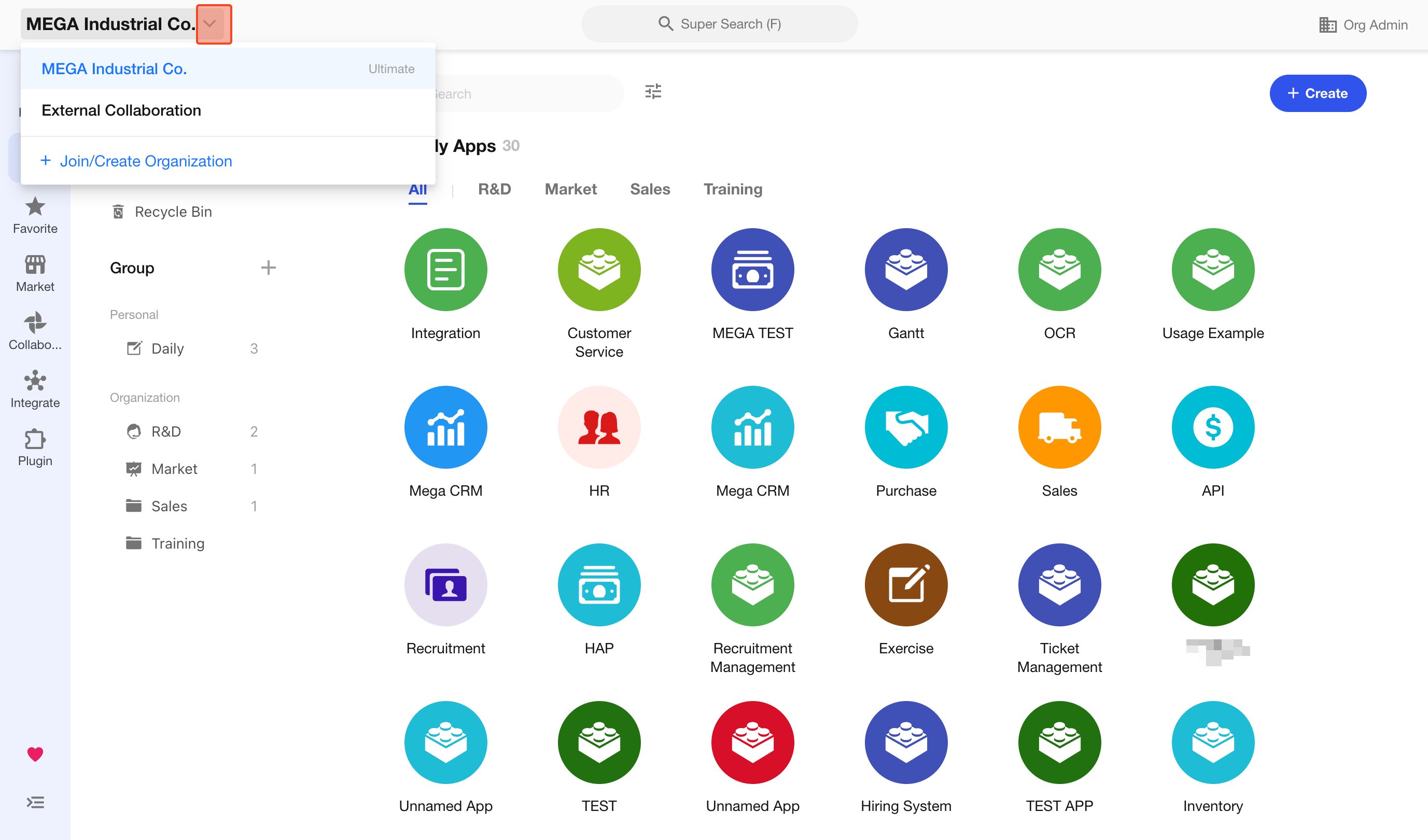
If you belong to multiple organizations, you can switch organizations from the top-left corner to view applications in different organizations.
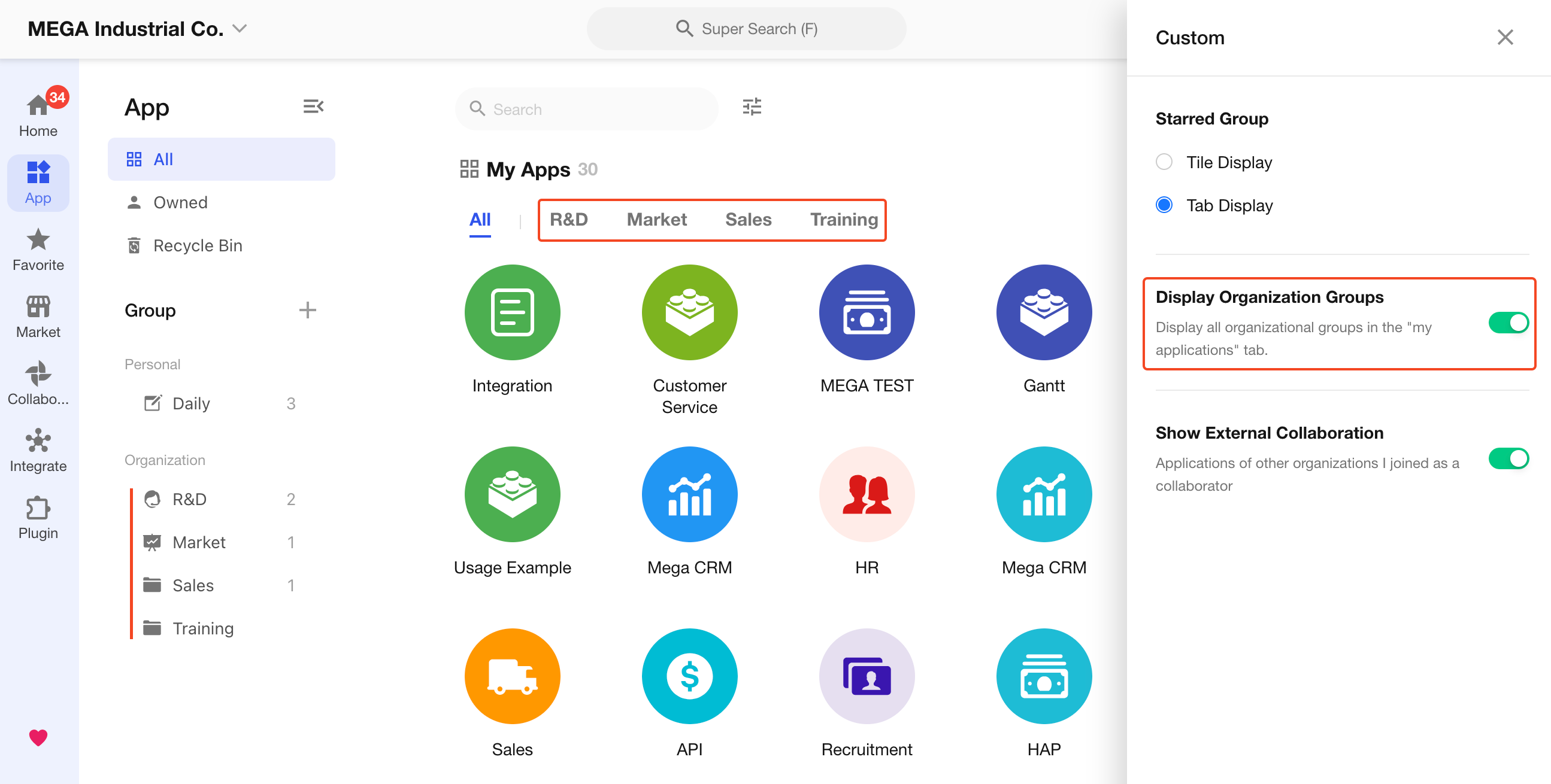
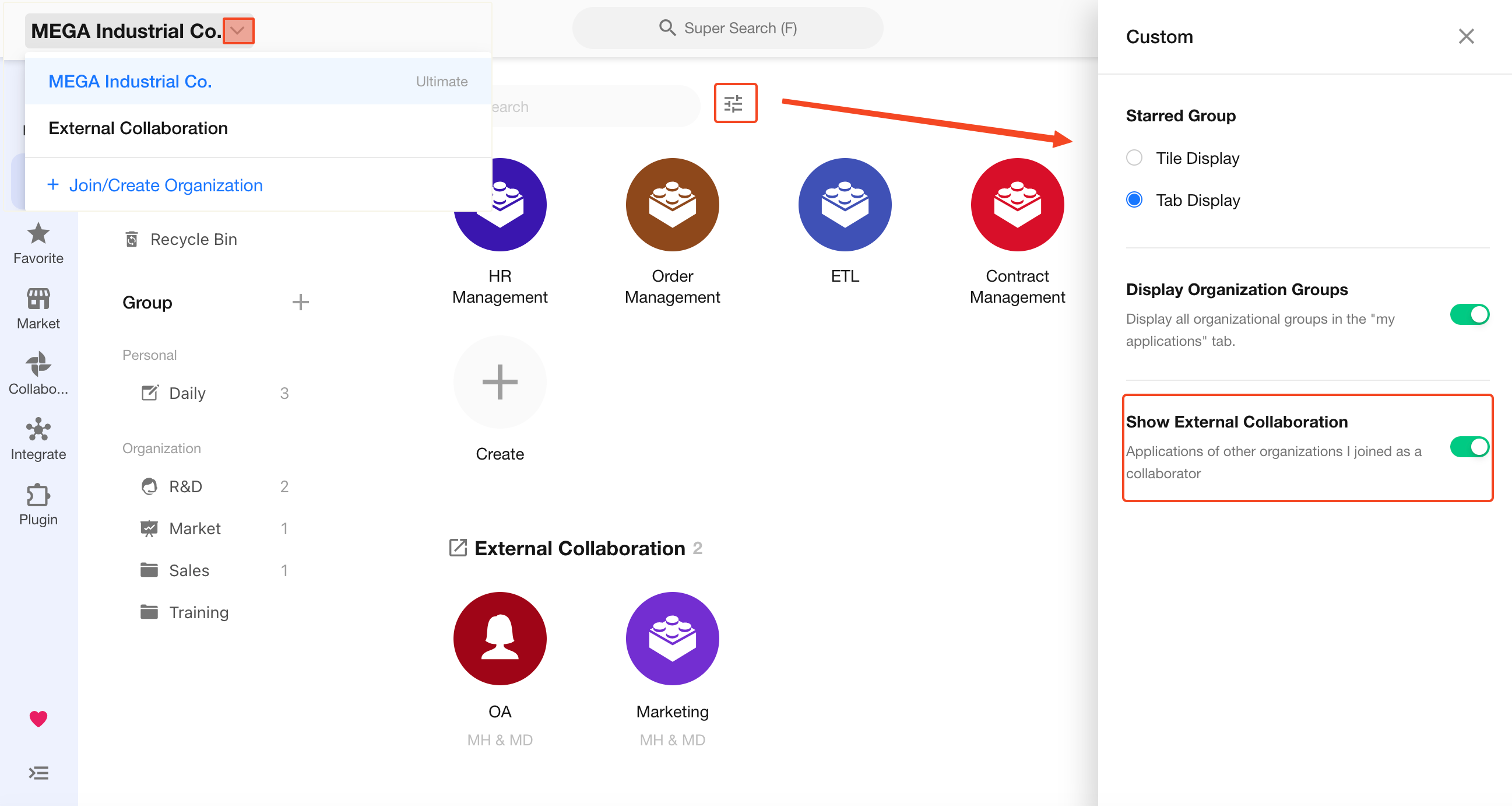
If custom organization groups are configured, you can choose whether to display them.
Owned by Me
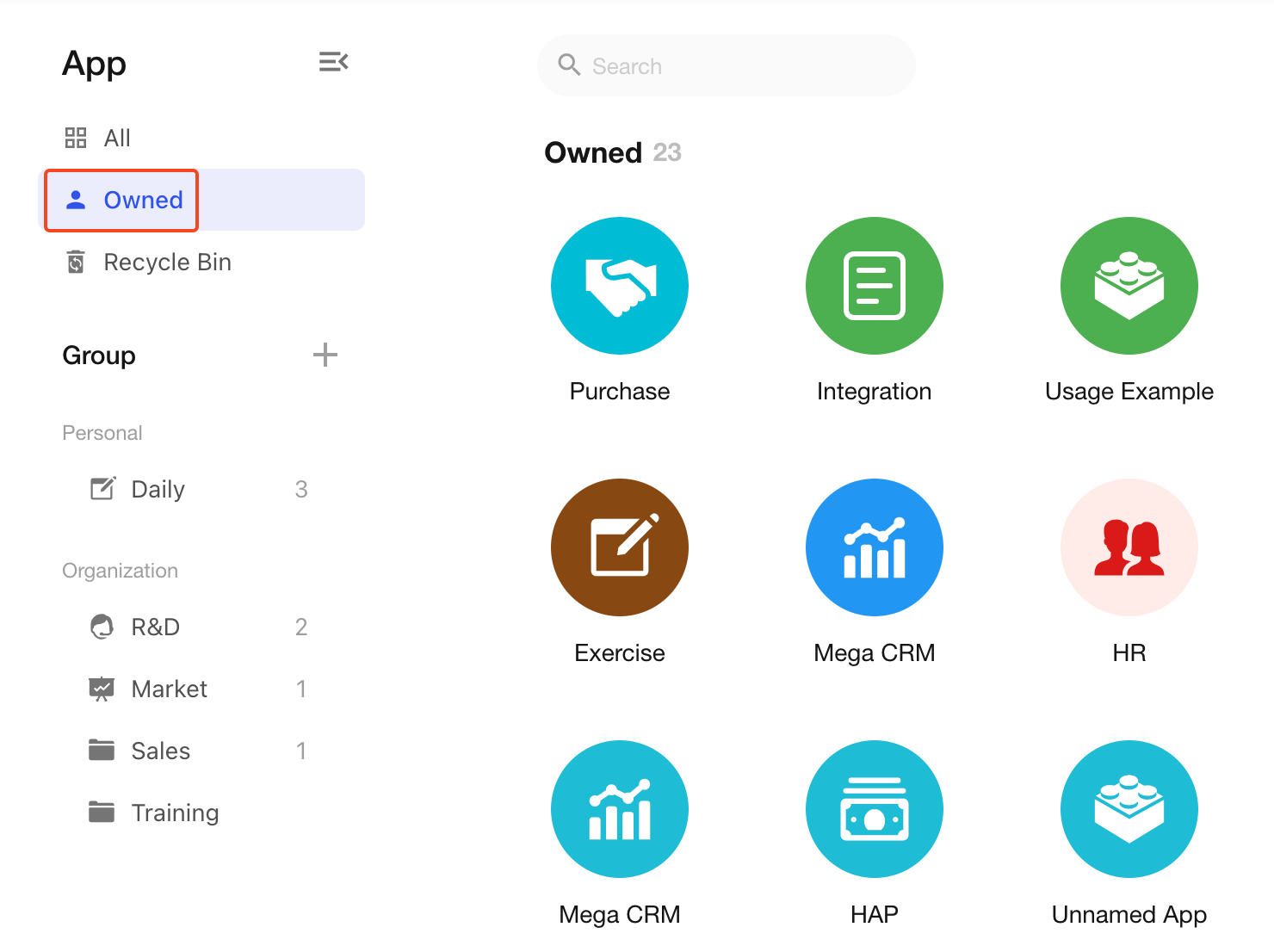
Under the Owned group, only applications you own within the current organization are displayed.
2. External Collaboration
Applications in this group are created in other organizations where you are not a member, but you have been granted access as a role member within those applications. These applications appear under the External Collaboration group at the bottom.
If this group does not appear, it means you have not joined any applications from other organizations.
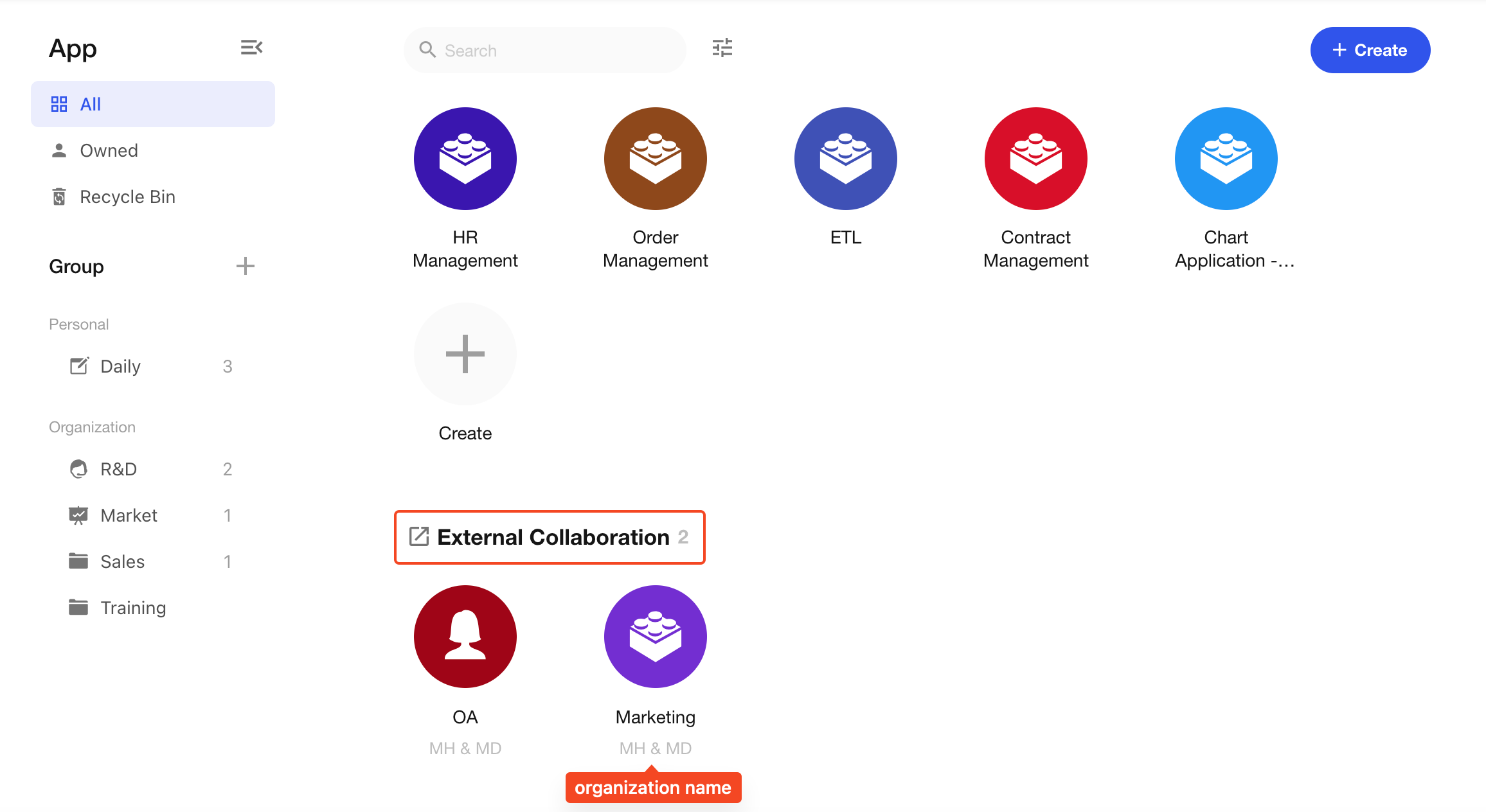
External collaboration applications cannot be created directly. They appear only after you are granted access. Applications you create belong to your current organization.
The External Collaboration group is displayed by default. You can hide it if needed. To view it, click the organization switch button in the top-left corner and select External Collaboration.
2. Custom Groups
If you have many applications, you can organize them into custom groups—for example, by department, project, or business type—to quickly locate relevant applications.
Custom groups are categorized by scope into personal groups and organization groups.
1. Create a Group
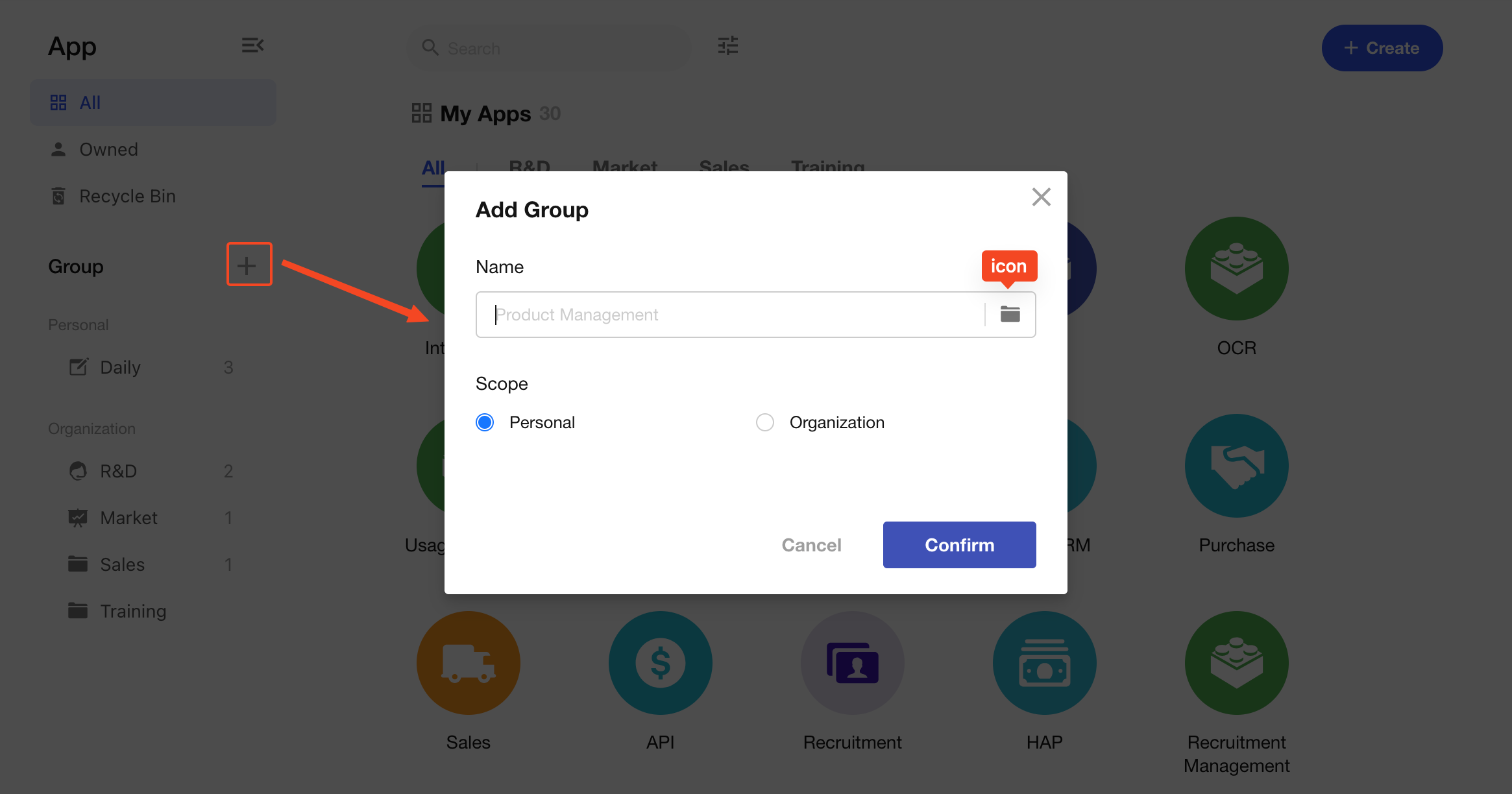
-
Personal Groups
Any user can create personal groups and add applications to them. These groups are visible only to the creator.
-
Organization Groups
Only Organization Super Admins or Application Admins can create organization groups. Once created, these groups are visible to all users in the organization.
Application administrators can assign applications to organization groups, and all members of those applications will see them under the corresponding group.
Example below: four groups are created:
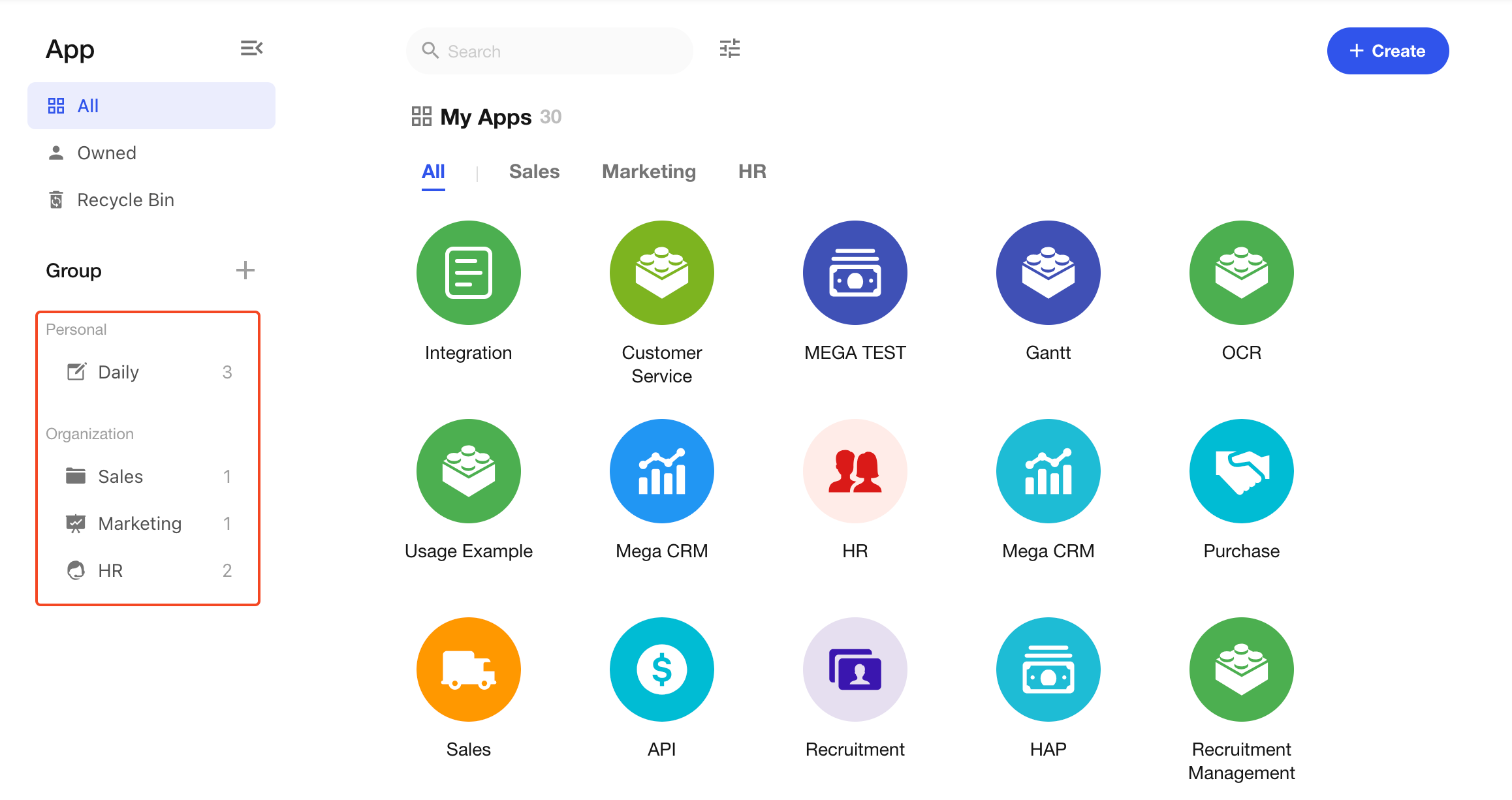
- Frequently used applications are placed in the “Daily” group
- Three groups—“Sales”, “Marketing”, and “HR”—are created based on departments (visible to all users in the organization)
Groups belong to an organization. When switching organizations, groups (both personal and organization groups) from the selected organization will be displayed.
2. Assign Applications to Groups
After creating groups, you can assign applications to them.
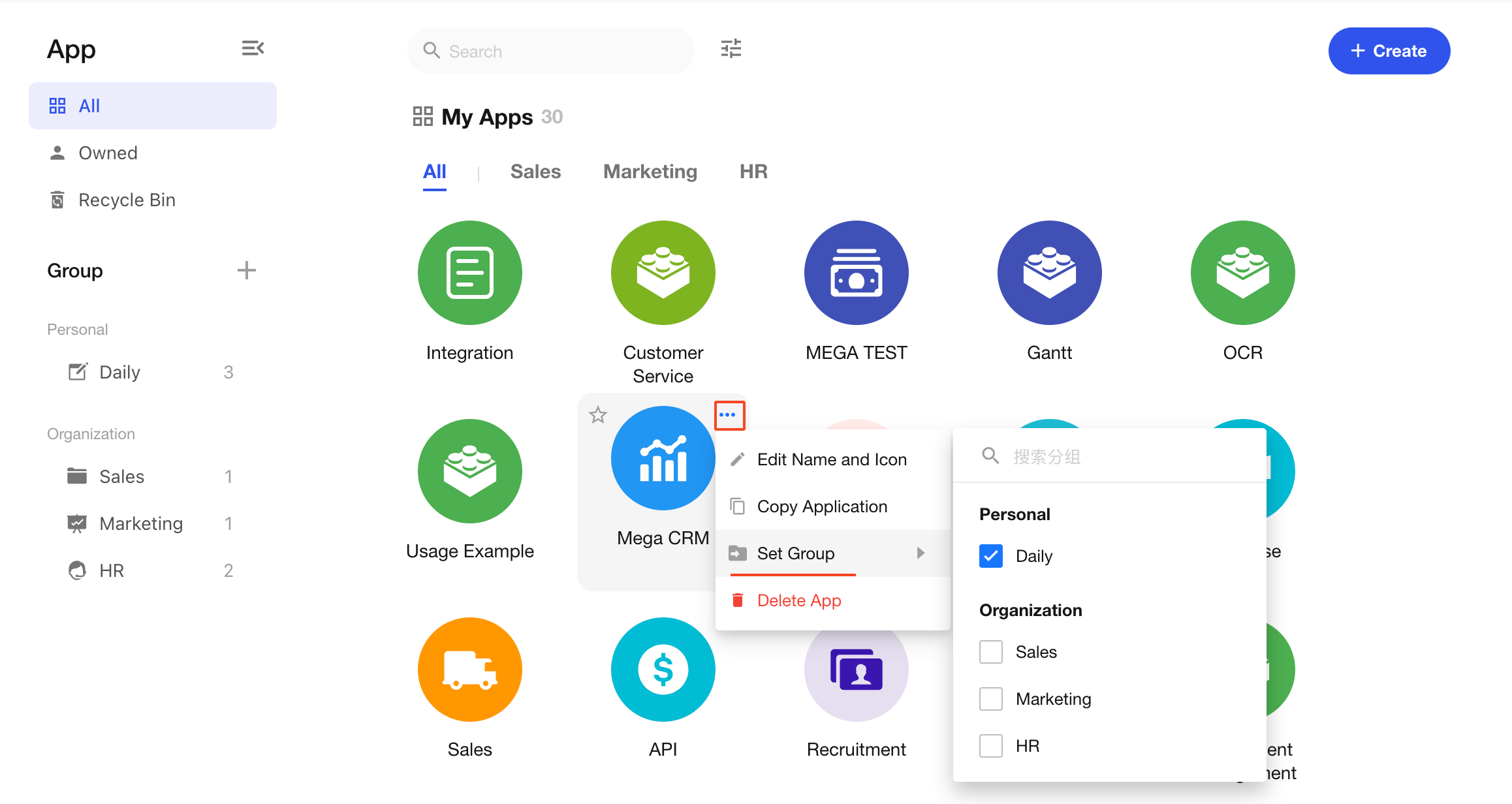
- One application can belong to multiple groups
- If assigned to a personal group, it is visible only to the user
- If assigned to an organization group, it is visible to all members of the application
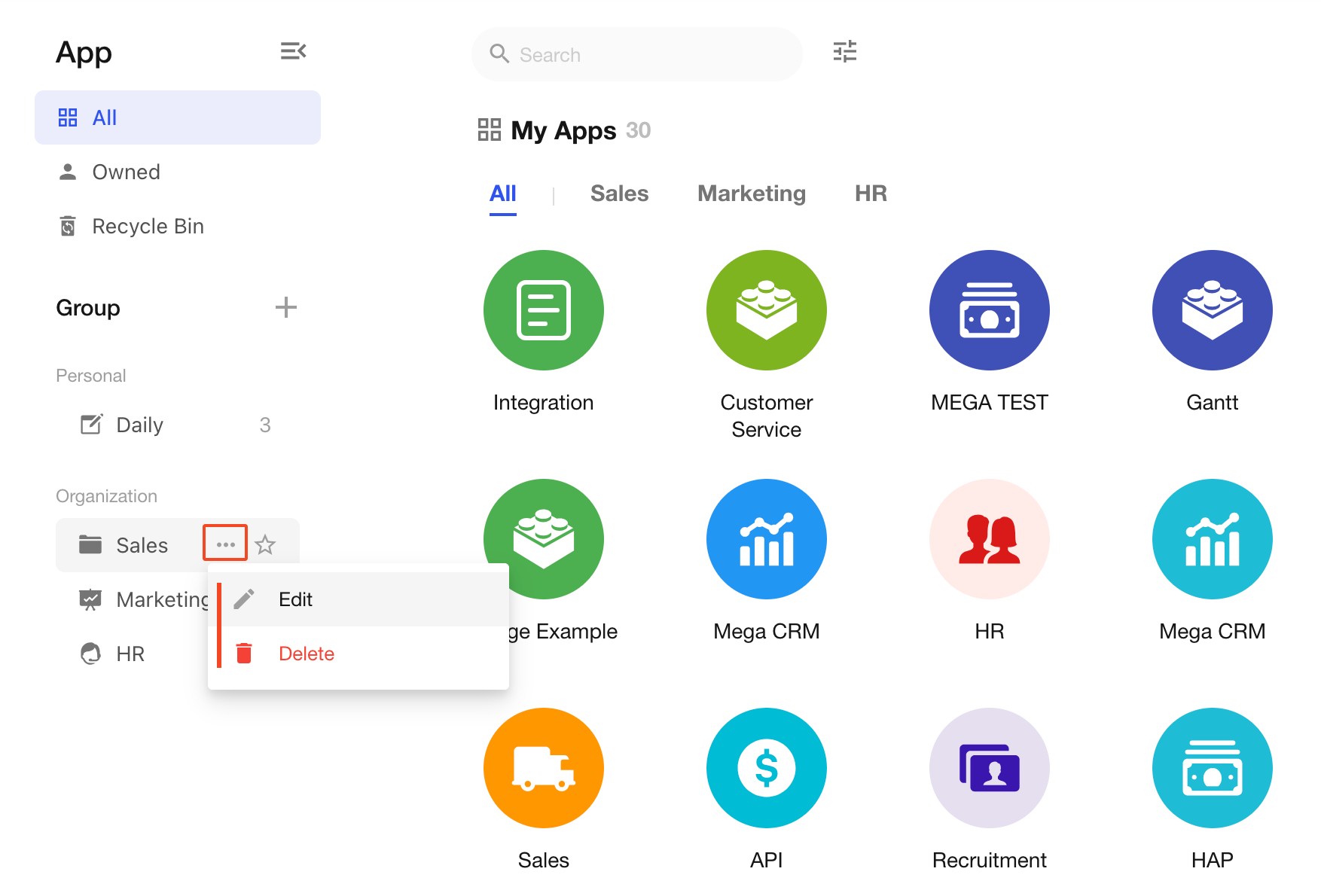
3. Edit/Delete Groups
When editing a group, you can switch it between a personal group and an organization group.
4. Star Groups
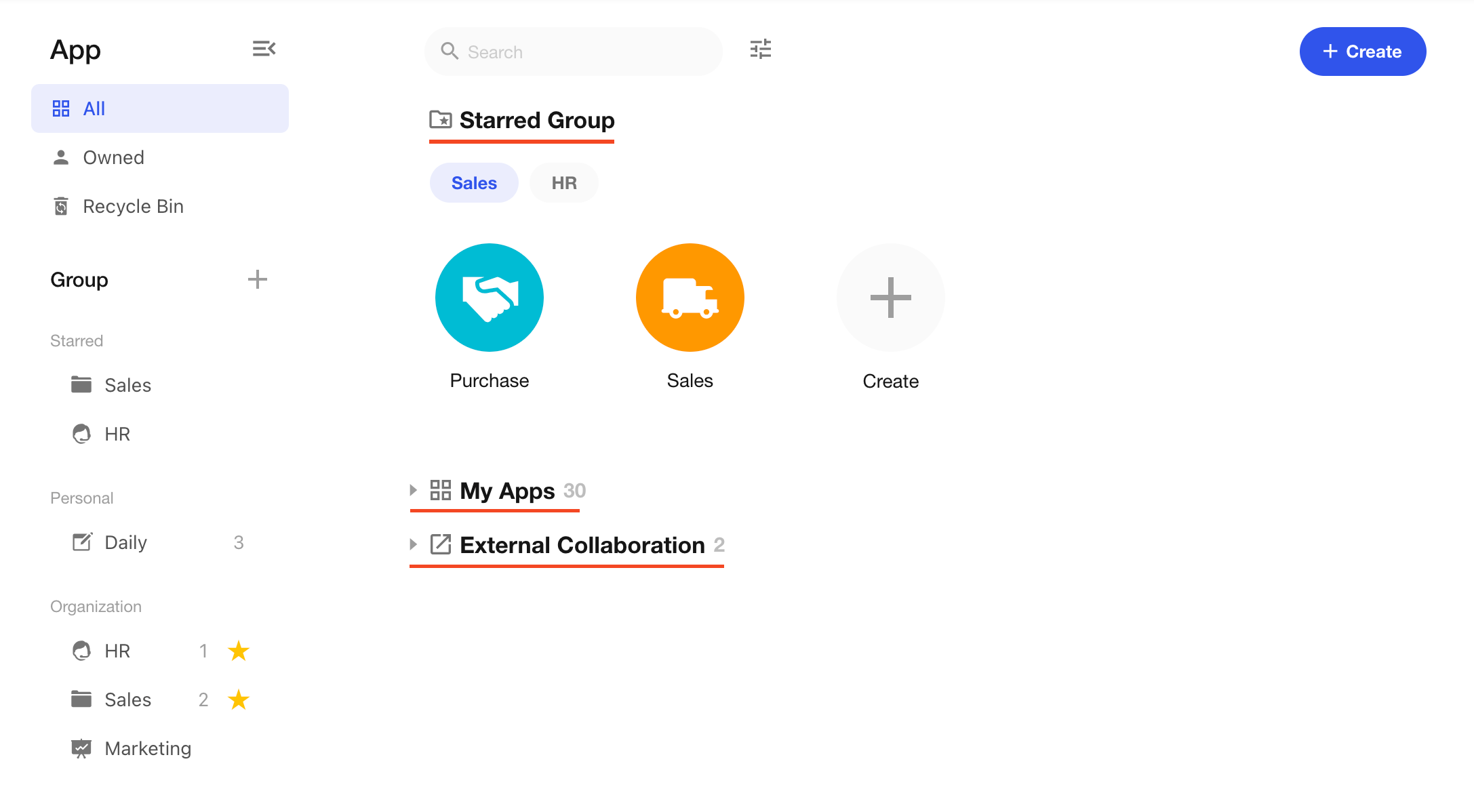
You can star groups to pin them to the top. Starred groups will appear at the top of the application display area. If a starred group contains applications, it will also be prioritized in display.
A hollow star ☆ indicates not starred, and a solid star ★ indicates starred. Click to toggle.
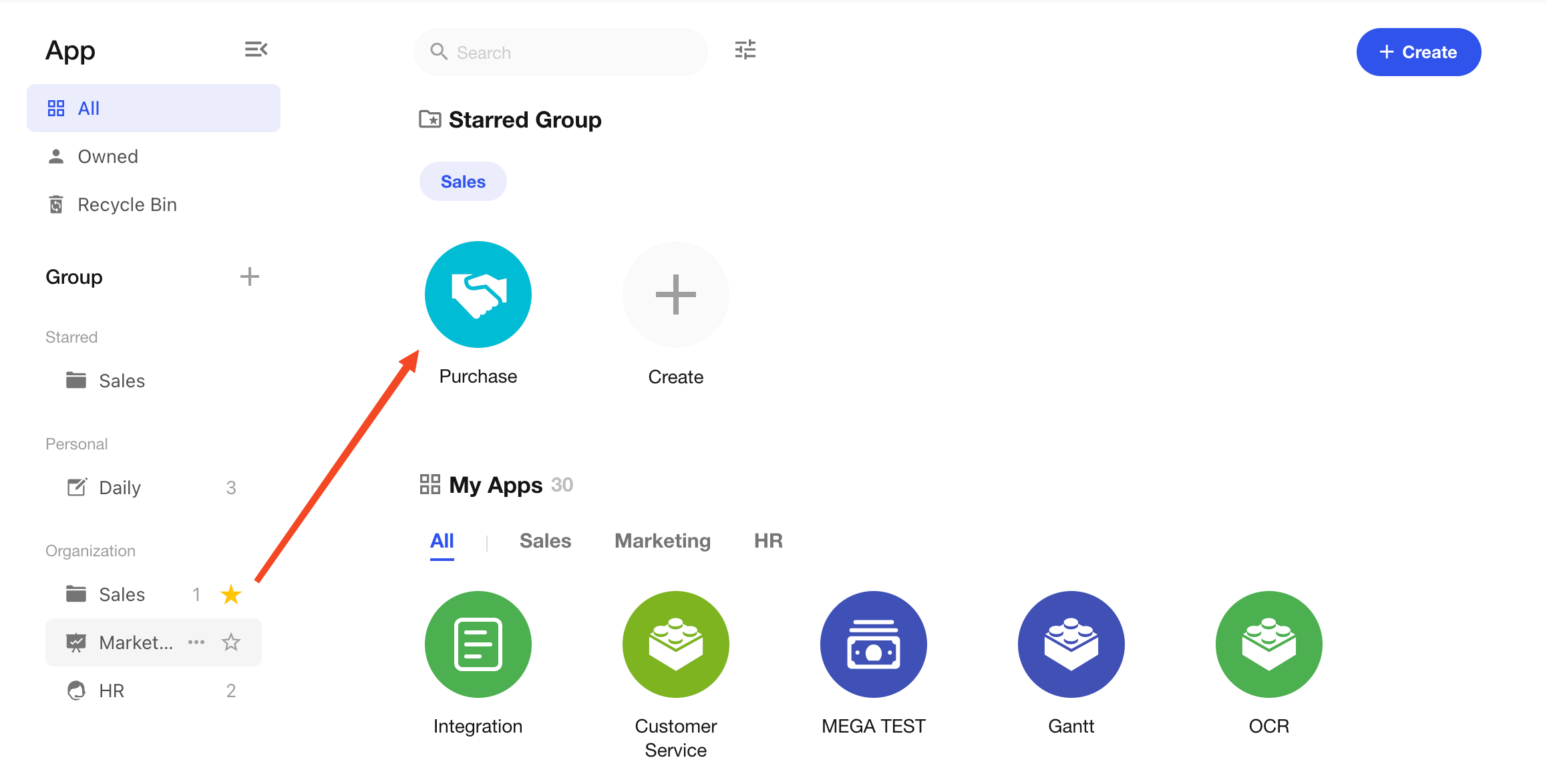
Groups without applications will not be displayed in the application area.
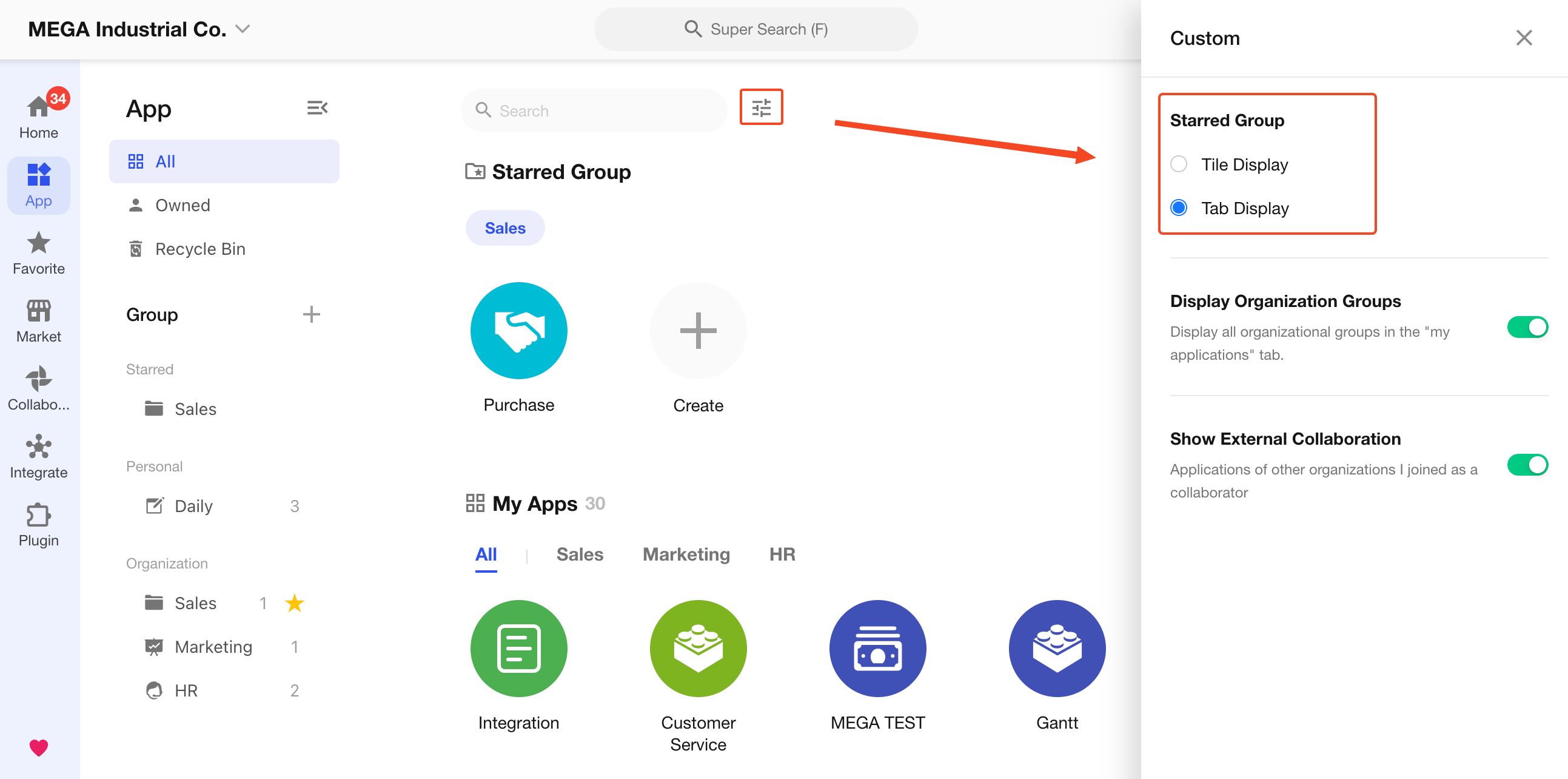
Display Modes for Starred Groups
Starred groups can be displayed in two ways: Tile and Tab.
-
Tile
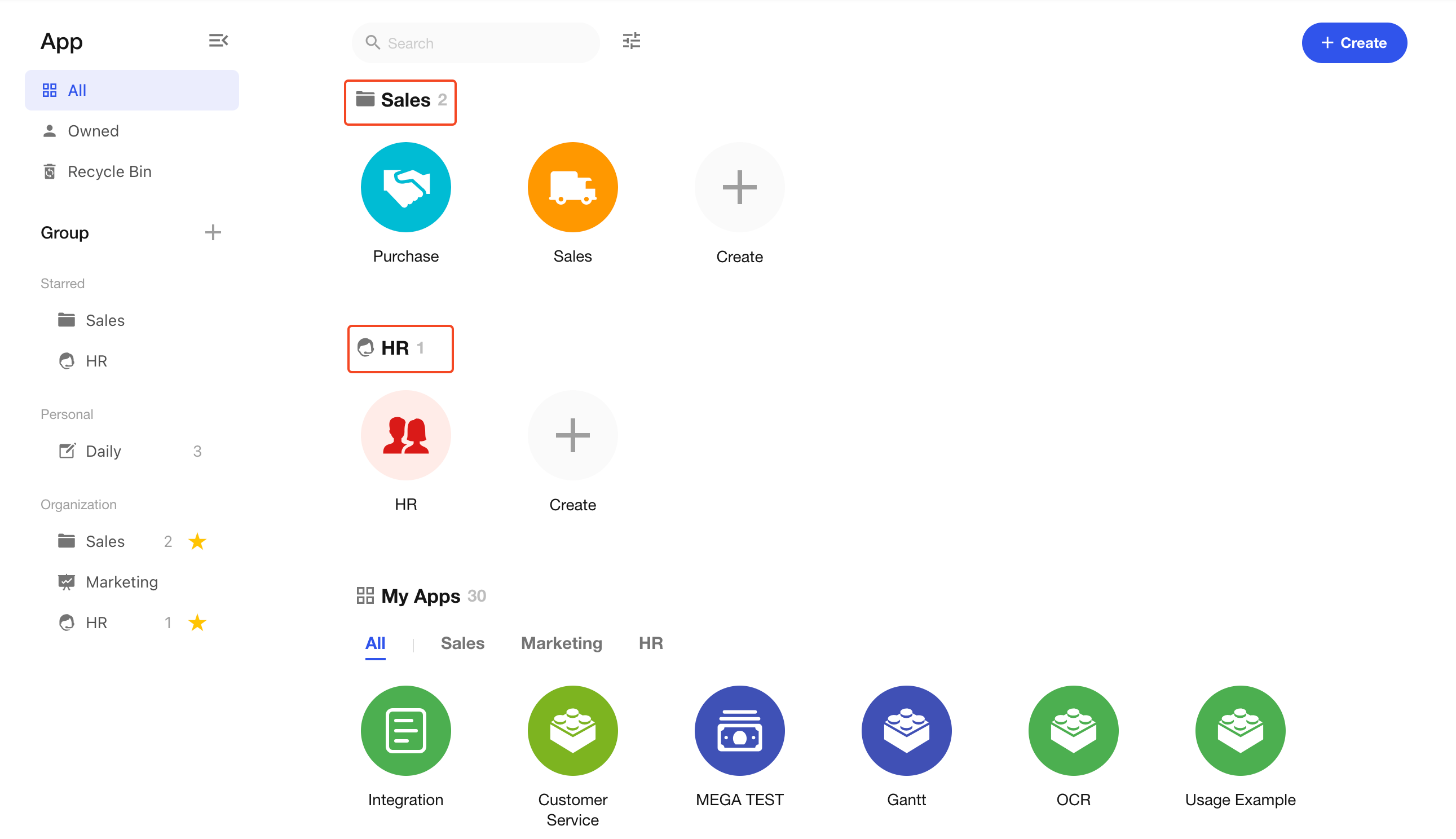
-
Tab
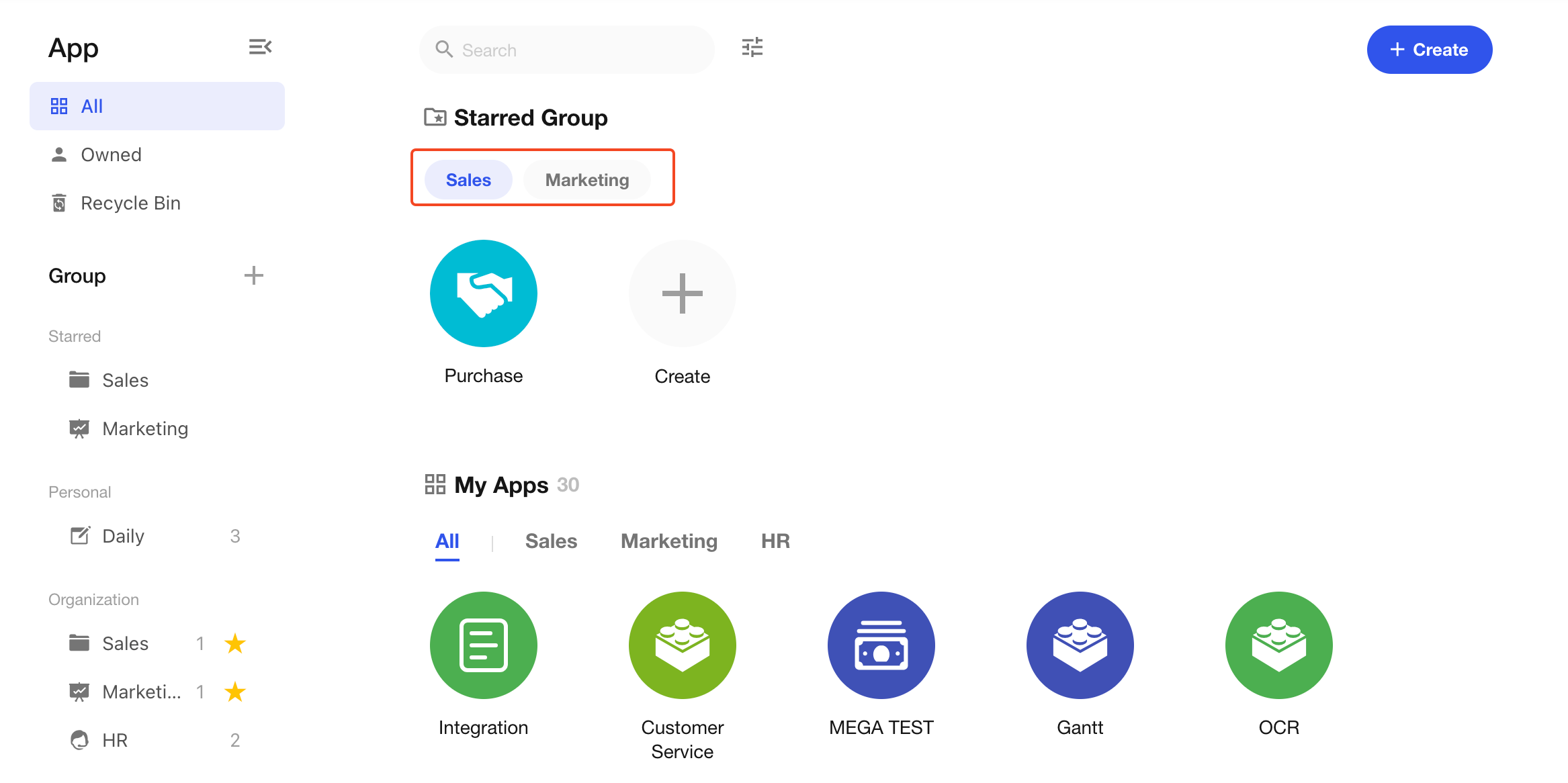
3. Group Operations
1. Expand/Collapse Groups
Hover over a group name and click to expand or collapse it.
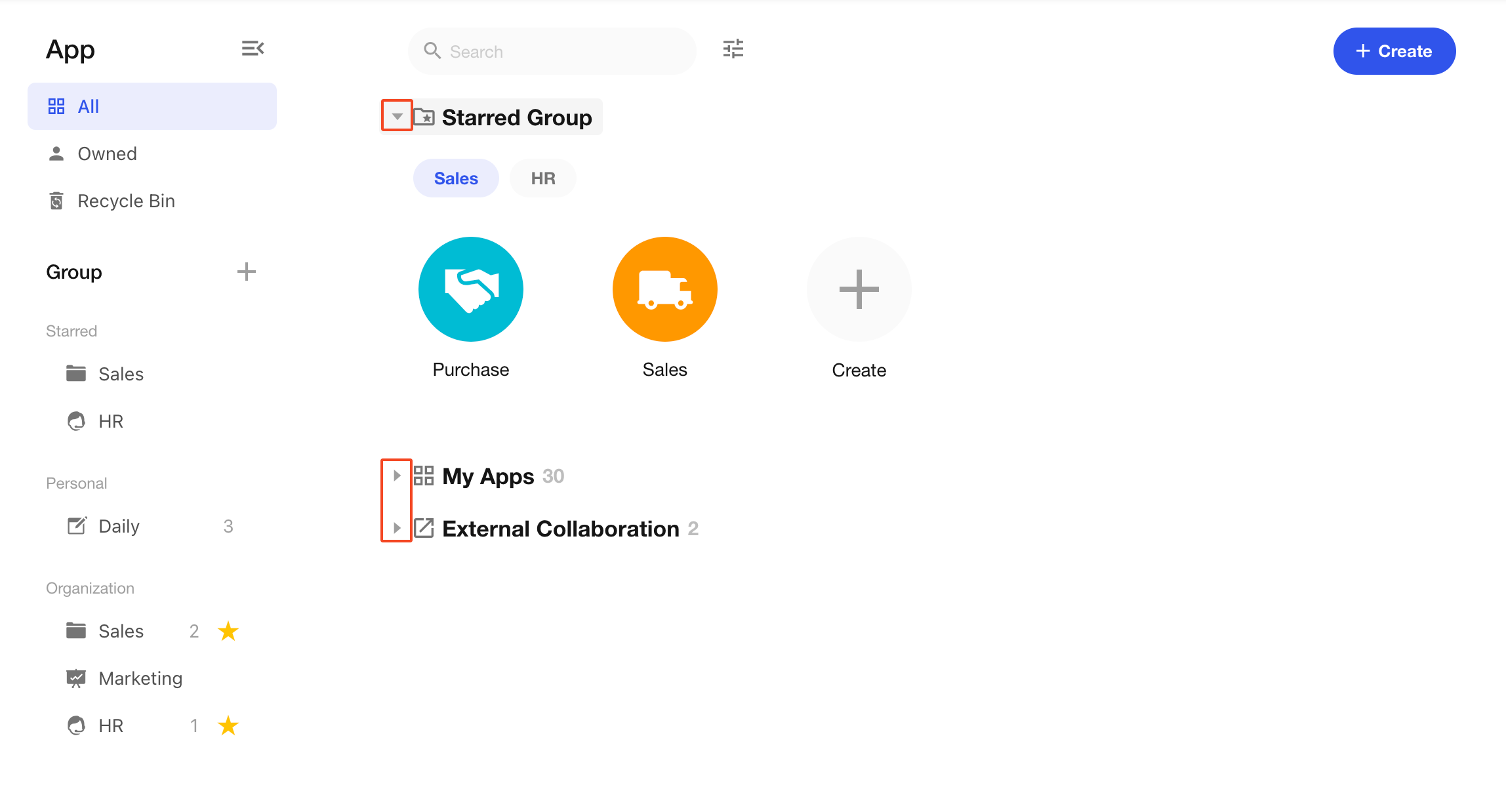
2. Reorder Groups
Groups can be reordered by dragging them up or down.
Starred groups can also be reordered, which affects their display order in the application area.
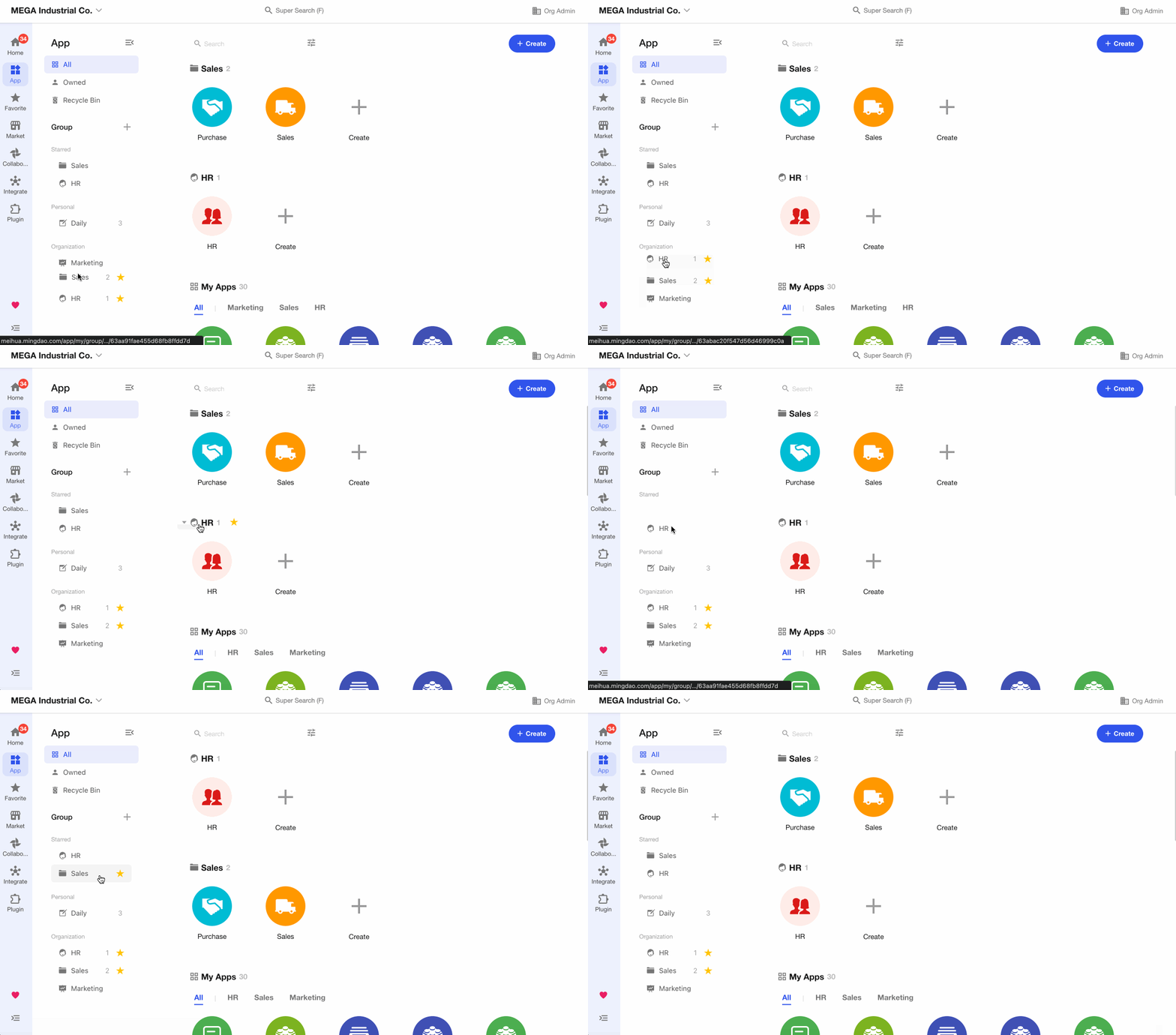
3. Group Order in the Application Area
The display order of groups in the application area is as follows:
- Starred groups are always shown at the top
- Starred groups follow their internal order
- All applications within the organization
- External collaboration applications
4. Application Sorting and Search
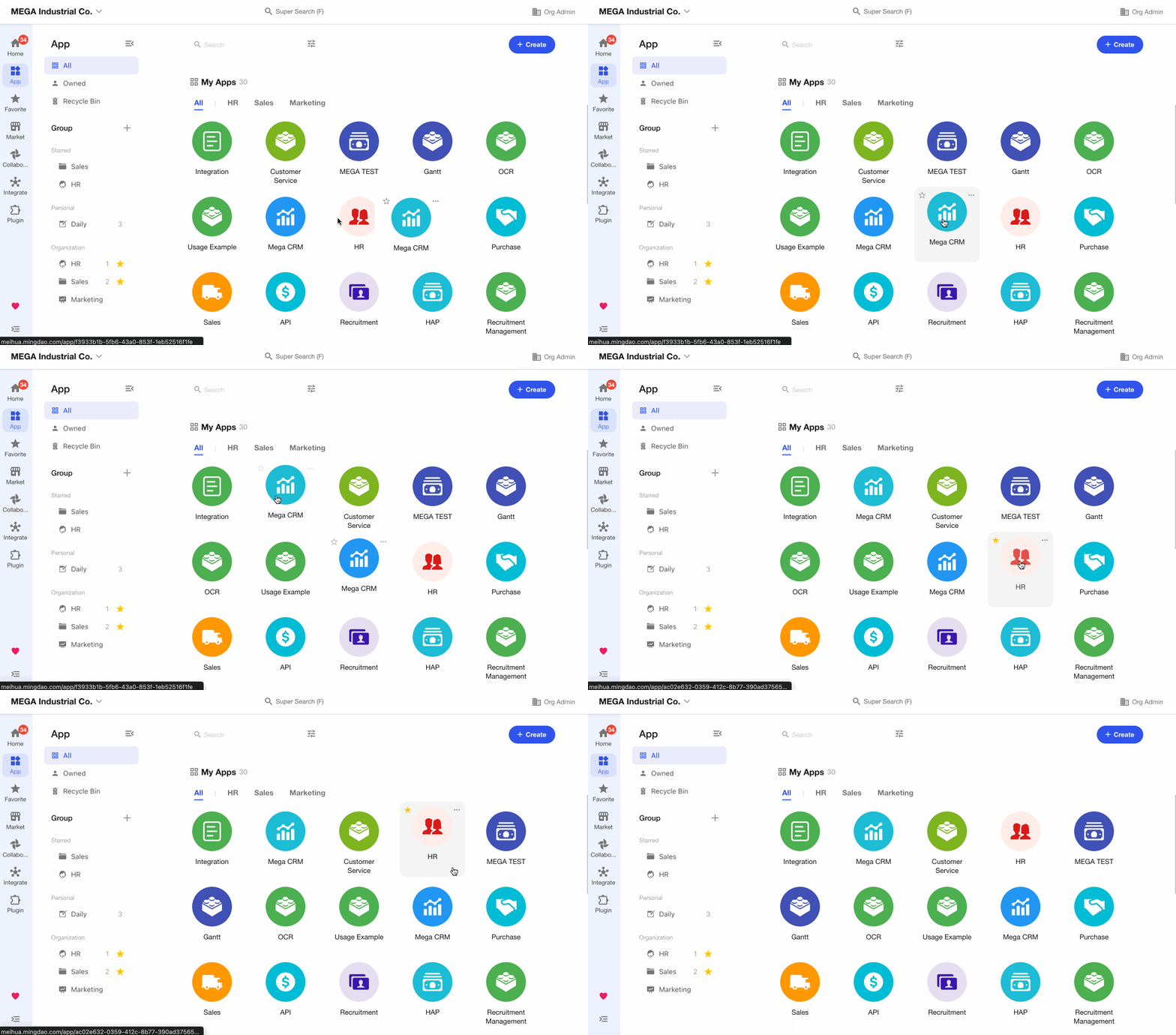
1. Sort Applications
Within a group, you can drag and drop applications to reorder them. This sorting is user-specific.
2. Search Applications
Was this document helpful?