Field Default Values
Field default values allow fields to be automatically populated when creating a new record. This helps reduce manual input and improve efficiency.
Common scenarios for using default values include:
-
When most field values are consistent across records, and only a few need to be modified, you can set fixed default values.
-
When a field needs to reference values from other fields or from records in other worksheets.
-
When values need to be calculated or formatted based on other fields, such as mathematical operations or text processing.
How to configure field default values
1. Entry point and assignment methods
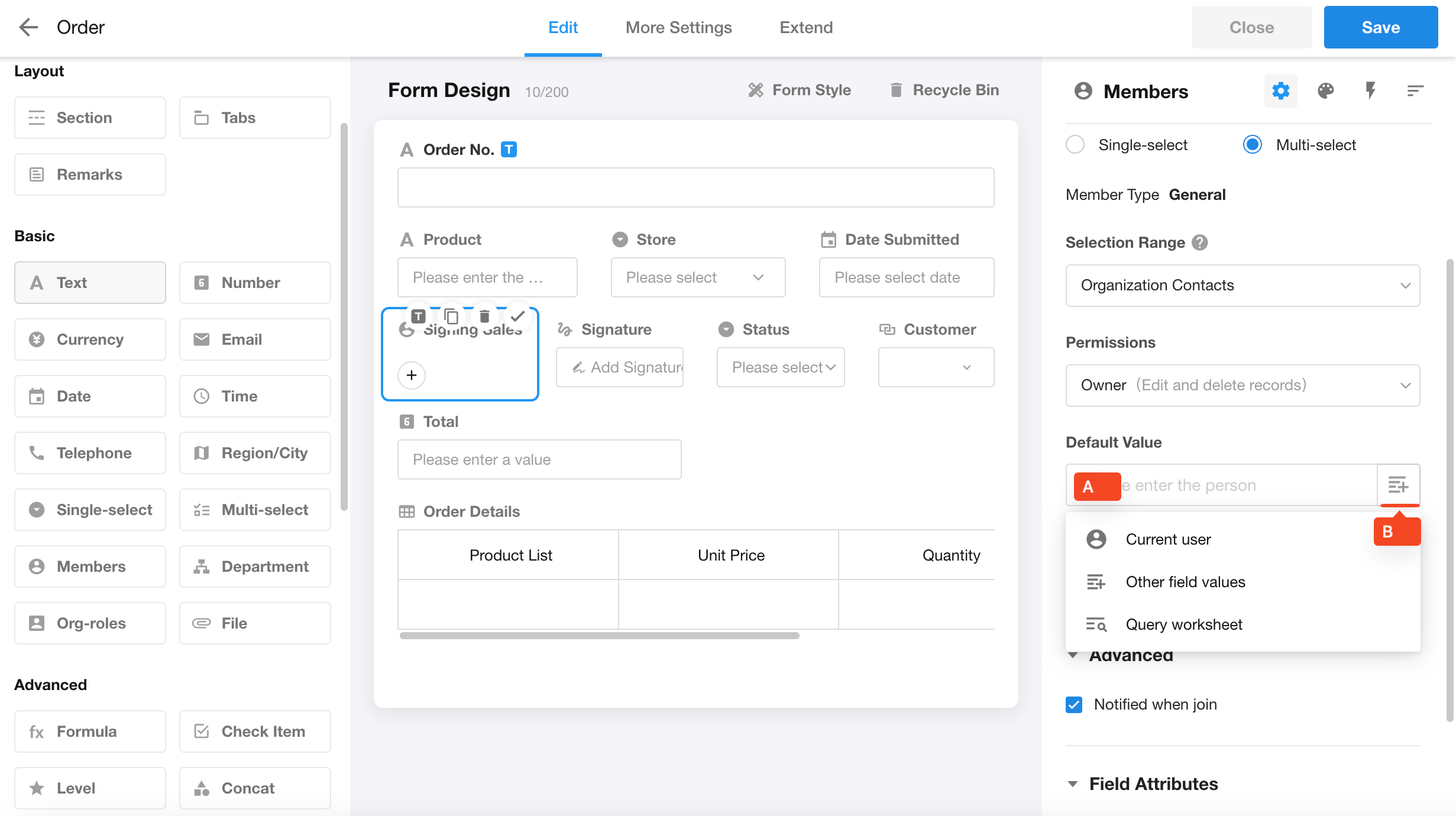
In the form editor, select a field and configure its default value in the Default Value section on the right panel.
-
Click the blank area (A) to set a static default value
-
Click the button (B) to configure a dynamic default value, which supports the following options:
1) Current date, current user, current department
These options are available based on the field type:
- Date field → Current date
- Member field → Current user
- Department field → Current user’s department
2) Other field values
You can set a field’s default value using:
- Fields from the current worksheet
- Fields from related records
3) Query worksheet
Retrieve a record from another worksheet based on defined conditions, and use a field value from that record as the default.
4) Function calculation
Apply calculations based on other field values, including:
- Mathematical operations
- Text processing
- Logical conditions
2. Supported field types
The following field types support default values:
-
Text, Number, Currency, Phone, Email, Date
-
Member, Department, Single select, Multi select, Level, Region/City, Positioning, Check item
-
Relationship (not supported when using multi-record list display)
-
Subform
3. Static vs. dynamic default values
Static default value
A fixed value entered manually.
For example, if the Discount field is set to 1, it will be automatically filled as 1 when creating a new record.
Static default values only apply when creating new records and do not take effect when editing existing records.
Dynamic default value
A value that changes based on other data.
For example, if the Unit Price field is set to reference the price from a related Product record:
- Selecting Product A → Unit Price displays Product A’s price
- Selecting Product B → Unit Price displays Product B’s price
The following configurations are considered dynamic default values:
- Other field values
- Query worksheet
- Function calculation
4. When default values take effect
Static default values
Static default values apply only when creating new records and do not apply when editing existing records.
Dynamic default values
Dynamic default values apply when:
- Creating a record
- Editing a record
They will also update automatically when referenced or calculated field values change.
However, dynamic default values do not take effect in the following scenarios:
-
Bulk editing records
-
Importing data via Excel
-
Creating or updating records via API
-
Creating or updating records via workflow
In these cases, if the field is not explicitly assigned a value, it will remain empty after the record is created.
5. Dynamic default values vs. foreign field
Both dynamic default values and foreign field can display values from related records, but they behave differently:
-
Foreign field
- Always reflects the latest value from the related record
- Automatically updates when the source data changes
-
Dynamic default value
- Retrieves the value only at the time of creation or editing
- Does not stay synchronized afterward
Typical scenario
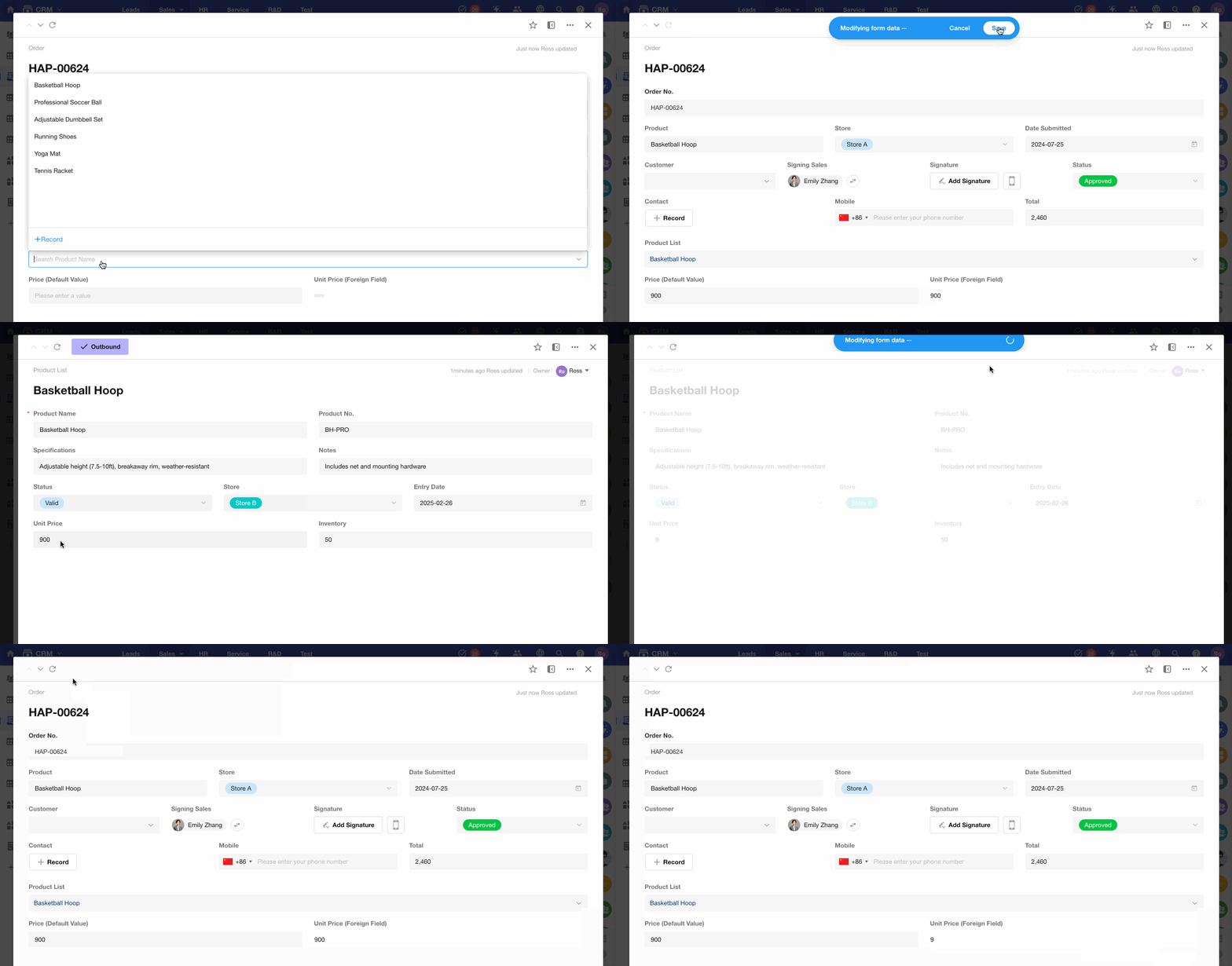
Product prices may change over time.
- The Product worksheet always stores the latest price
- Once an order is created, the price should remain fixed
In this case:
- Do not use a foreign field in the Order worksheet (as it will keep updating)
- Use a Currency field with a dynamic default value instead
Was this document helpful?