Feature Controls in Worksheets
Some features in a worksheet are intended for specific users or scenarios. For example, importing data may be restricted to application administrators, while standard users can only create records manually. Certain features can also be limited to specific views.
Feature controls allow you to manage access by role and view, ensuring data accuracy and compliance while improving efficiency.
Feature Controls in Worksheets
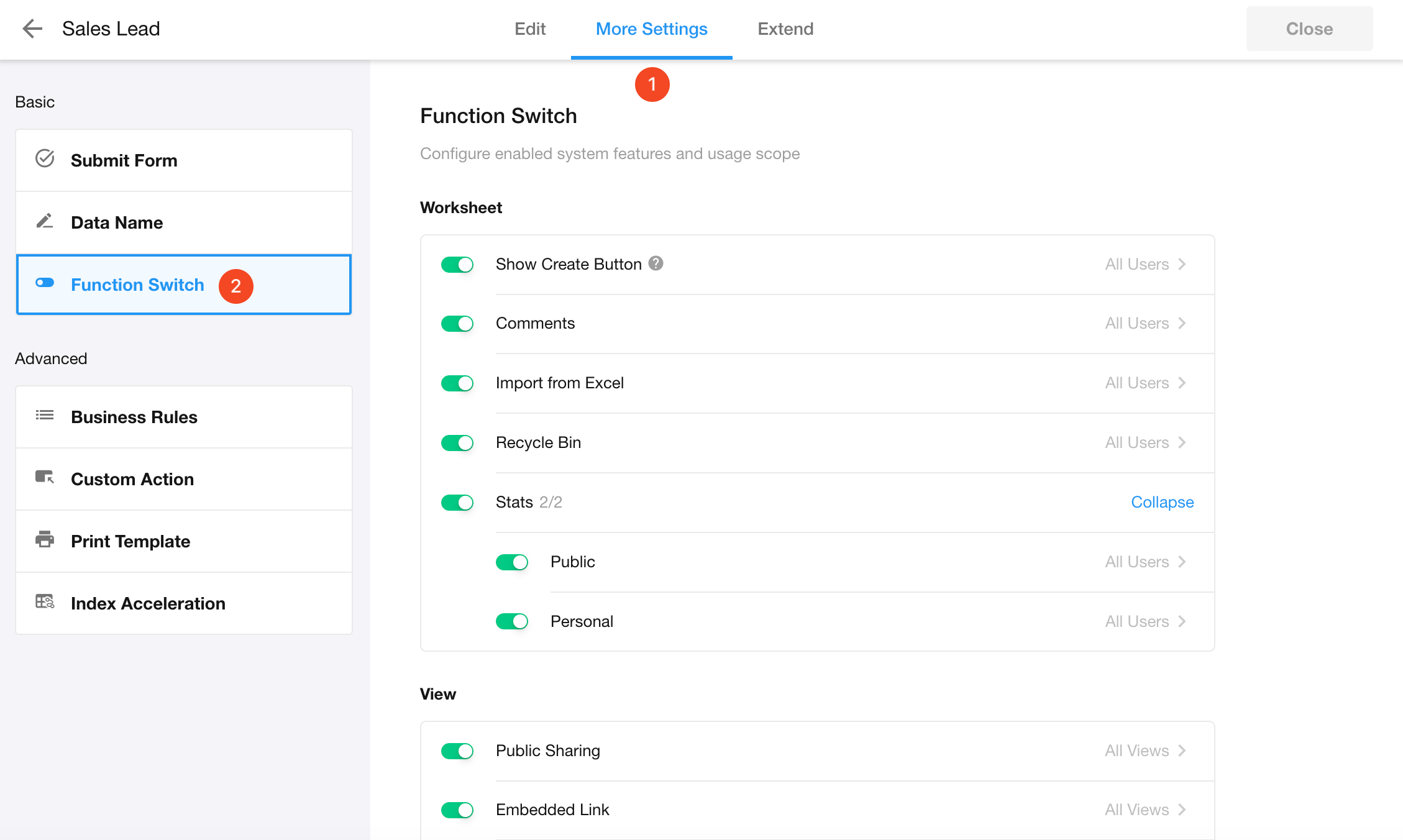
Availability Scopes
Feature availability can be configured at three levels:
-
Disabled
When disabled, the feature is not available to any user.
-
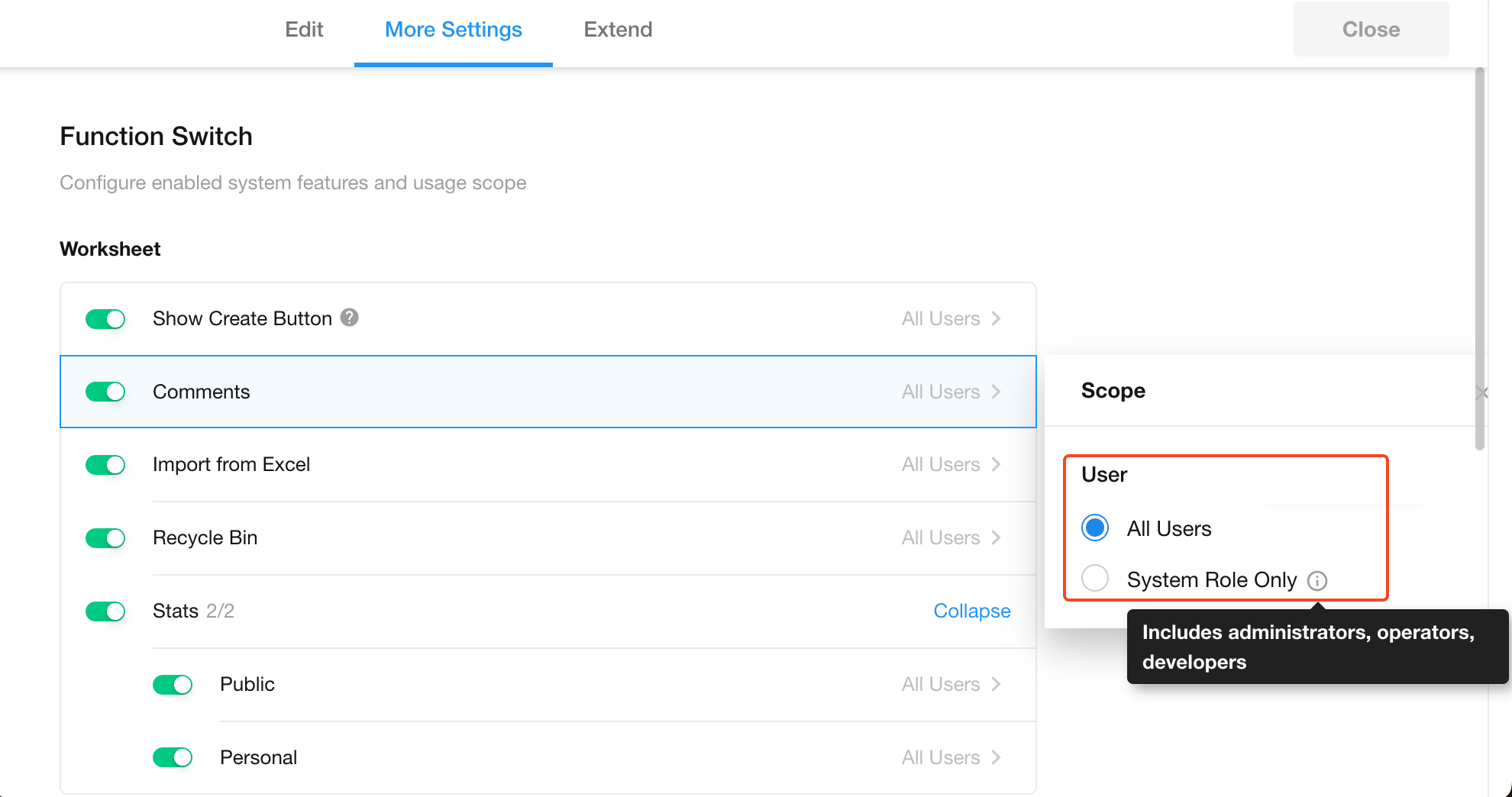
Available to Specific Roles
When enabled, the feature can be made available to:
- All users
- Specific system roles only
-
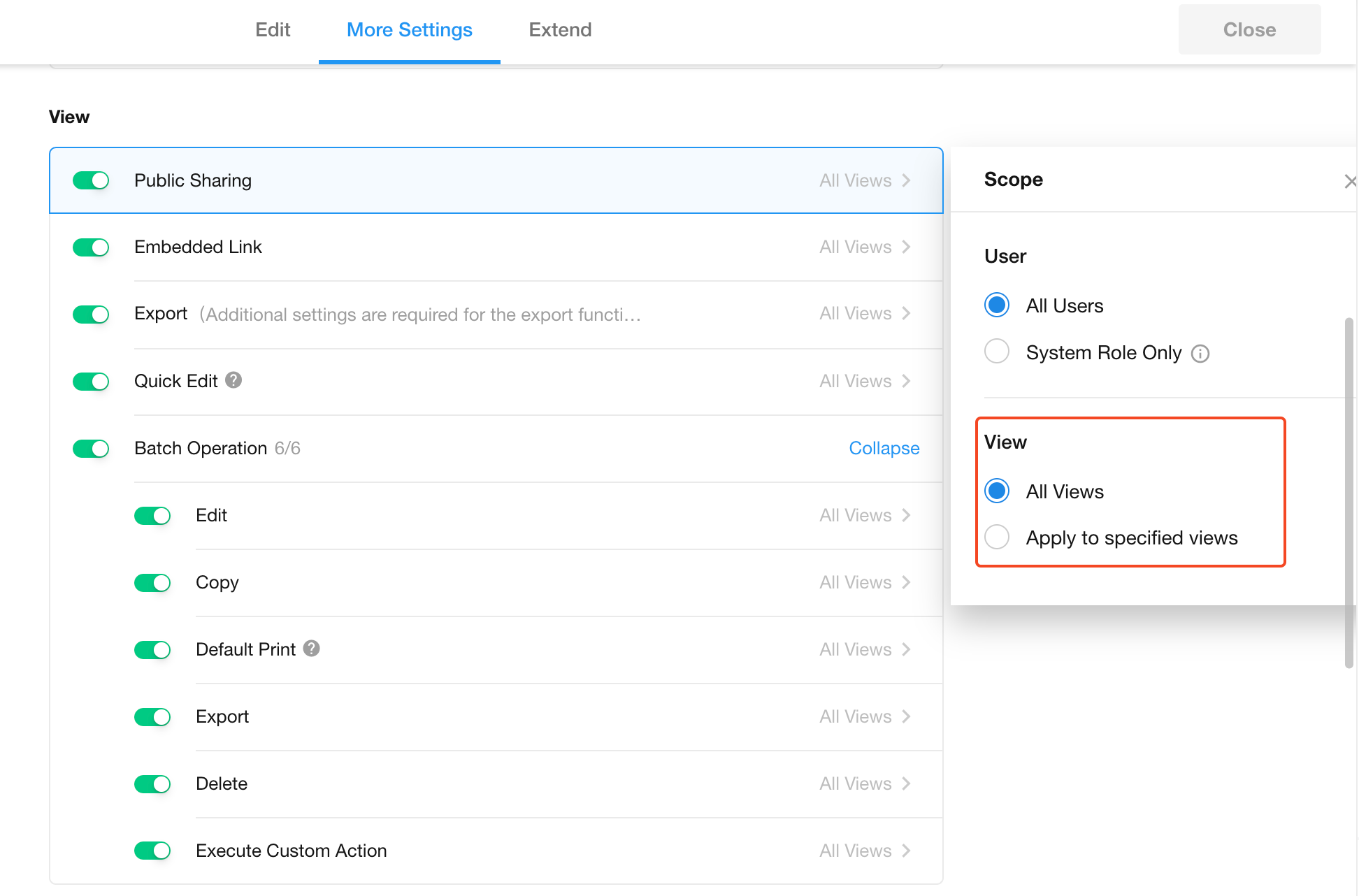
Available in Specific Views
When enabled, the feature can be restricted to:
- Specific views
- All views
Worksheet-Level Feature Controls
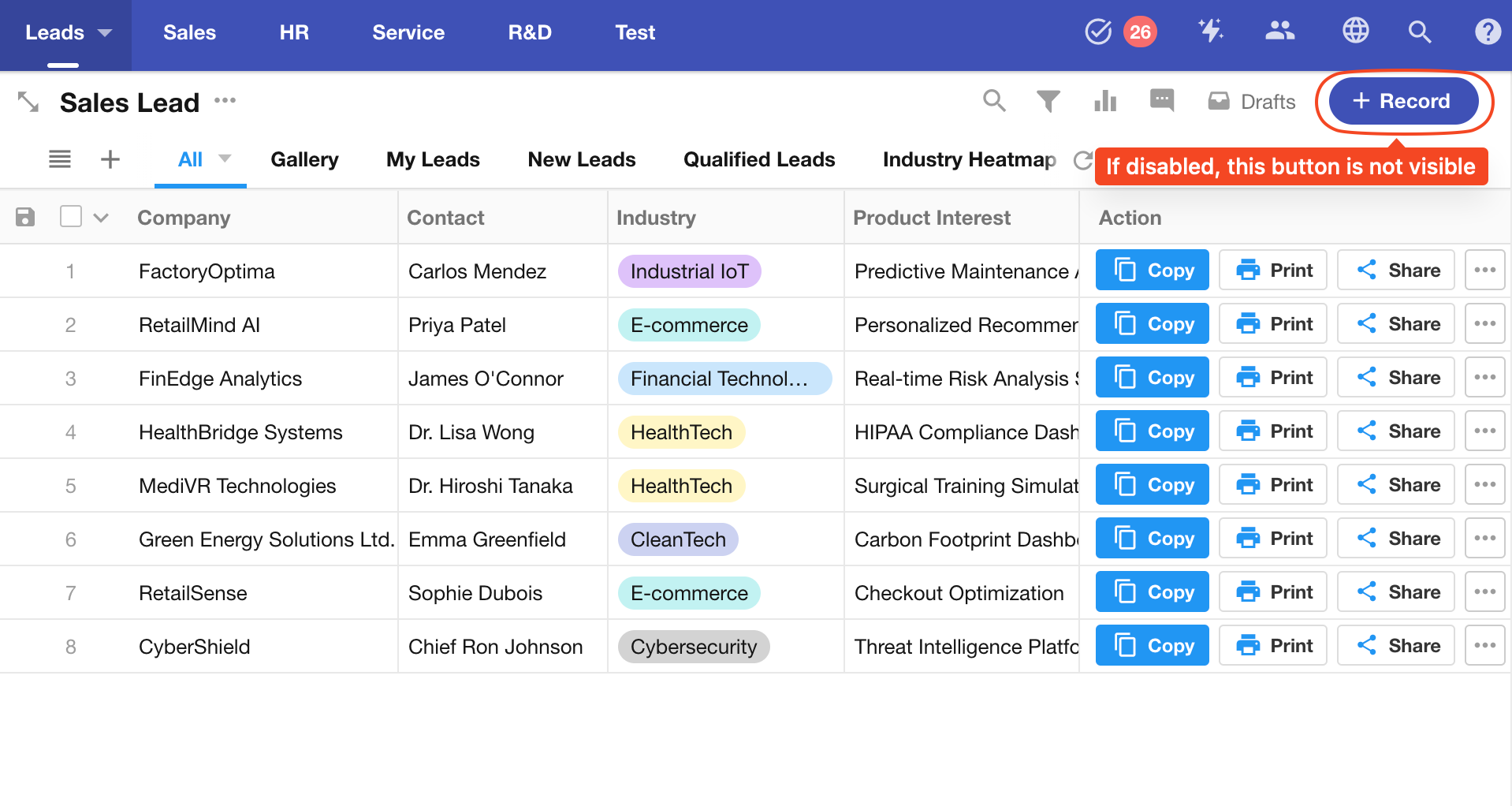
Show “Create Record” Button
When disabled, the Create Record button is hidden for all users.
Records can still be created via custom actions or relationship field interactions.
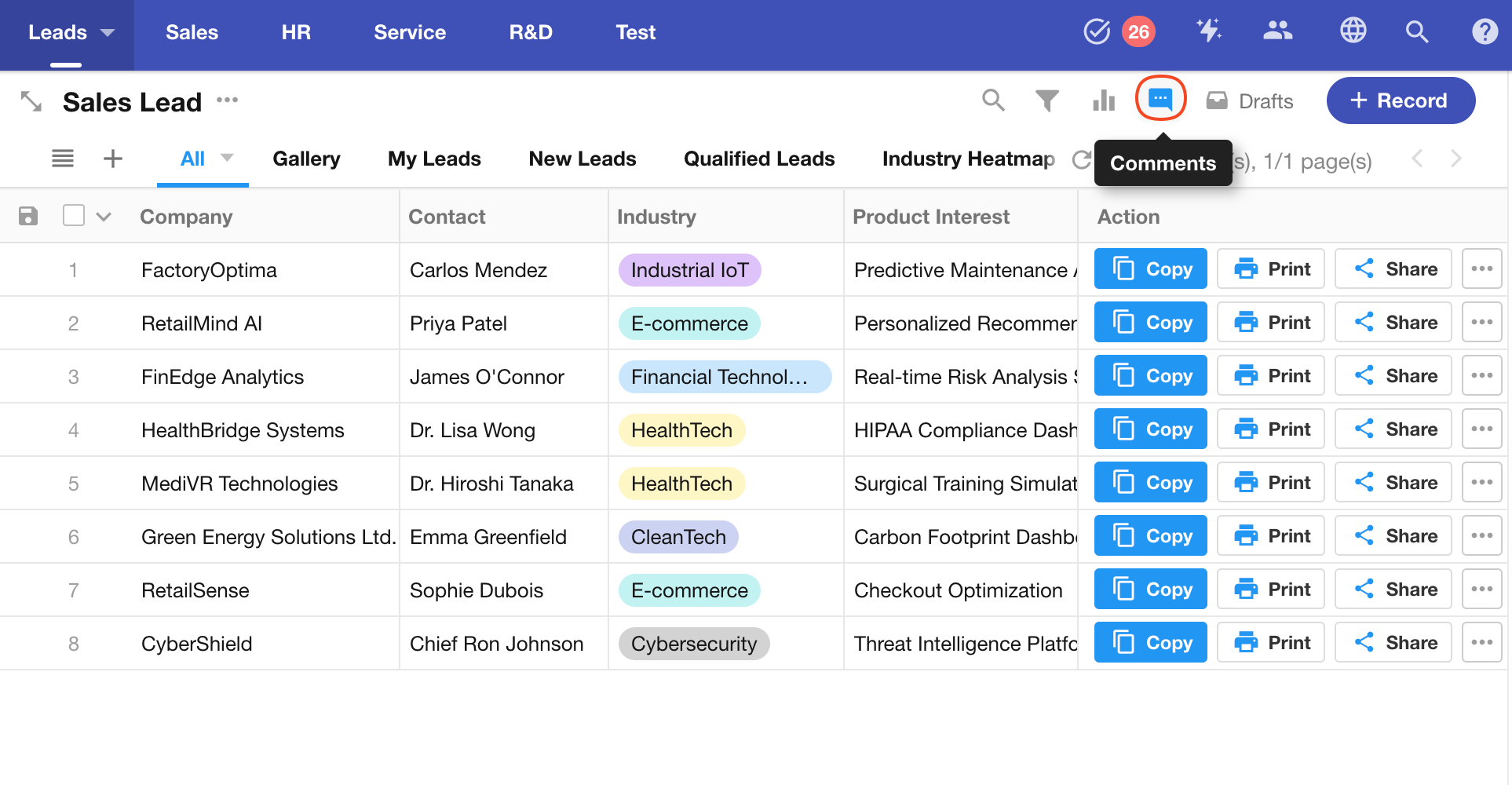
Worksheet Discussion
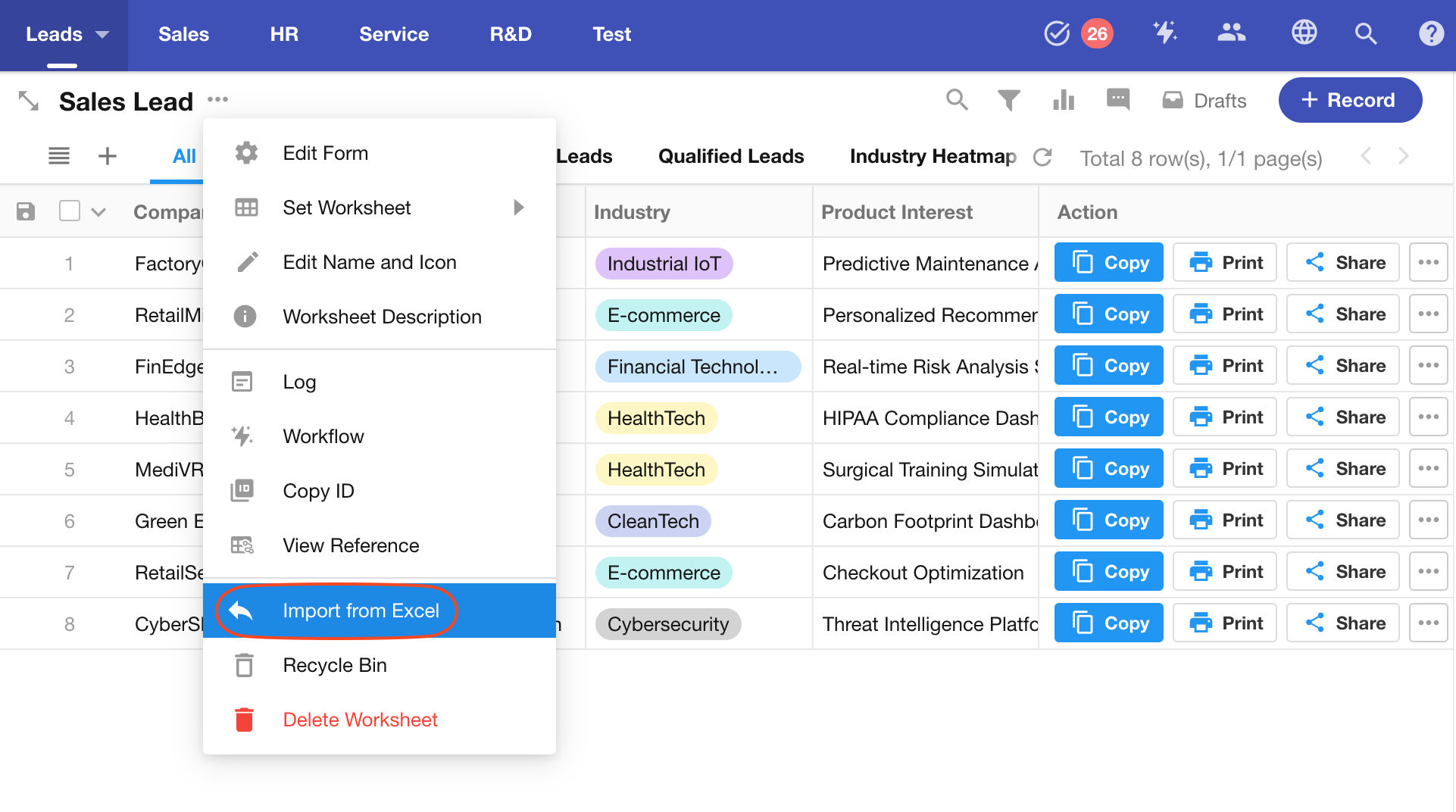
Import Data from Excel
When disabled—or when the user lacks permission—the import button is hidden.
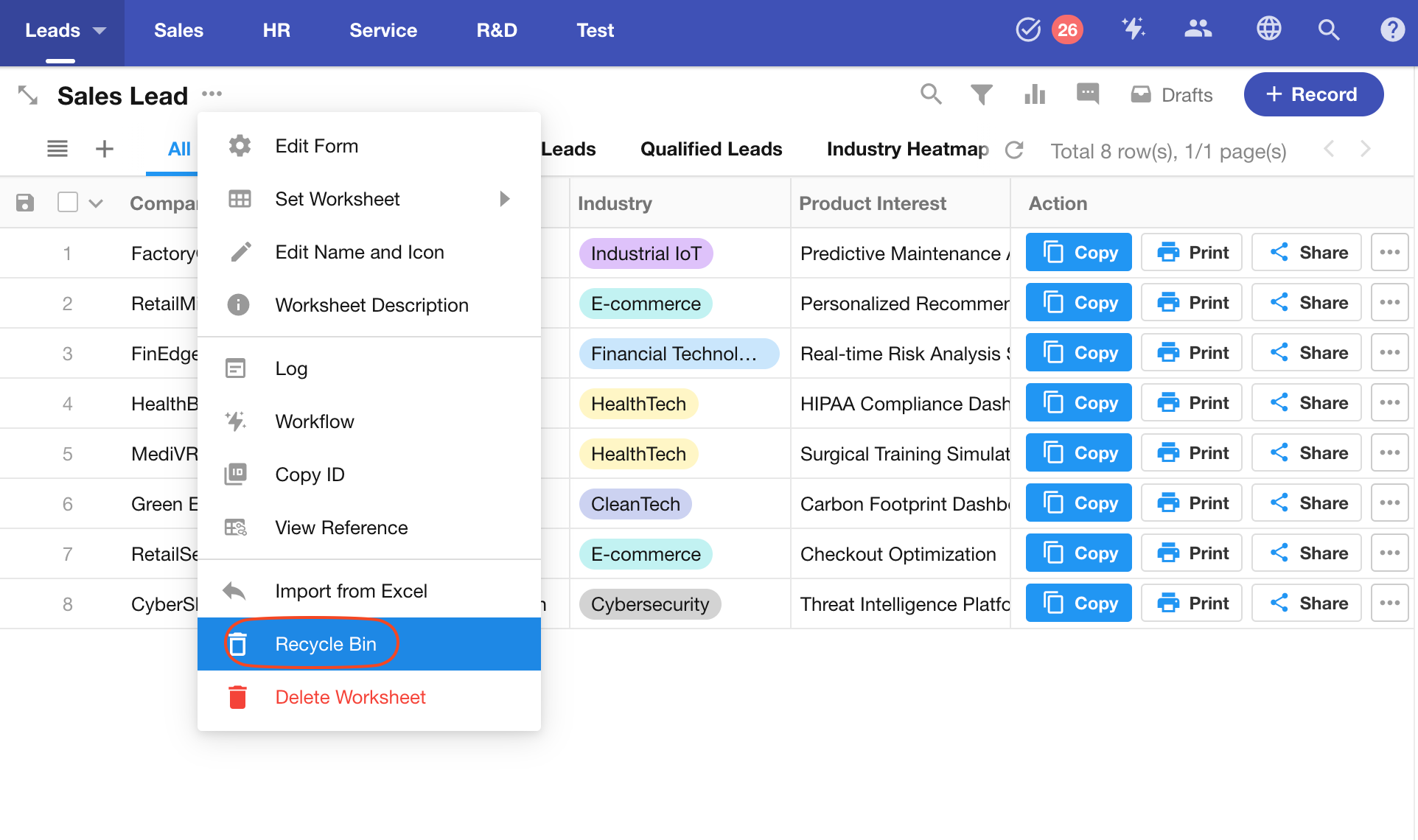
Recycle Bin
When disabled, the recycle bin is unavailable to all users.
When enabled, access can be limited to:
- Application administrators
- Developers
- Operators
- All users
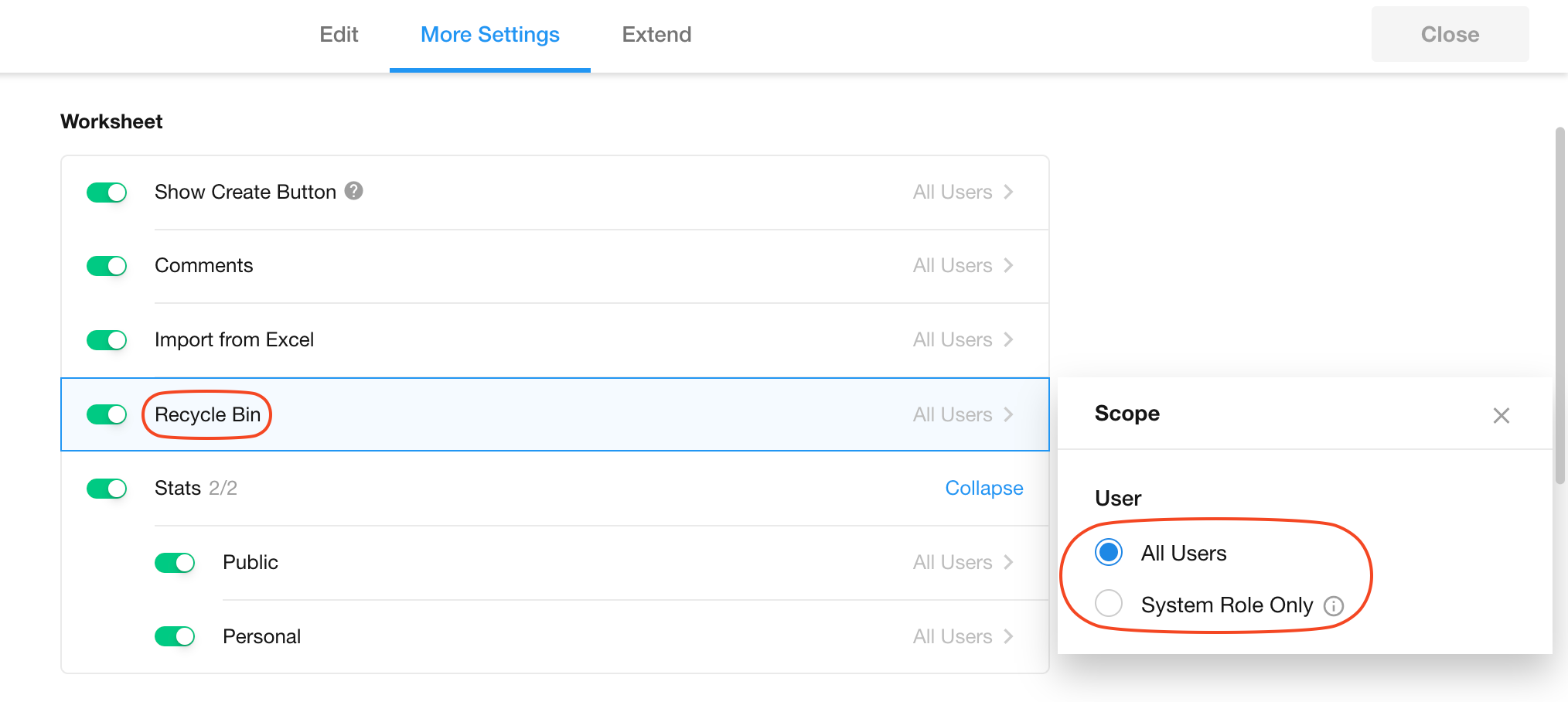
If unavailable, the recycle bin entry will not appear in the worksheet.
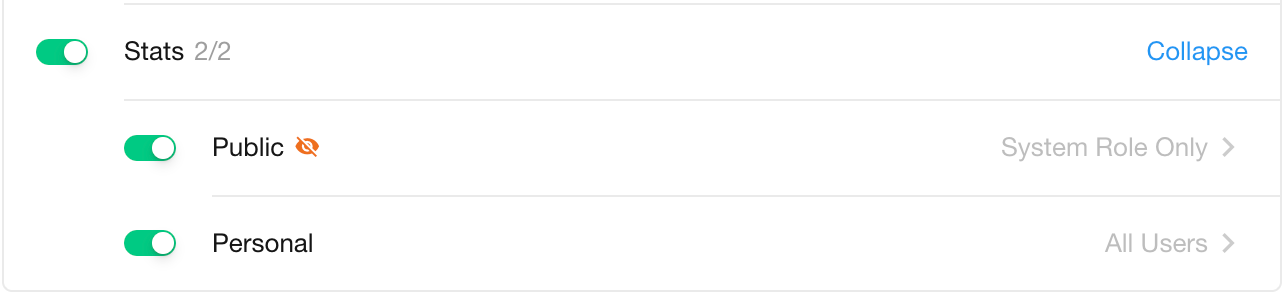
Statistics
Charts include personal charts and shared charts.
2. View-Level Feature Controls
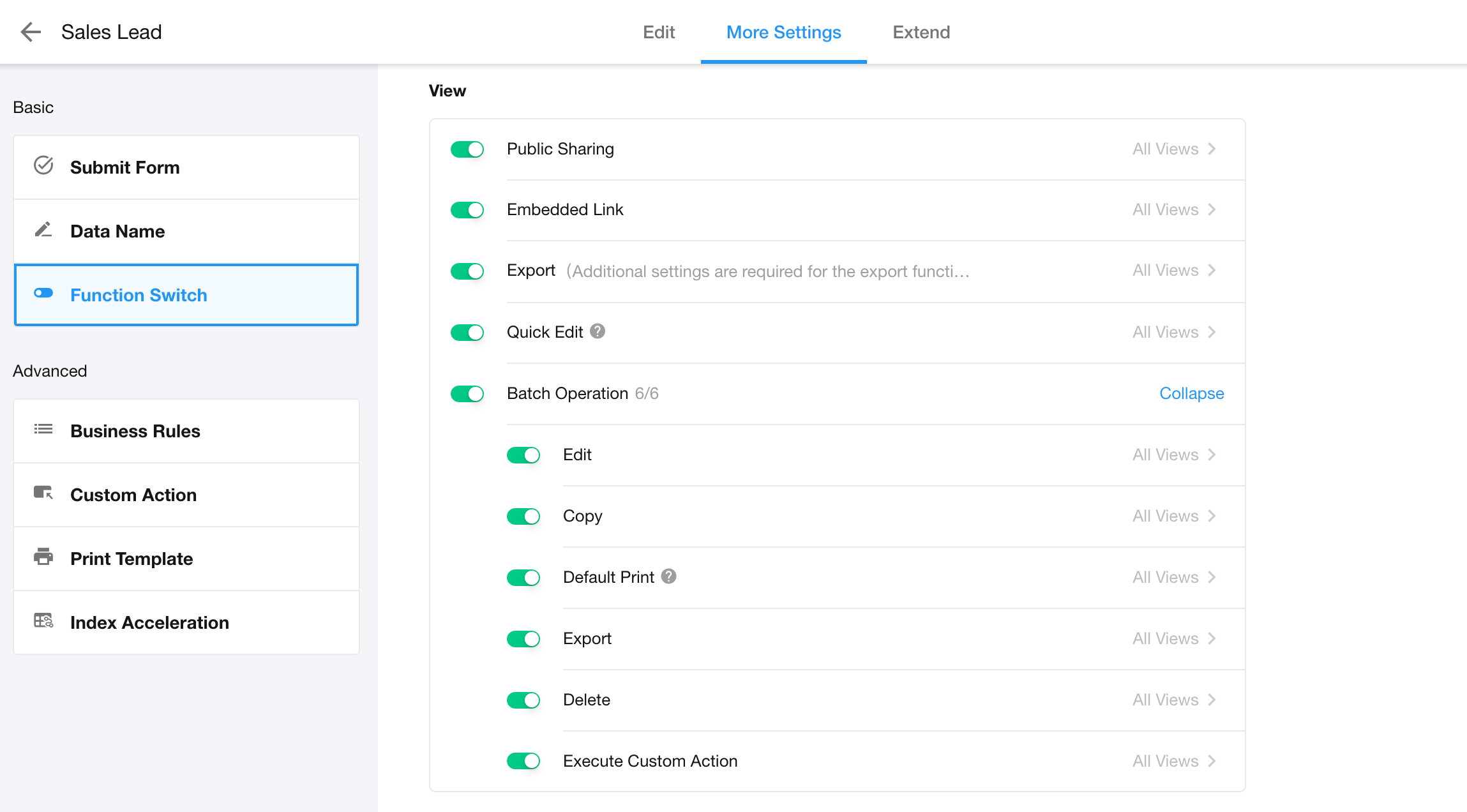
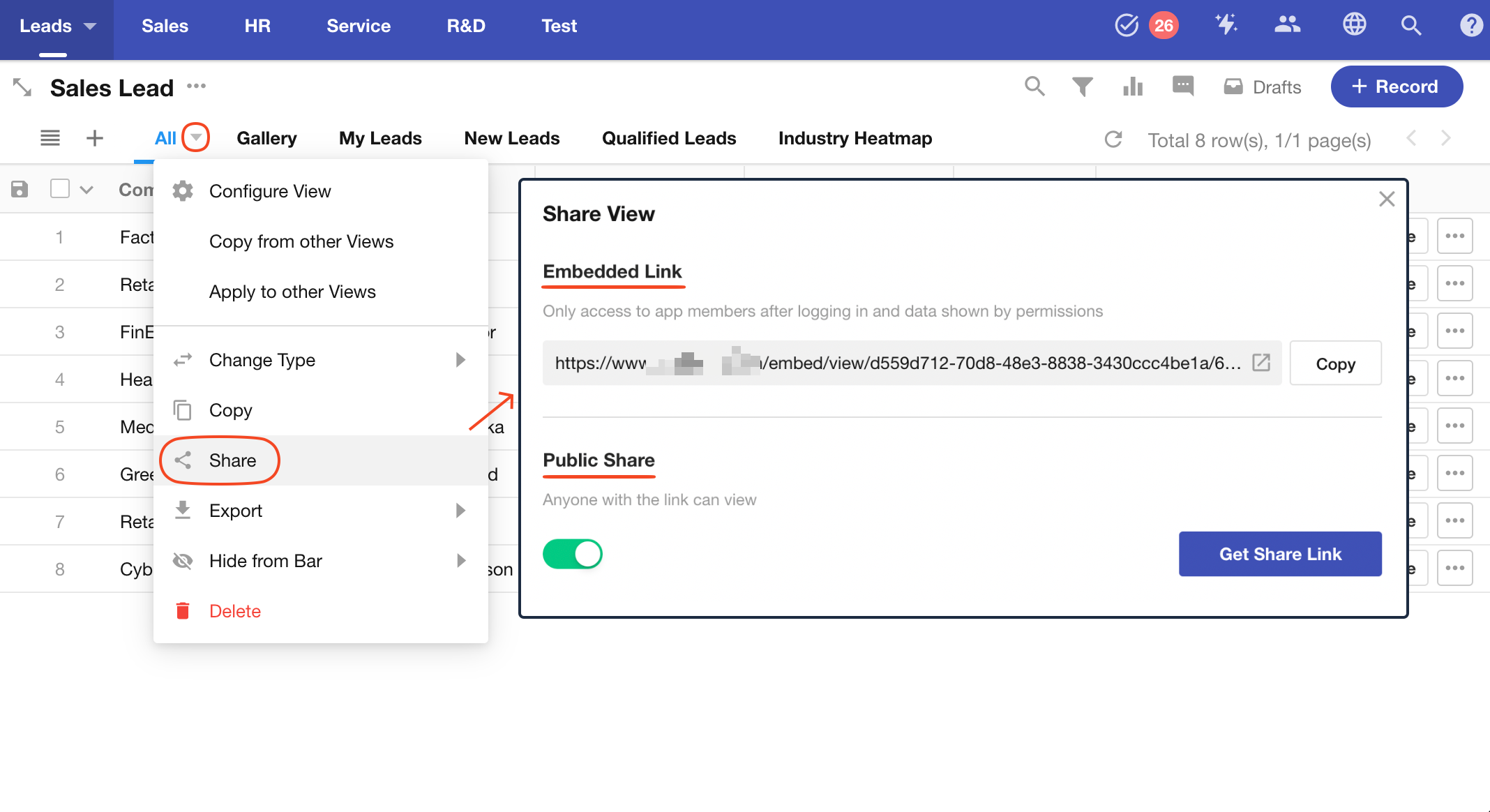
Embedded Link
Views opened via embedded links display only the data area, without navigation or message panels. This allows seamless embedding into external platforms.
Access still follows user permissions—only users with permissions can view or interact with data.
When disabled, the embedded link option is not available in the share menu.
If the Share button is not visible, both public sharing and embedded link sharing are disabled.
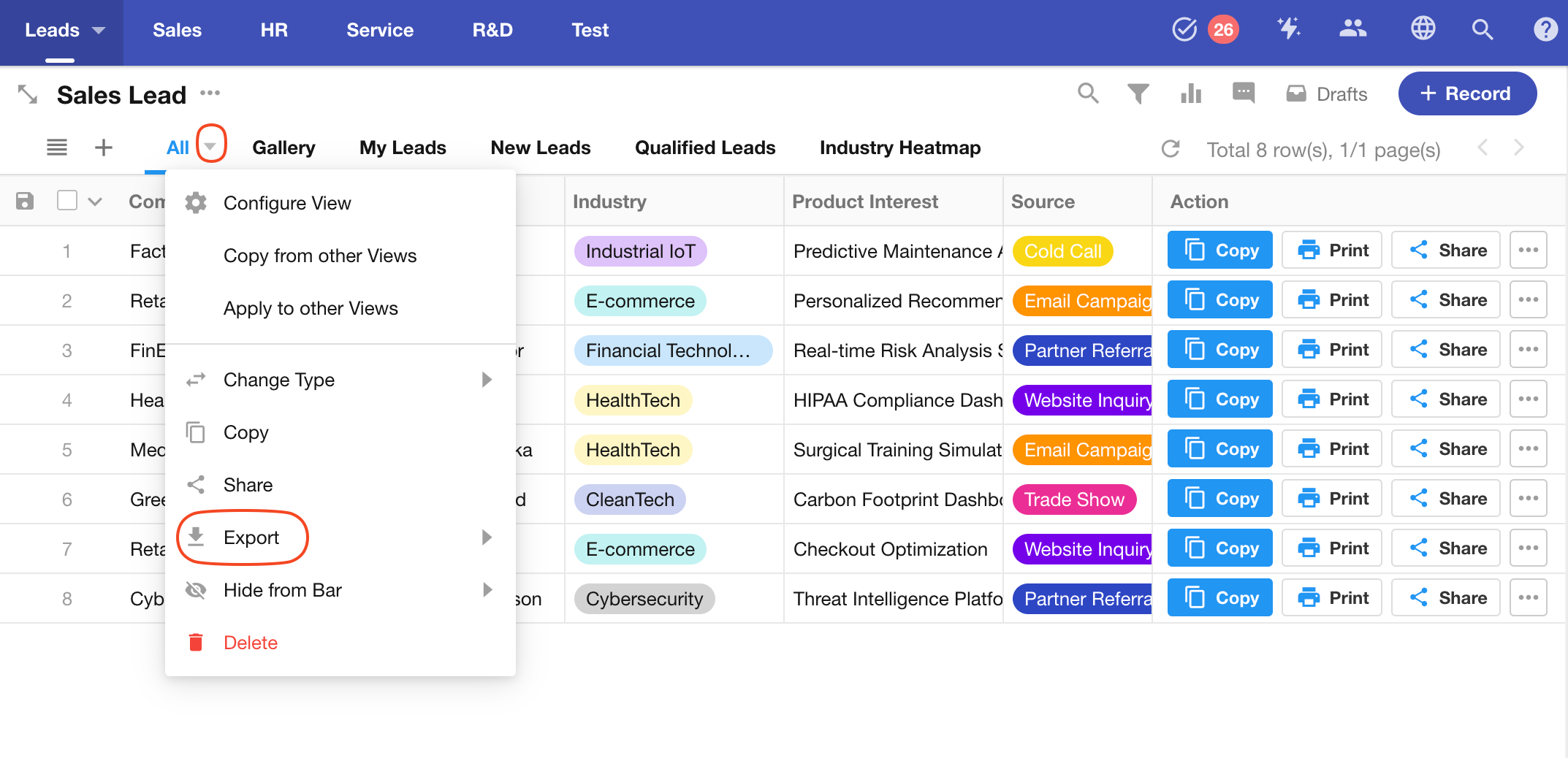
Export
The export option allows users to export all visible records in the current view.
When disabled, the export button is hidden.
Bulk Actions
Bulk actions are available only in table view. Supported actions include:
- Edit
- Duplicate
- Delete
- Export
- Print QR codes
- Execute custom actions
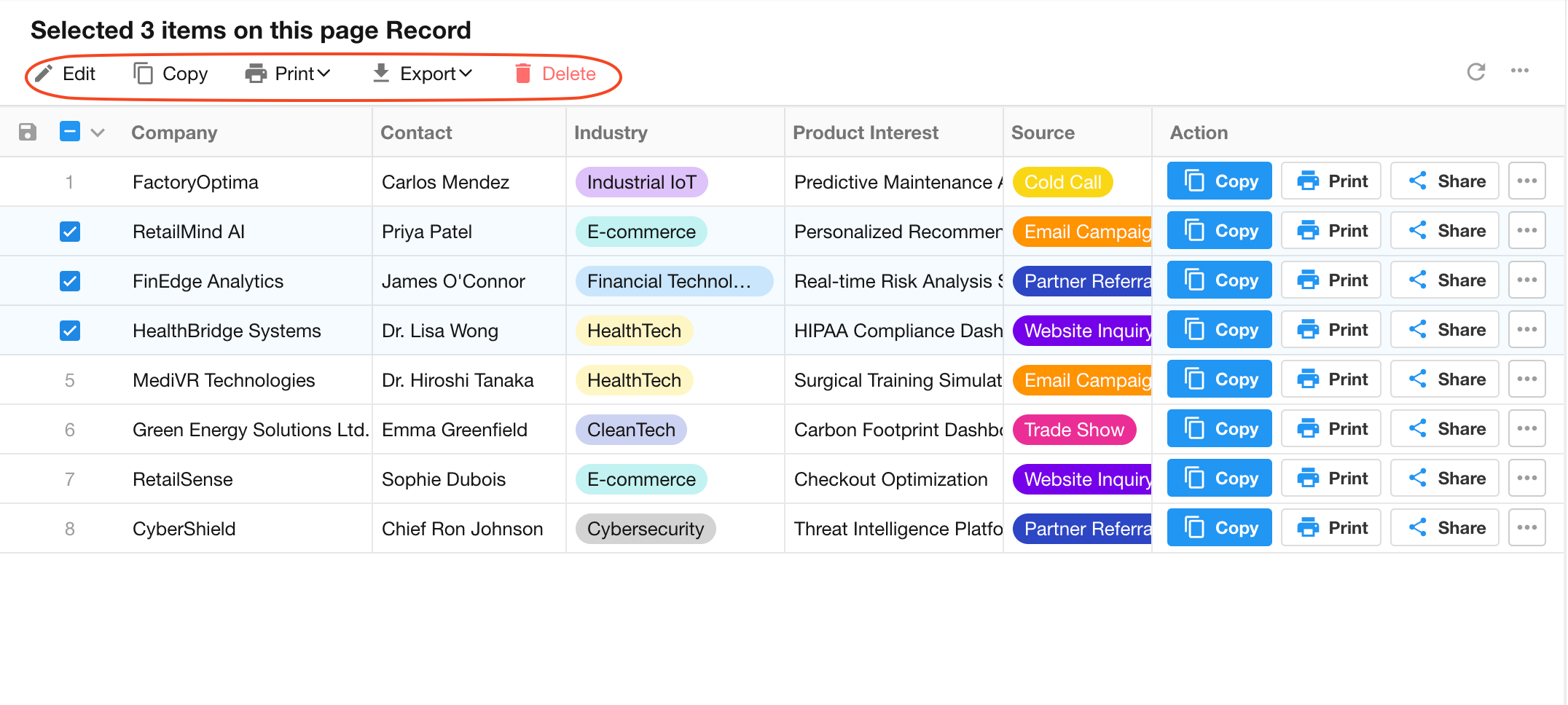
Note: Both bulk export and view export allow exporting visible records.
To fully prevent data export, disable both options.
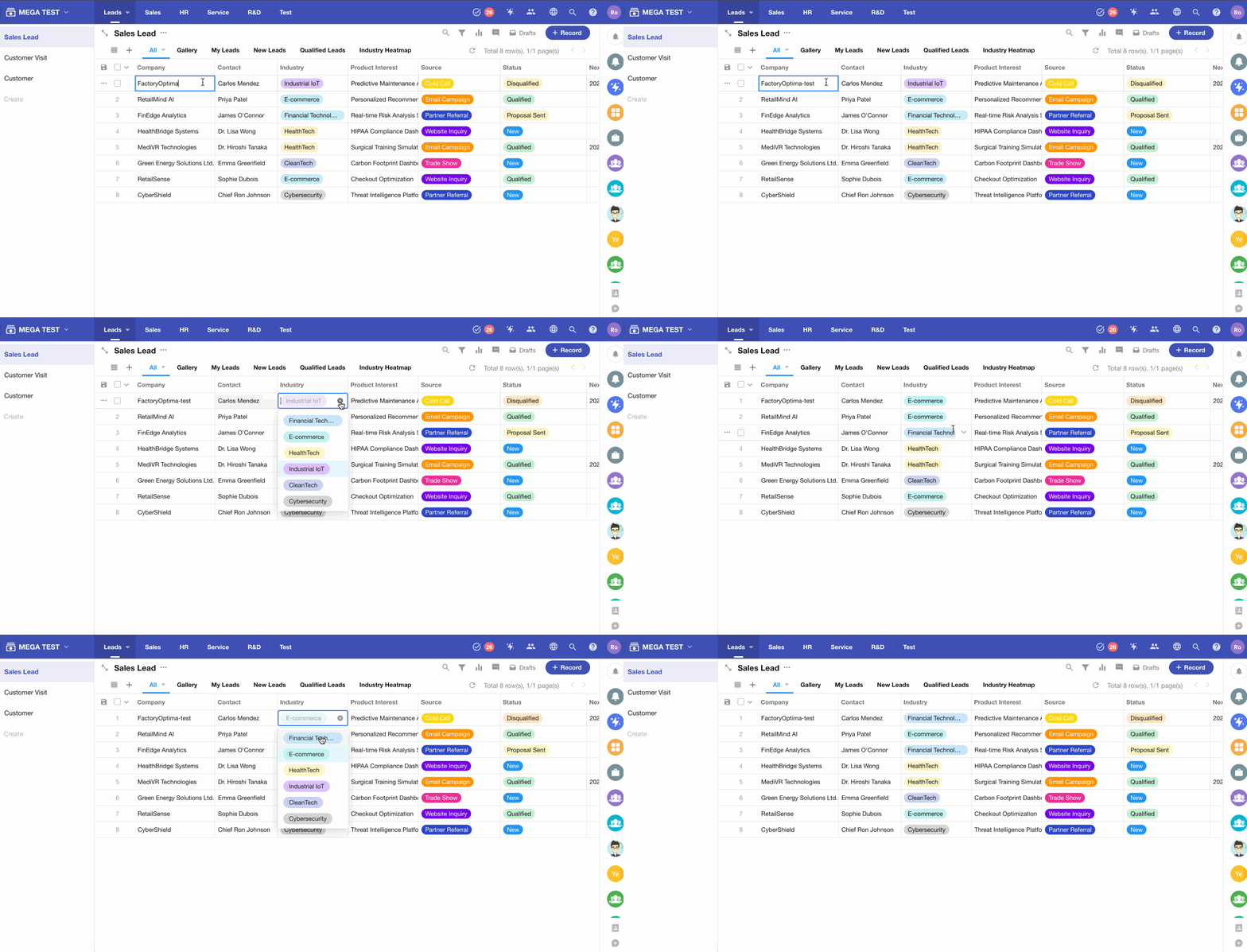
Quick Edit
When disabled, the following actions are not available:
- Inline editing in table view
- Quick editing within record cards in kanban, org, and gallery views
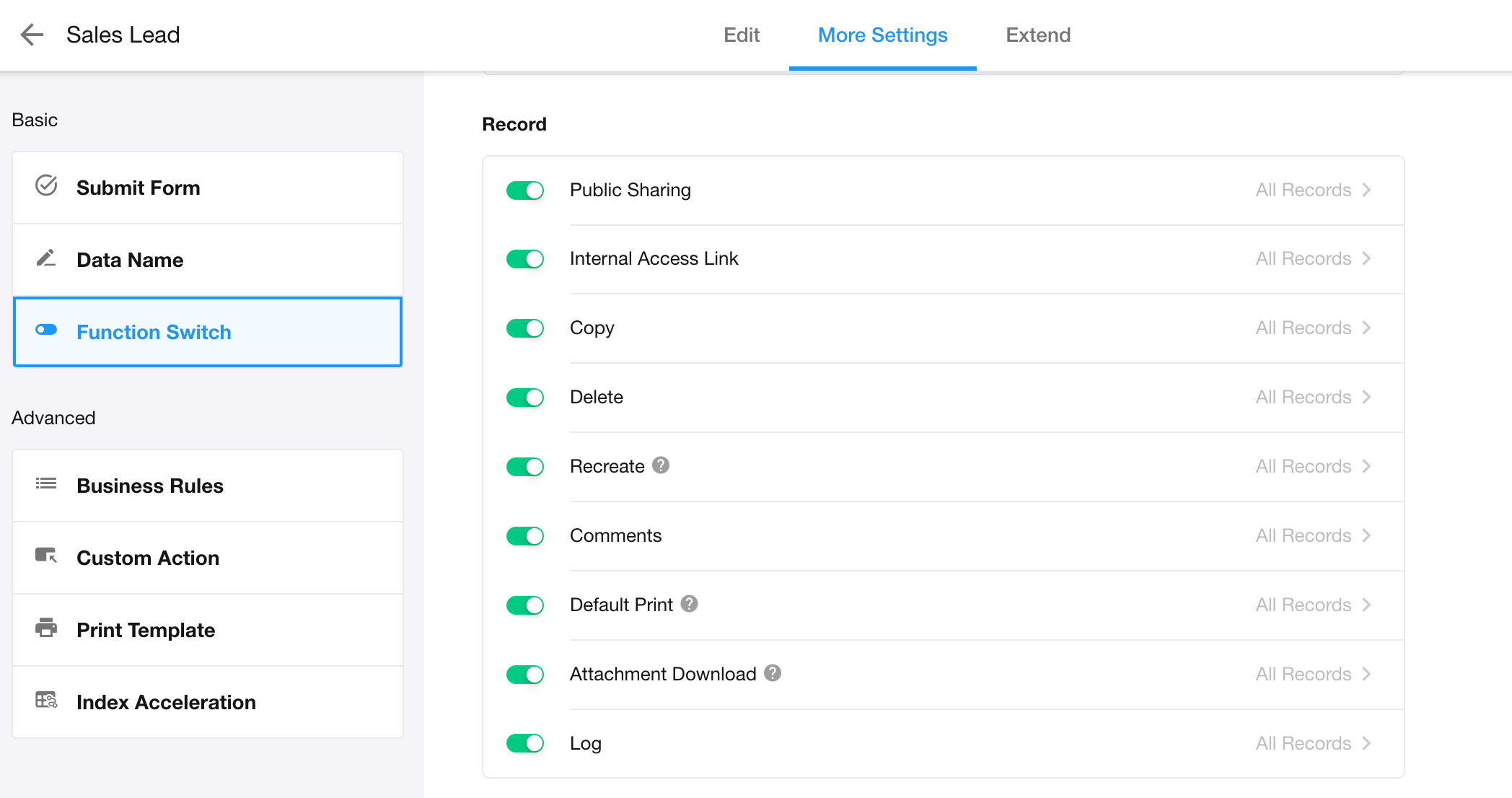
3. Record-Level Feature Controls
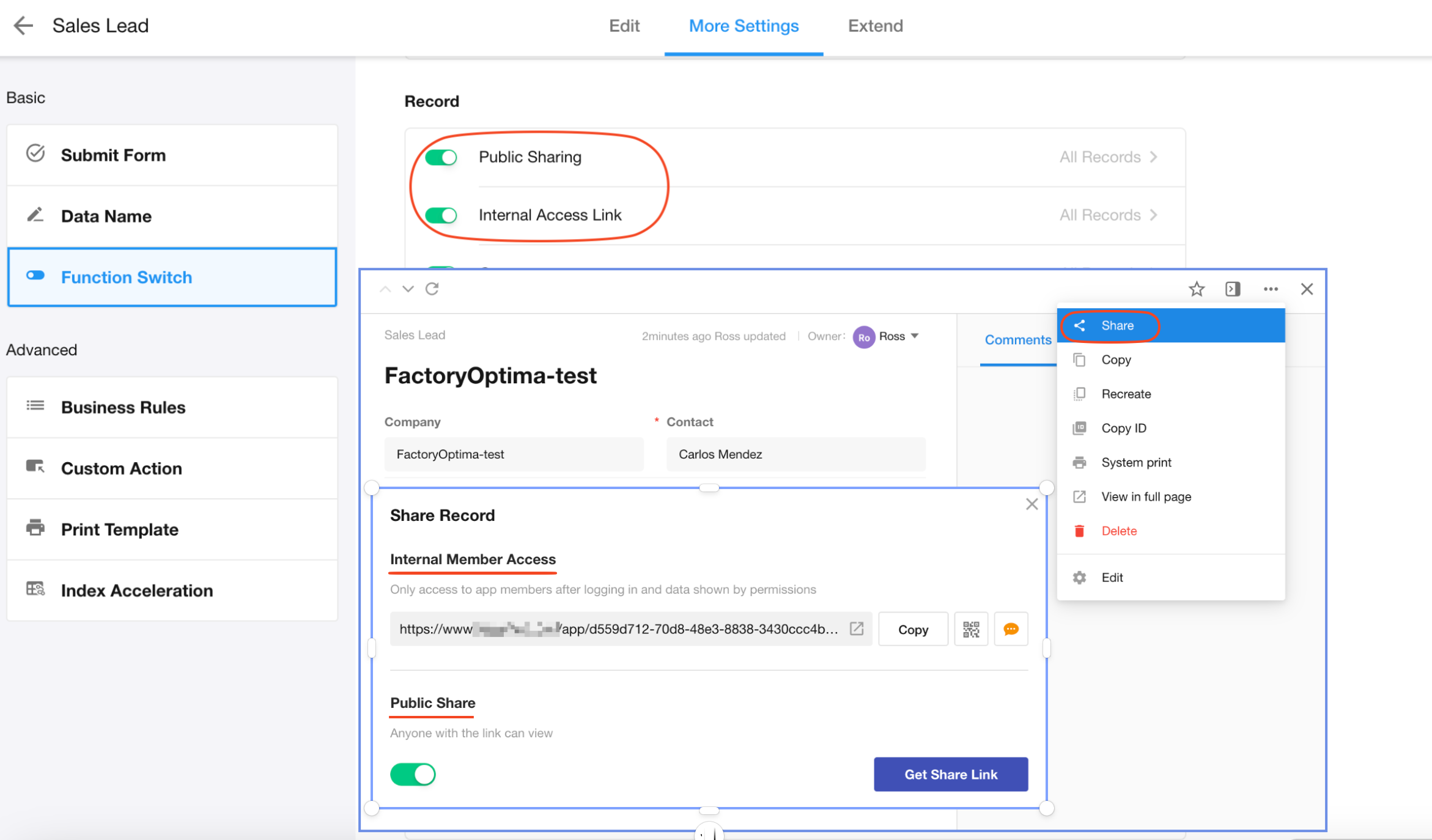
Internal Access Link
Internal access links are accessible only to application members and follow role-based permissions.
When disabled, the Internal Access Link option is hidden from the share menu.
If the Share button is not visible, both public sharing and internal link sharing are disabled.
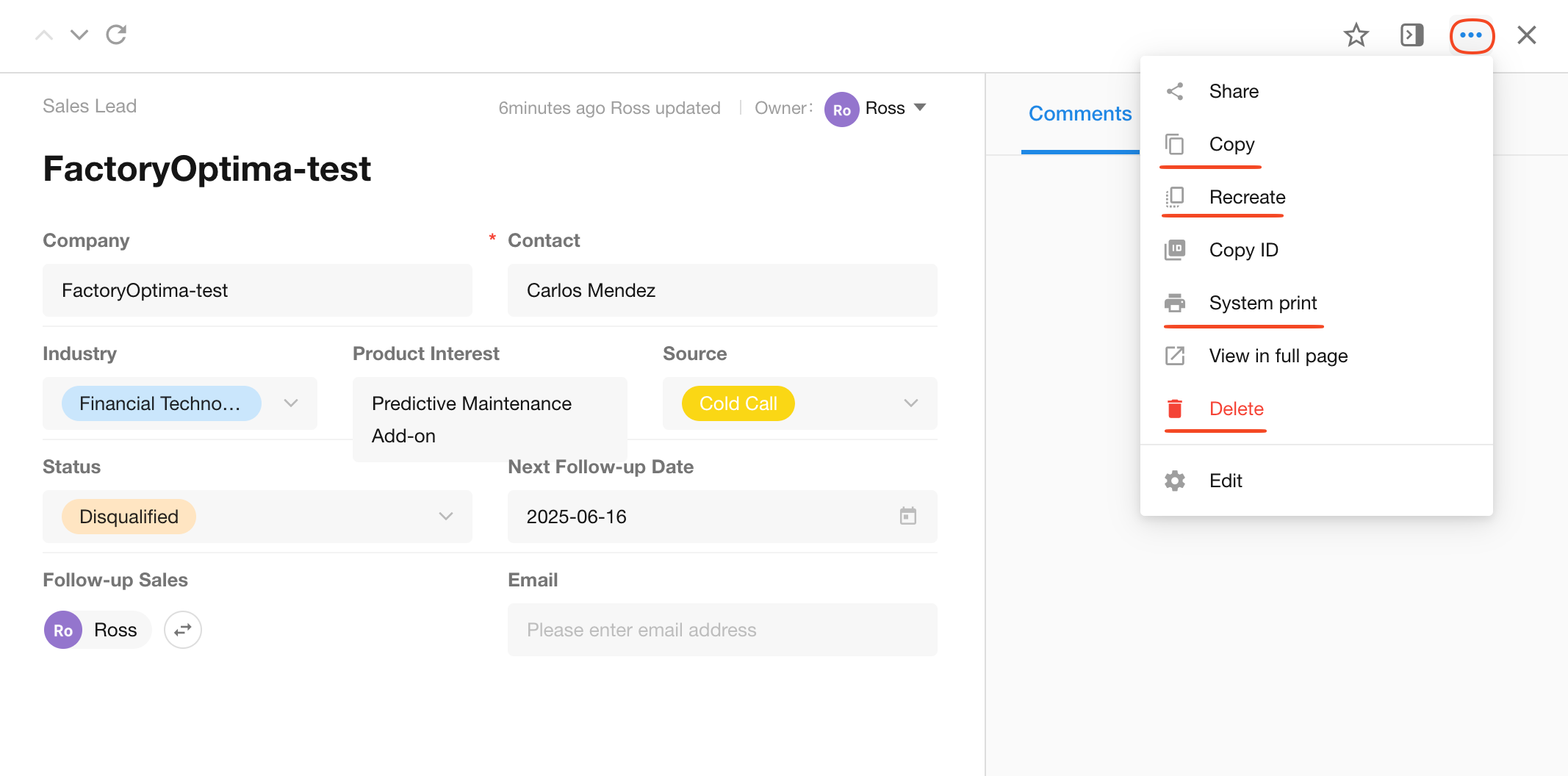
Copy, Recreate, Print, Delete
- When disabled, these actions are hidden from the record action menu
- If printing is disabled and no Word/Excel template is configured, the print option will not be shown
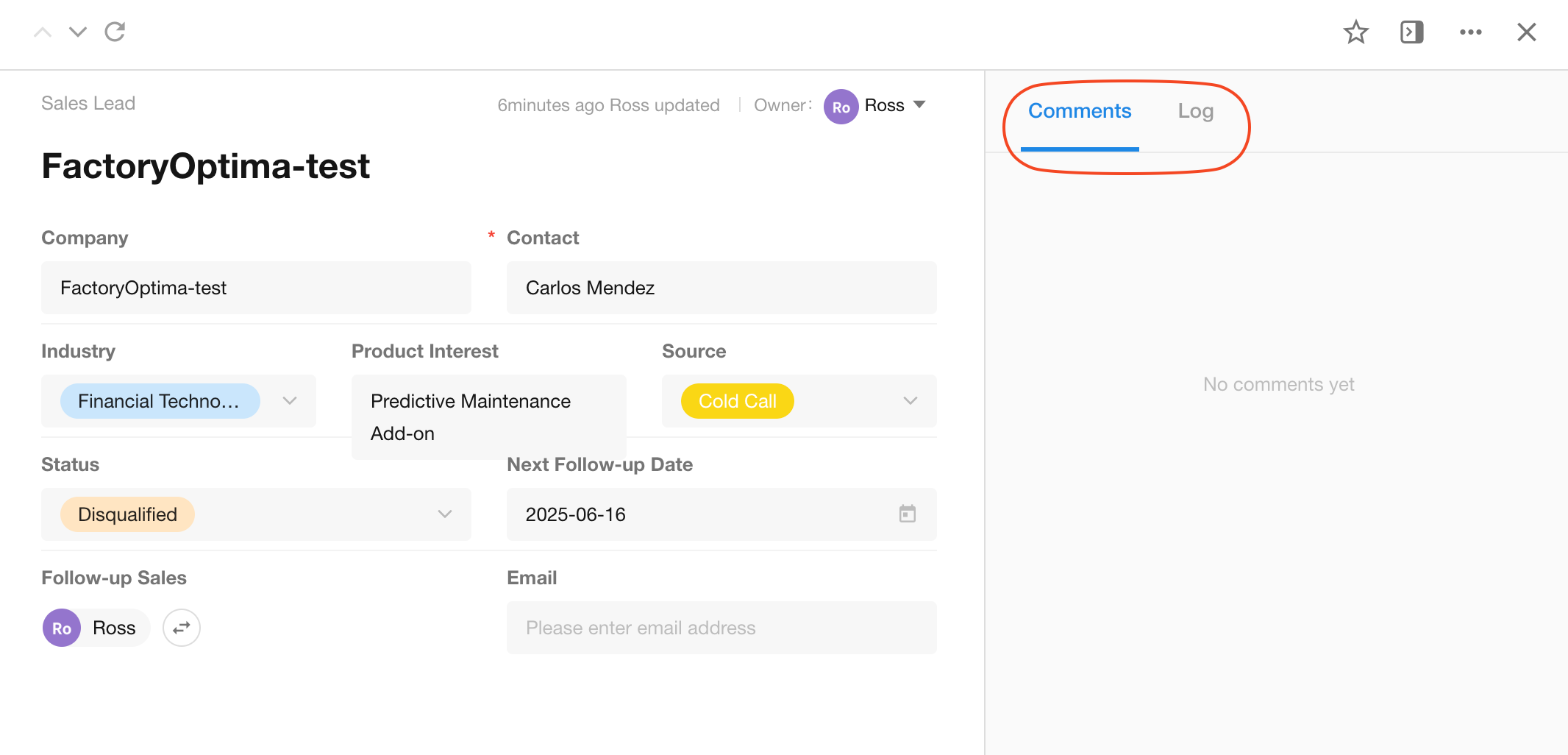
Record Discussion and Activity Log
When disabled, the Discussion and Log panels are hidden from the record detail page.
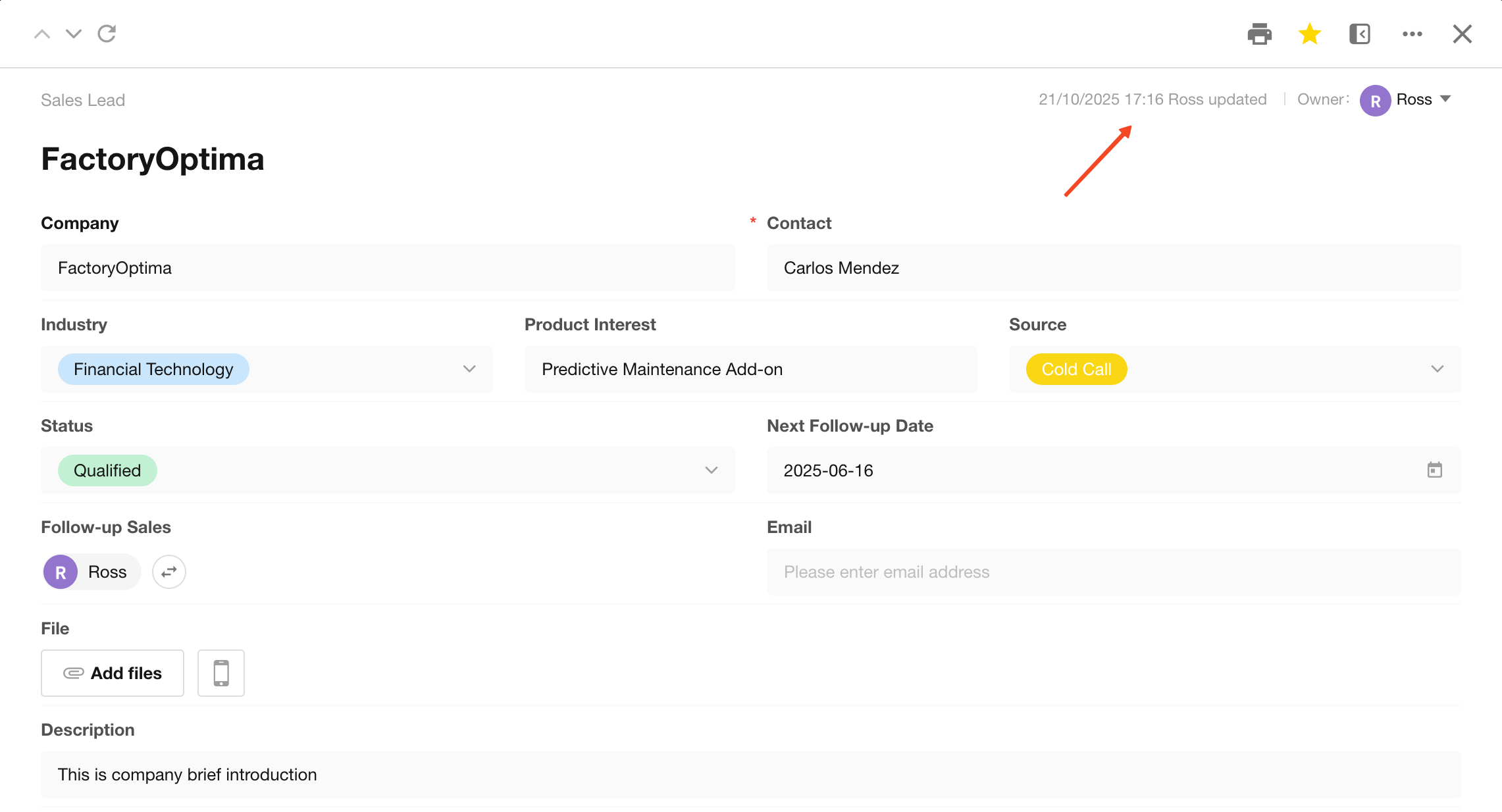
Disabling the activity log also removes recent update information from the record detail page.
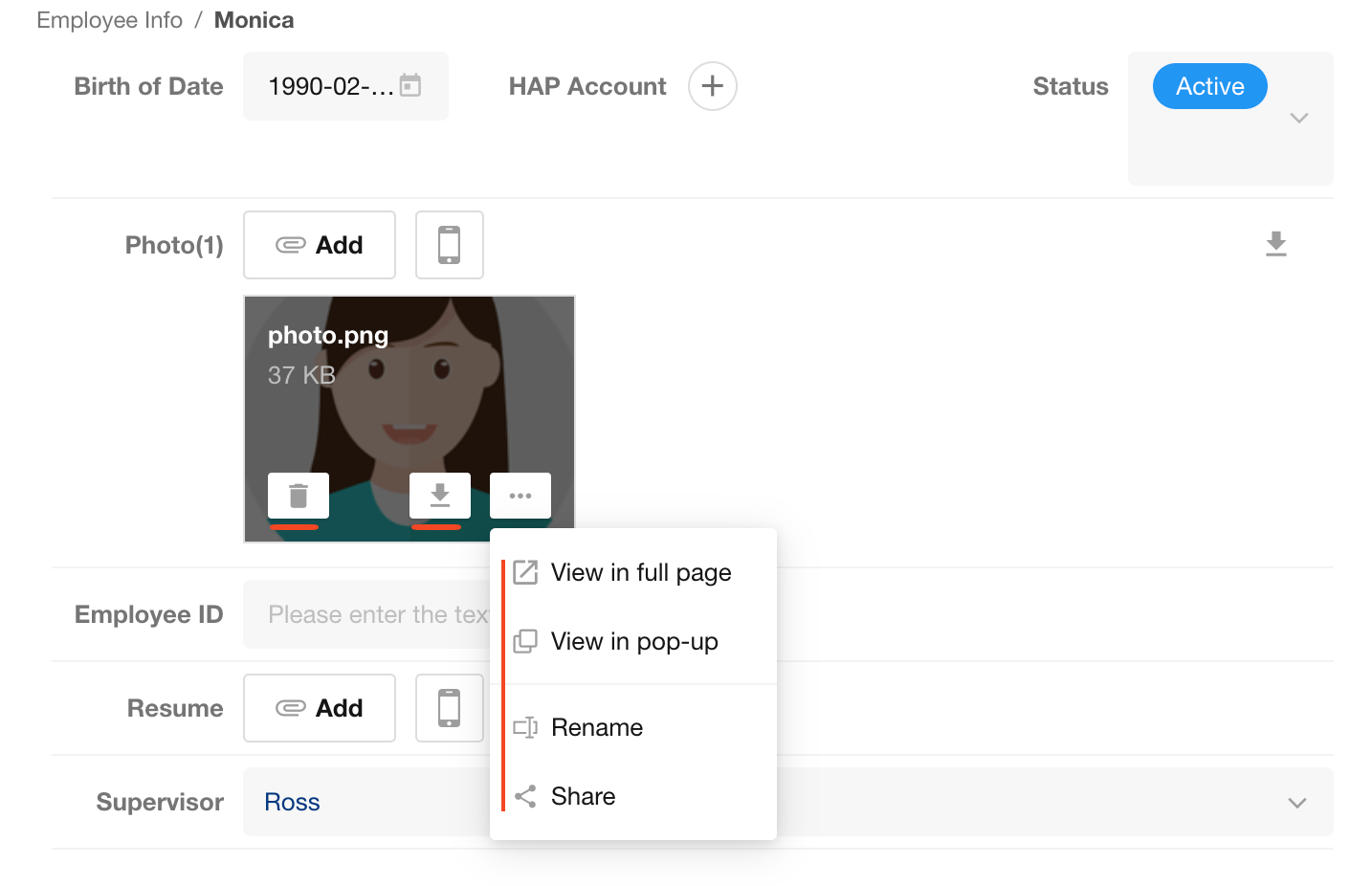
File Download
When disabled:
- Files cannot be downloaded
- Files cannot be shared
- Files cannot be added to knowledge
- Files cannot be printed during preview
- Files can only be deleted
Files uploaded by the current user are not affected.
4. Approval
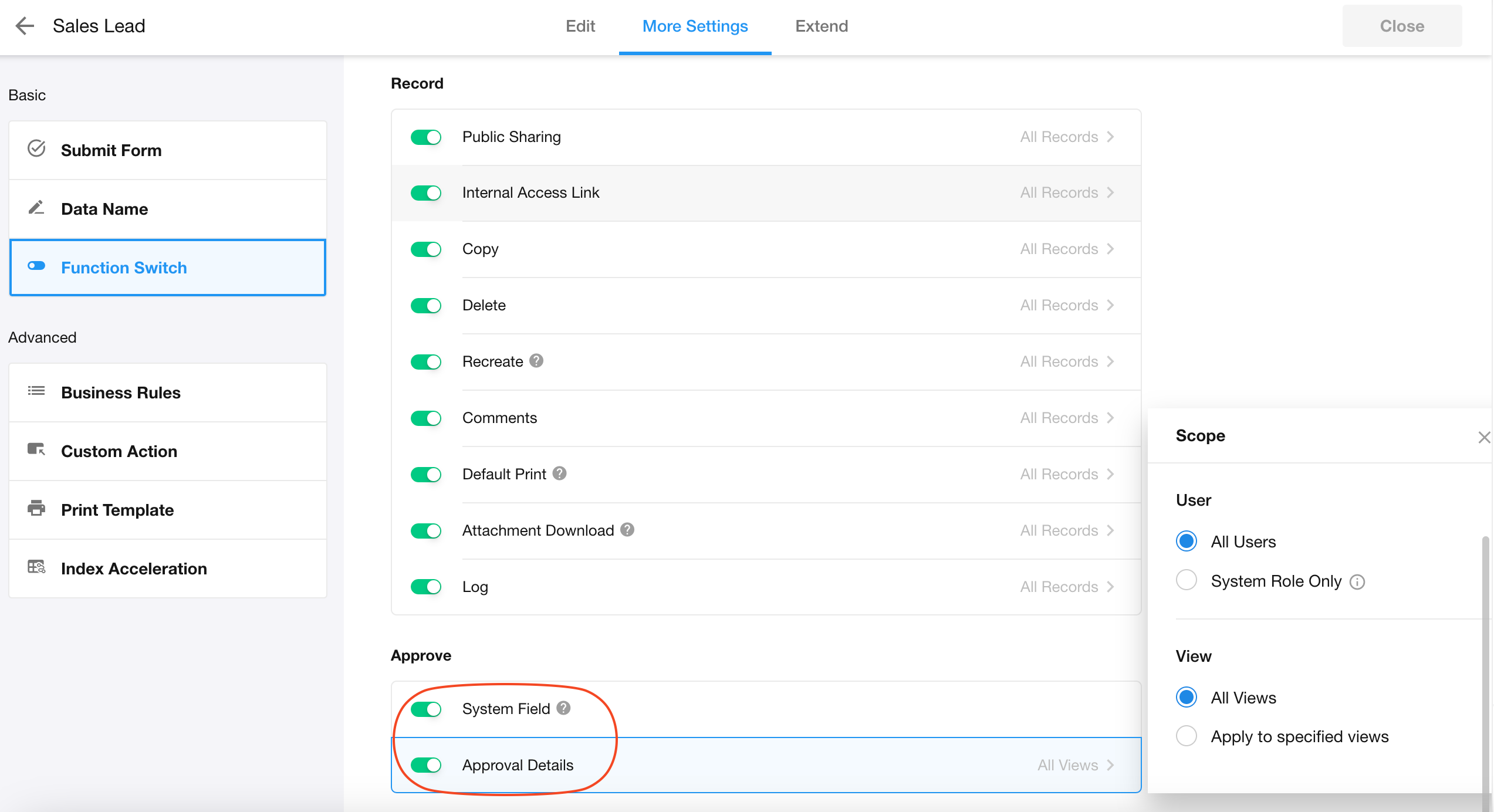
Approval System Fields
When enabled, users can display fields such as:
- Workflow name
- Status
- Completion time
- Node owner
- Node start time
- Remaining time
- Initiator
- Initiation time
Approval Flow Details
When enabled, users can view approval processes and flow details in the record detail panel.
Was this document helpful?