Node - Get Page Snapshot
The Get Page Snapshot node captures a snapshot of a custom page, chart, or webpage at a specified URL. The generated image can be saved to a file field or used as an attachment in a Send Email node.
This node is available only on paid plans.
Each organization can generate up to 100 snapshots per hour.
Use Case
On the first day of each month, capture the Quarterly Orders chart from the Orders worksheet in a sales management app and email the image to the sales manager as an attachment.
Configure the Workflow
Create a Scheduled Workflow
Create a scheduled workflow that runs on the first day of each month.
Add a Get Page Snapshot Node
Add a Get Page Snapshot node to the workflow.
Select the Content to Capture
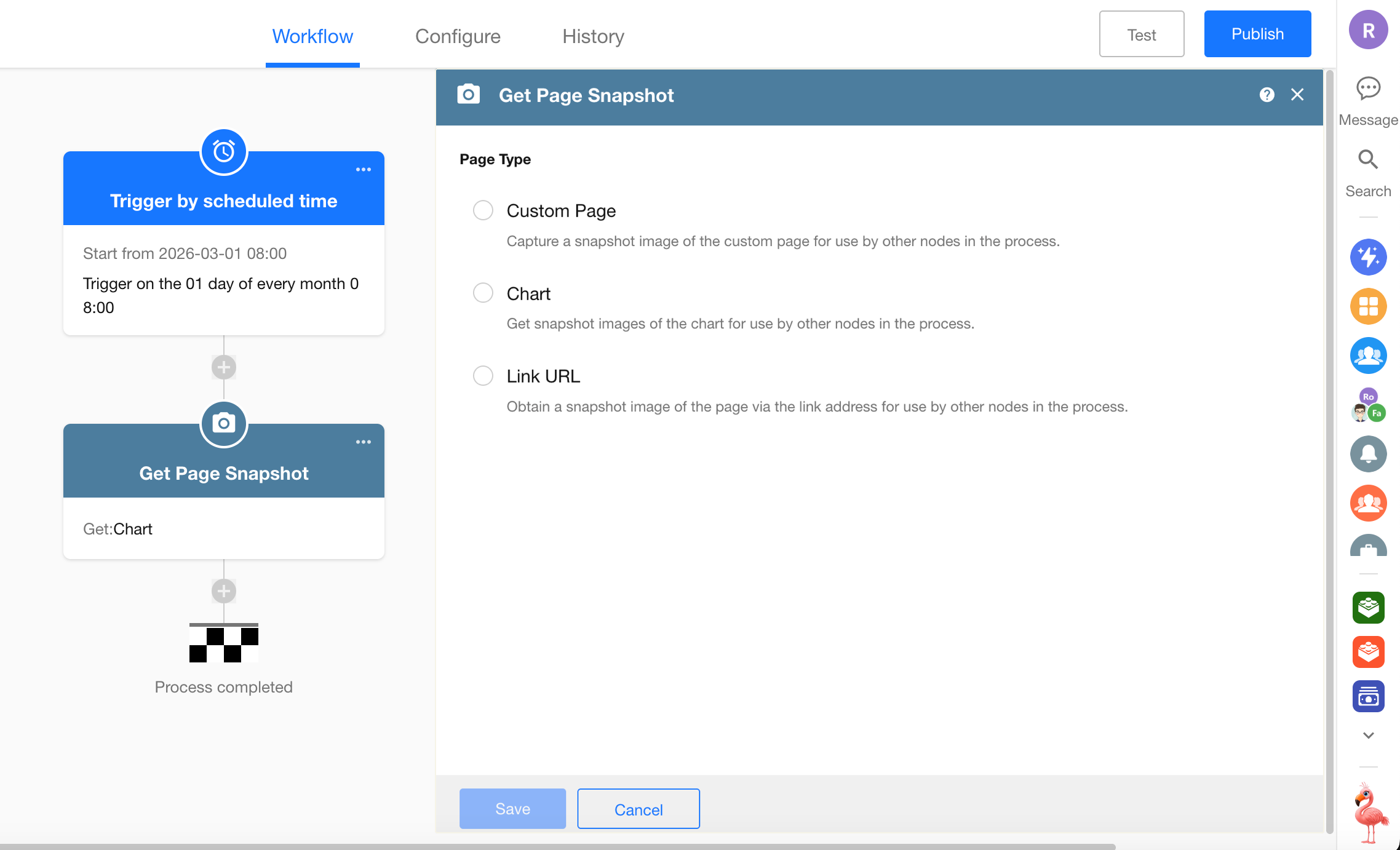
Select one of the following content types:
-
Custom Page: Select a custom page from an app. The snapshot captures the content displayed on the page, including charts, views, buttons, and other components.
-
Chart: Select a chart from a worksheet to capture it as an image.
Charts with access permissions configured cannot be captured.
-
URL: Enter a URL to capture the webpage as an image.
Configure the Snapshot
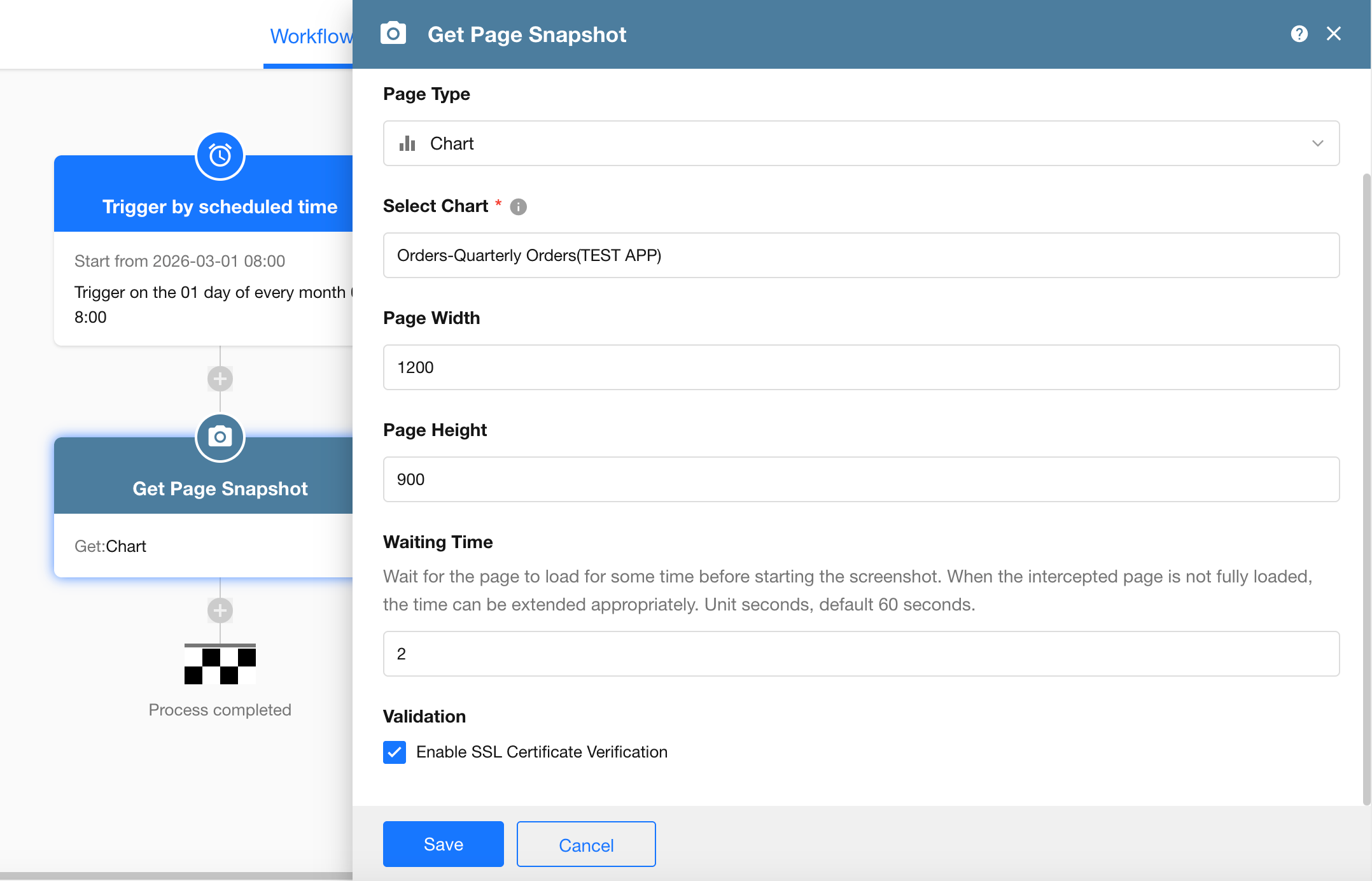
Configure the snapshot dimensions, wait time, and SSL certificate verification as needed.
-
Page Width and Height: Set the width and height of the generated image. For custom pages, you do not need to specify a height.
-
Wait Time: Some charts may take longer to load when they contain a large amount of data. Set a wait time to allow the content to finish loading before the snapshot is captured. If the generated image is incomplete, increase the wait time as needed.
-
Enable SSL Certificate Verification: When enabled, HAP verifies that the server certificate is issued by a trusted Certificate Authority (CA). When disabled, this verification is skipped. This can be useful when capturing content from an internal server whose certificate is not issued by a trusted CA.
Disabling SSL certificate verification increases the risk of man-in-the-middle attacks. Disable it only in trusted environments, such as an internal network.
Use the Generated Image
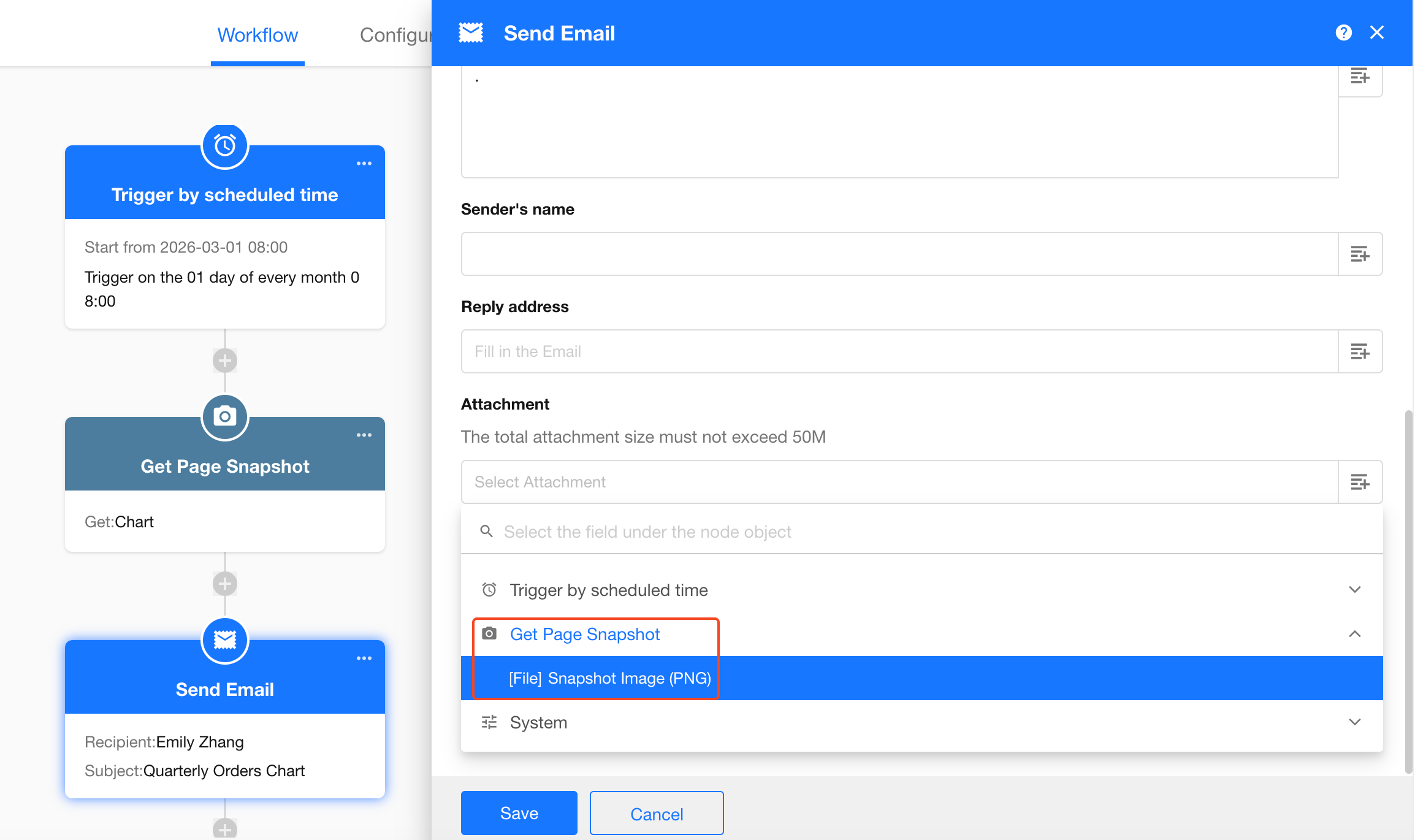
In a Send Email node, select the image generated by the Get Page Snapshot node as an attachment.
The generated image can also be saved to a file field using an Add Record or Update Record node.
Test the Workflow
After completing the configuration, test the workflow to verify that the content is captured correctly and the generated image is available to subsequent nodes.
Notes
-
HAP cannot capture a webpage from a URL if authentication is required to access the page.
-
Custom pages, views, records, and other content can be shared using public sharing links. You can use a public sharing link as the URL to capture the shared content.
Was this document helpful?