Workflow Node -- Add Record
Add Record node: Automatically adds a new record to a specified worksheet. When used with the Get Multiple Data node, it can also create multiple records in bulk.
Example: When a new record is added to the Contacts worksheet, a corresponding lead record is automatically created in the Sales Leads worksheet.
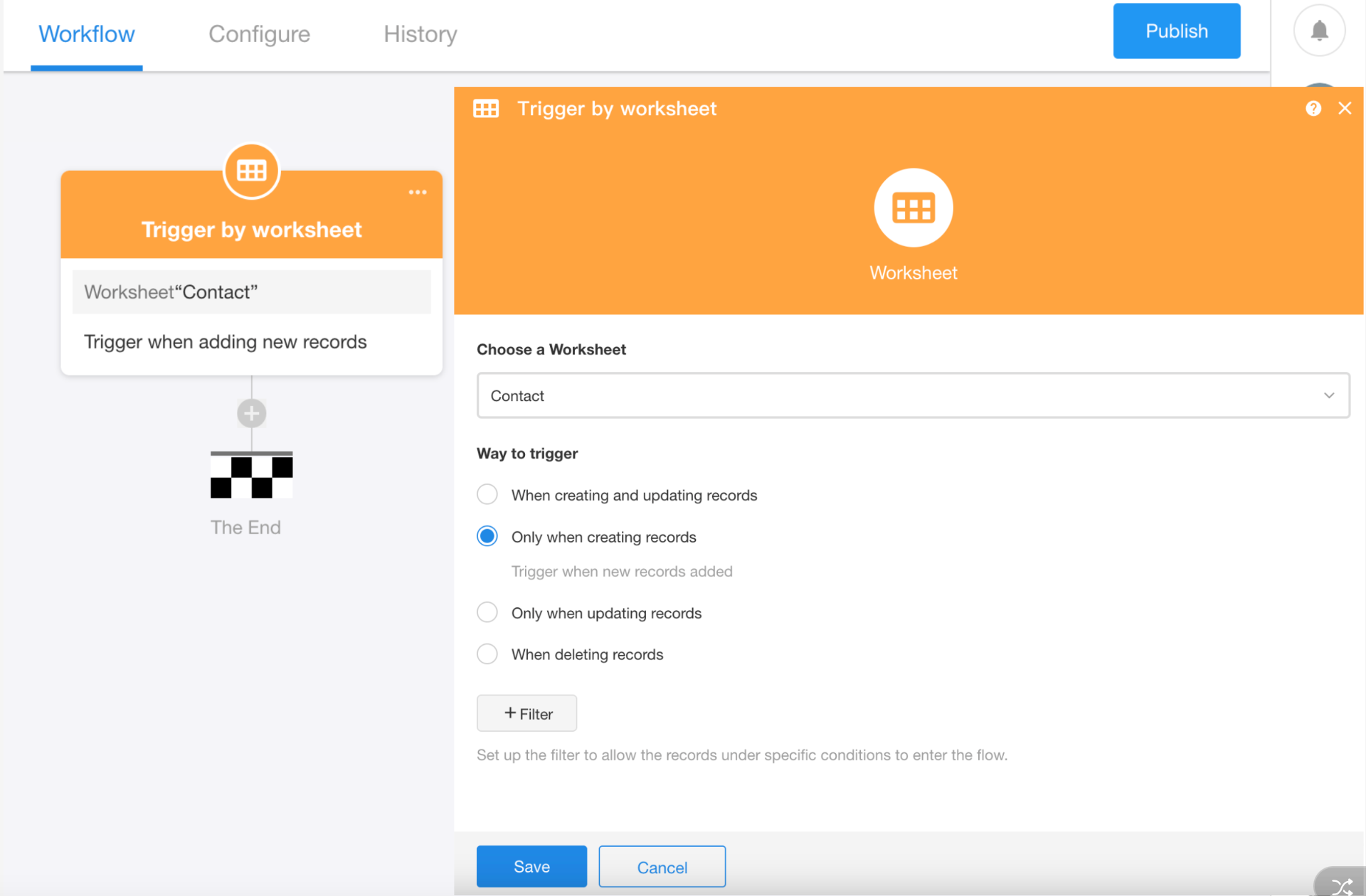
1. Configure the Trigger Node
Select the Contacts worksheet and set the trigger to run only when a new record is added.
2. Add an Add Record Node
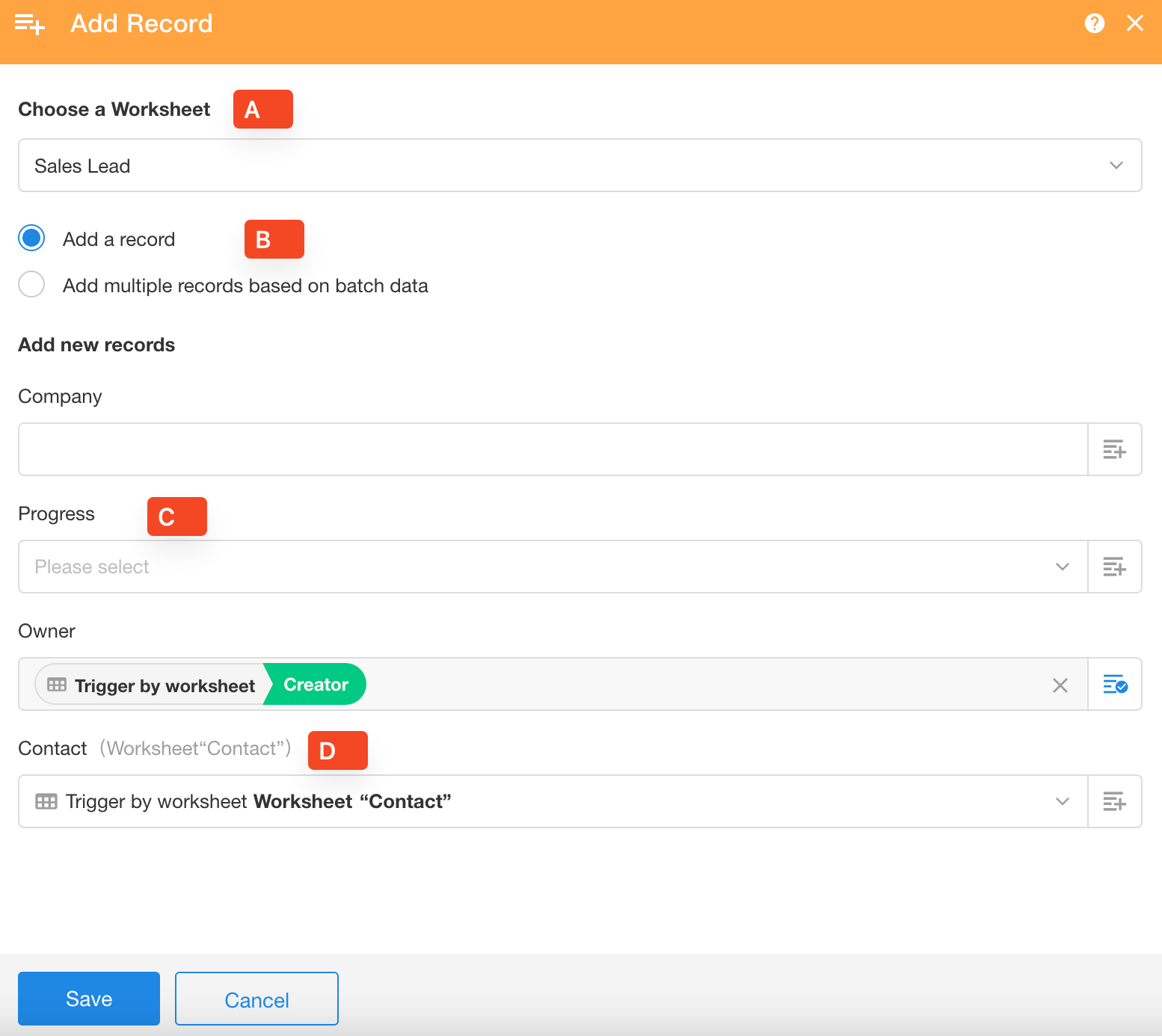
A. Select a worksheet
Select the worksheet where the new record will be created. In this example, select the Sales Leads worksheet.
B. Select how records are added
Since this example creates a single record, select the first option.
To add multiple records in bulk, use the Add Record node with the Get Multiple Data node.
Learn more
C. Set field values
For each field in the new record, you can enter a fixed value, use a field value from the Contacts record that triggered the workflow, or combine both.
D. Associate the new record with the triggering record
When the new record is created, you can automatically associate it with the Contacts record that triggered the workflow.
Tips
Relationship fields: You can only select records from related worksheets available through preceding nodes.
Text fields: These fields accept unformatted input. You can enter fixed content, select values from node objects, or combine multiple values.
Currency and numeric fields: These are formatted input fields. You can enter a fixed value or use a dynamic field value from a node object.
Member, date/time, and level fields: These are selection-based fields and do not support manual input. Select a value directly or use a field of the same type from a node object.
For fields with specific data formats, the source and target field types must match. For example, a phone number field in the Sales Leads worksheet can only use a value from a phone number field in the Contacts worksheet.
Was this document helpful?