Node - AI Generate Data Object
The AI Generate Data Object node extracts structured data from text and maps the extracted values to predefined parameters. The resulting data object can be referenced directly by subsequent workflow nodes.
Example: Extract information such as the order number and order details from sales order text and convert it into structured data.
Add an AI Generate Data Object Node
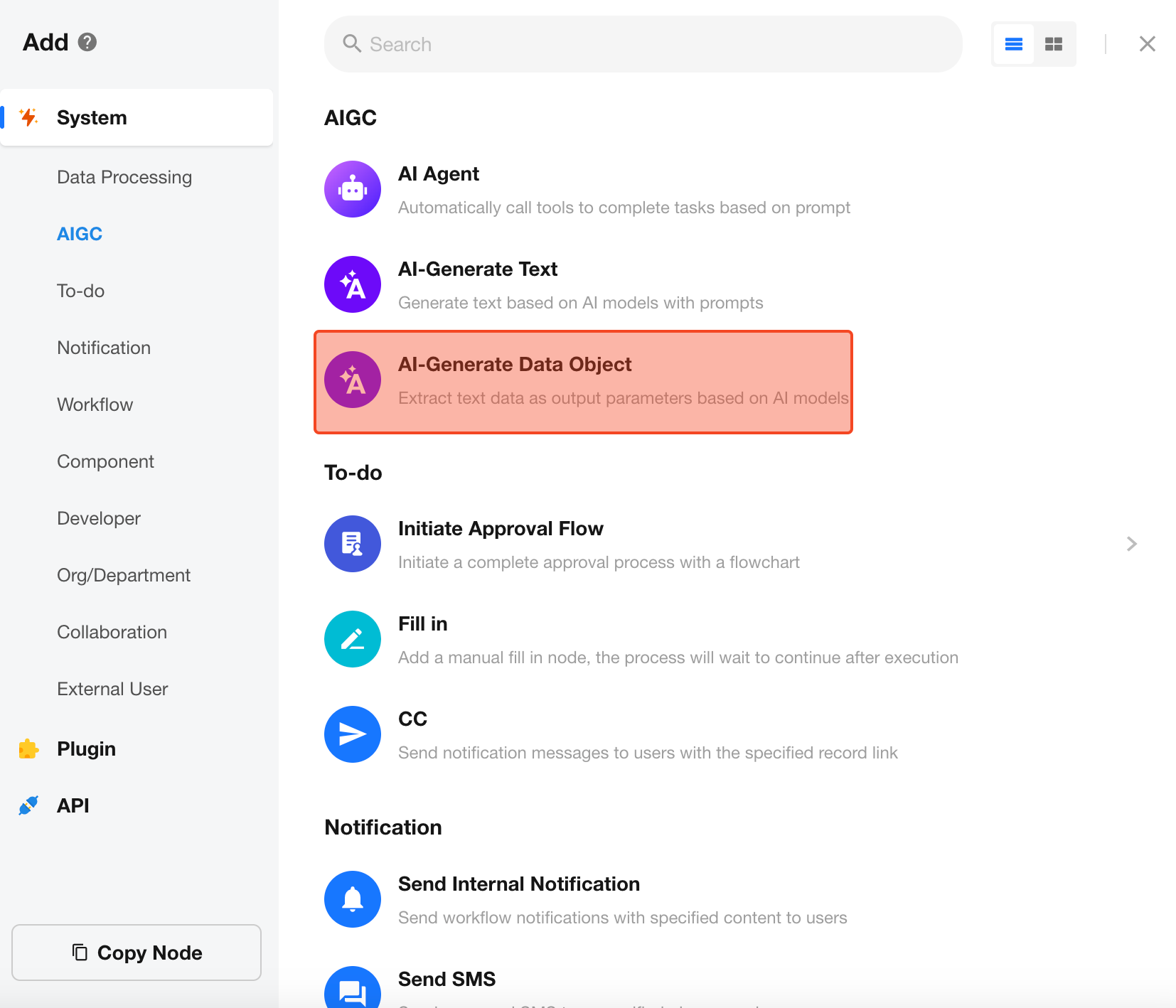
Configure the Node
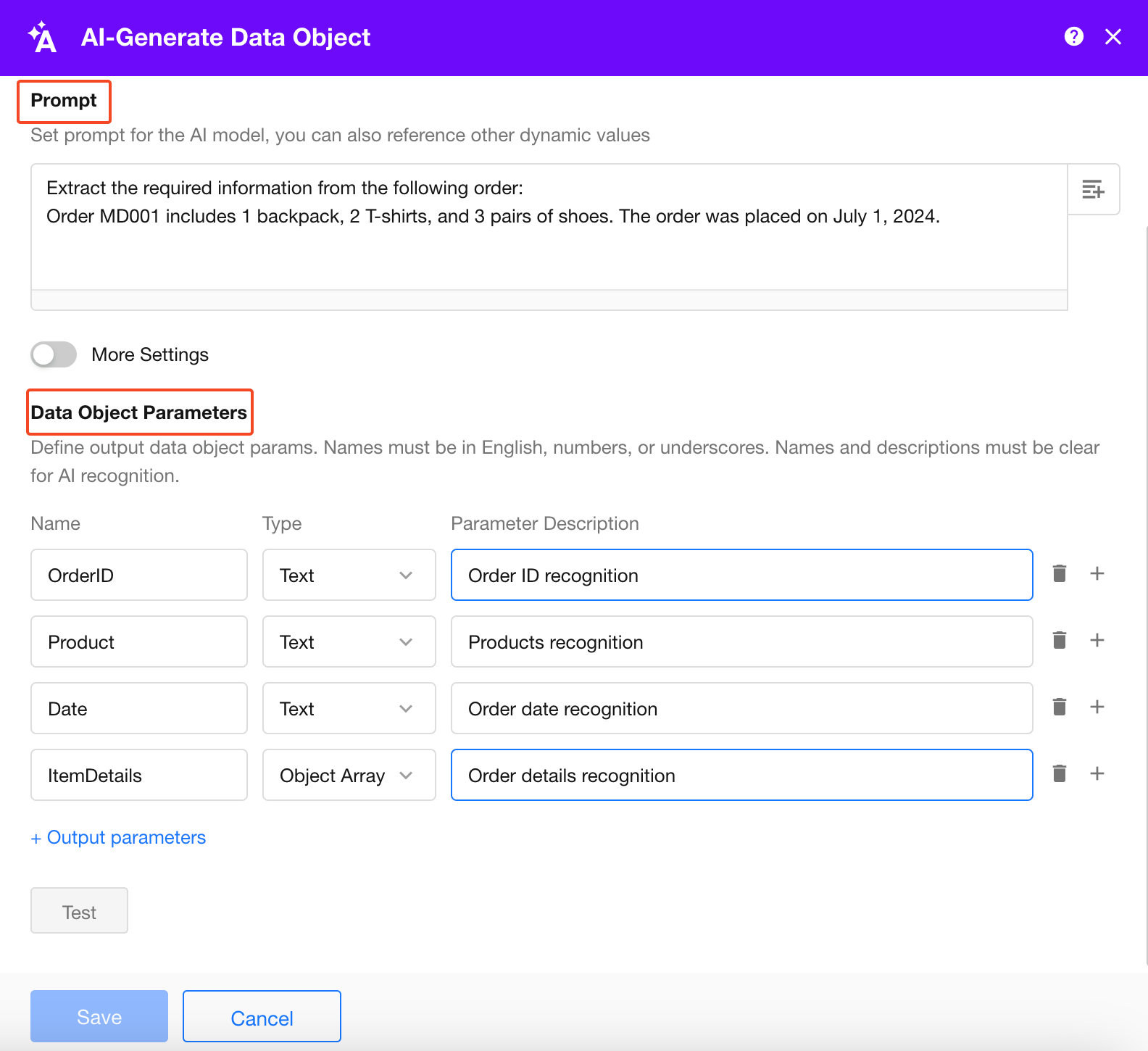
Select an AI Model
Supported models include GPT-4o-mini, GPT-4o, QWen-Turbo, QWen-Plus, QWen-Max, DeepSeek, and others.
Pricing varies by model. After a model is selected, its pricing is displayed in the node configuration. When the node runs, credits are deducted from the organization based on usage.
Configure the Prompt
Enter a prompt that describes the information you want the model to extract. The prompt can include fixed text, dynamic values from workflow nodes, or both.
In this example, use sample text first to test the extraction. After verifying the result, replace the sample text with a field from a workflow node.
Sample input:
Extract the required information from the following order:

Order MD001 includes 1 backpack, 2 T-shirts, and 3 pairs of shoes. The order was placed on July 1, 2024.
Define the Object Parameters
Define the parameters to extract based on your business requirements. For each parameter, specify its Name, Type, and Description.
Make each Parameter Description clear and specific. The model uses the description to understand what the parameter represents and determine which value to extract from the input.
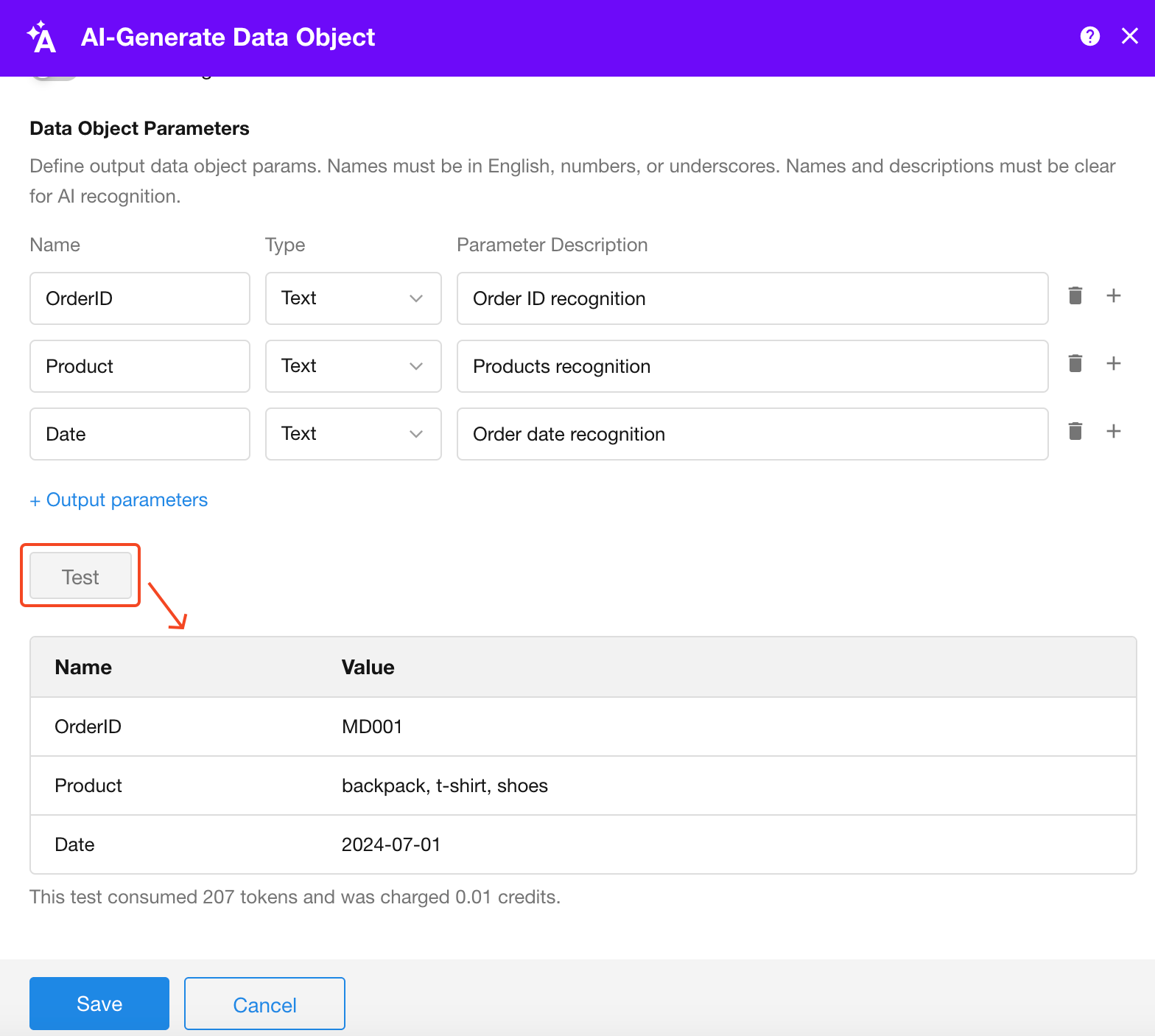
Test the Configuration
Click Test to check the extraction result.
After confirming that the result meets your requirements, replace the sample text in the prompt with dynamic values from workflow nodes as needed.
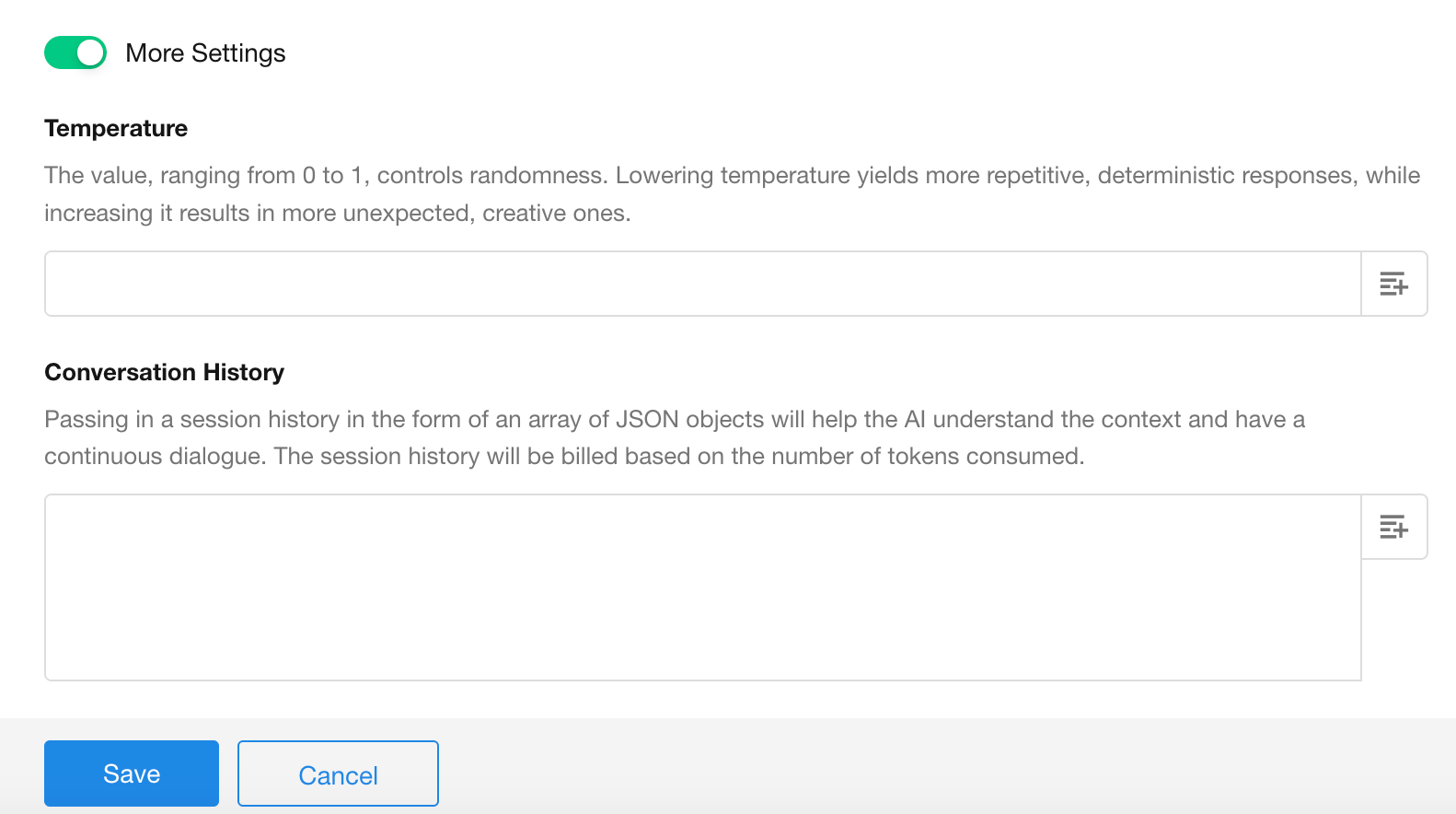
More Settings
Under More Settings, you can further control the generated data object using options such as System Message and Temperature.
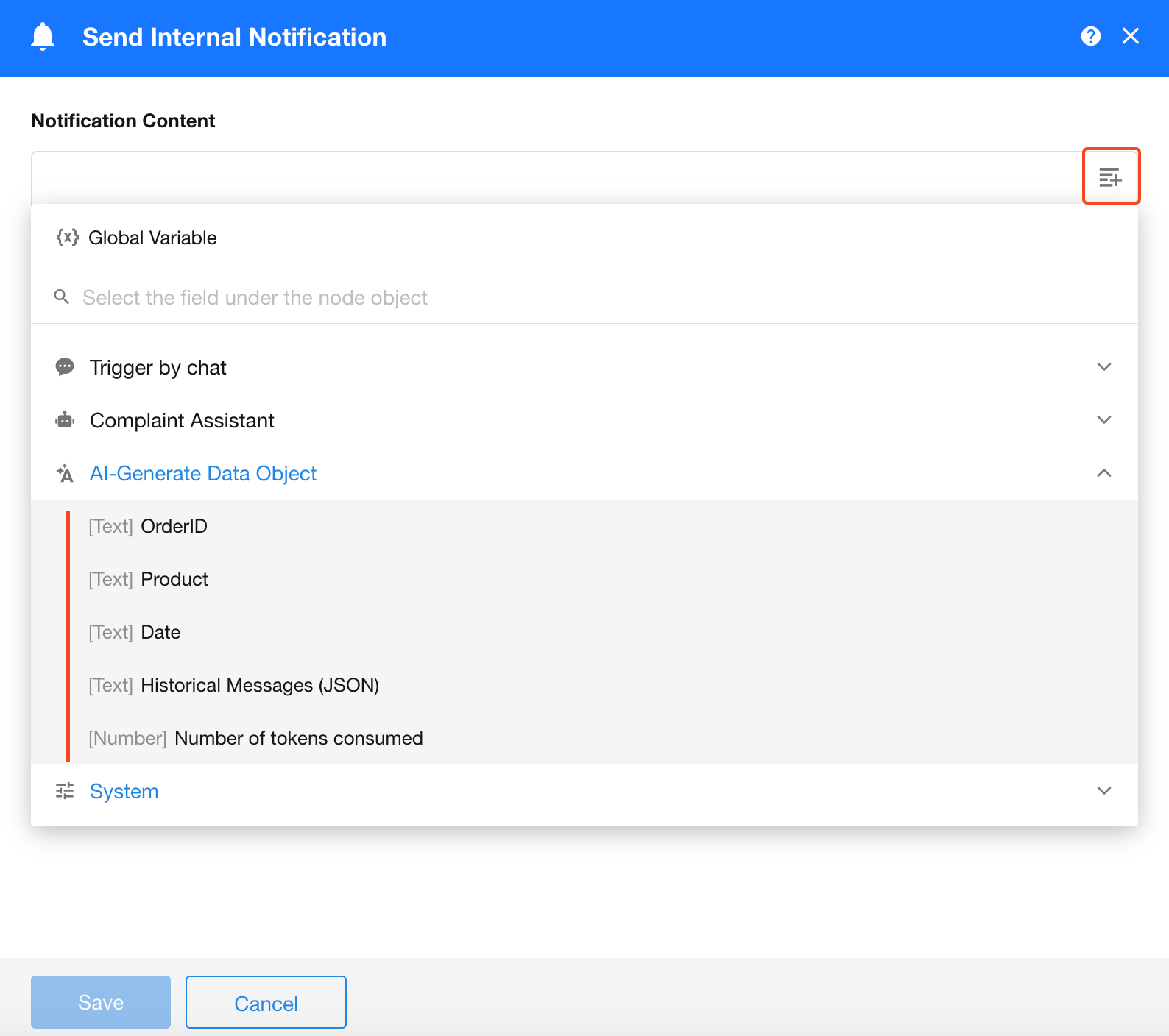
Use the Generated Data Object
After the node runs, the following outputs can be referenced by subsequent workflow nodes:
- Generated Object Parameters
- Historical Message (JSON)
- Tokens Consumed
Was this document helpful?