End a Workflow from a Record
When a running workflow needs to be stopped, administrators can end the workflow instance manually from History. For workflows that need to be stopped frequently, you can also add an Terminate button to the record and call the organization API directly from the record.
This approach is useful when:
- A workflow is triggered by mistake or conditions change and the running process needs to be stopped immediately.
- Administrators or authorized business users need to end a workflow directly from the record without going to History.
API Details
Organization API documentation: https://apidoc.mingdao.com/organization/
For HAP Server, go to Org Admin > Integration > Misc. > Open API > View Docs. The Host automatically displays the address of the current HAP Server environment.
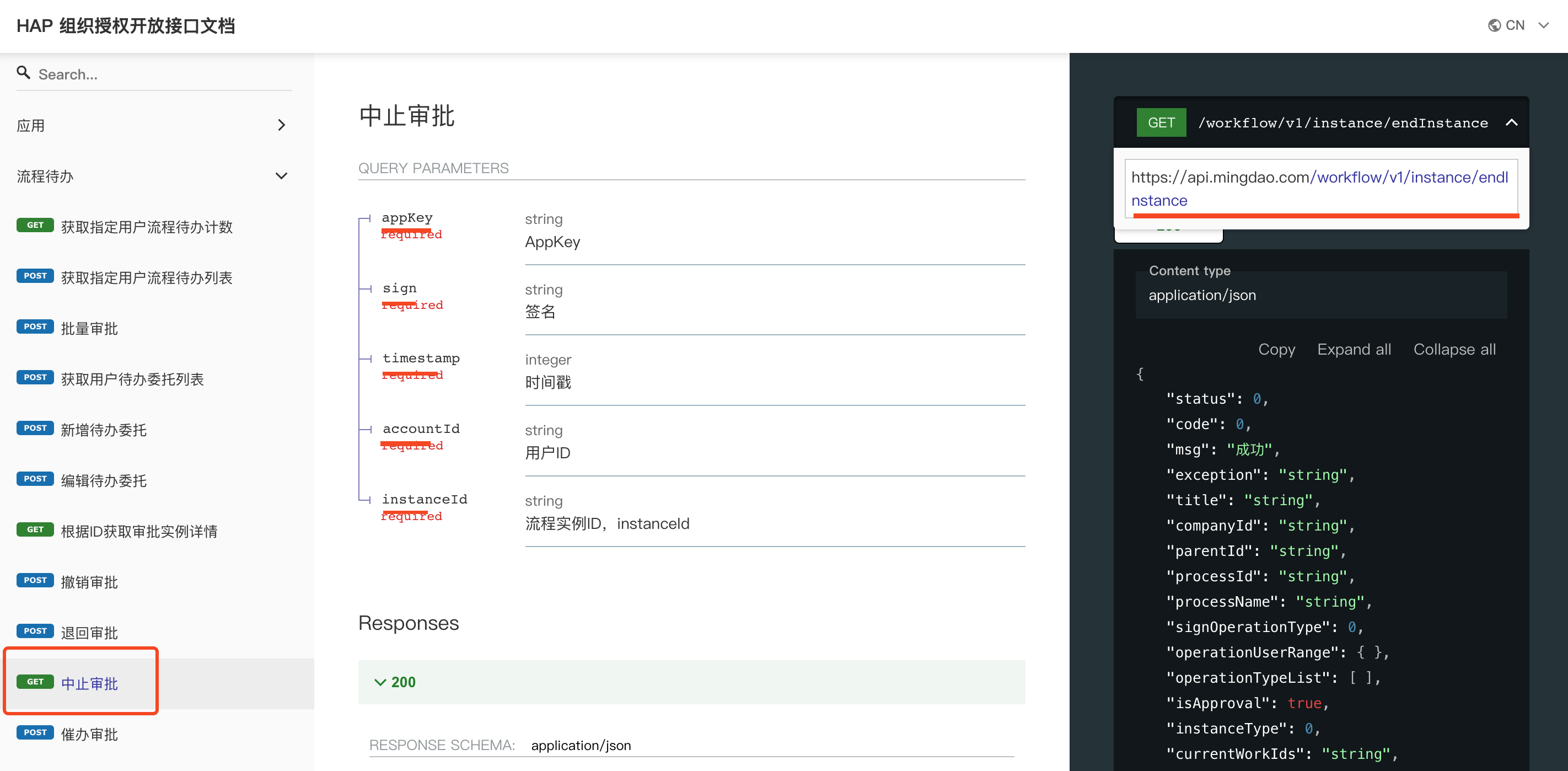
End Workflow Instance API
-
Endpoint:
https://api.mingdao.com/workflow/v1/instance/endInstance -
Method:
GET(parameters are appended to the URL) -
Required parameters:
appKey,sign,timestamp,accountId,instanceId -
Signature (
sign): ConcatenateAppKey,SecretKey, andTimestamp, generate the SHA-256 hash, and then encode the result in Base64. See the sample code below for details.
Implementation
The following steps explain how to obtain and configure the required parameters.
1. Get the accountId
Choose one of the following methods based on who is allowed to end the workflow:
-
Admin-Only Setup: An administrator can click their profile picture and select Copy User ID to obtain the
accountId(user ID). This value can be used as a static value. -
Allow Multiple Users to End the Workflow: In the workflow, use the Get Single Member Info node to retrieve the
accountId(user ID) of the user performing the operation.
This example uses a static accountId. Save the value for use in the following steps:
| Parameter | Value |
|---|---|
accountId | 1e23e1fd-7bc4-48ab-99bf-f3e97084f09c |
2. Get the instanceId
The instanceId (workflow execution instance ID) is the unique identifier for each workflow run.
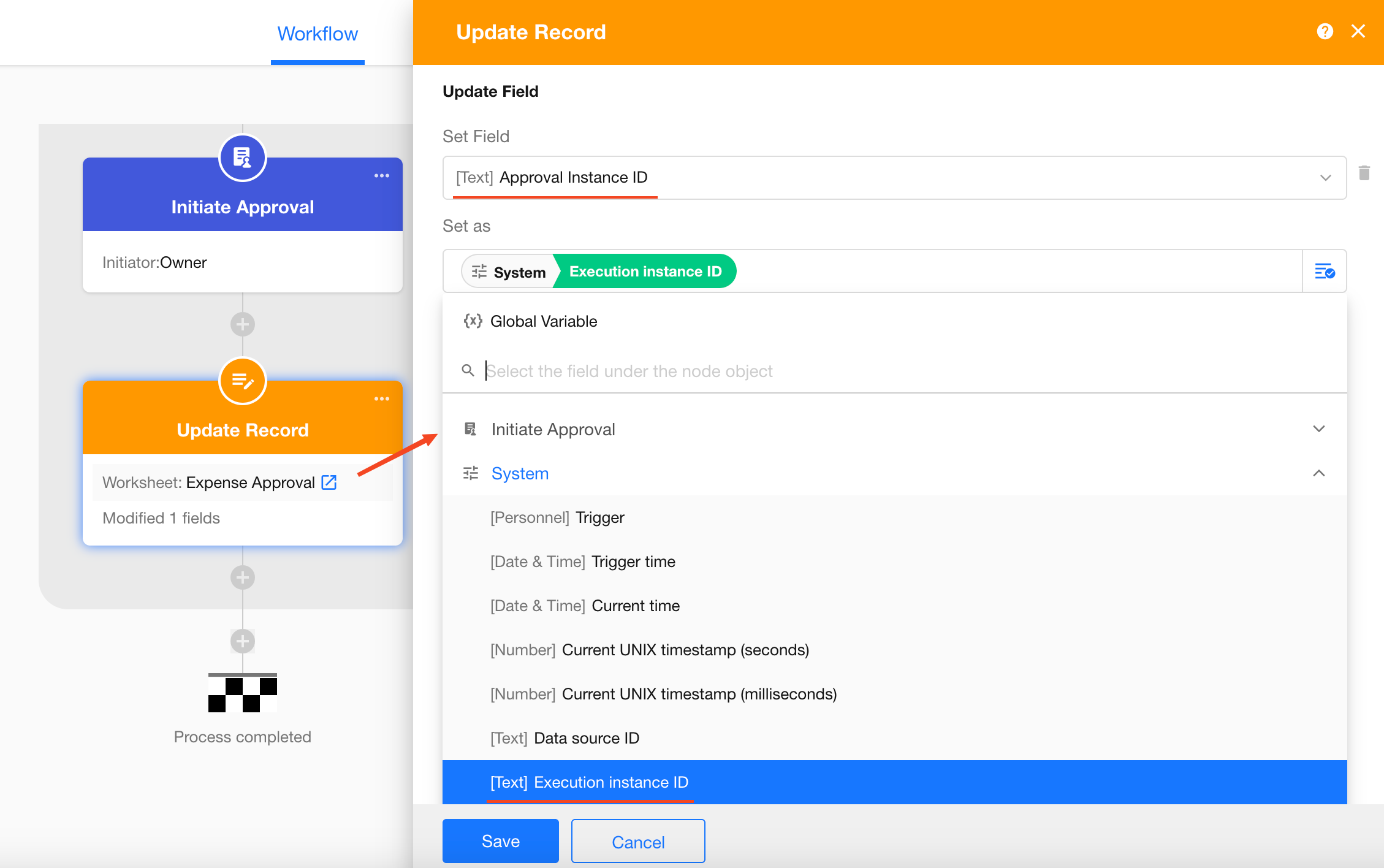
It is recommended to add an Update Record node immediately after the Initiate Approval Flow node, and write the current instanceId into a field in the record (e.g., “c”). This allows the value to be used later when calling the workflow termination API.
Configuration example:
Now trigger the workflow once and record the generated instanceId:
| Parameter Name | Value |
|---|---|
| accountId | 0ff1aa56-9a86-41a6-a7d9-e47b80d24474 |
| instanceId | 699ed1739c92de5d028f31be |
3. Get the appKey, sign, timestamp
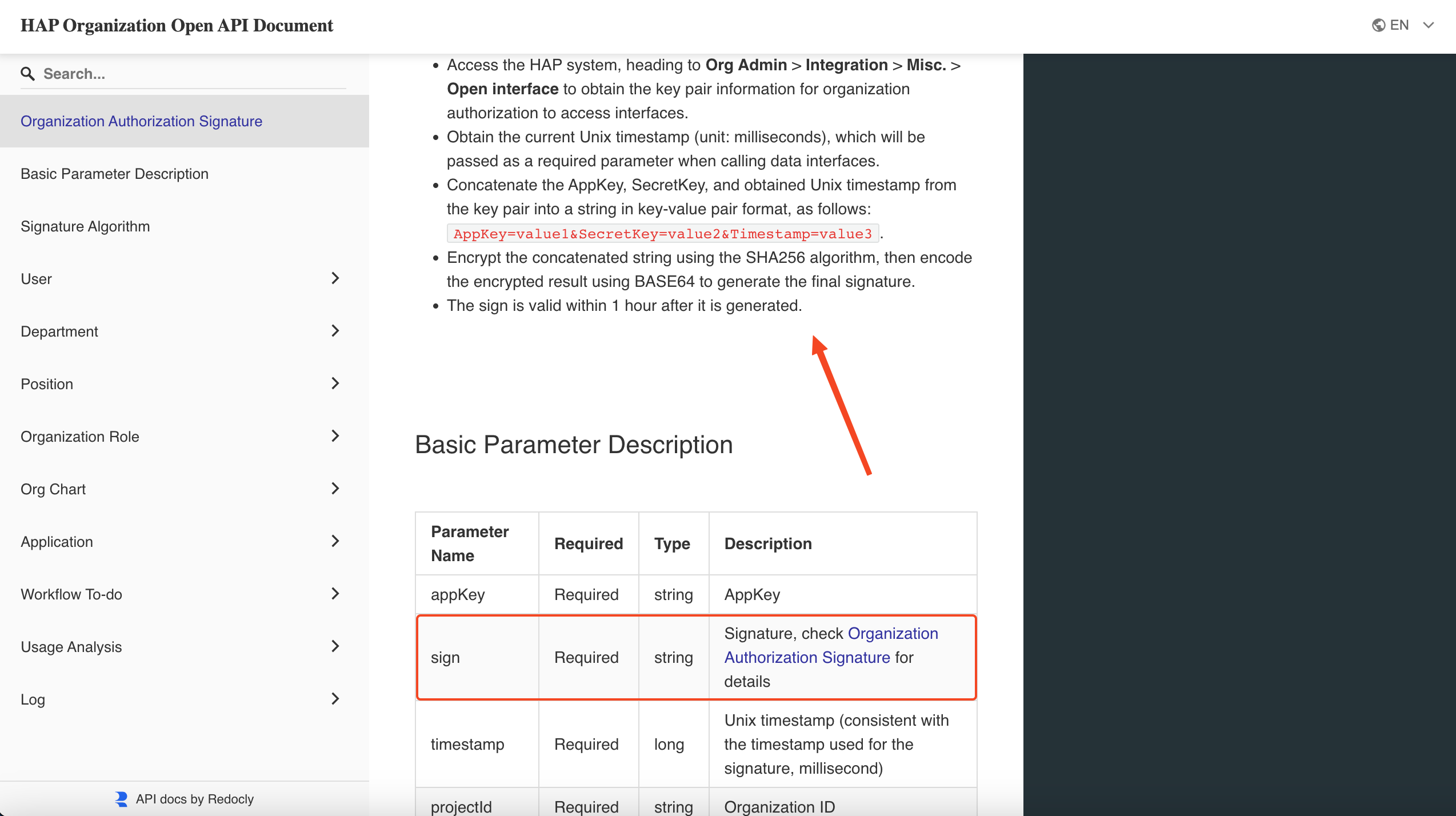
How to Generate sign
The API documentation explains how to generate the organization-level sign in the introduction section.
To generate sign, you need:
AppKeySecretKeytimestamp
Get the AppKey and SecretKey
Organization administrators can go to the Organization Admin Console, then navigate to [Integration] > [Misc.] to view the organization’s key information, including AppKey and SecretKey.
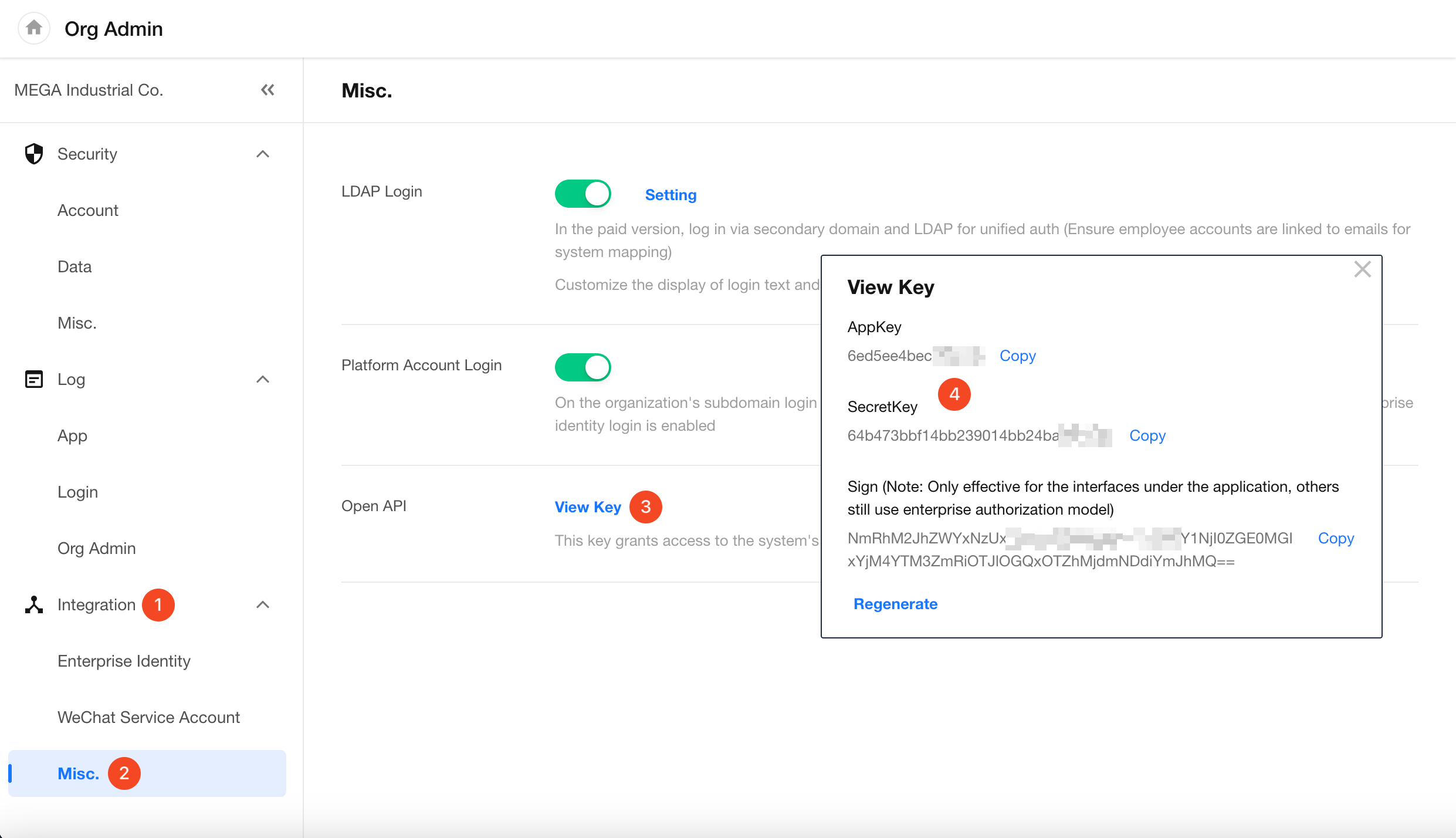
Record the retrieved values:
| Parameter Name | Value |
|---|---|
| accountId | 0ff1aa56-9a86-41a6-a7d9-e47b80d24474 |
| instanceId | 699ed1739c92de5d028f31be |
| AppKey | 6ed5ee4bec7xxxxx |
| SecretKey | 64b473bbf14bb239014bb24ba2xxxx |
Use a Code Block Node to Generate sign and timestamp
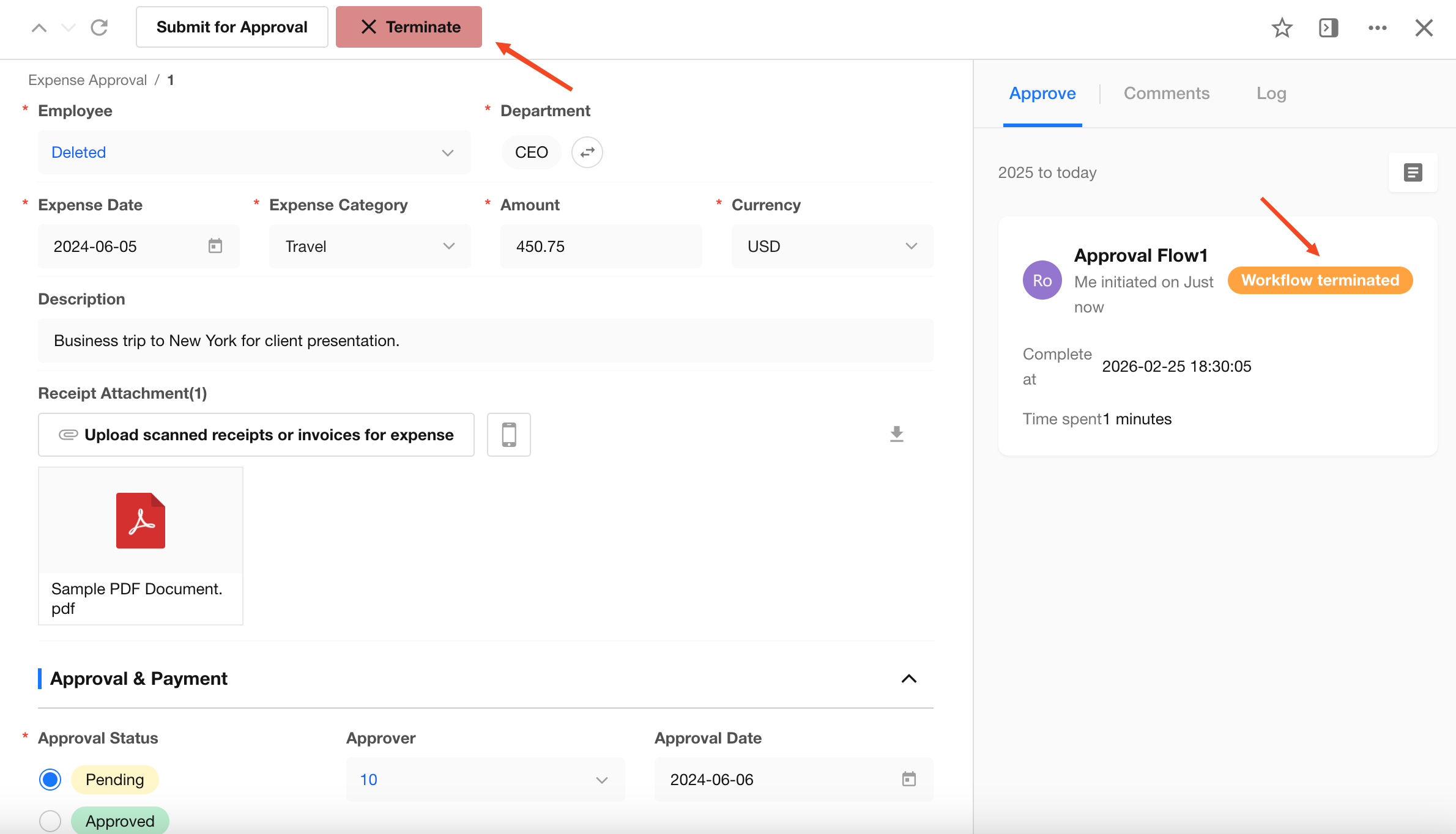
Add a “Terminate” button and configure the associated workflow.
After the workflow starts, add a Code Block node to generate sign and timestamp based on the existing parameters.
Copy and paste the following code into the Code Block node, and replace AppKey and SecretKey with your actual values.
var crypto = require('crypto');
var _ = require('lodash');
var date = new Date();
var timestamp1 = date.getTime().toString();
var appKey='6ed5ee4bec7exxxx';// your actual appKey
var secretKey='64b473bbf14bb239014bb24ba2xxxx'; //your actual secretKey

function getSignature() {
        var signstr = 'AppKey='+appKey+'&SecretKey='+secretKey+'&Timestamp='+timestamp1;
        return base64(sha256(signstr))
};

function sha256(s) {
    var hash = crypto.createHash('sha256');
    hash.update(s, 'utf8');
    return hash.digest('hex').toLowerCase();
}

function base64(s) {
    var result = new Buffer.from(s, 'utf8');
    return result.toString('base64');
}
output = {sign:getSignature(),timestamp:timestamp1}
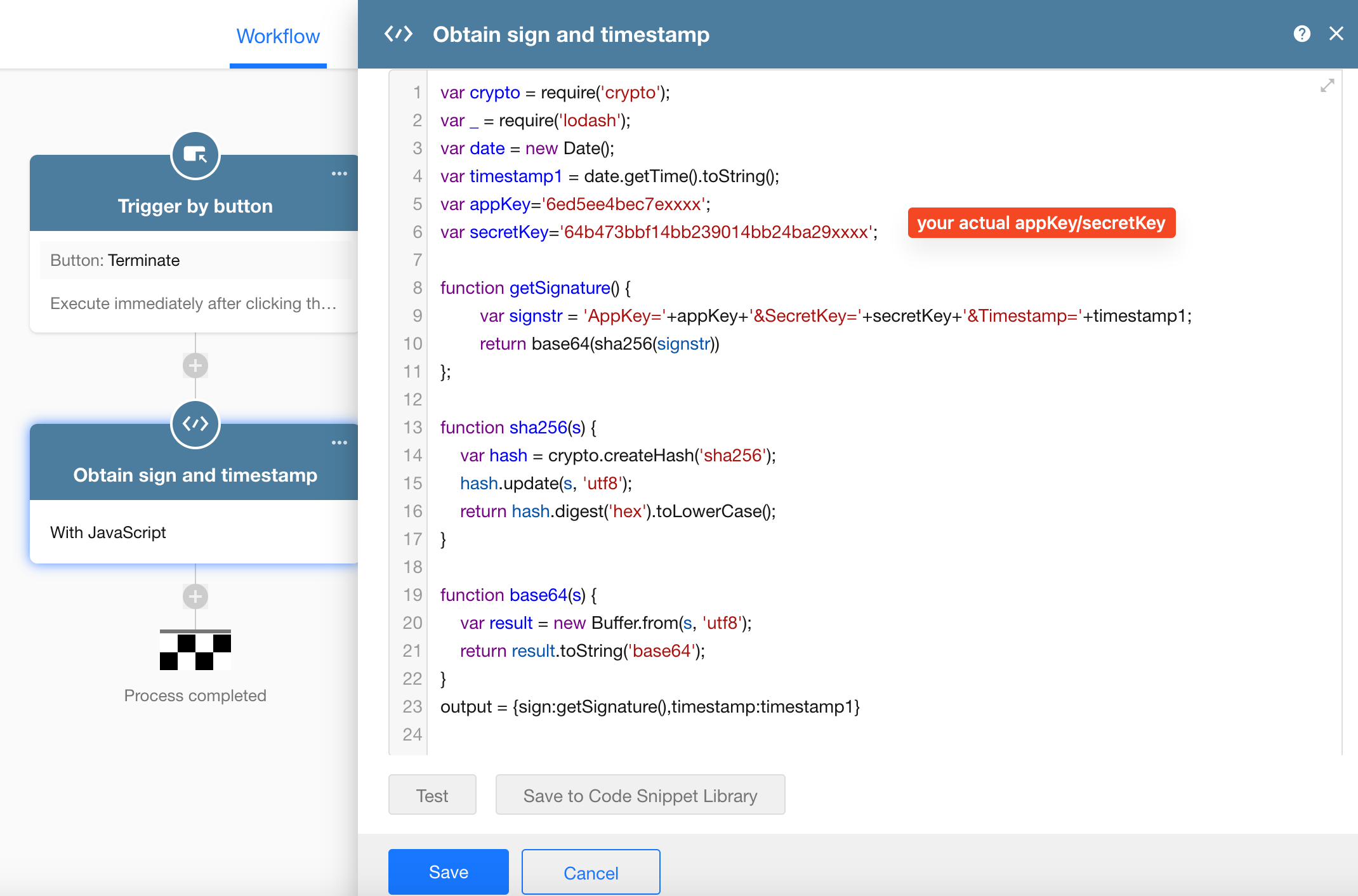
Click the Test button in the Code Block node to output the generated sign and timestamp, then save the node configuration.
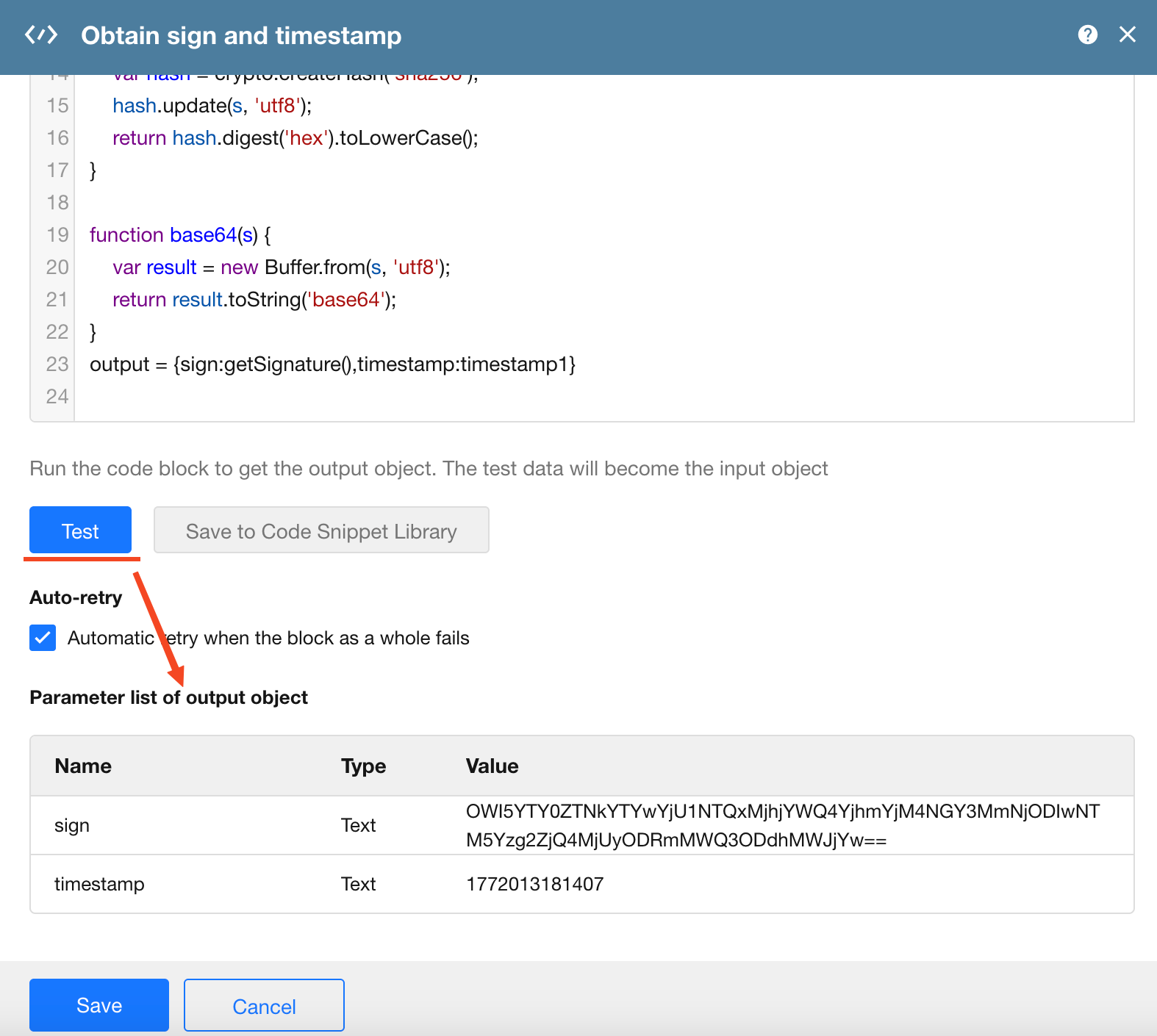
Record the final parameters:
| Parameter Name | Value |
|---|---|
| accountId | 0ff1aa56-9a86-41a6-a7d9-e47b80d24474 |
| instanceId | 699ed1739c92de5d028f31be |
| AppKey | 6ed5ee4bec7xxxxx |
| SecretKey | 64b473bbf14bb239014bb24ba2xxxxx |
| sign | OTlmMWYyOWMxYTQ4YWEyNzEwYjFkYTg3ZTc3NTU5MTk3YzIwMGU0YjJiN2QwYjFlYTRhNDEyMDJhODY3OWE4Ng== |
| timestamp | 1772014338334 |
4. Call the Workflow Termination API
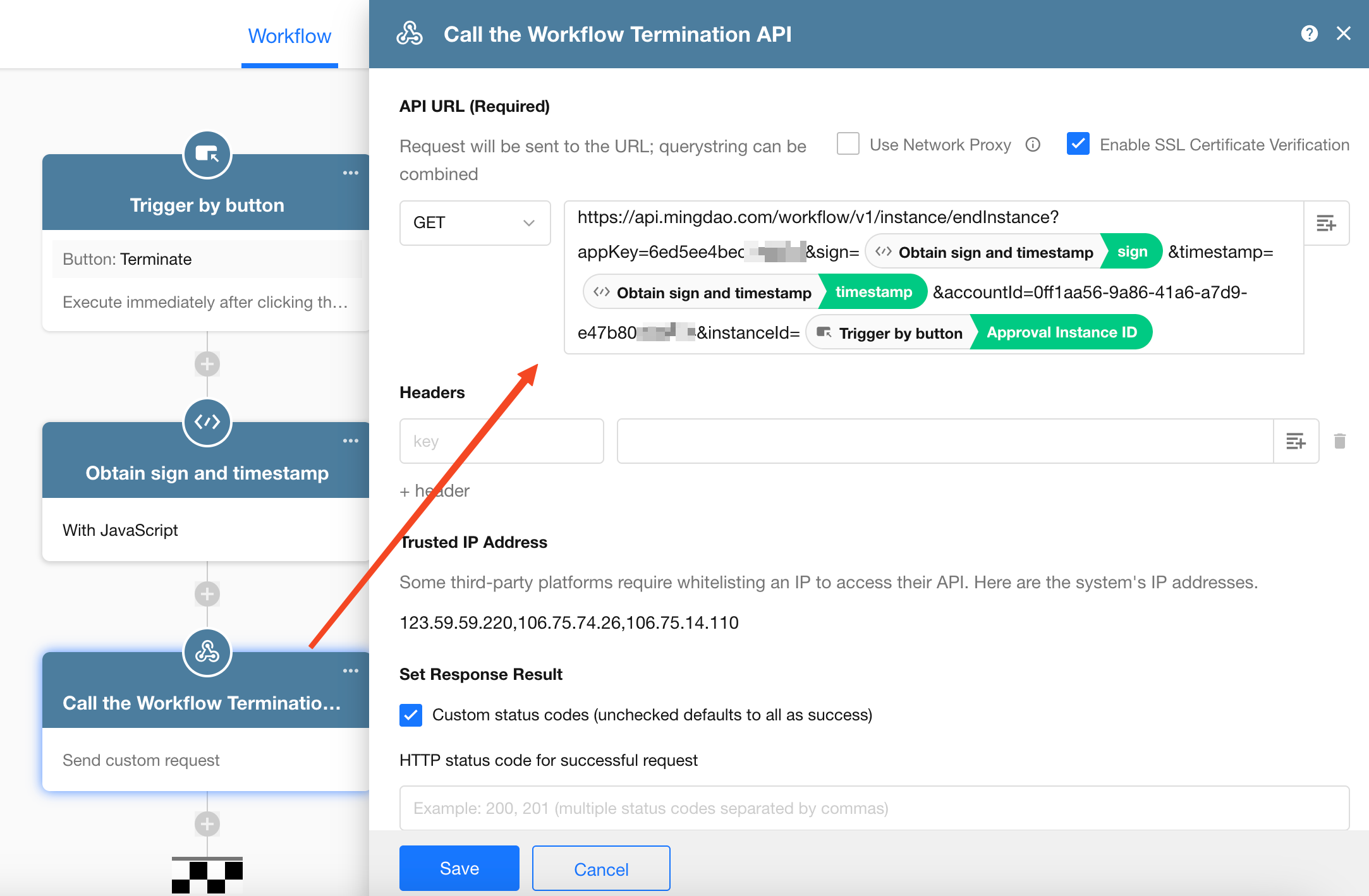
In the workflow associated with the “Terminate” button, add a Send API Request (custom) node and configure the request URL.
Copy the following URL template into the request URL field.
Set the request method to GET, and replace the parameter values with the retrieved static values or node fields.
https://api.mingdao.com/workflow/v1/instance/endInstance?appKey=parametervalue&sign=parametervalue×tamp=parametervalue&accountId=parametervalue&instanceId=parametervalue
Example:
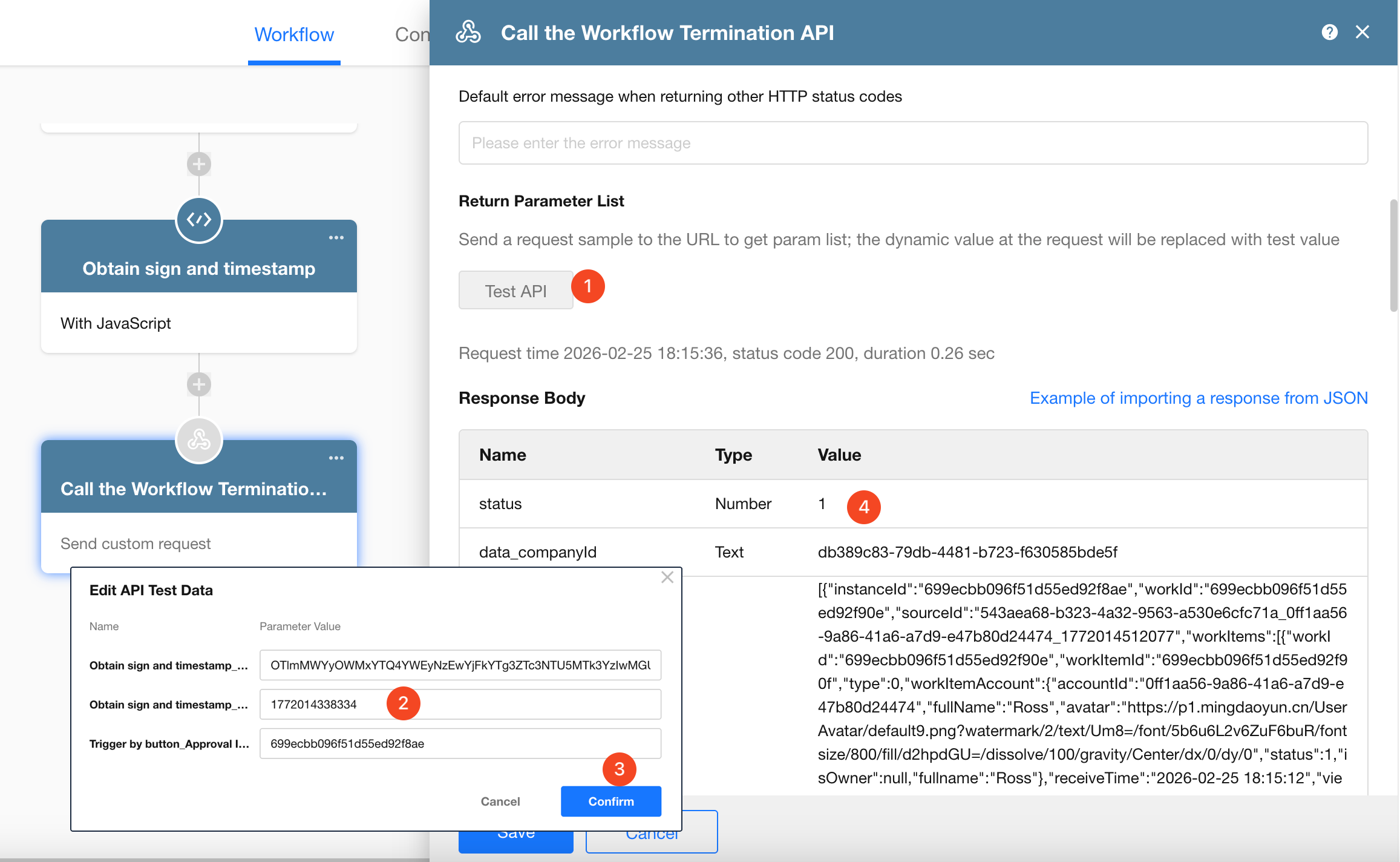
Click the Test API button and enter the retrieved parameter values as test data.
If the request succeeds, it typically returns status = 1. You can also verify in the workflow History that the instance has been terminated.
5. Publish the Workflow and Test
Trigger a new workflow instance, then click the “Terminate” button to end the approval workflow.
Frequently Asked Questions
| Error Code | Cause |
|---|---|
| 400 | Invalid signature. Check whether AppKey and SecretKey are correct. |
| 401 | accountId does not exist. |
| 500 | Invalid instanceId. |
Tips
-
As long as you obtain the
instanceId, this API can terminate any workflow instance (not limited to approval workflows). -
It is recommended to standardize fields such as Approval Instance ID, Last Termination Time, and Termination Operator to facilitate auditing and traceability.
-
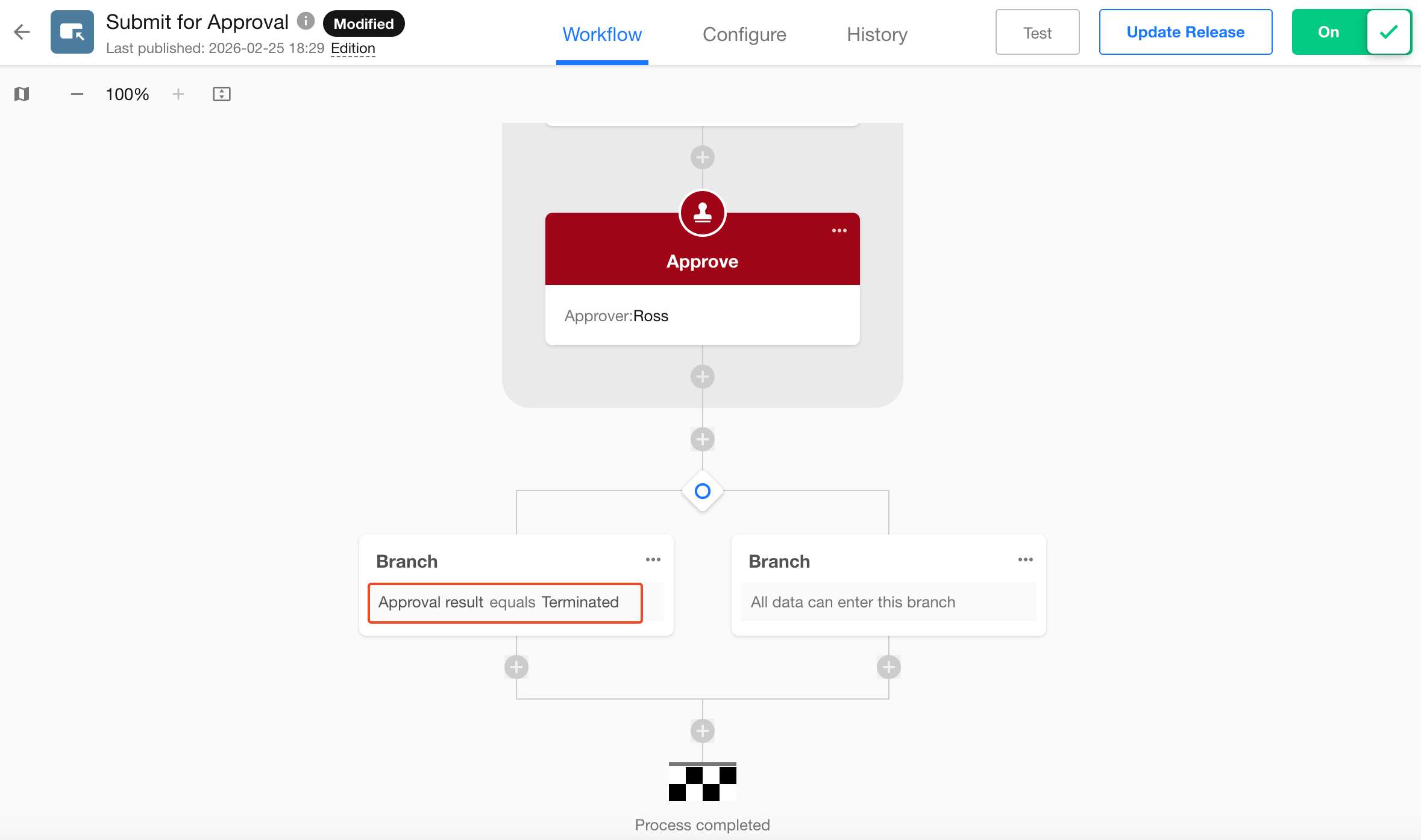
After terminating an approval workflow, the main workflow can branch based on the approval workflow status.
Was this document helpful?