Filter Related Records
When selecting related records, the record picker displays all records you have access to by default.
You can use filters to limit which records are available for selection.
Example 1: Show only active products records
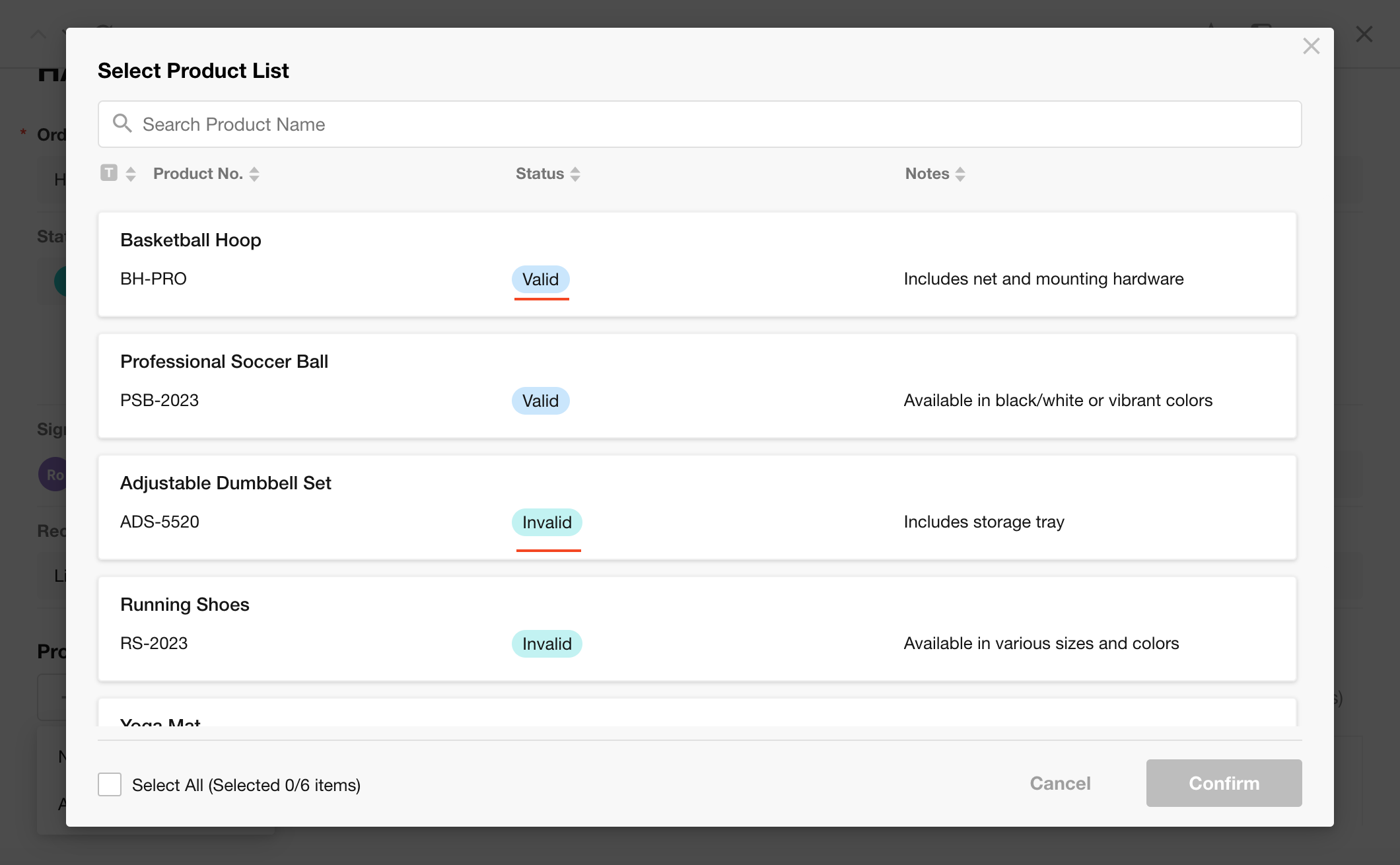
Before filtering
Both active and inactive product records appear in the selection list.
After applying a filter
Only records with Status = Active are available in the picker.
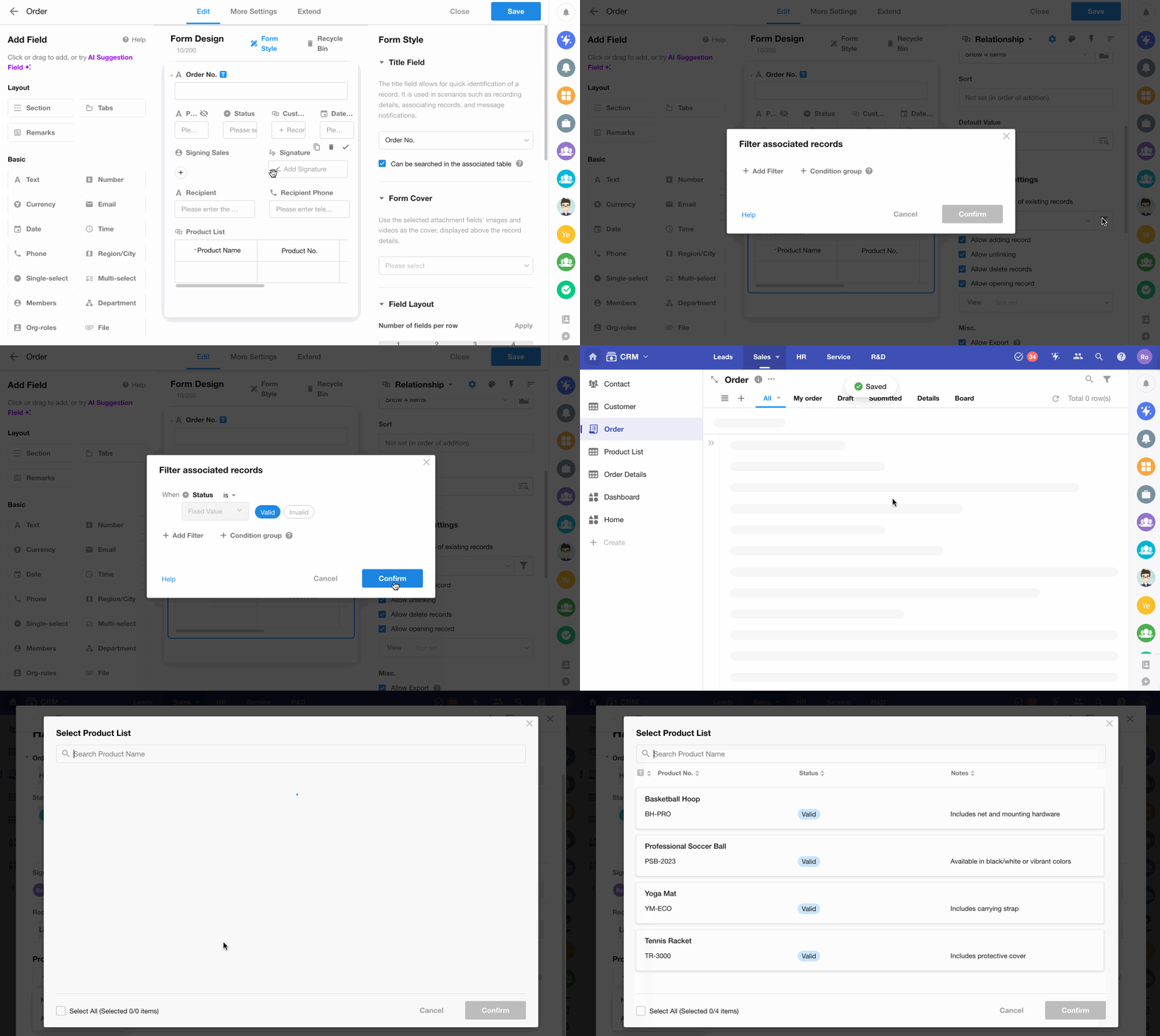
How it works
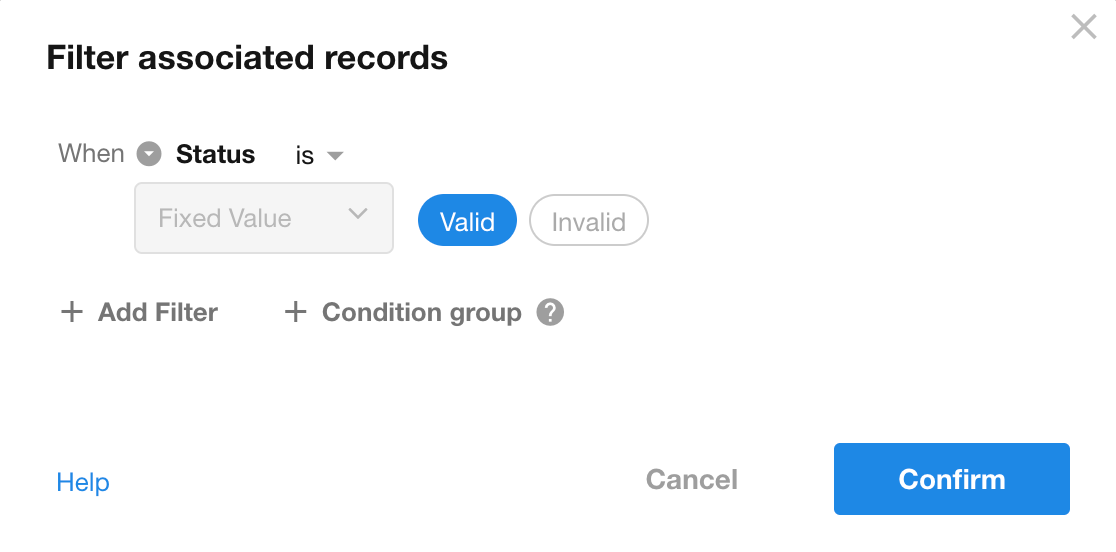
1. Add a filter condition
A filter condition includes:
- Field
- Operator
- Value
Example:
- Field: Status
- Operator: is
- Value: Active
2. Value options
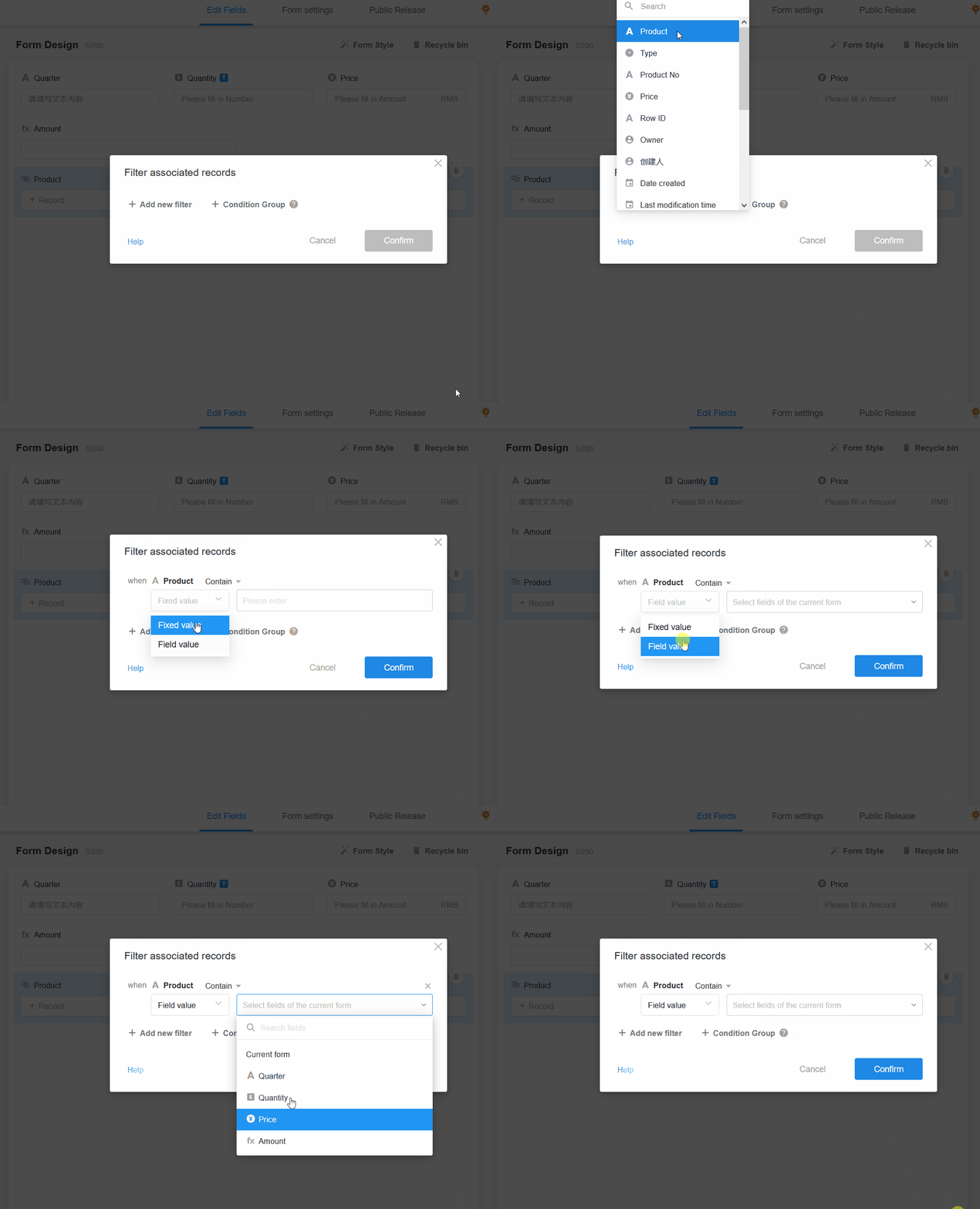
The filter value can be:
- A fixed value
- A dynamic value, such as:
- A field from the current record
- A field from a related record
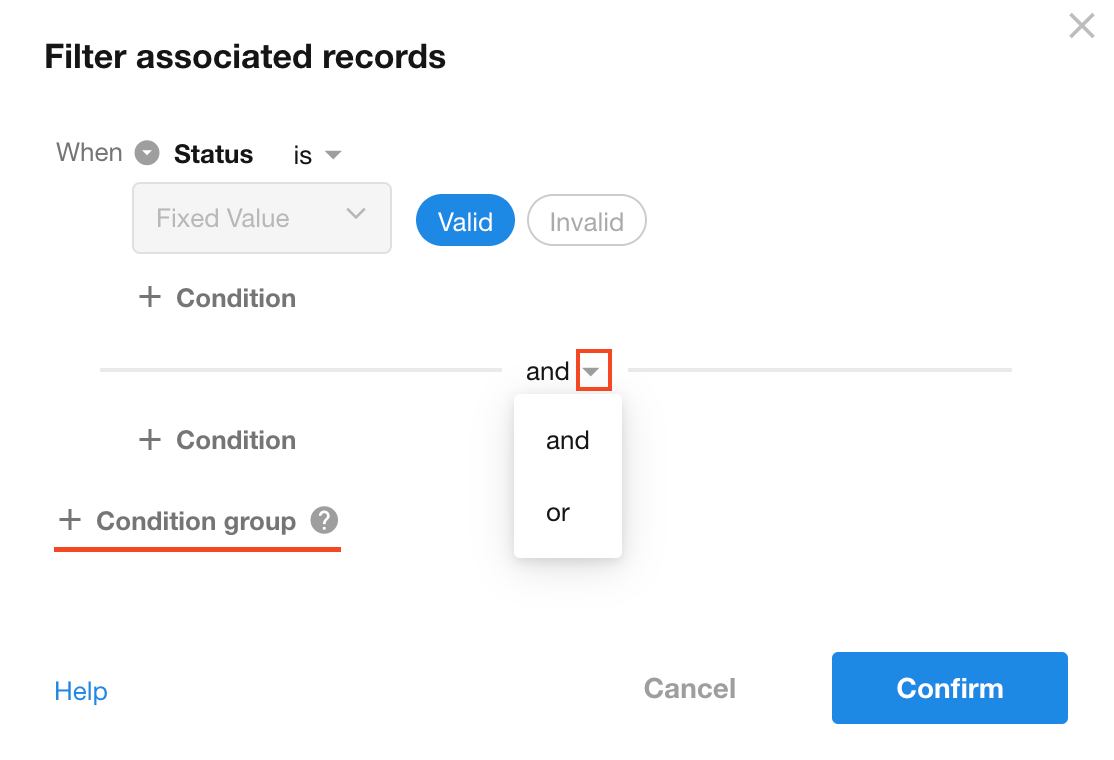
3. Combine multiple conditions
You can define multiple conditions to further refine the results.
Example 2: Cascading filtering across worksheets
Scenario
Relationships between worksheets:
- Customer → Contact (1:N)
- Contact → Order (1:N)
- Customer → Order (1:N)
When creating an order:
- Select a Customer
- Select a Contact
Requirement:
Only contacts associated with the selected customer should be available.
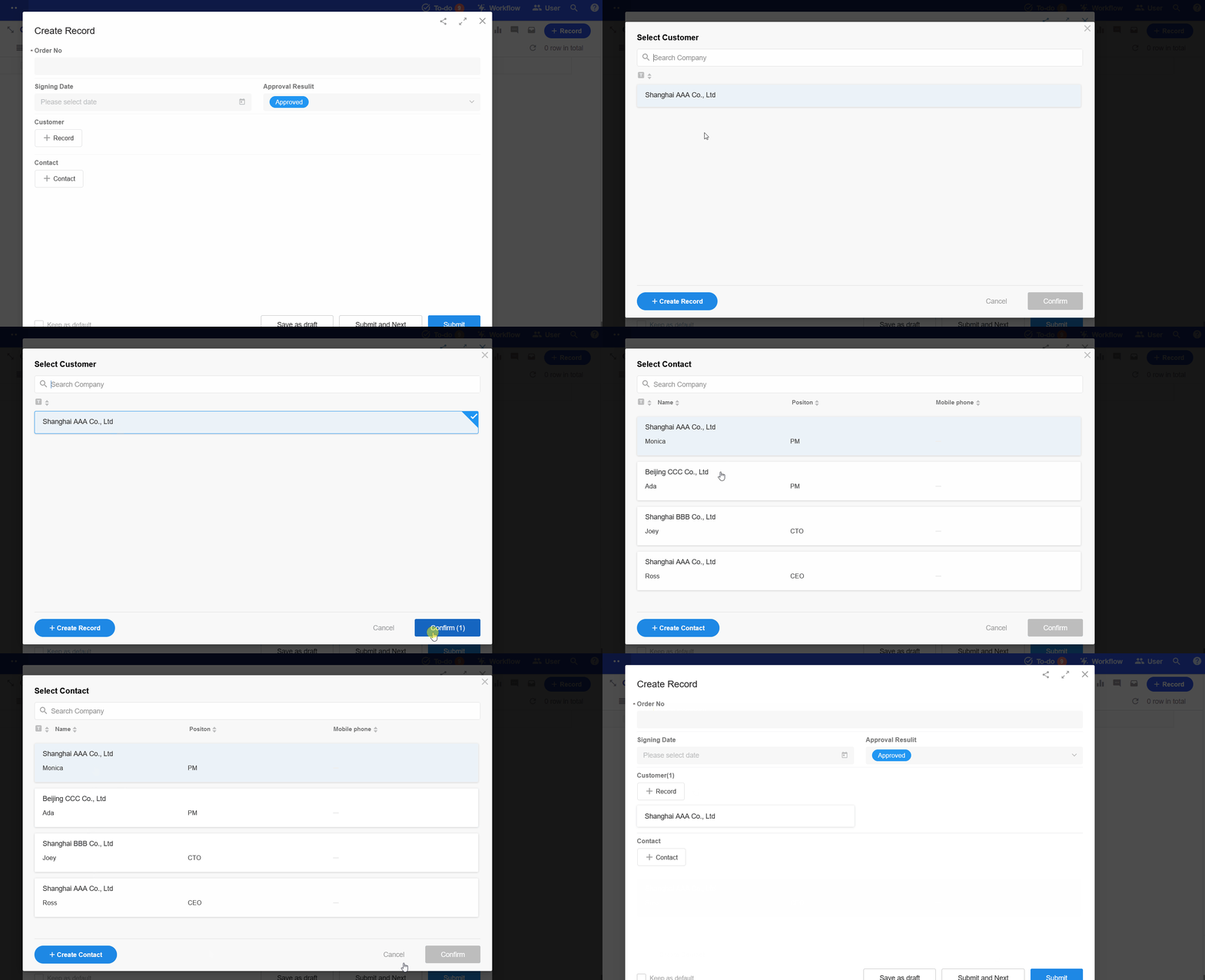
Before filtering
After selecting Customer A, contacts from other companies are still visible.
After applying a filter
Only contacts linked to the selected customer are shown.
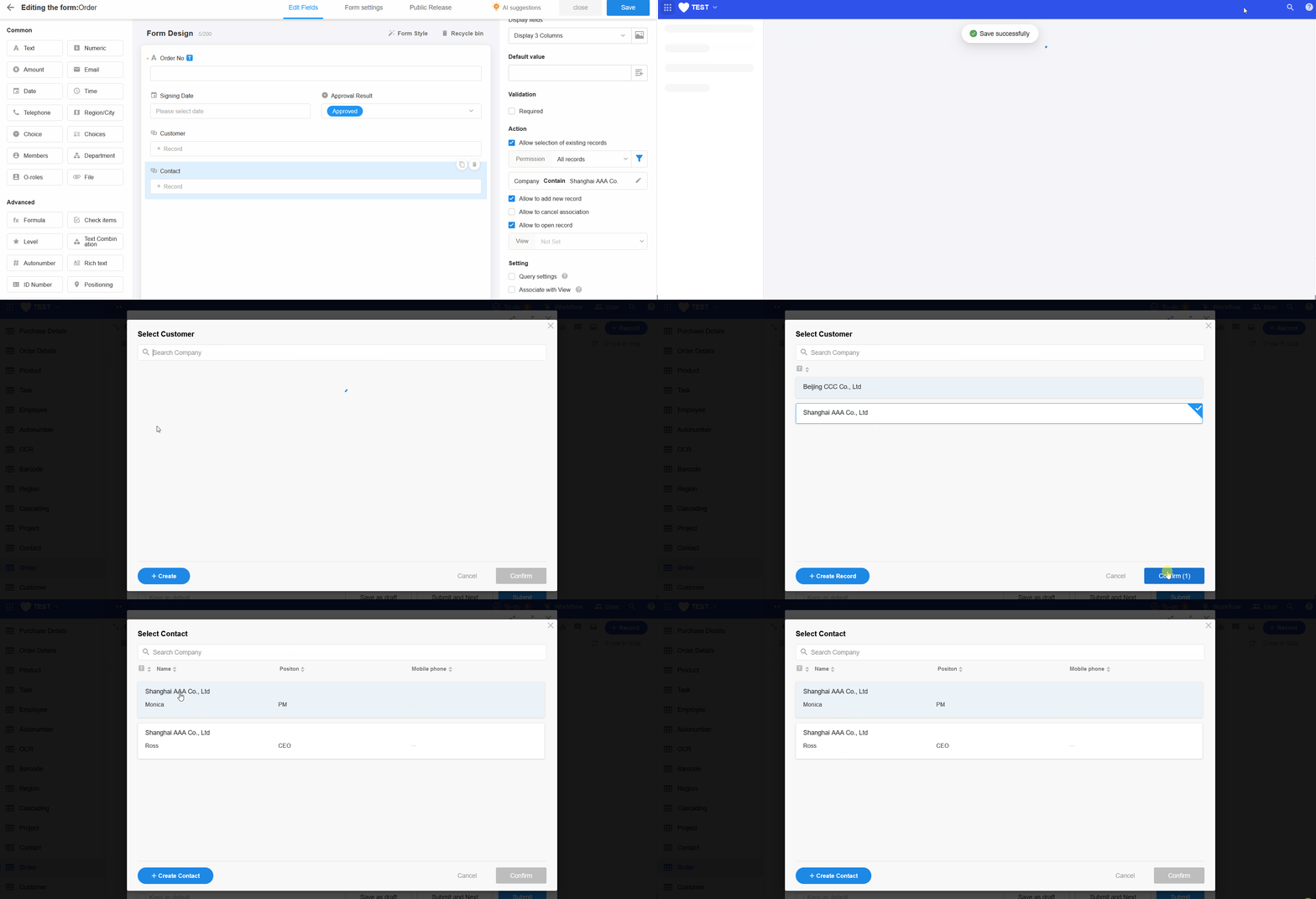
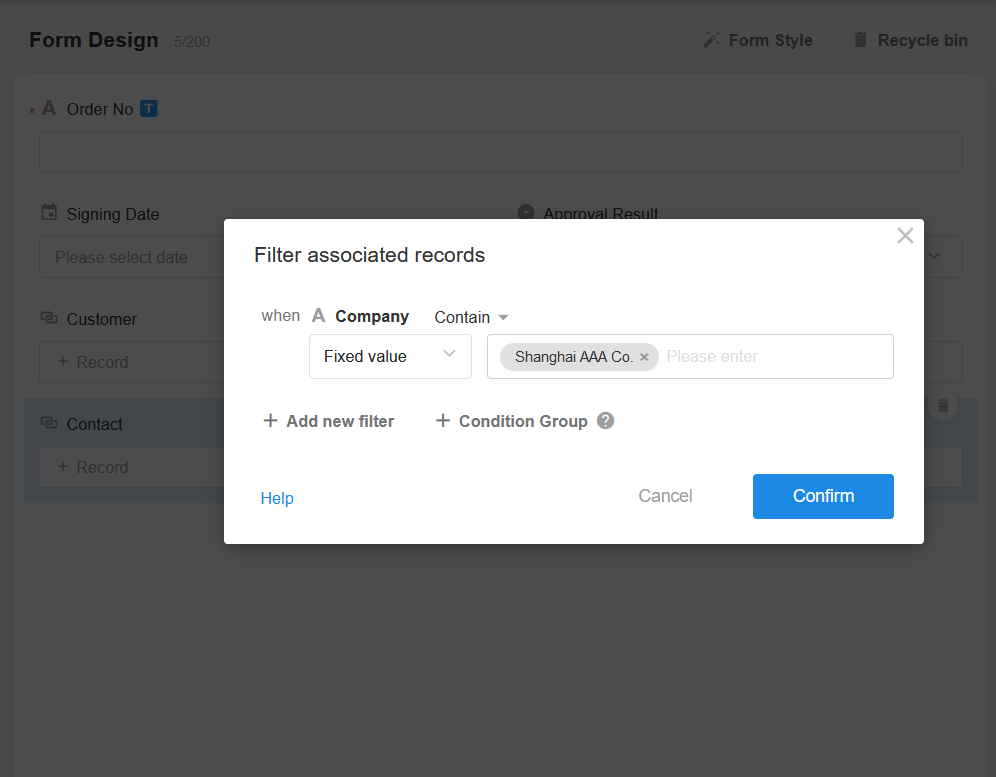
Configuration example
Was this document helpful?