Field Templates
Field Templates allow you to save the complete configuration of one or more fields as a reusable template. When creating fields in the future, you can apply a template directly instead of configuring the same fields repeatedly, improving application-building efficiency.
Field Templates are ideal for scenarios where fields need to be reused consistently or where field naming conventions and configuration standards must be maintained across applications.
For example:
- Shipping Information worksheet: Save fields such as Recipient Name, Phone Number, State/Province, City, and Street Address as a template.
- Employee Information worksheet: Save fields such as Name, Department, Job Title, and Hire Date as a template.
Create a Field Template
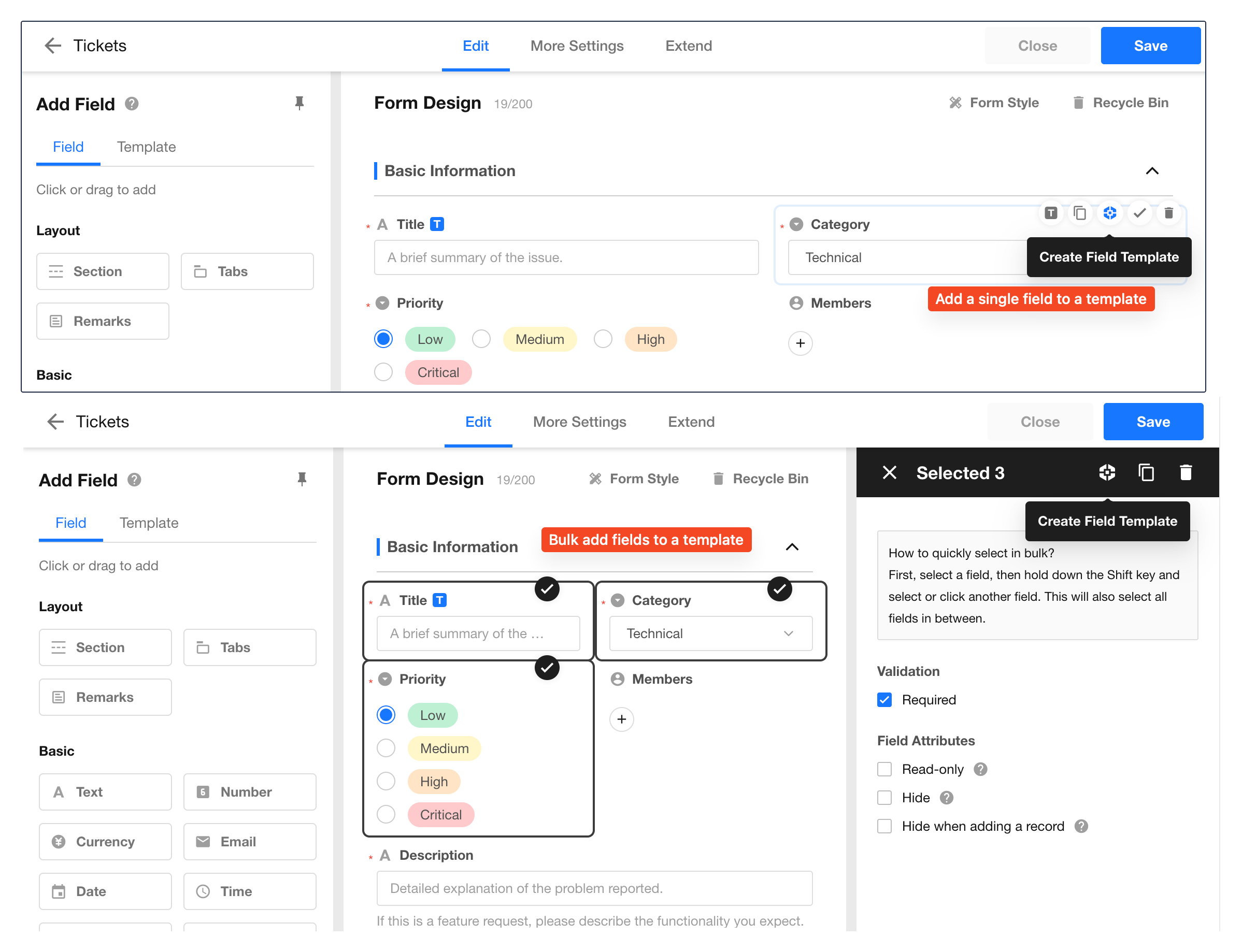
Go to the worksheet's Edit page, select one or more fields, and click Create Field Template.
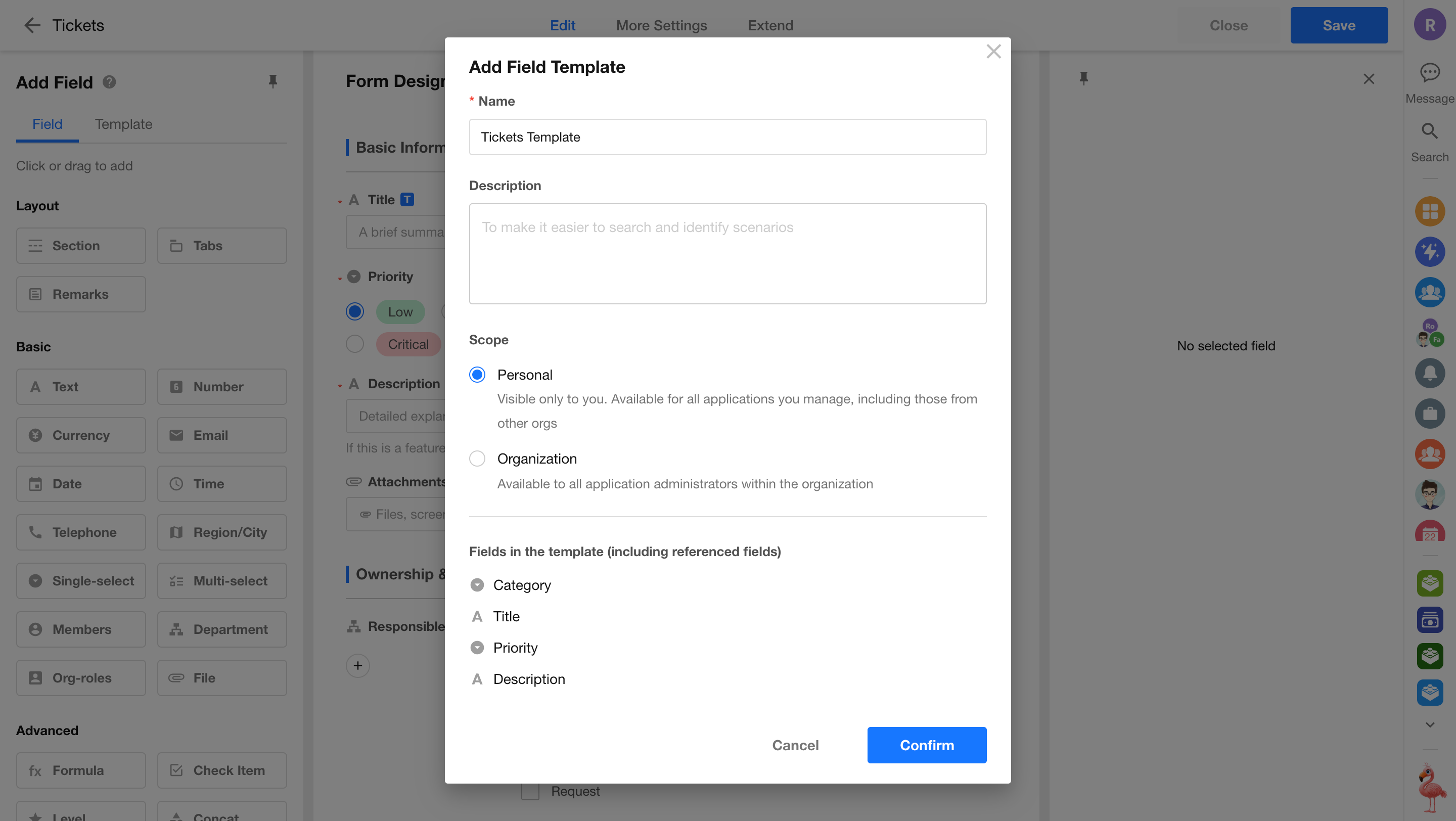
In the dialog box, enter:
-
Template Name: Required. Duplicate names are not allowed within the same scope.
-
Scope: Choose either Personal or Organization.
- Personal: Visible and manageable only by the creator. Can be reused in any application where the creator is an application administrator.
- Organization: Can only be created and managed by organization super administrators or organization administrators with the Application > Application Services and Resources permission. Available to all application administrators within the organization.
The Scope option is not displayed for users who are not organization administrators or super administrators.
-
Description: Used to describe the template's purpose.
Click Confirm to create the template.
Fields Included in a Template
When creating a template, if a selected field references other fields, the system automatically includes those referenced fields to ensure the template remains complete and usable.
However, if a referenced field itself references additional fields, those secondary references are not automatically included. Currently, fields can be included up to three levels deep.
Maximum Number of Fields
A field template can contain up to 30 fields, including any referenced fields that are added automatically.
Use a Field Template
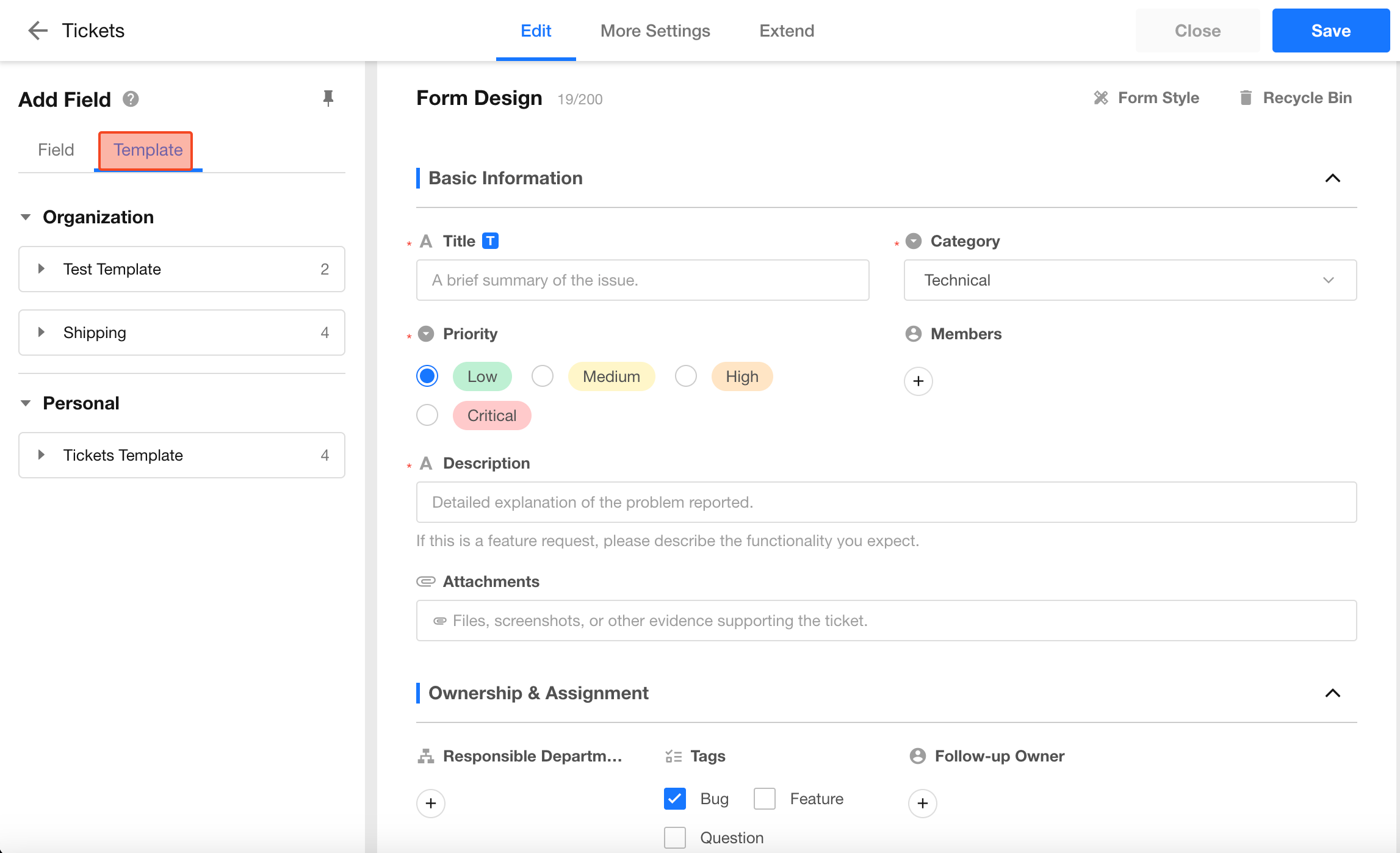
Open the worksheet's Edit page and switch to the Template tab in the left panel. All available field templates are listed here.
How to Use a Template
- Click a template to add all template fields to the end of the current form.
- Drag and drop a template to insert its fields at a specific location in the form.
Fields created from a template are independent of the template. Changes made to the template later do not affect fields that have already been created.
Handling Relationship-Based Fields
-
When creating a field template, if a relationship-based field points to another worksheet that you do not have permission to manage, the template cannot be created.
-
When using a field template that contains relationship-based fields, such as relationship fields or query records fields, the system automatically establishes new relationships.
-
If the template belongs to the Organization scope, these relationship-based fields are typically intended to connect to centrally maintained reference worksheets. Application administrators can reuse the same reference data across applications, reducing the need to create duplicate worksheets and field structures.
-
After applying an organization field template, application administrators can view the structure of the related fields in the current worksheet and access data from the related worksheet when creating relationships.
Note: This only allows users to view and use related data through relationship-based fields. It does not grant full management permissions for the related worksheet.
-
Manage Field Templates
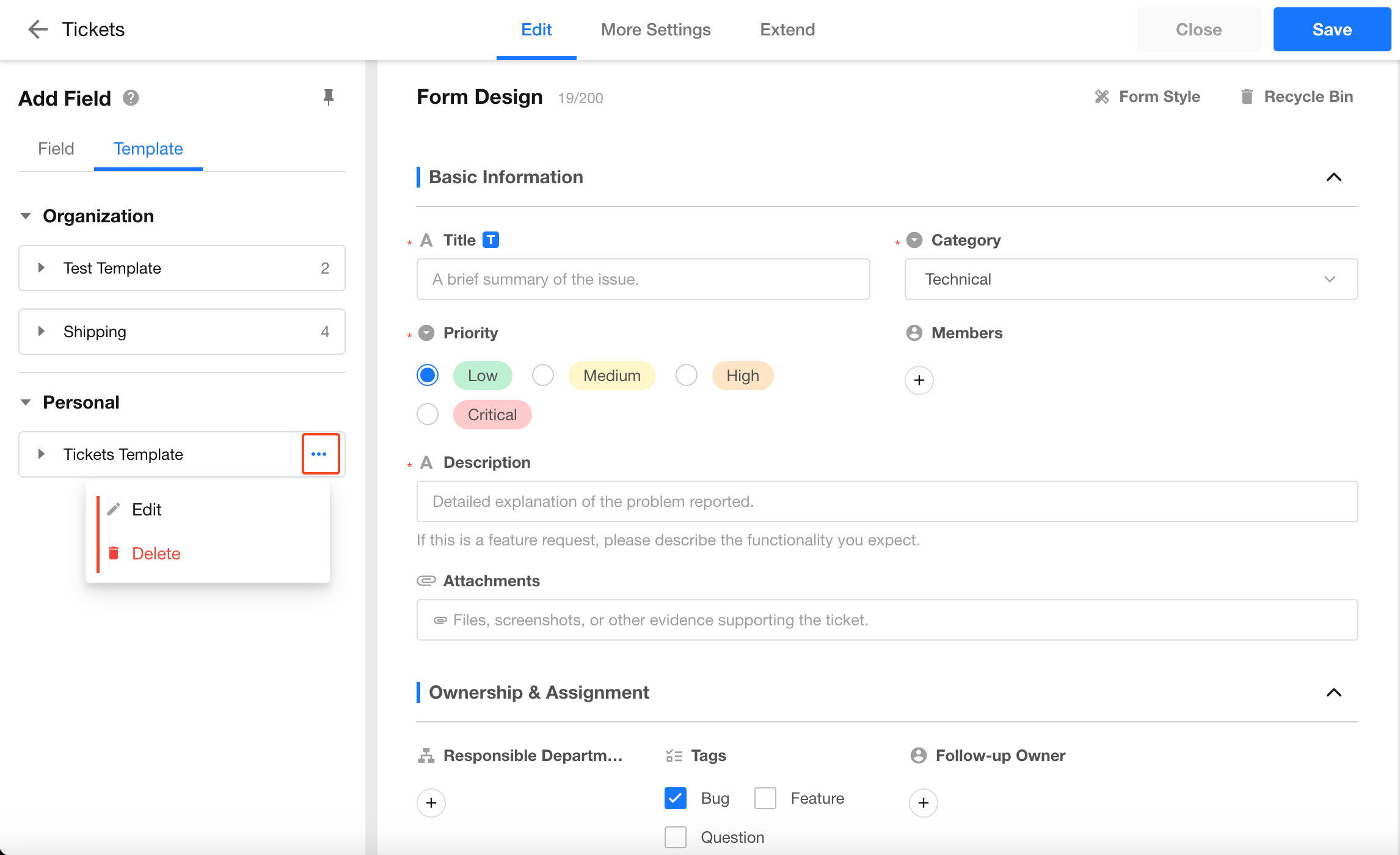
In the Template tab, each template provides Edit and Delete actions.
- Edit: Modify the template name, description, or scope.
- Delete: Removes only the template itself and does not affect fields previously created from the template.
Template Limits
- Up to 100 Personal Templates can be created.
- Up to 100 Organization Templates can be created.
Supported Field Types
Most field types can be saved as templates. The following field types have special considerations:
| Field Type | Notes |
|---|---|
| Relationship | Management permission for the target worksheet is required when creating the template. |
| Query Records, Cascading | Same requirement as relationship fields. |
| Rollup, Foreign Field | The corresponding relationship field must also be included in the template; otherwise, template creation is blocked. |
| Formula, Uppercase, Concat, Barcode | Referenced fields are automatically included in the template. |
| Auto Number | Any referenced fields must already be included in the template. |
| Embed | Currently not supported in field templates. |
| Subform | Subform fields in non-entity worksheets cannot be saved as field templates. |
Frequently Asked Questions
Will fields created from a template be updated automatically if the template changes?
No. Creating fields from a template follows a copy-based model. Once created, the fields become independent and are not affected by subsequent template changes.
Will deleting a template affect fields that were created from it?
No. Deleting a template removes only the template itself. Any fields previously created from the template remain unchanged.
Can field templates be used across organizations?
Personal templates can be used across organizations. As long as you have management permissions for the target application's worksheet, you can use your personal templates in that application.
Was this document helpful?