Integrate Twilio for International SMS
Integrate Twilio to enable global SMS notifications and verification code services for your organization.
1. International SMS Use Cases
After Twilio integration is configured, SMS messages sent to phone numbers outside Mainland China will automatically be delivered through Twilio.
Common use cases include:
- Using the Send SMS workflow node to send SMS notifications to phone numbers outside Mainland China.
- Enabling Phone Number Verification in public forms to send verification code SMS messages to phone numbers outside Mainland China.
- Sending verification code SMS messages for external portal registration and login.
- Sending invitation, notification, and approval result SMS messages through external portals.
Note: If your organization has not integrated Twilio, verification code SMS messages sent to phone numbers outside Mainland China will be delivered through the platform SMS service and charged at 2.3 credits per message. For details, see SMS Delivery and Billing Rules by Region.
2. Create a Twilio Account
- Go to https://www.twilio.com
- Click Sign up to create an account.
- Complete email and phone verification.
- Access the Twilio Console: https://console.twilio.com/
-
Account SID
The unique identifier of your Twilio account, similar to an account number.
-
API Key SID / API Secret
Credentials used for API authentication.
-
Messaging Service SID (Starts with MG)
Used for sending notification and alert SMS messages.
-
Verify Service SID (Starts with VA)
Used for sending and validating verification code SMS messages.
-
Sender
The sender identity displayed to recipients. This can be either a phone number or a Sender ID (brand name).
Quick Reference
- Messaging Service → For notification and alert SMS messages
- Verify Service → For verification code delivery and validation (login, registration, etc.)
3. Obtain the API Key SID and Secret
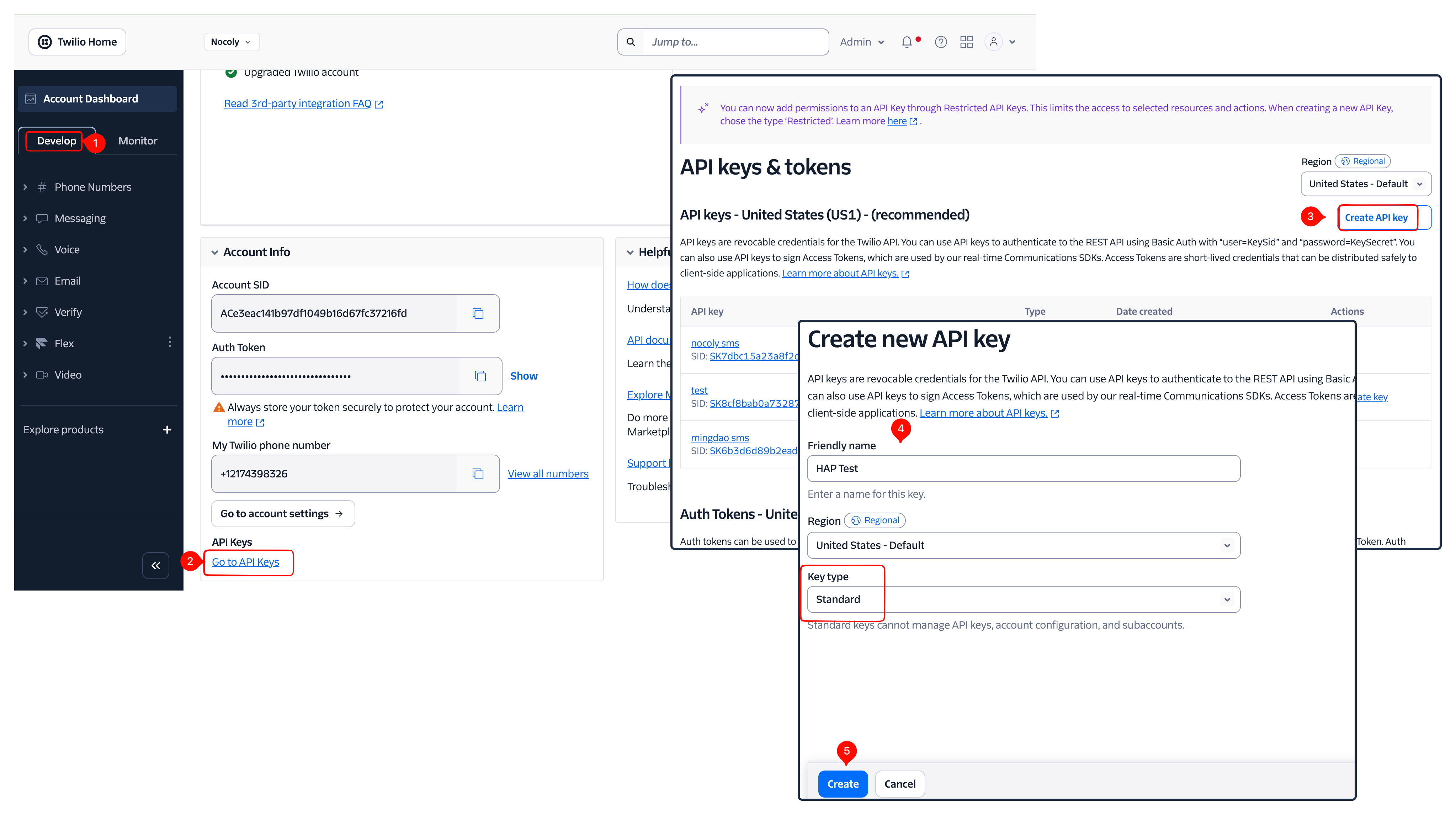
1. Create an API Key
Path: Console → Develop → Go to API Keys → Create API Key
Important: Set Key Type to Standard.
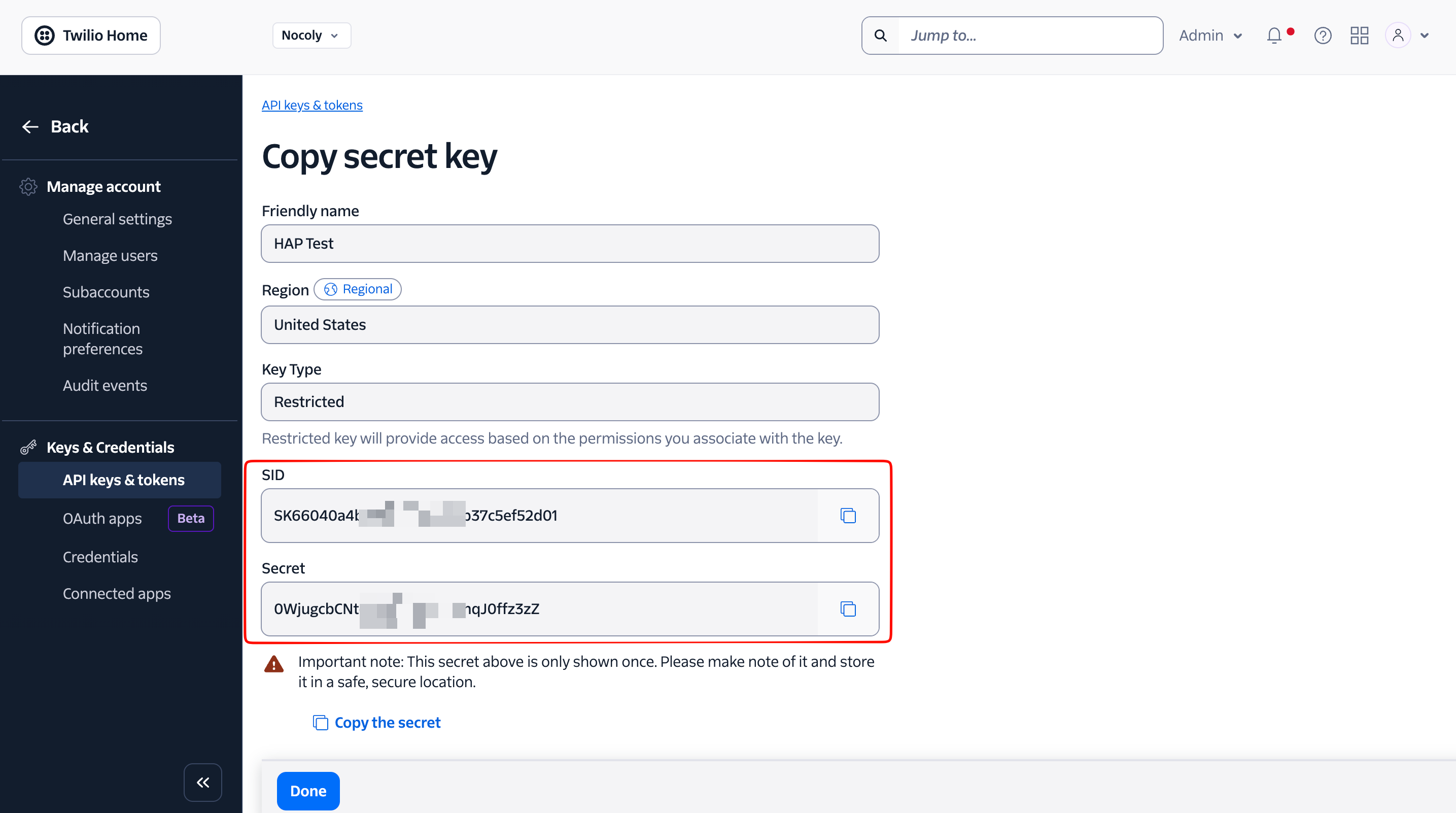
2. Retrieve the SID and Secret
After creating the API key, Twilio will provide an API Key SID and API Secret.
The API Secret is displayed only once. Be sure to save it securely. If it is lost, a new API key must be created.
4. Obtain the Messaging Service SID
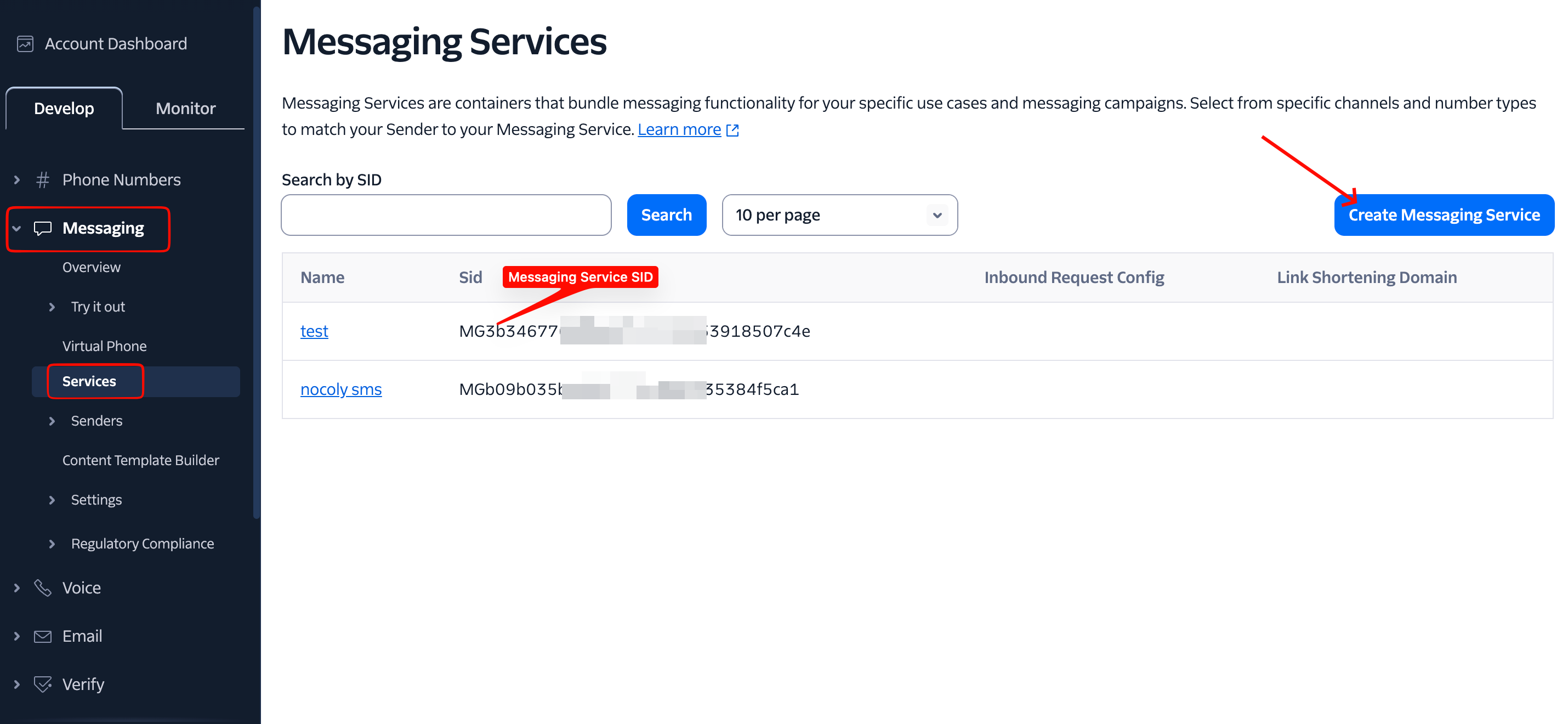
- In the Twilio Console, navigate to Messaging > Services.
- Click Create Messaging Service and complete the setup wizard.
- Copy the generated Messaging Service SID (starts with MG).
- A Sender can be a phone number or a Sender ID (an alphanumeric sender name such as YourBrand, displayed in the sender field on the recipient's device).
- Multiple Senders can be added to a Messaging Service Sender Pool. Twilio automatically selects the most appropriate Sender based on factors such as the destination country.
- Any Sender (phone number or Sender ID) added to a Messaging Service must be properly registered with Twilio and/or local carriers where required (such as 10DLC or A2P registration).
- Not all countries support alphanumeric Sender IDs. Some countries and regions, including China, require a phone number as the sender.
- In countries that require sender registration, using an unregistered Sender may result in delivery failures, message filtering, or recipient complaints.
- In regions that do not support Sender IDs, only approved phone numbers can be used as senders.
Country-specific SMS guidelines:
5. Obtain the Verify Service SID
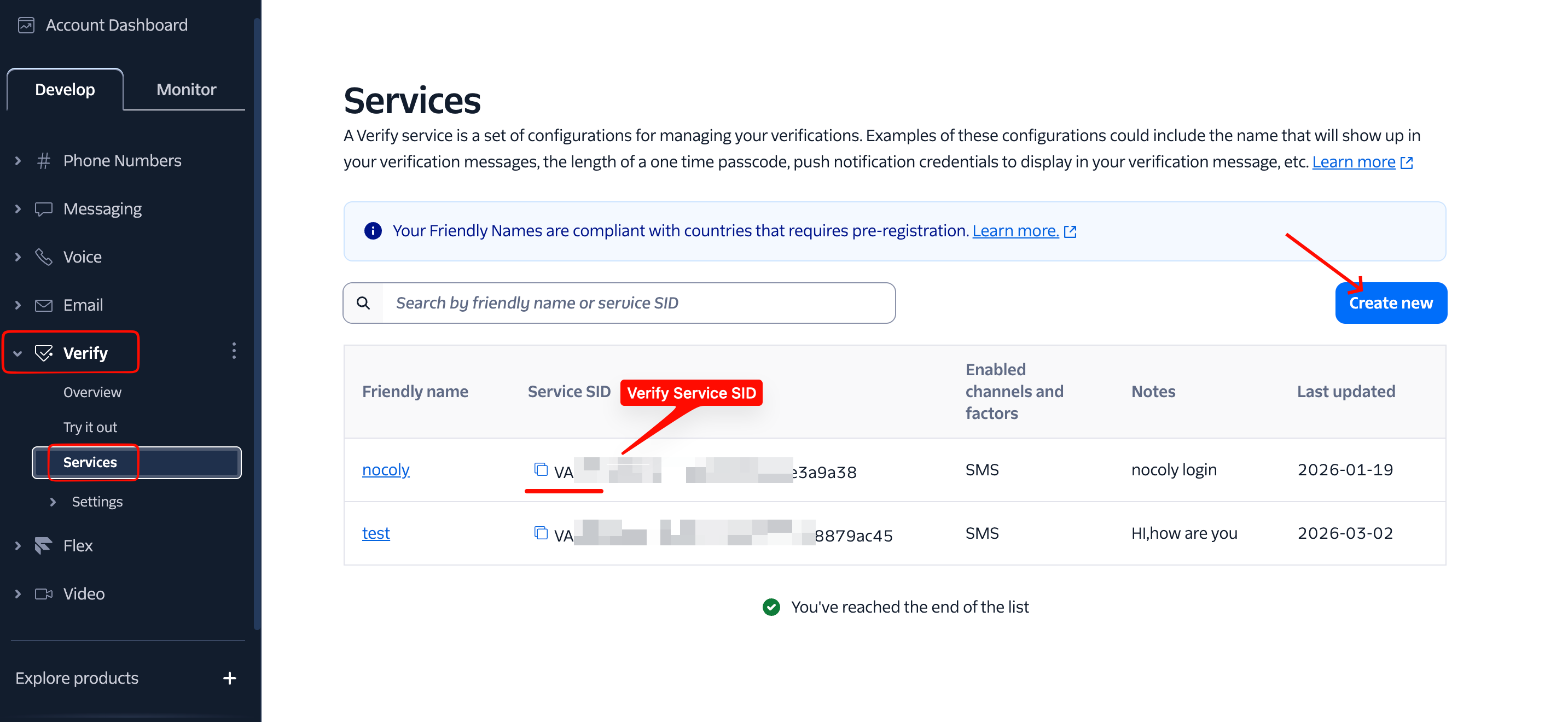
- In the Twilio Console, navigate to Verify > Services.
- Click Create New, enter a service name (for example,
sms_verify), and select the appropriate verification scenario. - Save the configuration and copy the Verify Service SID (starts with VA).
6. Configure Twilio in HAP
-
Go to Org Admin > Integration > System Services.
-
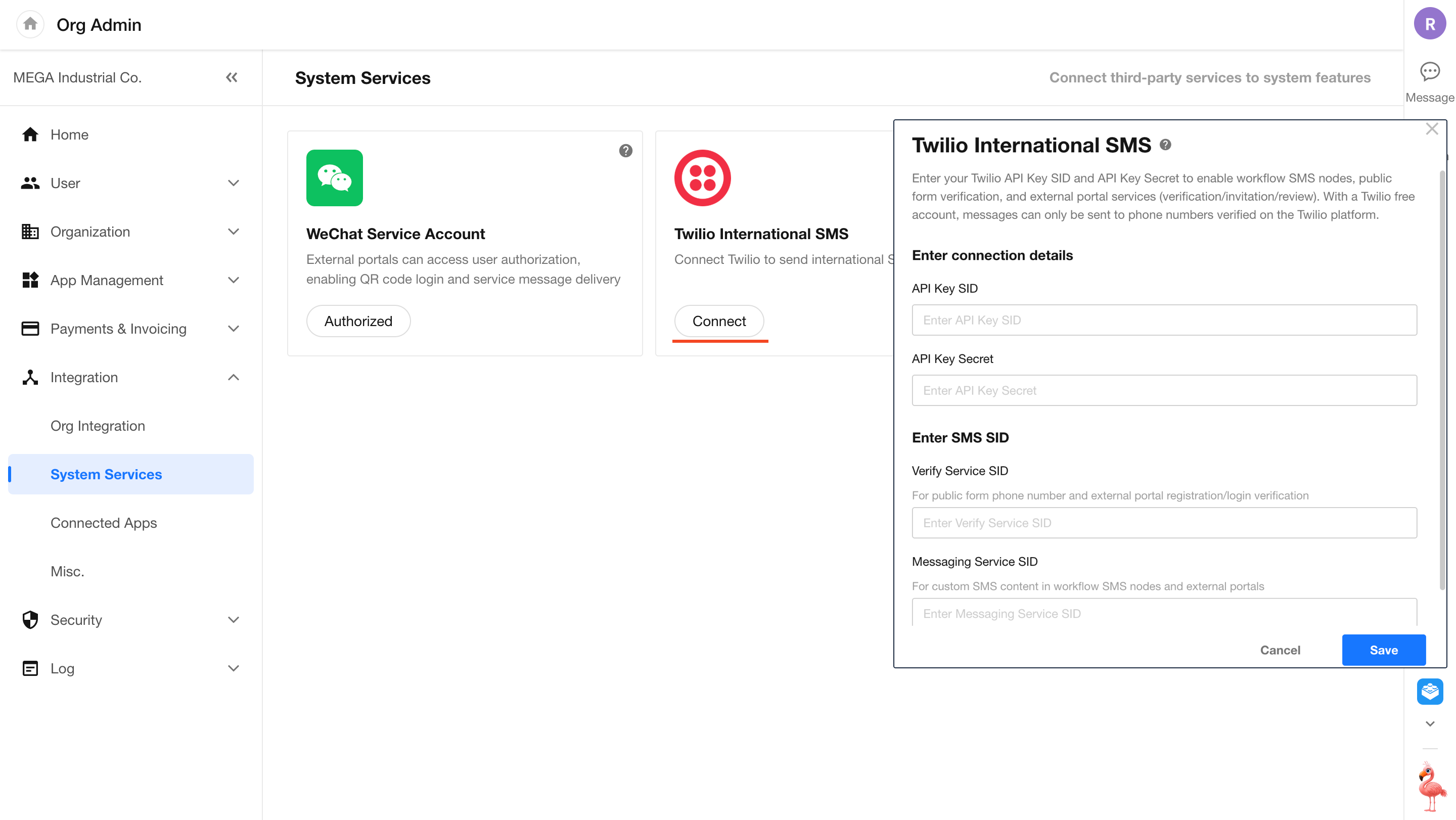
Click Connect on the Twilio International SMS card.
-
Enter the following information and save:
- API Key SID
- API Key Secret
- Verify Service SID
- Messaging Service SID
7. Pricing and Coverage
Billing
SMS charges are billed directly to your Twilio account. HAP does not participate in SMS billing.
Coverage
SMS delivery is supported in most countries and regions worldwide.
8. Troubleshooting International SMS Delivery
If SMS messages cannot be received after configuration is complete, use the following checklist to identify the cause.
Verify the Phone Number Format
- Ensure the phone number is valid and active, and is not a virtual number, blocked number, or restricted number.
- The number must follow the E.164 international format, beginning with
+and including the country code (for example,+852), with no spaces.
Check Country and Carrier Restrictions
- Navigate to Messaging > Settings > Geo Permissions and verify that the destination country is enabled.
- Check whether the destination country requires sender registration (such as A2P or 10DLC). Unregistered senders may be blocked.
Verify Messaging Service Configuration
- Ensure the Messaging Service contains at least one valid sender with Active status.
- Review spam filtering settings. If the filtering level is too strict, try lowering the sensitivity.
Review Twilio SMS Logs
Navigate to Monitor > Logs > SMS Logs and search by phone number or SID.
Common statuses include:
- accepted / sent — The message has been accepted or sent.
- delivered — The carrier has confirmed delivery. If the recipient did not receive the message, check device-side filtering or blocking settings.
- failed — Delivery failed. Review the error code for details, such as:
30003— Rate limit exceeded30004— Invalid phone number30005— Destination restrictions
Check Account Status and Balance
- Verify that the Twilio account status is Active.
- Ensure the account has sufficient balance. Trial accounts have limitations and may not support delivery to certain countries or regions.
Verify Verify Service Configuration (Verification Code Scenarios)
- In Verify > Services, ensure the Senders List includes the sender currently being used and that SMS delivery is enabled for that sender.
- Use the Send Test SMS feature in the Twilio Console to confirm that Twilio can send messages successfully.
Verify HAP Configuration
- Confirm that the Messaging Service SID, API Key SID, and API Secret configured in HAP are correct and do not contain extra spaces.
- Ensure the target phone number is not hardcoded as a test number in custom integrations or code logic.
Contact Support
If the issue persists after completing all troubleshooting steps, submit a support request through the official Twilio Support Center:
Was this document helpful?