OAuth Applications
What Is an OAuth Application
An OAuth application allows users to securely authorize third-party applications to access their HAP data.
When a third-party application needs to access HAP data, users do not need to share their account passwords or long-term credentials. Instead, they can confirm the requested permissions through the HAP authorization page. After authorization is completed, the third-party application can access or perform operations on HAP data on behalf of the user within the authorized scope.
For example, after connecting HAP with an external tool, users can authorize the tool to:
- Query data in HAP
- Create records
- Update records
- Call authorized HAP APIs
The entire authorization process is based on OAuth 2.0. HAP issues an Access Token to the third-party application. The application uses the token to call APIs without requiring the user's HAP password.
OAuth applications are designed to solve the problem of how third-party applications can securely call HAP APIs on behalf of HAP users.
Permission Control
Access permissions for OAuth applications are jointly controlled by organization administrators and authorized users.
- Organization administrators: Control whether a third-party application can be connected, and define the APIs, applications, or worksheets that the application can access.
- Users: Decide whether to authorize their HAP accounts for the third-party application and can revoke authorization at any time.
Therefore, even after a third-party application is connected to HAP, it must still obtain individual user authorization before it can call HAP APIs on behalf of that user.
Manage OAuth Applications as an Organization Administrator
Access OAuth Applications
Organization administrators can go to the organization management console and select Integration > OAuth Application to view and manage official integration applications connected to HAP.
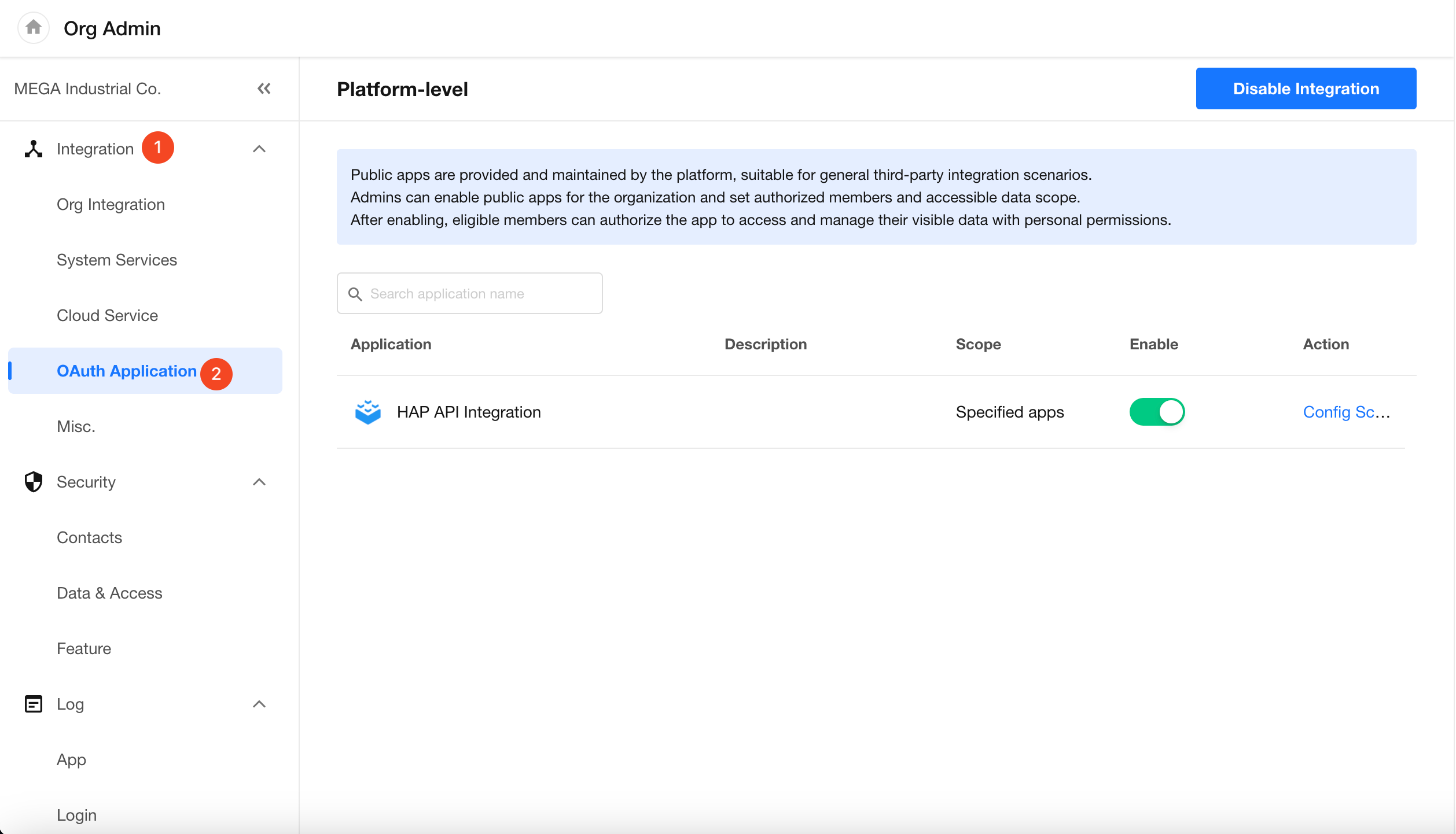
HAP will gradually support integrations with external platforms such as ChatGPT, Codex, and Claude Code, allowing these platforms to connect to HAP through OAuth authorization.
Configure Access Scope
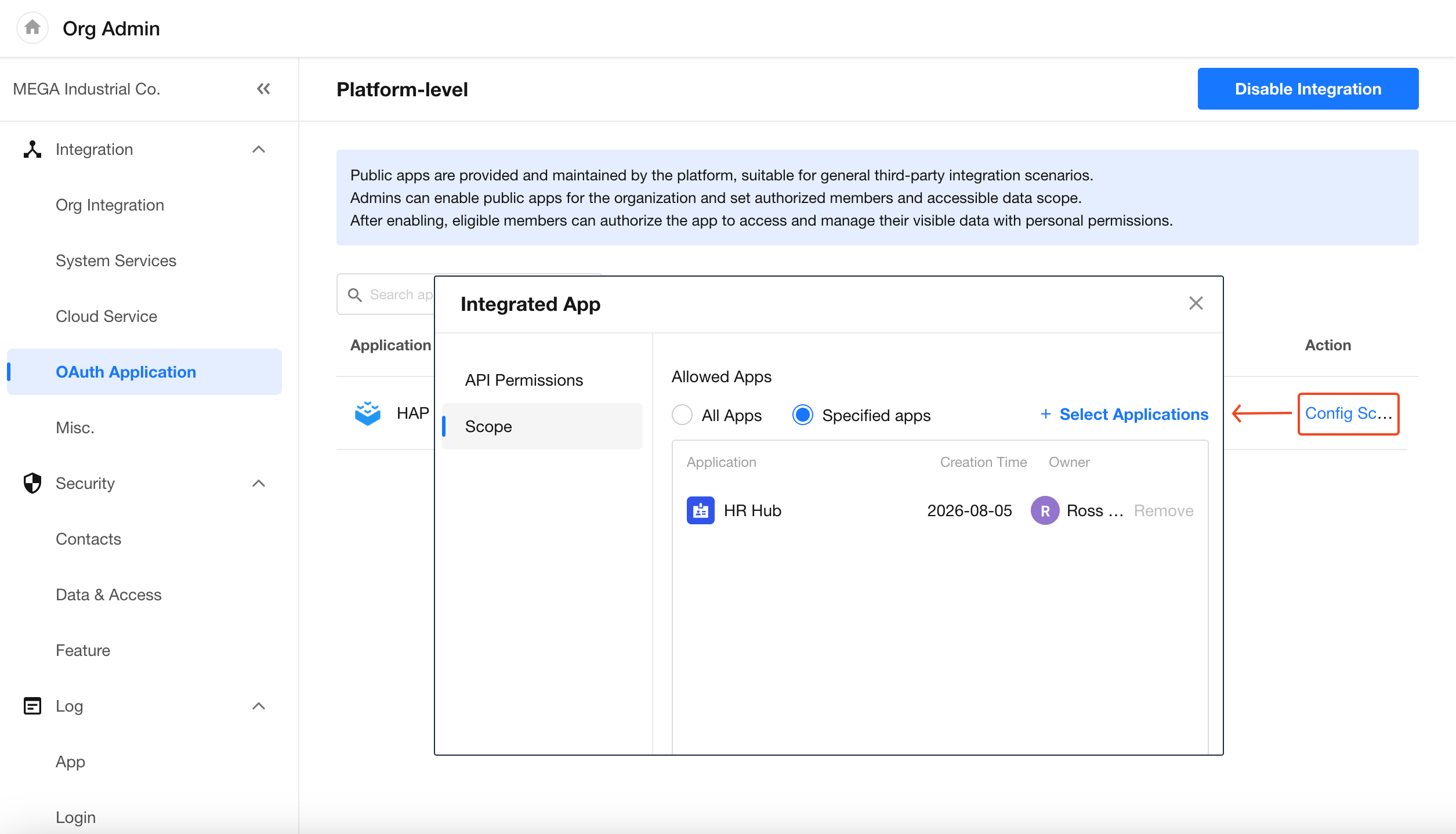
Organization administrators can restrict the access scope of third-party applications.
The access scope includes:
- API Permissions: View or restrict the API capabilities available to the application, such as reading or writing data.
- Application Scope: Specify which applications or worksheets in the organization the application can access.
These settings help prevent third-party applications from obtaining unnecessary data access permissions.
Enable or Disable Integrations
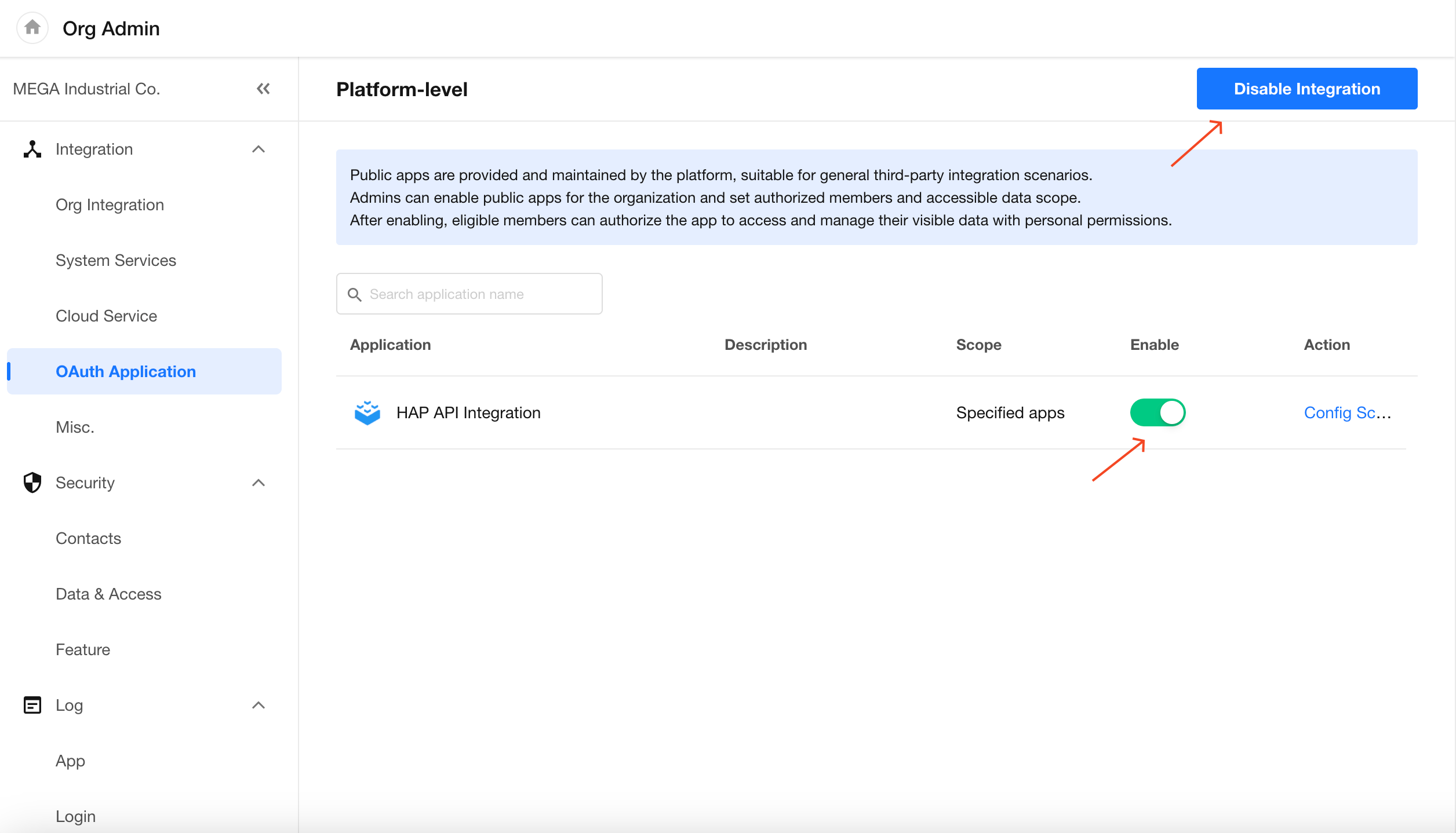
Organization administrators can manage the enabled status of OAuth applications.
When an application is disabled:
- Existing Access Tokens become invalid immediately.
- The connection status of authorized users becomes inactive.
- Refresh Tokens can no longer be exchanged for new Access Tokens.
- New users can no longer authorize the application.
- Historical authorization records remain in users' personal accounts, but the third-party application can no longer access HAP data.
To disable access for all OAuth applications in the organization, click Disable Integration in the upper-right corner of the page. After disabling, all OAuth applications will be unavailable.
Authorize Third-Party Applications
When a third-party application needs to connect to HAP, users are redirected to the HAP authorization page.
The authorization process usually includes the following steps:
-
Start Connection
Select the option to connect HAP or add a HAP account in the third-party application.
-
Sign in to HAP
If you are not currently signed in to HAP, complete the sign-in process first.
-
Confirm Authorization
HAP displays the permissions requested by the third-party application. Review the permissions and click Authorize.
-
Complete Connection
After authorization is successful, the third-party application can call HAP APIs on behalf of the current user within the authorized scope.
Authorization only grants the third-party application access to HAP. Your HAP account password is never shared with the third-party application.
Example: HAP API (Personal Authorization)
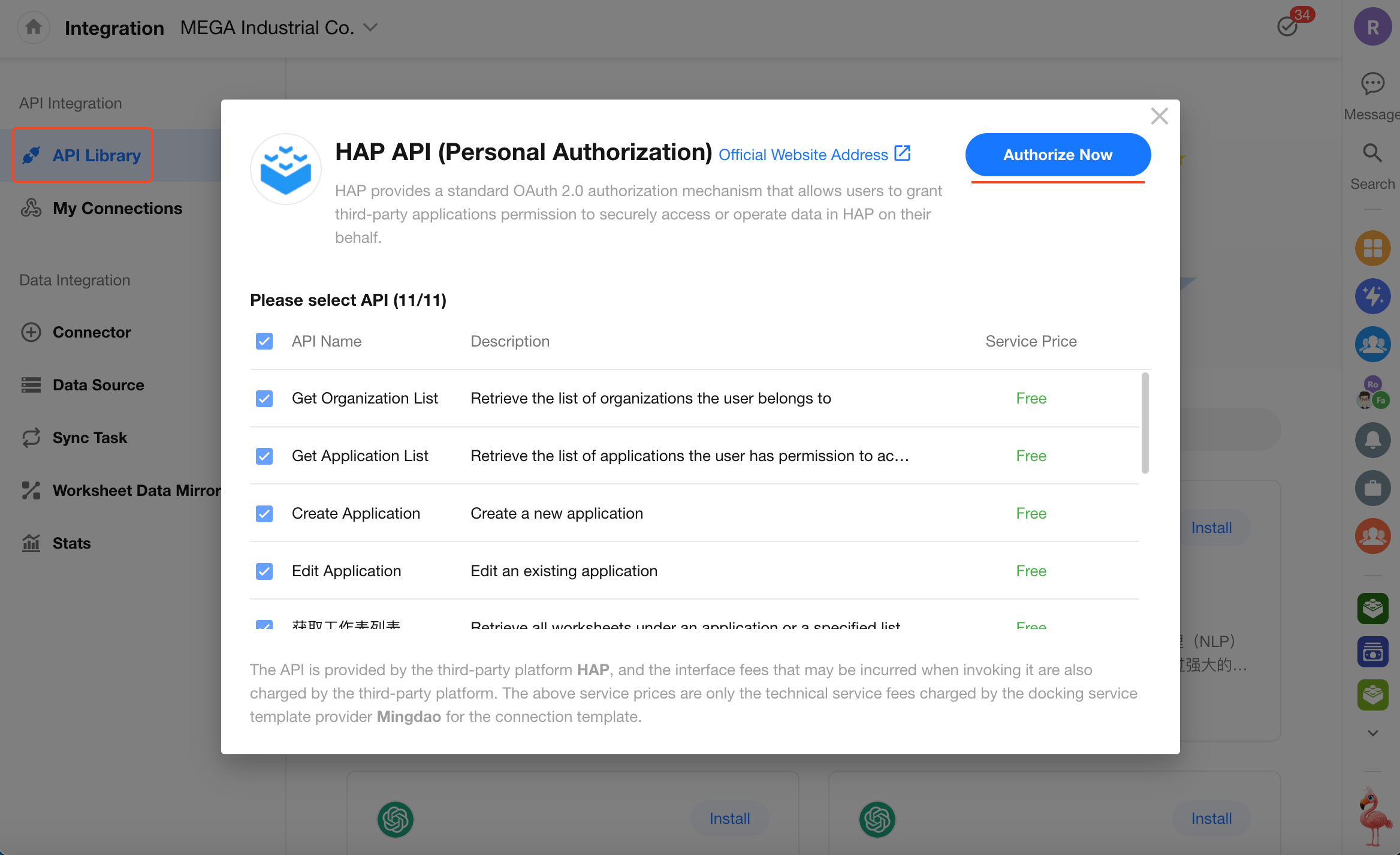
The HAP API (Personal Authorization) integration provided in the Integration Center is designed for scenarios where external tools need to call APIs using the current HAP user's identity.
-
Install the API Template
-
Add an Account
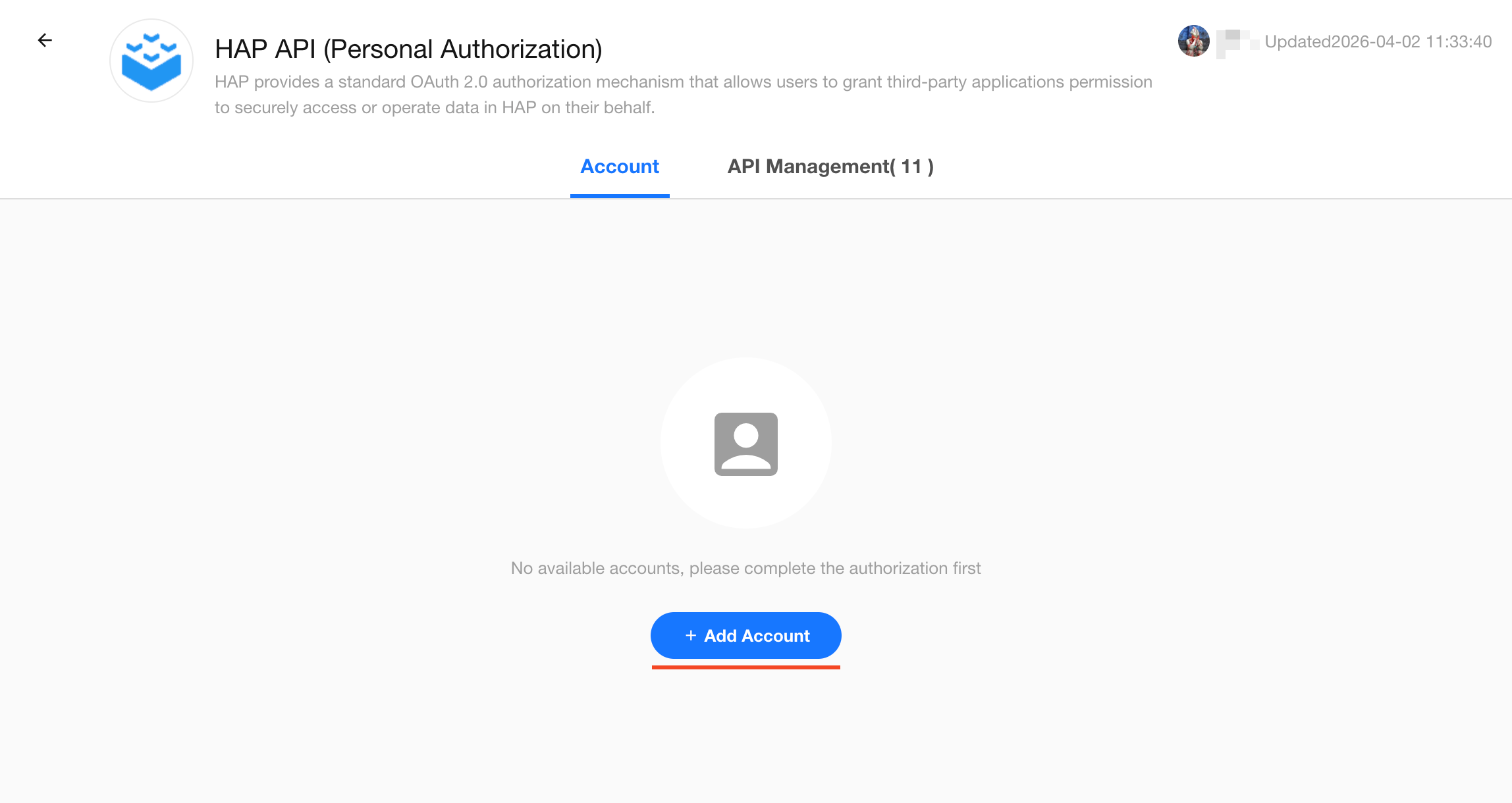
-
Authorize
After the system redirects you to the HAP authorization page, review the requested permissions and complete authorization.
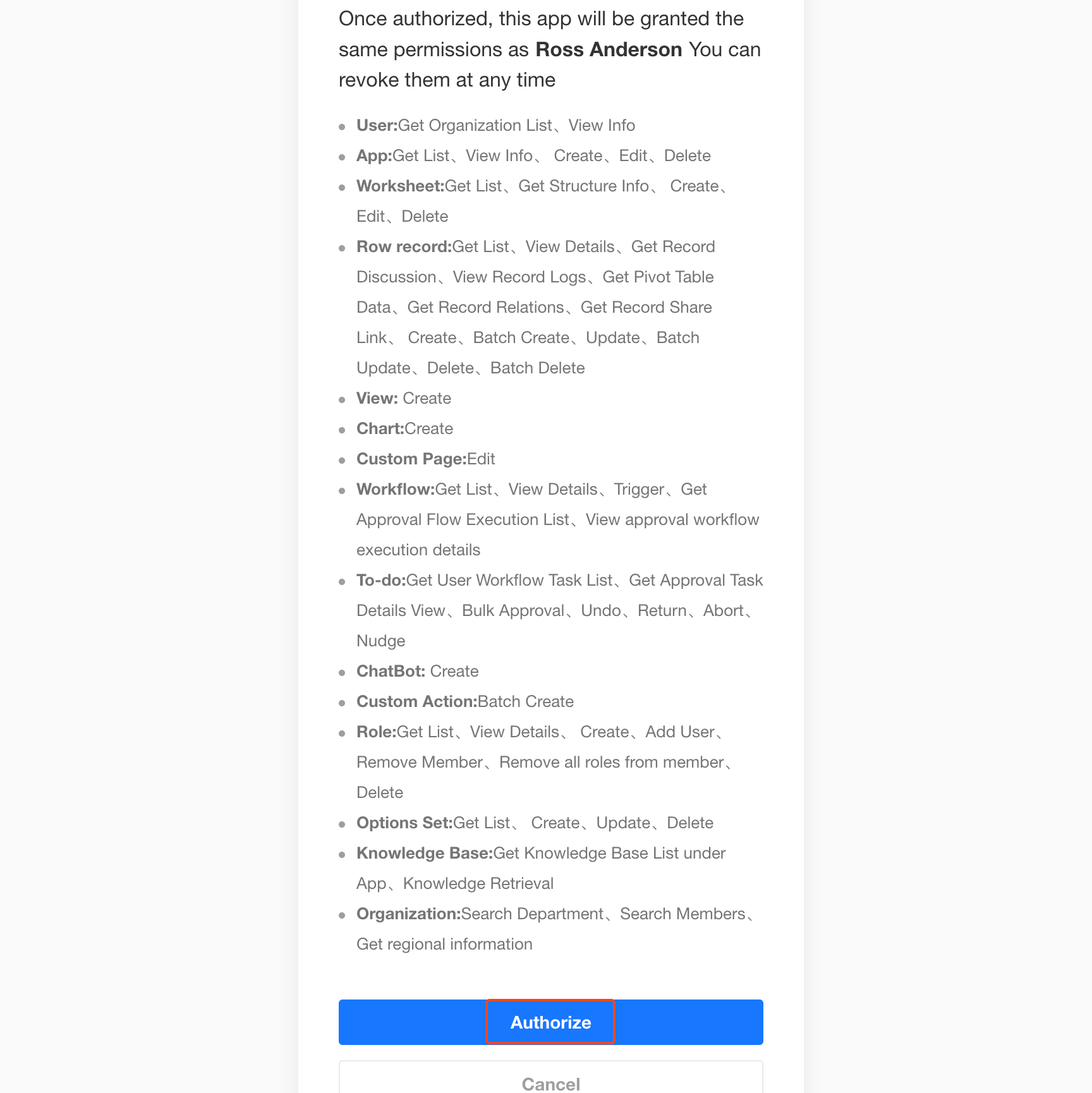
After successful authorization, the third-party application can use this account to call the authorized HAP APIs.
View and Revoke Third-Party App Access
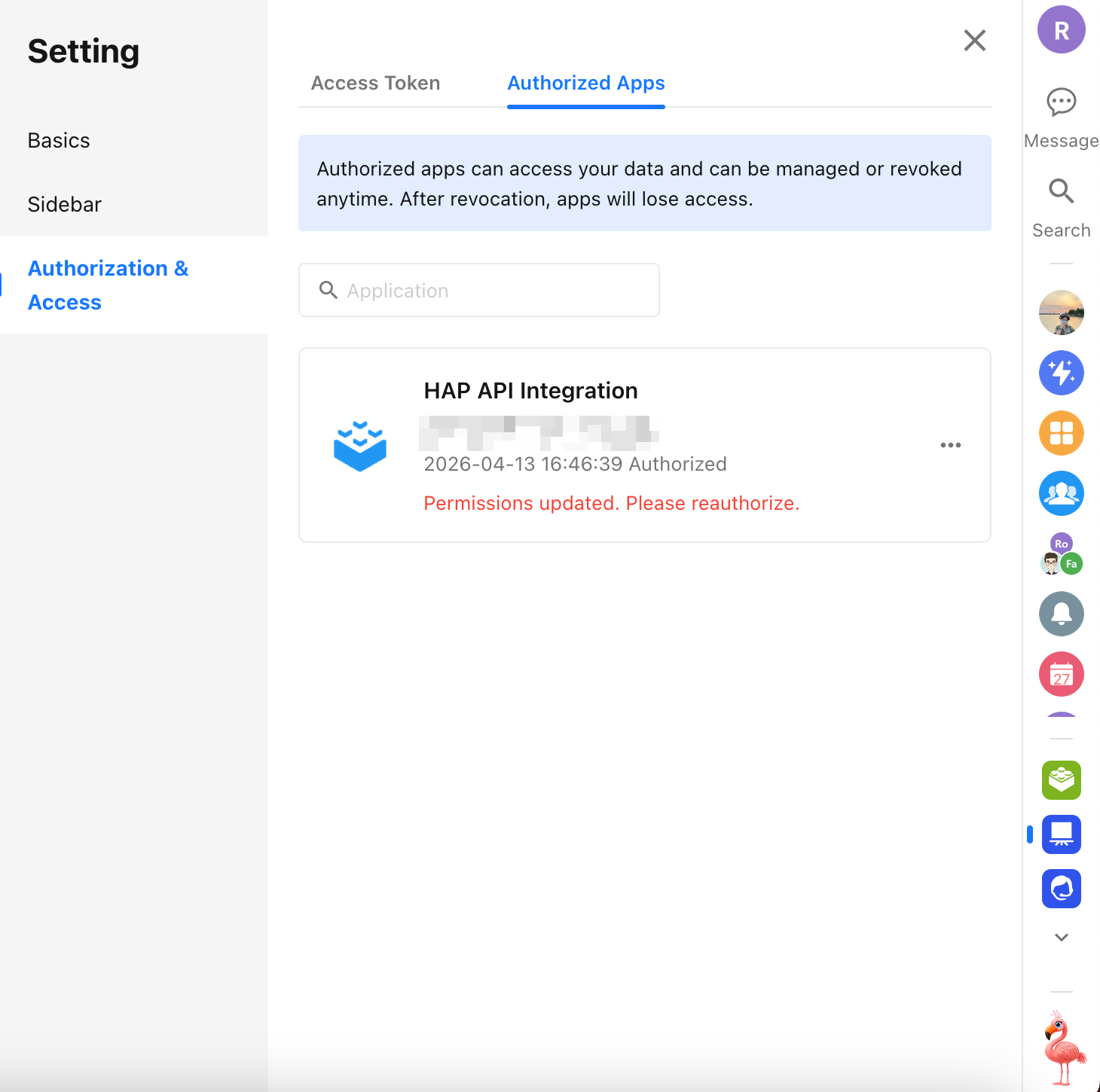
Click your profile picture, then go to Authorization & Access > Authorized Apps to view the third-party apps that currently have access to your HAP account.
If you no longer want an app to access HAP, you can revoke its access at any time.
Once access is revoked, the app can no longer access HAP data on your behalf.
Was this document helpful?