Cloud Services
Overview
Cloud Services enables HAP Server to access service capabilities provided by HAP SaaS.
Currently, Cloud Services supports AI Model Services only. After configuring a Cloud Service key in HAP Server, users can access AI models provided by HAP SaaS.
Usage fees generated from AI model calls are deducted from the credits of the HAP SaaS organization associated with the key. No separate billing is required for HAP Server.
Cloud Services is designed for the following scenarios:
- HAP Server needs to use AI models provided by HAP SaaS.
- Enterprises need to centrally manage Cloud Service keys and credit usage in HAP SaaS.
- Enterprises need to control HAP Server access permissions through keys and IP allowlists.
Cloud Services workflow:
- The HAP SaaS organization administrator creates a Cloud Service key.
- The HAP Server administrator configures the key in HAP Server.
- The system verifies the key and initializes the AI Model Service.
- HAP Server users use AI models in supported features.
- HAP SaaS processes model requests and deducts credits.
Cloud Service fees are deducted from the HAP SaaS organization that created the key.
HAP SaaS: Manage Cloud Service Keys
Requirements
Cloud Service keys are available in all HAP SaaS editions.
Free edition organizations must complete enterprise verification before creating keys.
Create a Key
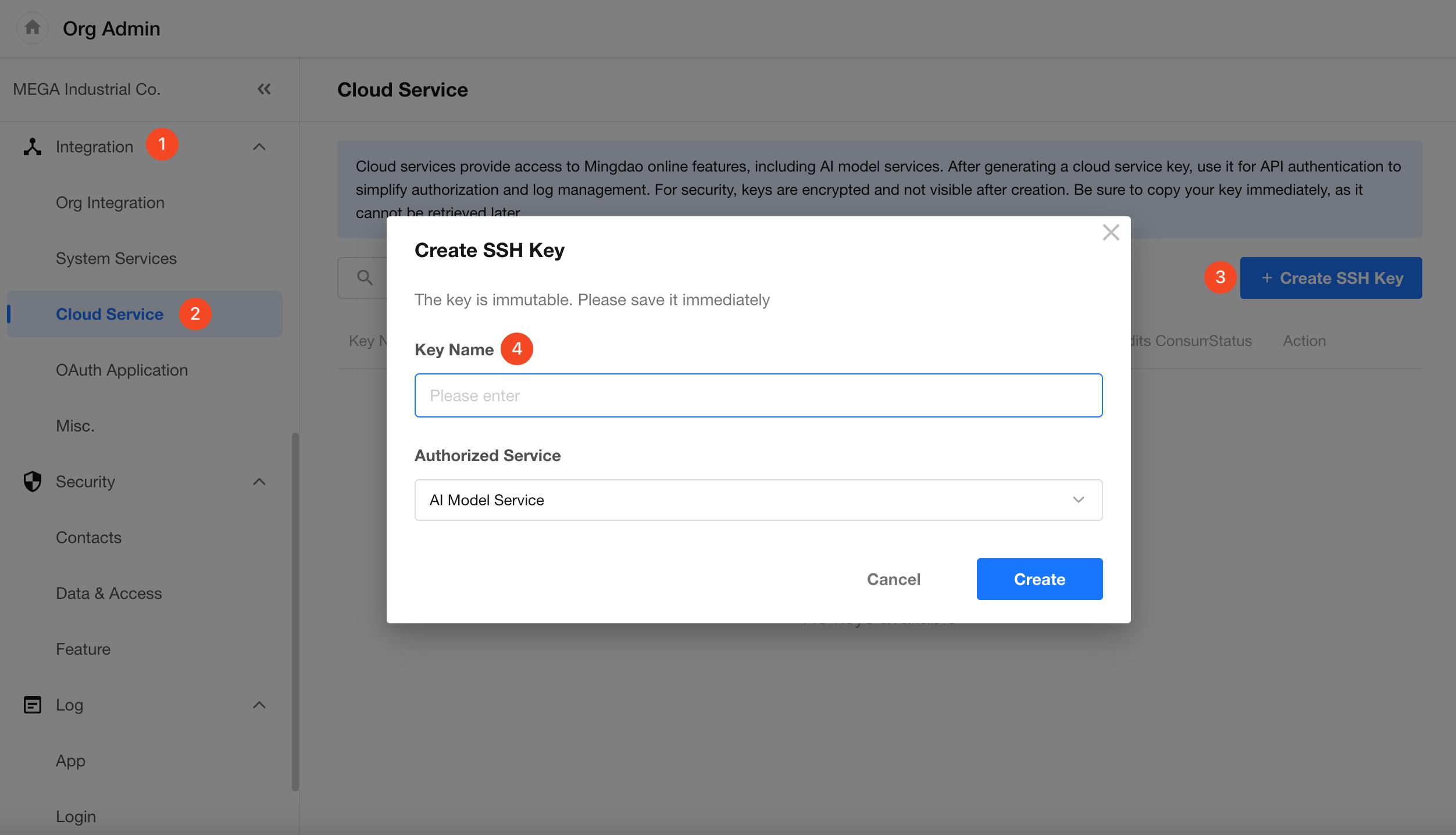
Organization administrators can go to Org Admin > Integration > Cloud Service and click Create SSH Key.
Configure the following information:
- Key Name: Required. Used to identify the environment or purpose of the key.
- Authorized Service: Currently supports AI Model Service only and cannot be modified.
Click Create. The system generates the key and provides a copy option.
Copy the key and provide it to the HAP Server administrator for configuration.
Copy and securely store the key immediately after creation. The complete key cannot be viewed again after closing this page.
Configure IP Allowlist
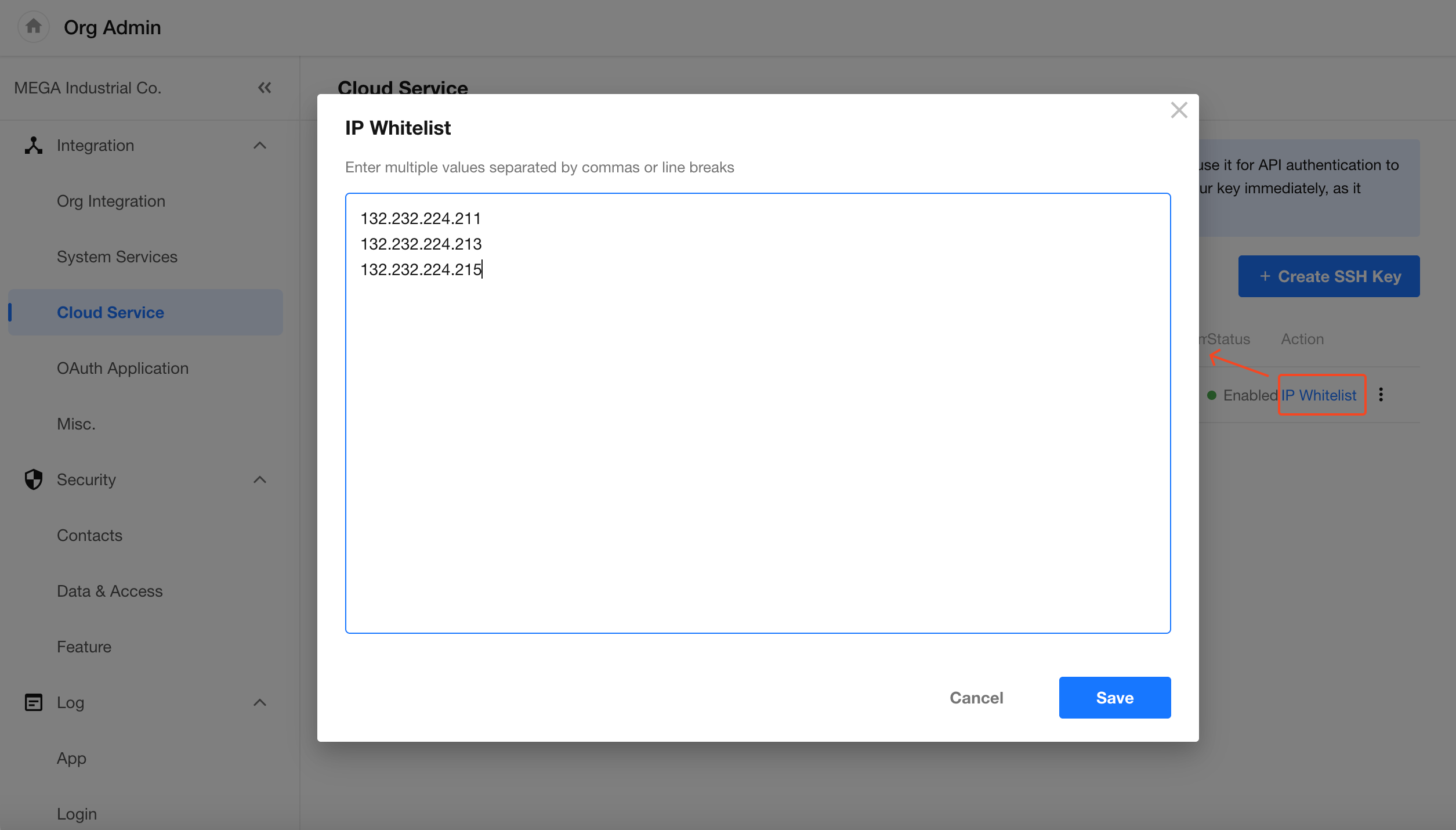
In the key list, click IP Whitelist for the corresponding key to configure the IP addresses allowed to access Cloud Services.
- A single key can contain multiple IP addresses and can be updated later.
- Multiple IP addresses can be entered on separate lines or separated by commas.
- After configuration, only requests from IP addresses included in the allowlist can use the key to access Cloud Services.
View and Manage Keys
The key list displays the following information:
| Field | Description |
|---|---|
| Key Name | The custom name of the key. Supports editing. |
| Key | The encrypted key information. |
| Authorized Service | The service that can be accessed through the key. Currently supports AI Model Service only. |
| Last Used Time | The most recent time when the key was used. |
| Credit Usage | Total credits consumed through the key. |
| Status | Whether the key is enabled or disabled. |
| Actions | Manage IP allowlist, edit, enable, disable, and delete the key. |
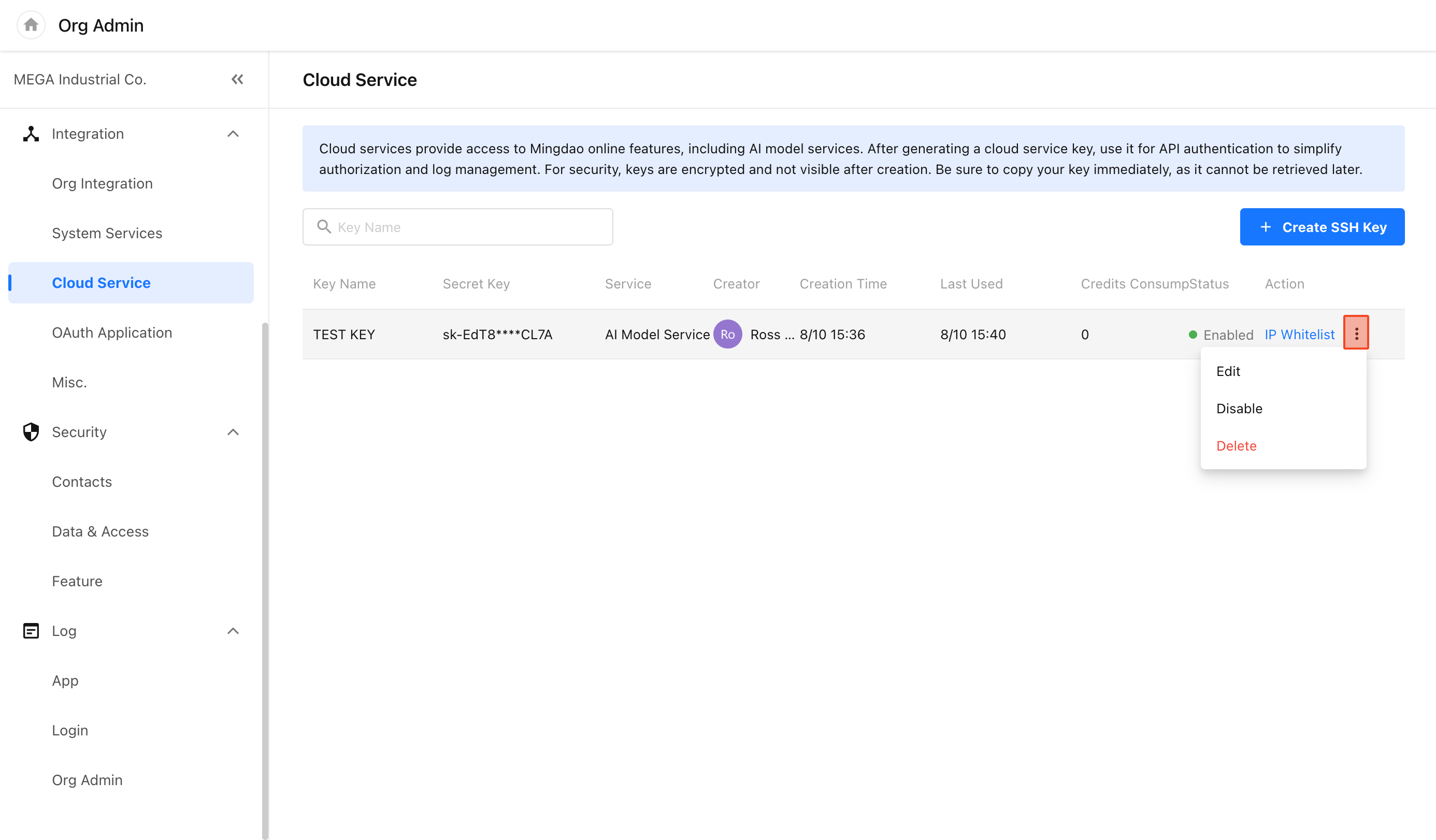
Enable, Disable, and Delete Keys
A HAP SaaS organization can create multiple Cloud Service keys.
- Enable: Allows HAP Server to use the key to access Cloud Services.
- Disable: Temporarily suspends access through the key. The key can be enabled again later.
- Delete: Deletes the key. The key can no longer be used after deletion.
After a key is disabled or deleted, HAP Server instances configured with this key can no longer access Cloud Services.
HAP Server: Cloud Service Access
The Community Edition and Application Platform Core of HAP Server do not support Cloud Service access.
Configure a Key
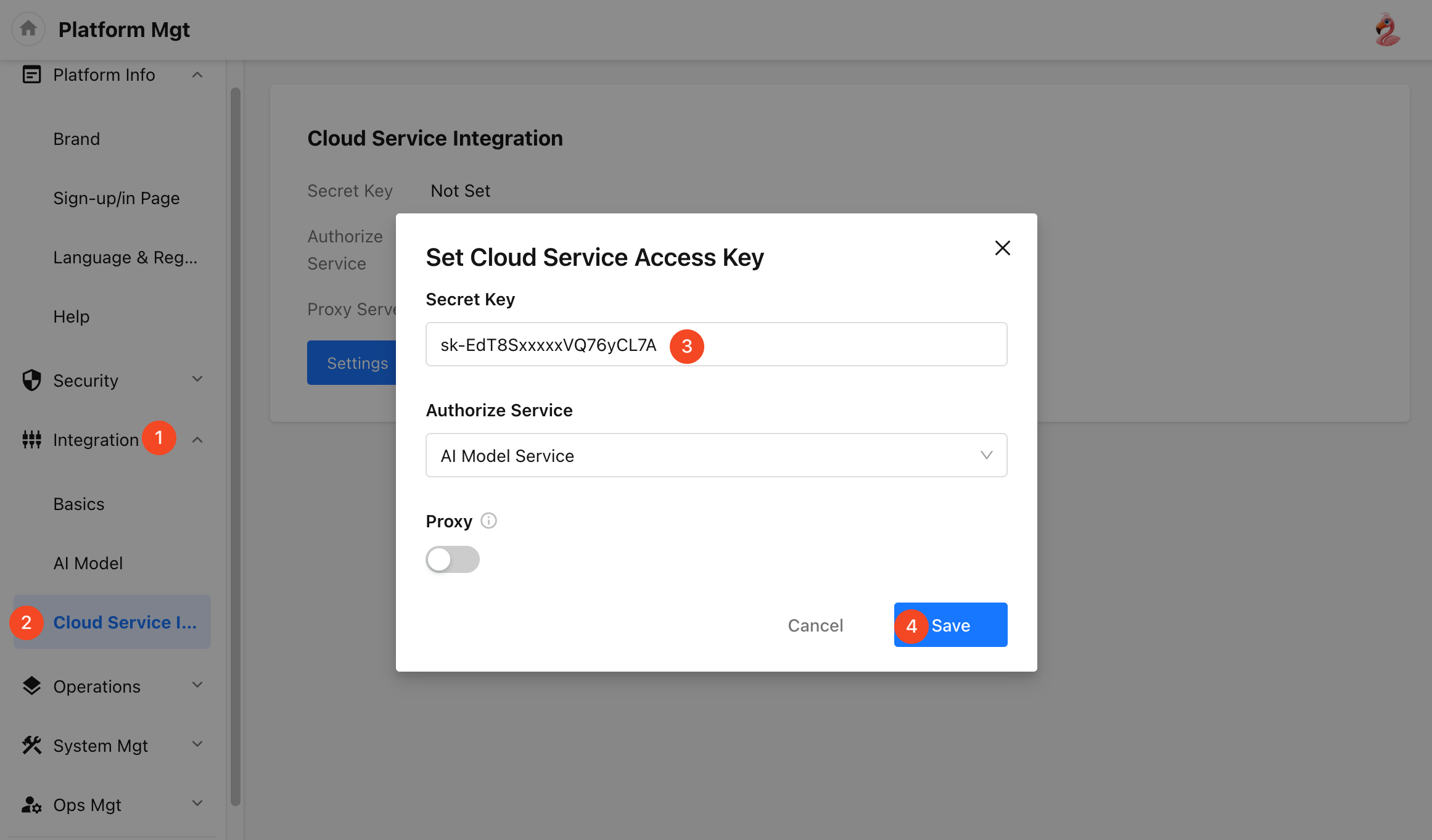
Configuration steps:
- The HAP Server administrator clicks the profile icon and goes to Platform Management > Integration > Cloud Service Integration.
- Enter the Cloud Service key provided by the HAP SaaS organization administrator.
- Configure proxy settings based on the network environment of HAP Server.
- Save the configuration.
The following rules apply:
-
Each HAP Server environment can configure only one Cloud Service key.
-
The proxy settings configured here apply to all Cloud Services. You do not need to configure proxies separately for individual features.
-
If the services included in the key change, update the key in HAP Server before using newly added services.
Update the Key
When replacing a key or updating the services included in the key, enter the new key on the Cloud Service Integration page and save the configuration.
After the new key is successfully verified, HAP Server uses the new key to access Cloud Services.
AI Model Initialization
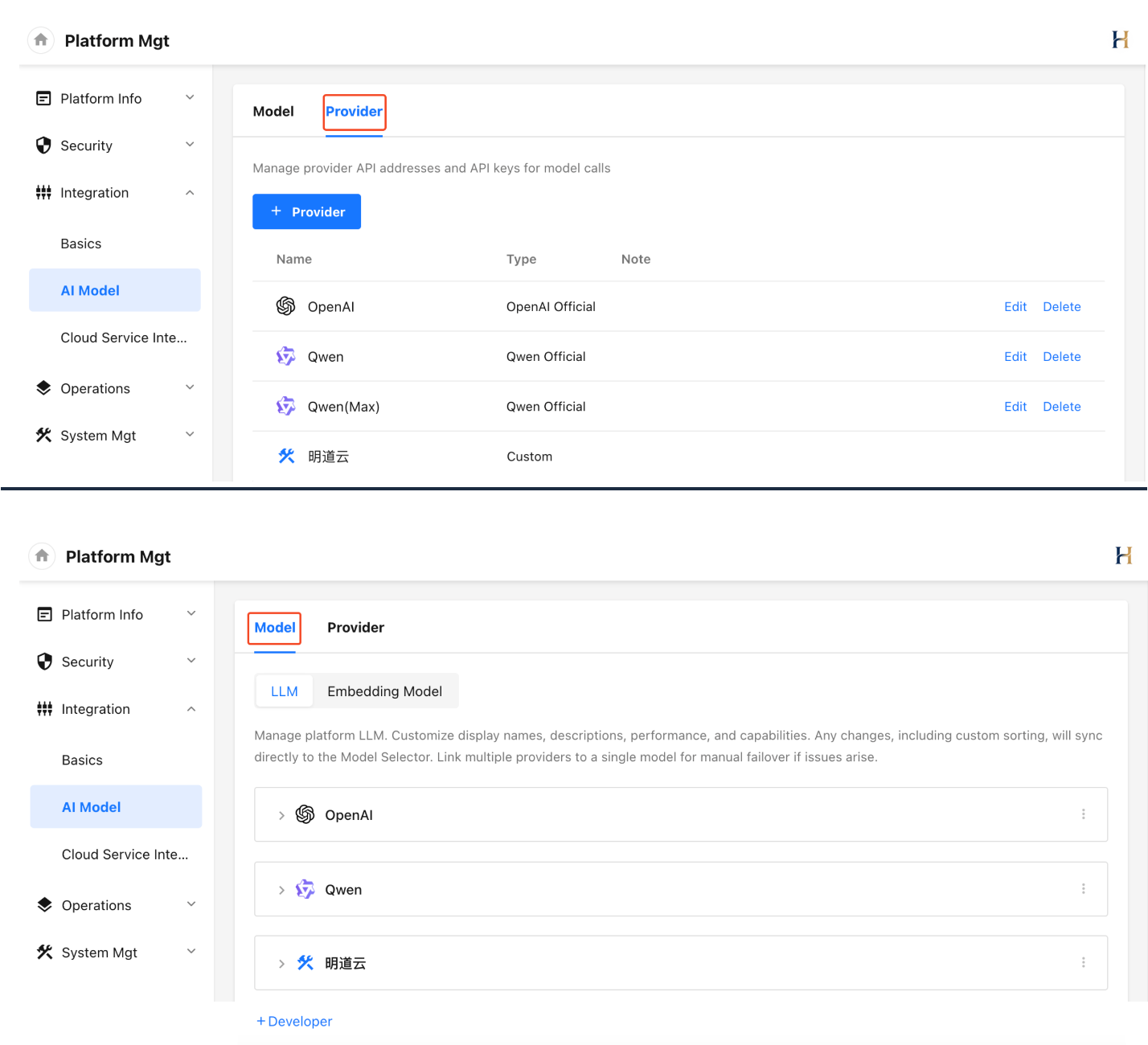
After the Cloud Service key is successfully verified, HAP Server automatically creates the [明道云] provider and the currently supported AI models.
Automatically created providers and models follow these rules:
- Cannot be edited or deleted.
- Are displayed at the end of the provider and model lists by default.
- Support hiding or displaying.
- Model synchronization does not synchronize model ordering.
- Model synchronization does not change the current visibility status of models.
Use AI Model Services
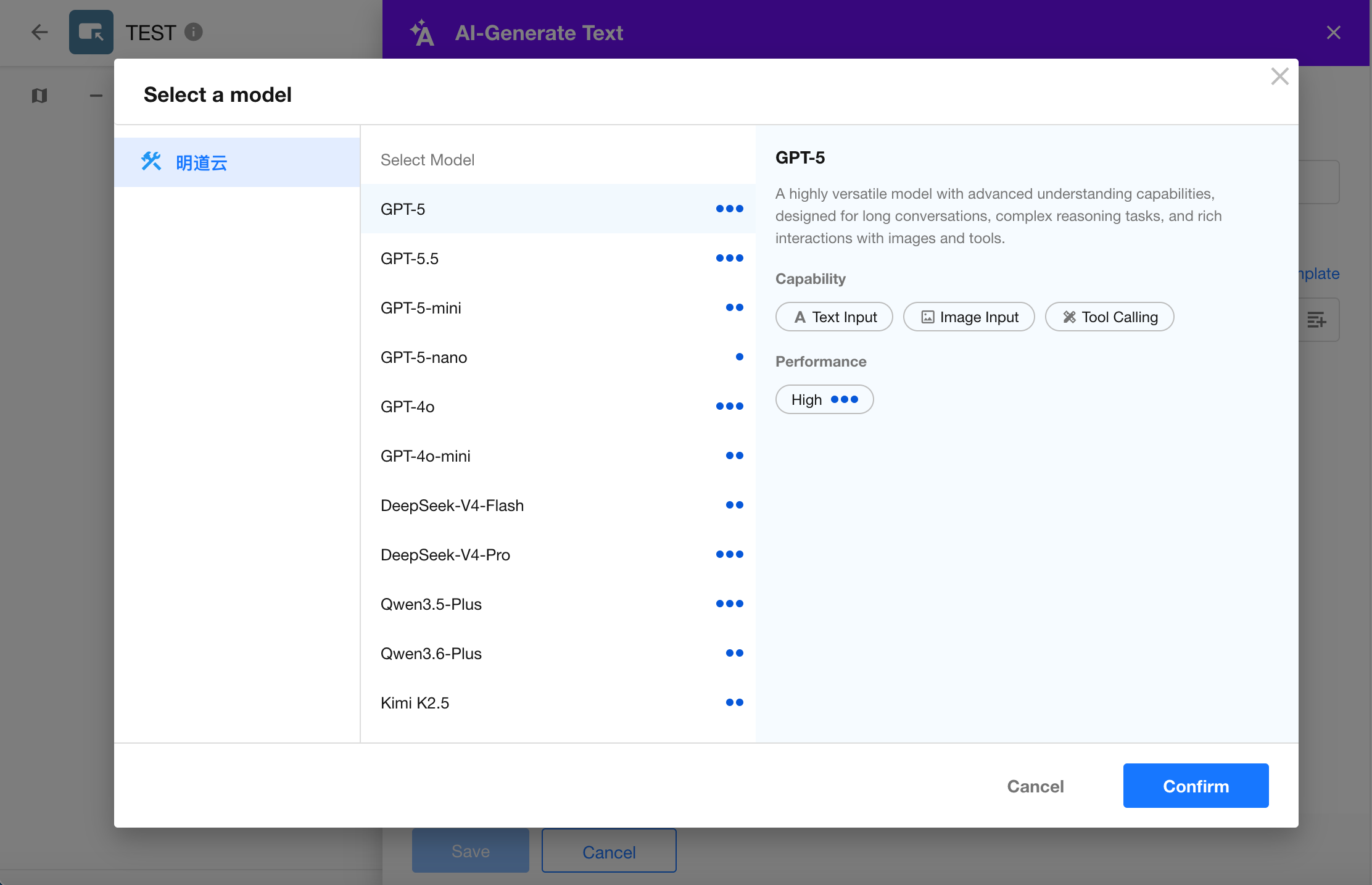
After configuration is complete, you can use Mingdao AI models in features that support AI model selection.
For example, select an AI model in the AIGC node of a workflow:
Usage and Billing
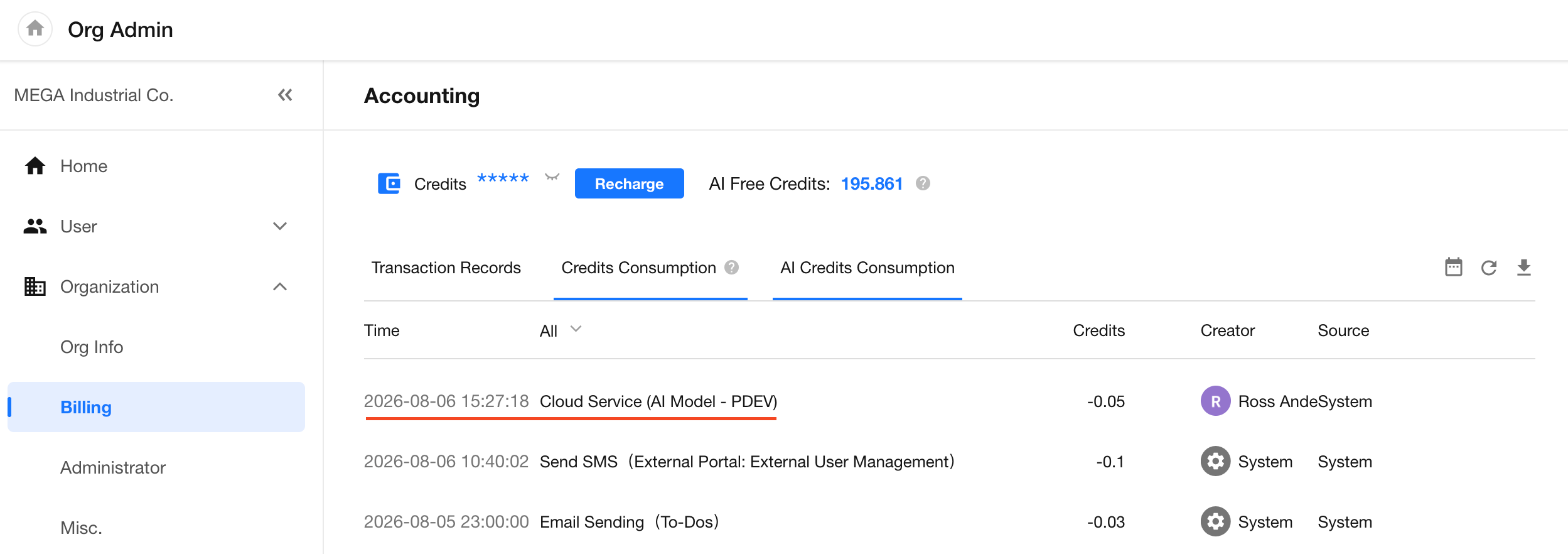
When HAP Server calls AI models, HAP SaaS calculates usage fees based on actual Token consumption and deducts credits from the HAP SaaS organization associated with the Cloud Service key.
Log in to HAP SaaS and go to the billing section in the organization management console to view Cloud Service usage details.
Cloud Service charges are displayed as:
Cloud Service (AI Model - Key Name)
The key name helps identify credit usage generated by different keys.
Cloud Service requests may be blocked in the following situations:
- The HAP SaaS organization does not have sufficient credits.
- The service quota limit has been exceeded.
- The key has been disabled or deleted.
- The request IP address is not included in the key's IP allowlist.
- The request triggers Cloud Service security control rules.
Was this document helpful?