Print Limits and Print Count Tracking
Print limits and print count tracking allow users to track how many times each record has been printed and set a print limit for individual print templates. Once a print limit is enabled, a record can no longer be printed using that template after the limit is reached.
Edition availability: This feature is available in the Professional edition and above. It supports system printing, Word/Excel template printing, QR code/barcode printing, and cloud printing.
Track Print Count
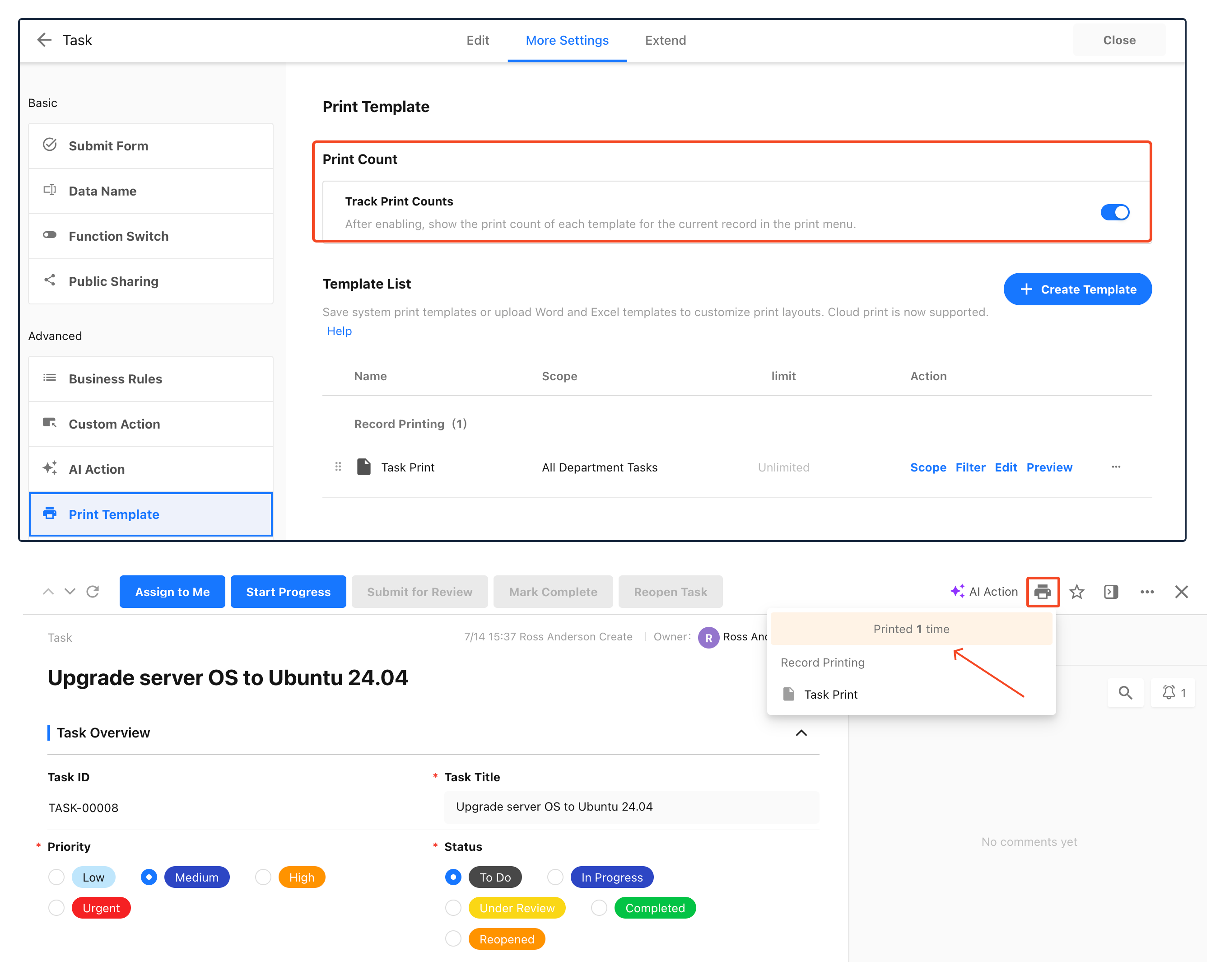
Path: Edit Form > More Settings > Print Template, then enable Track Print Count.
Result: After Track Print Count is enabled, the print option on the record details page displays the number of times the current record has been printed.
The system records the print count regardless of whether Track Print Count is enabled.
Set a Print Limit for a Template
Print limits are configured separately for each print template.
To set a print limit:
-
Go to the Print Template management page and locate the template you want to configure.
-
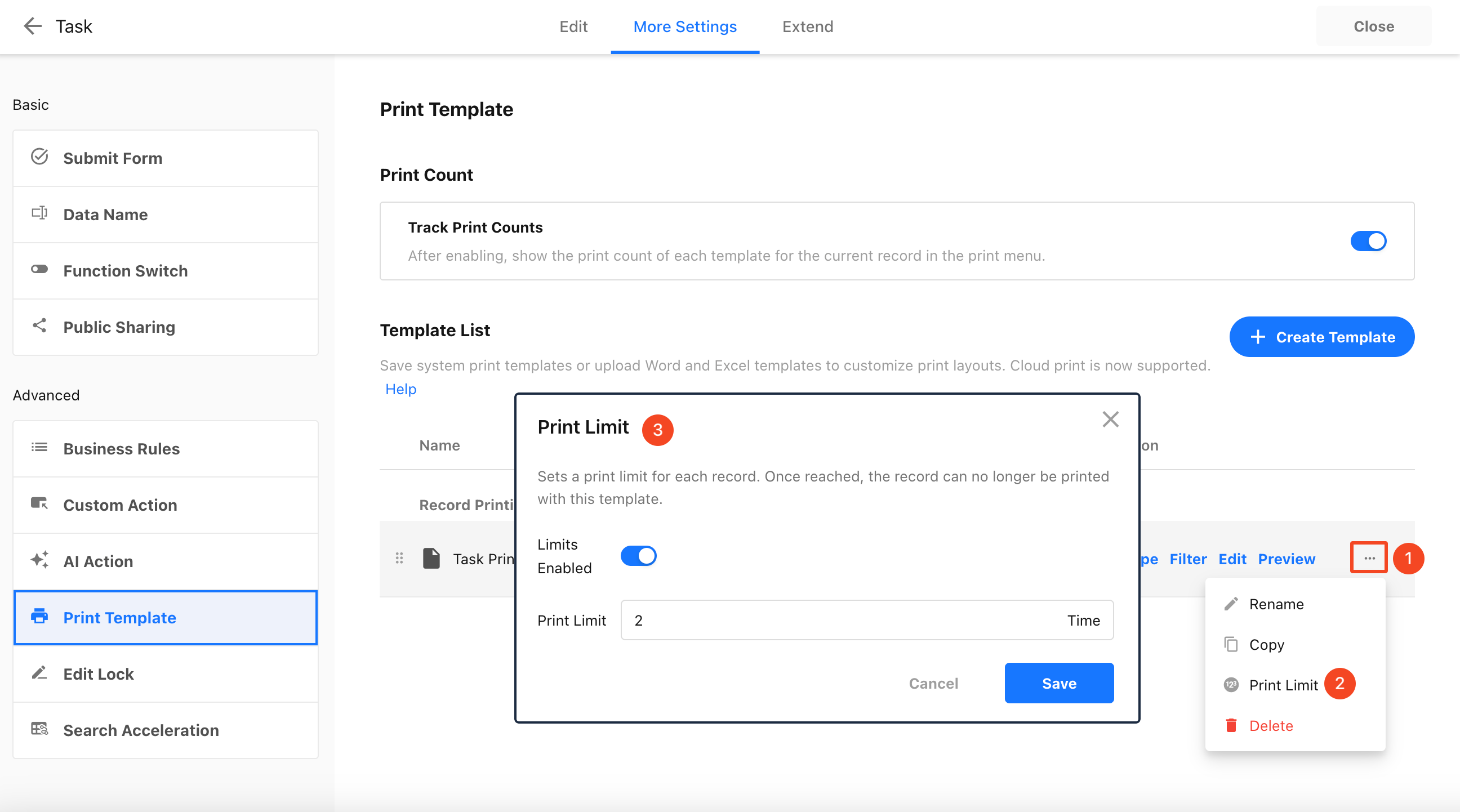
Click the ... (More) button next to the template and select Print Limit.
-
In the Print Limit window, turn on Limits Enable and specify the maximum number of times each record can be printed using this template.
-
Click Save to apply the settings.
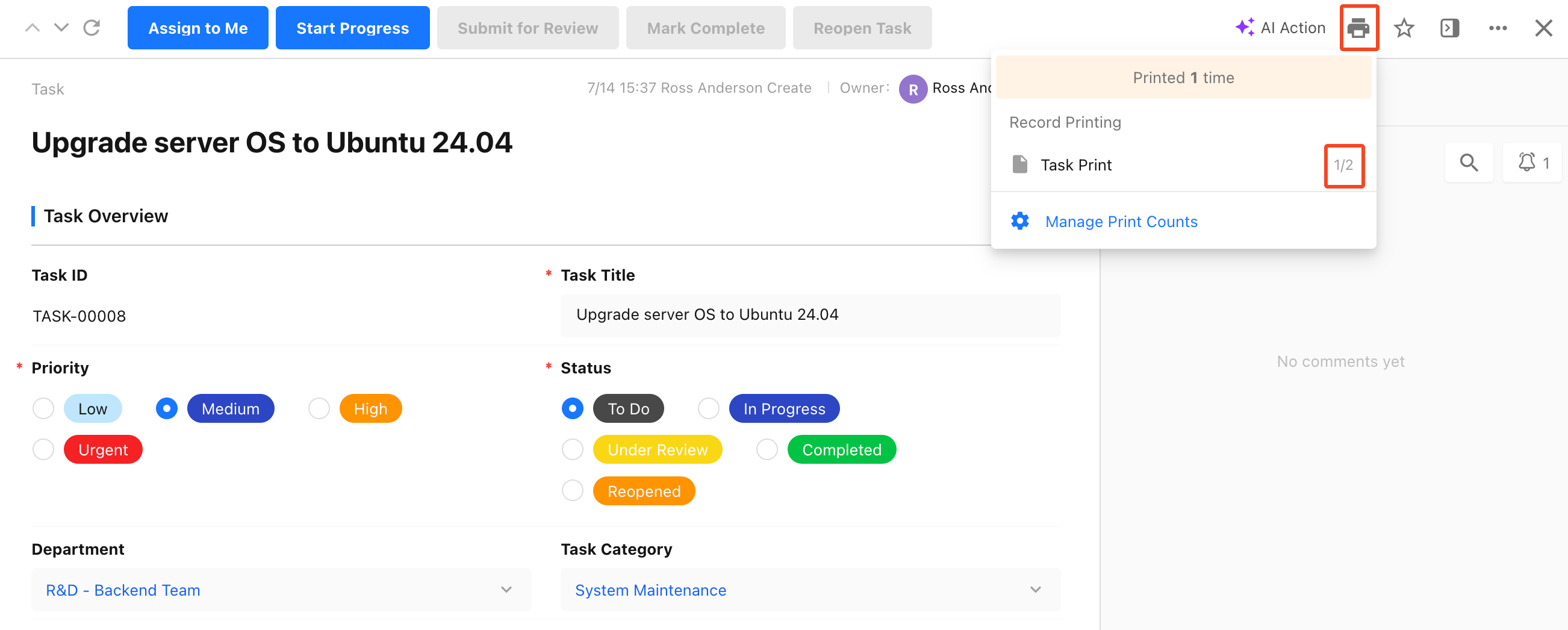
Once configured, the print limit is displayed in the Print Limit column of the template list and in the print drop-down menu on the record details page.
Remove a Print Limit
To remove the print limit for a template, open the Print Limit window, turn off Enable Limit, and confirm the change.
After the limit is disabled, the template is no longer subject to a print limit. The accumulated print count is retained and will continue to apply if the limit is enabled again.
When the Print Limit Is Reached
-
Printing a single record: When a template reaches its print limit for the record, the print button is disabled.
-
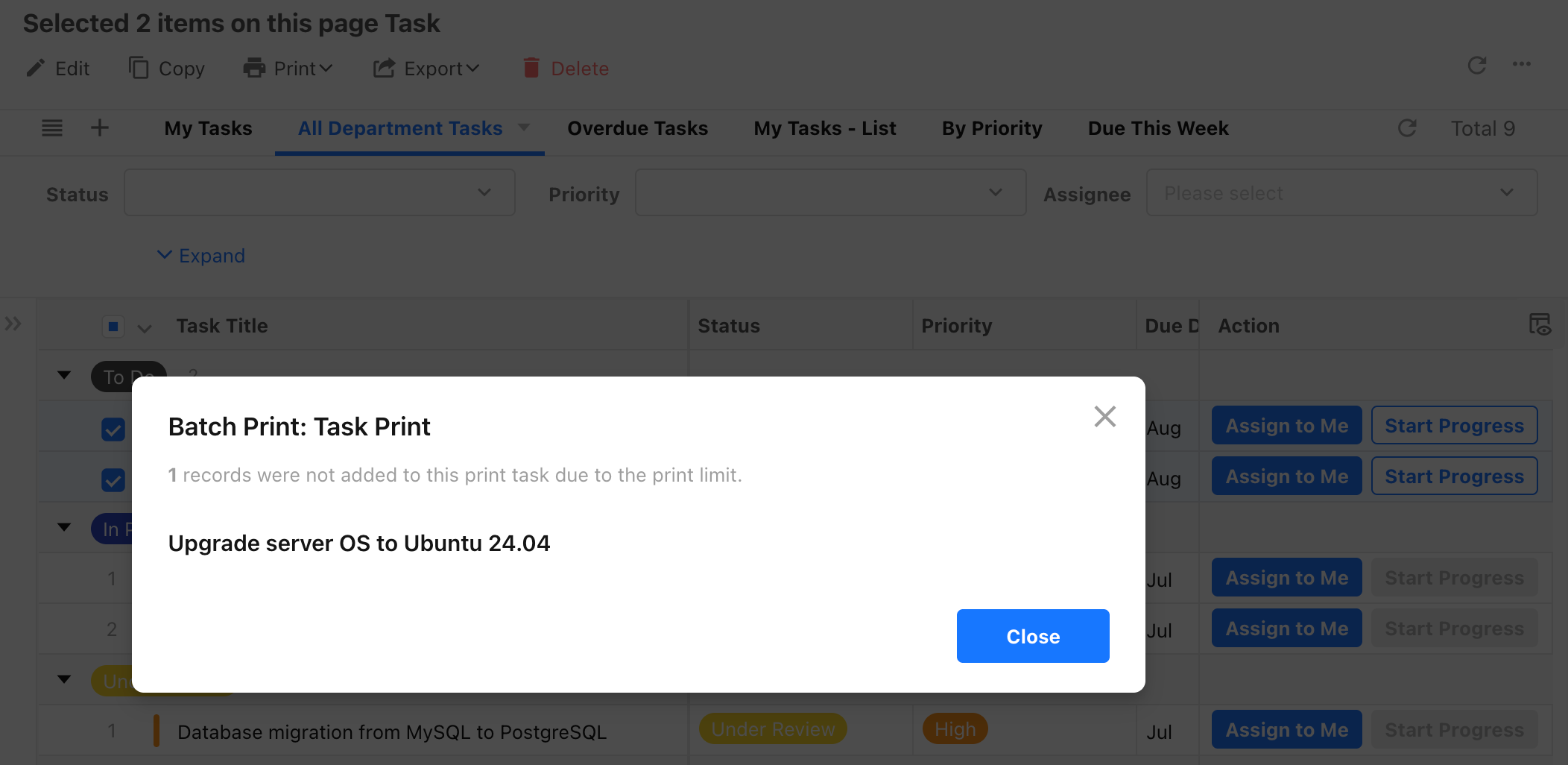
Printing multiple records: The system automatically skips records that have reached the print limit and continues printing the remaining records. If any records are skipped because they have reached the limit, the system displays the skipped records.
Note: Reaching the print limit for one template only prevents the record from being printed using that template. Other templates that have not reached their limits can still be used to print the record.
Reset the Print Count (App Administrators)
If a record was printed by mistake or additional copies need to be printed in special circumstances, an app administrator can reset the print count for a specific template and record.
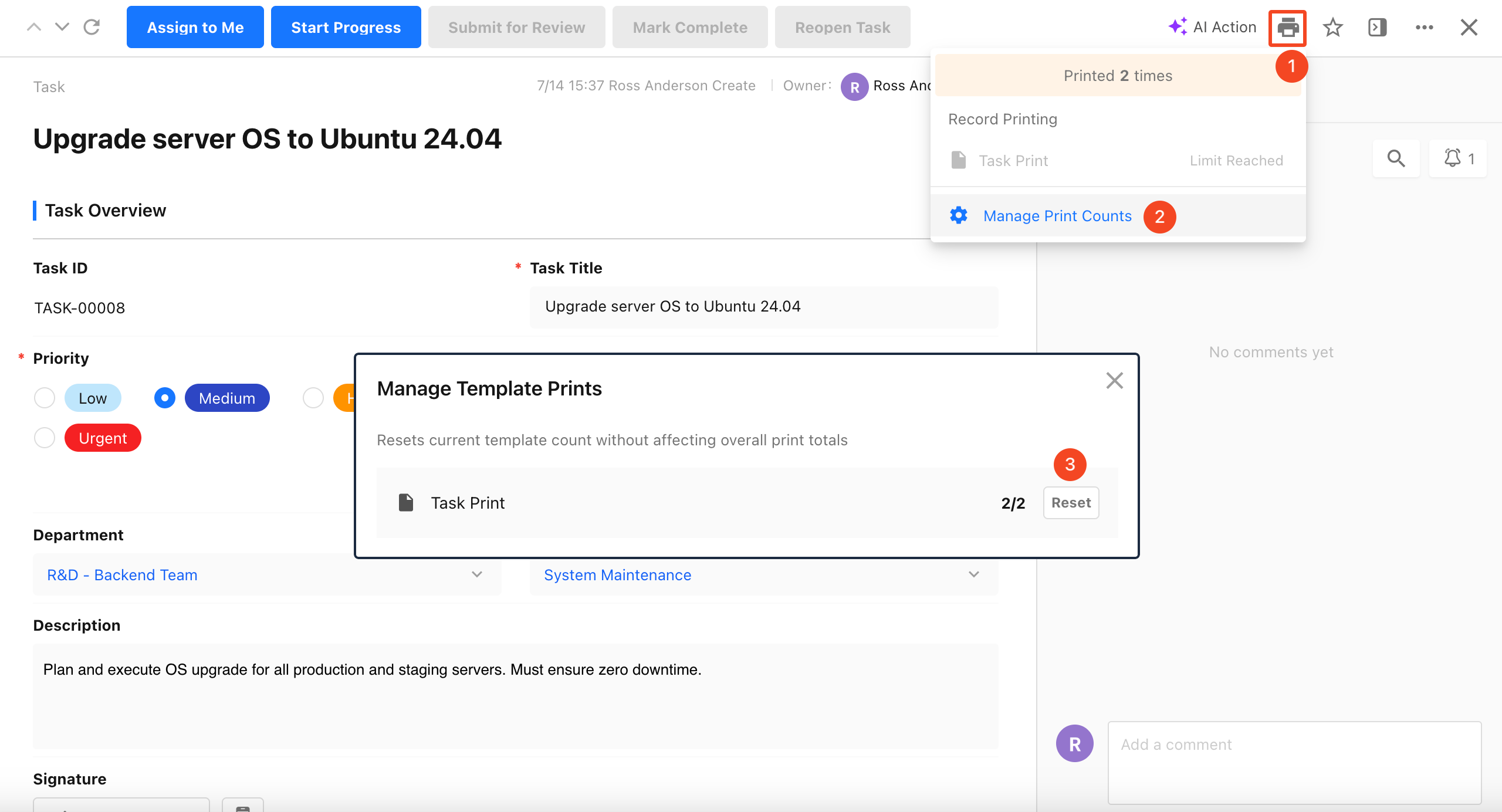
Path: Open the record details page and click Print > Manage Print Counts to reset the print count.
-
Manage Print Counts is available only to app administrators and is not visible to regular members.
-
Resetting the print count only resets the limit count for the selected template and current record. It does not reduce the record's total print count or affect historical audit logs.
Was this document helpful?