Export Records to Excel
Records are exported based on the current view settings and the permissions of the user performing the export.
Export Records
Export All Visible Records
Click the icon next to the view name and select Export.
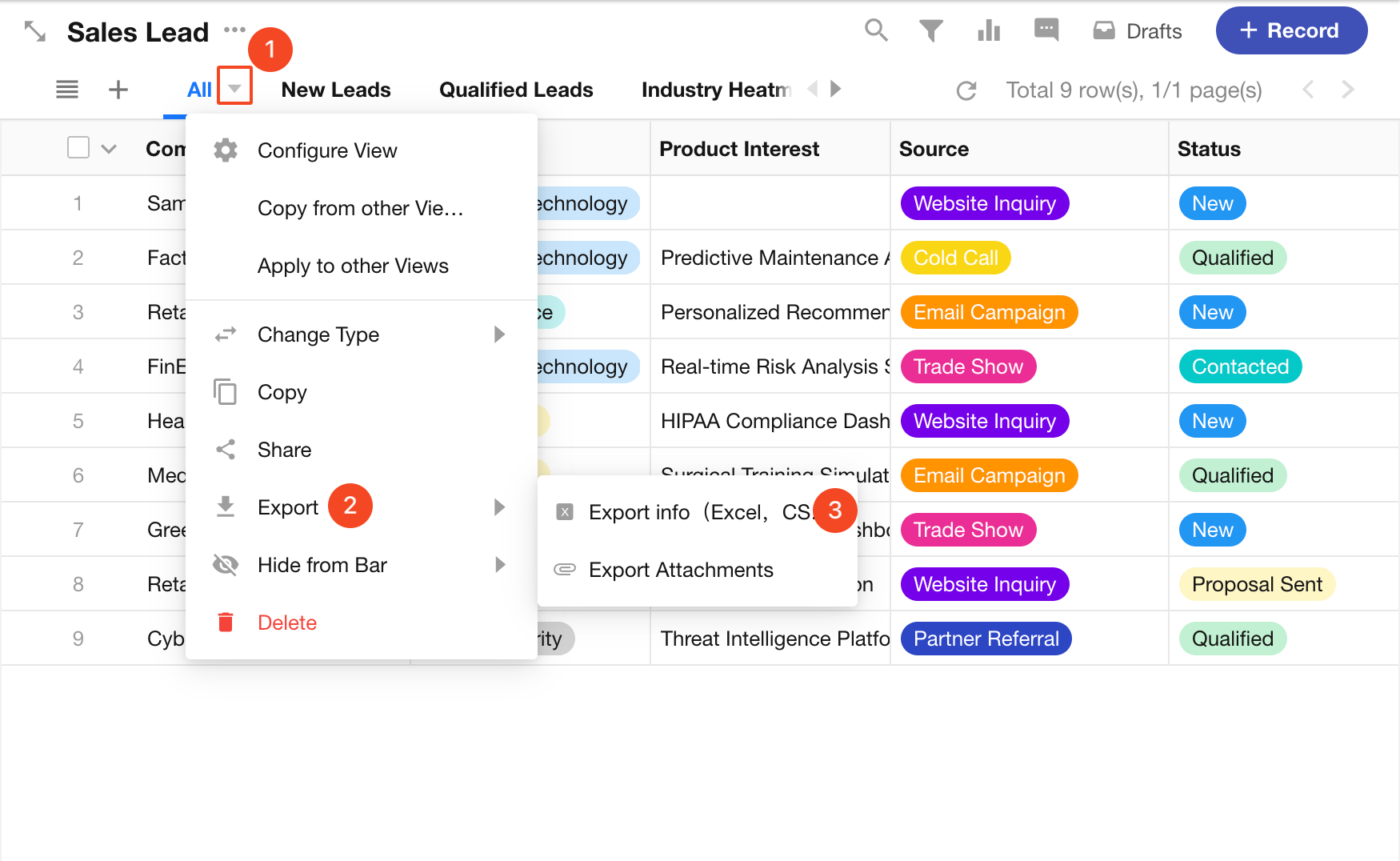
Export Selected Records
Select the records to export, then choose Export > Export Info from the action bar.
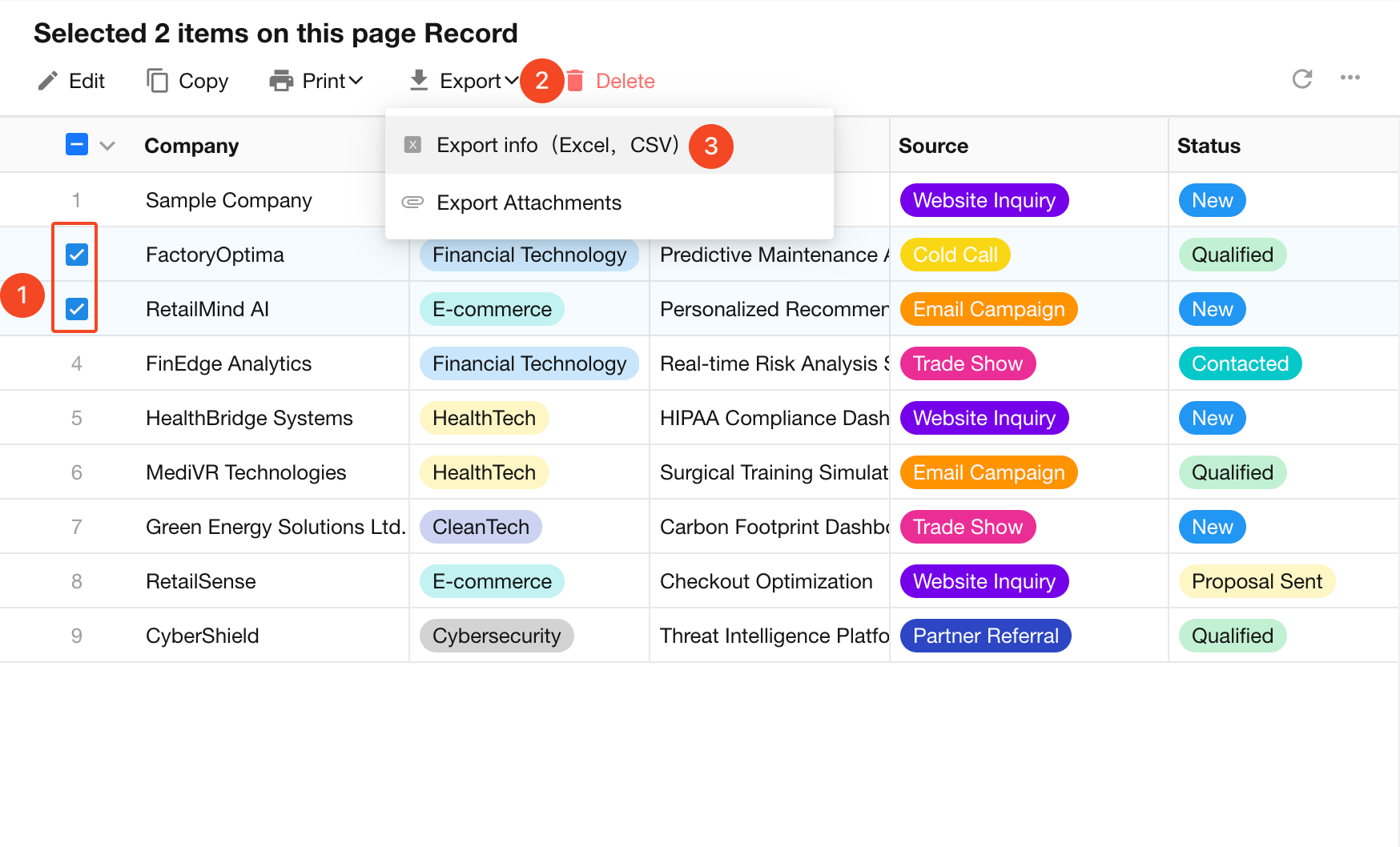
Exporting selected records is available only in a table view. Other view types support exporting all visible records only.
Export All Records in a Worksheet
An export includes only the records visible to the user in the current view. Depending on the view settings and the user's permissions, this may not include every record in the worksheet.
To export all records in a worksheet, an app administrator can open the Data Management view, select all records, and export them.
Export Settings
Export Order
- Fewer than 1,000 records: Records are exported in the same order as they appear in the view.
- More than 1,000 records: Records are exported by creation time.

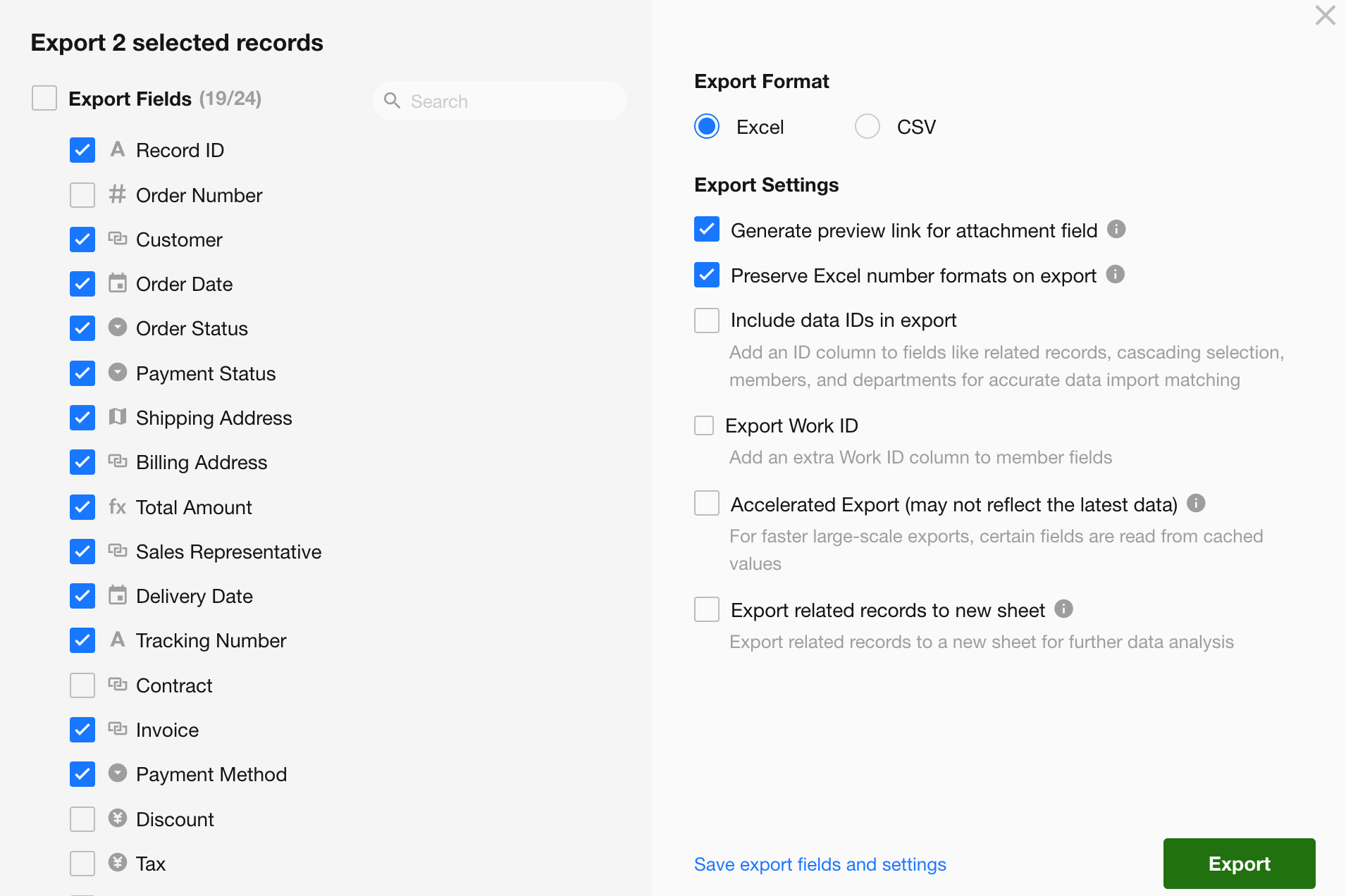
Select Fields to Export
You can choose specific fields or export all fields. Field summary values can also be included.
Notes:
- If custom display columns are configured in a table view, the displayed fields are selected by default and exported in the same column order.
- App administrators can export all fields in the view. Other users can export only fields they have permission to view.
- When exporting records directly from a view, Column Statistics can be included in the export and appear in the second row of the file. Column Statistics cannot be included when exporting selected records.
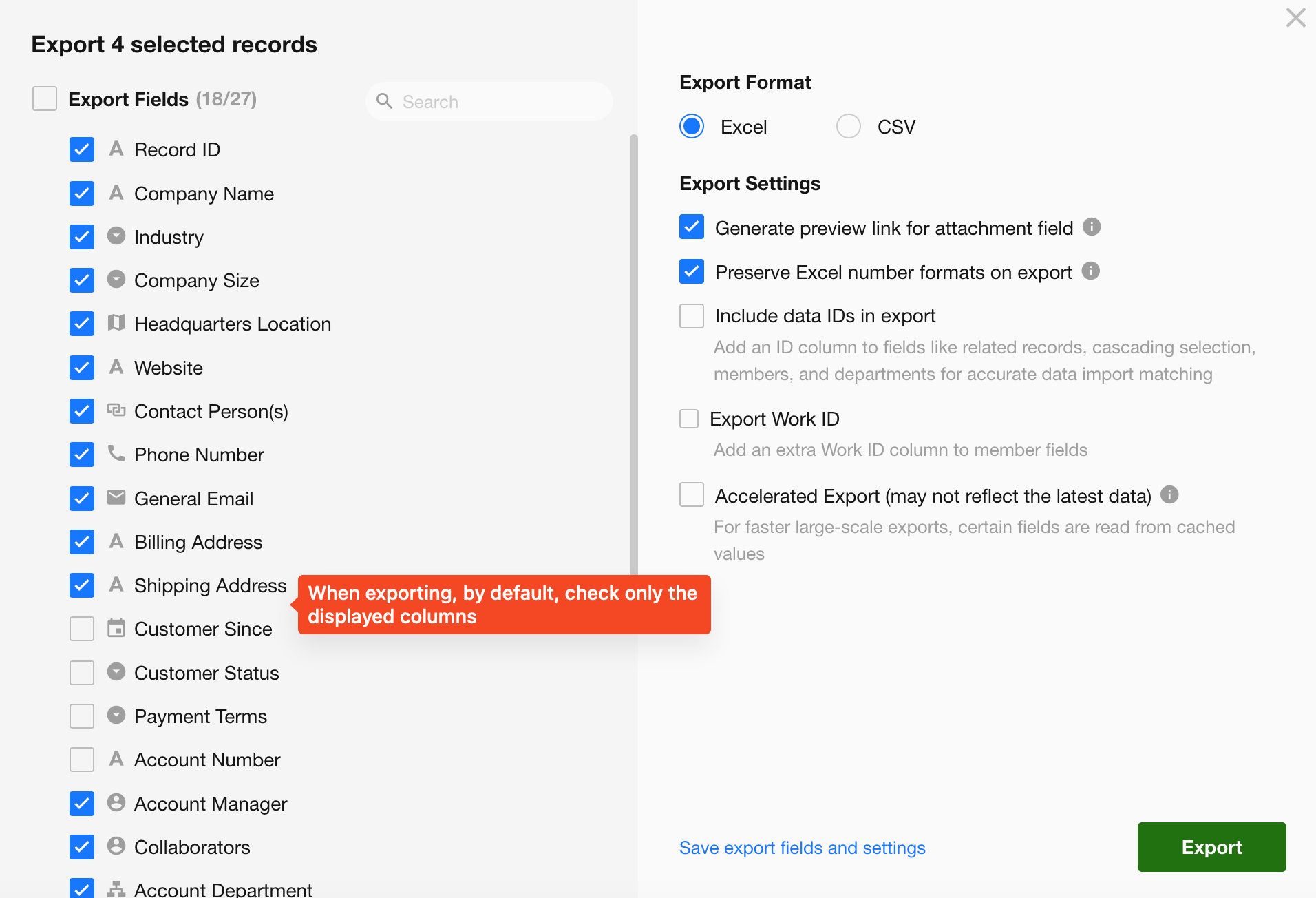
Export Record IDs
A Record ID is the unique identifier of a record. You can include the IDs of both the exported records and their related records.
Record IDs are particularly useful when exported data will later be imported back into HAP:
- When importing records into a worksheet, HAP can use the Record ID to identify and match existing records.
- When importing relationship data from Excel, HAP can use the Record IDs of related records to match them automatically.
Export Related Records
How related records are exported depends on the relationship type and display mode:
-
Single related record: The related record is exported as a field in the same sheet.
-
Multiple related records and subforms:
- Card or dropdown display: Related records are exported as a field in the same sheet.
- List display: Related records are exported to a separate sheet.
Up to 1,000 related records can be exported.
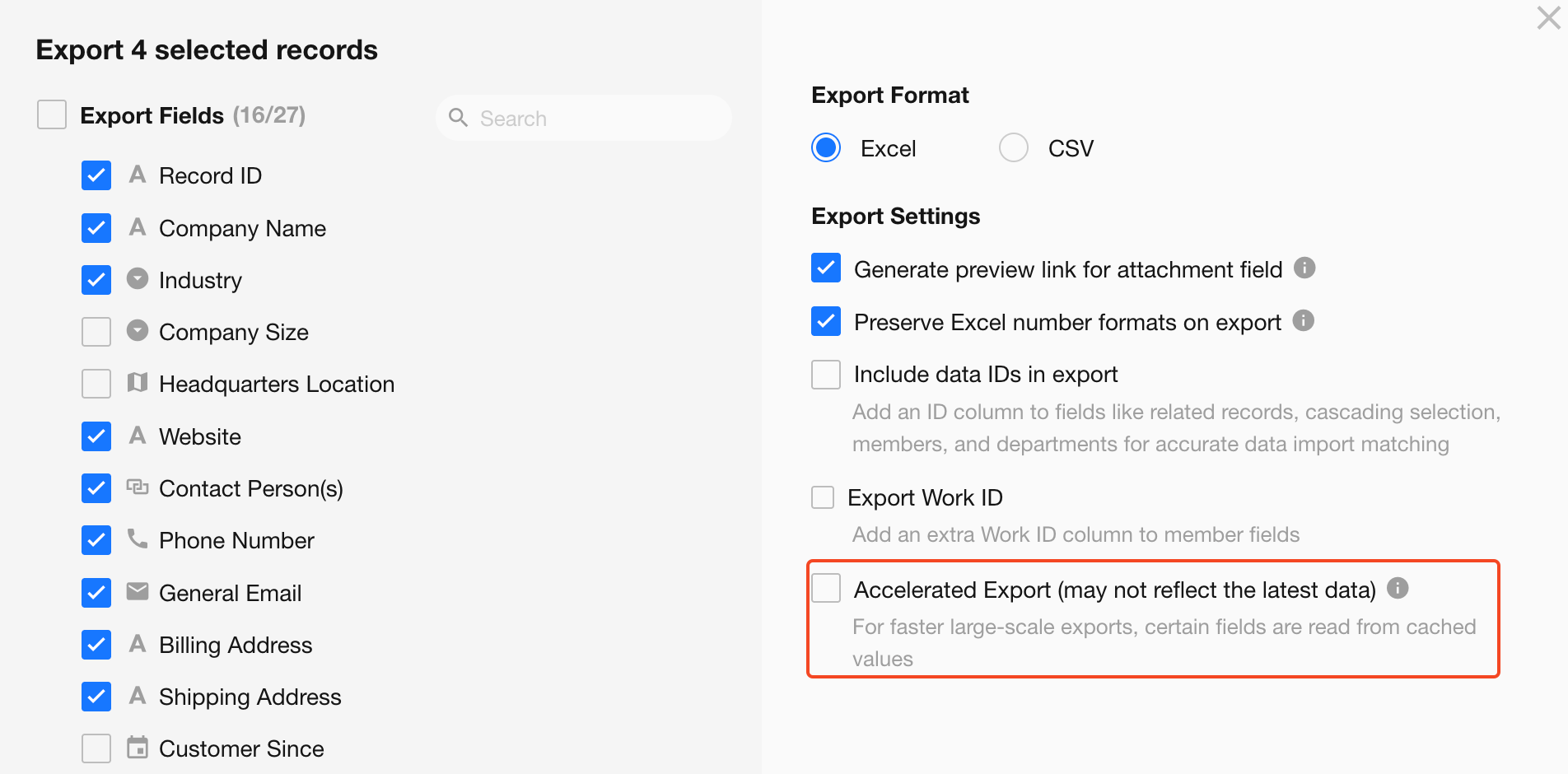
Accelerated Export
Relationship fields displayed as dropdowns or cards, foreign fields (data storage only), and cascading fields maintain cached copies of values from their source records:
- Relationship fields and cascading fields cache the title of the related record.
- Foreign fields cache the value of the specified source field.
When a source value changes, HAP synchronizes the updated value to the cached copy. If the synchronization queue is busy, there may be a delay before the cached value is updated.
Accelerated Export determines whether HAP retrieves the latest source data or uses these cached values:
- Disabled: HAP retrieves the latest values from the related records at export time. This provides the most up-to-date data but may result in a slower export.
- Enabled: HAP exports the cached values, which can significantly improve export speed. In rare cases, recently changed values may not yet have been synchronized and the exported data may not reflect the latest update.
Recommendation: Enable Accelerated Export when the related data rarely changes or the latest value is not required for the export.
Choose an Export Format
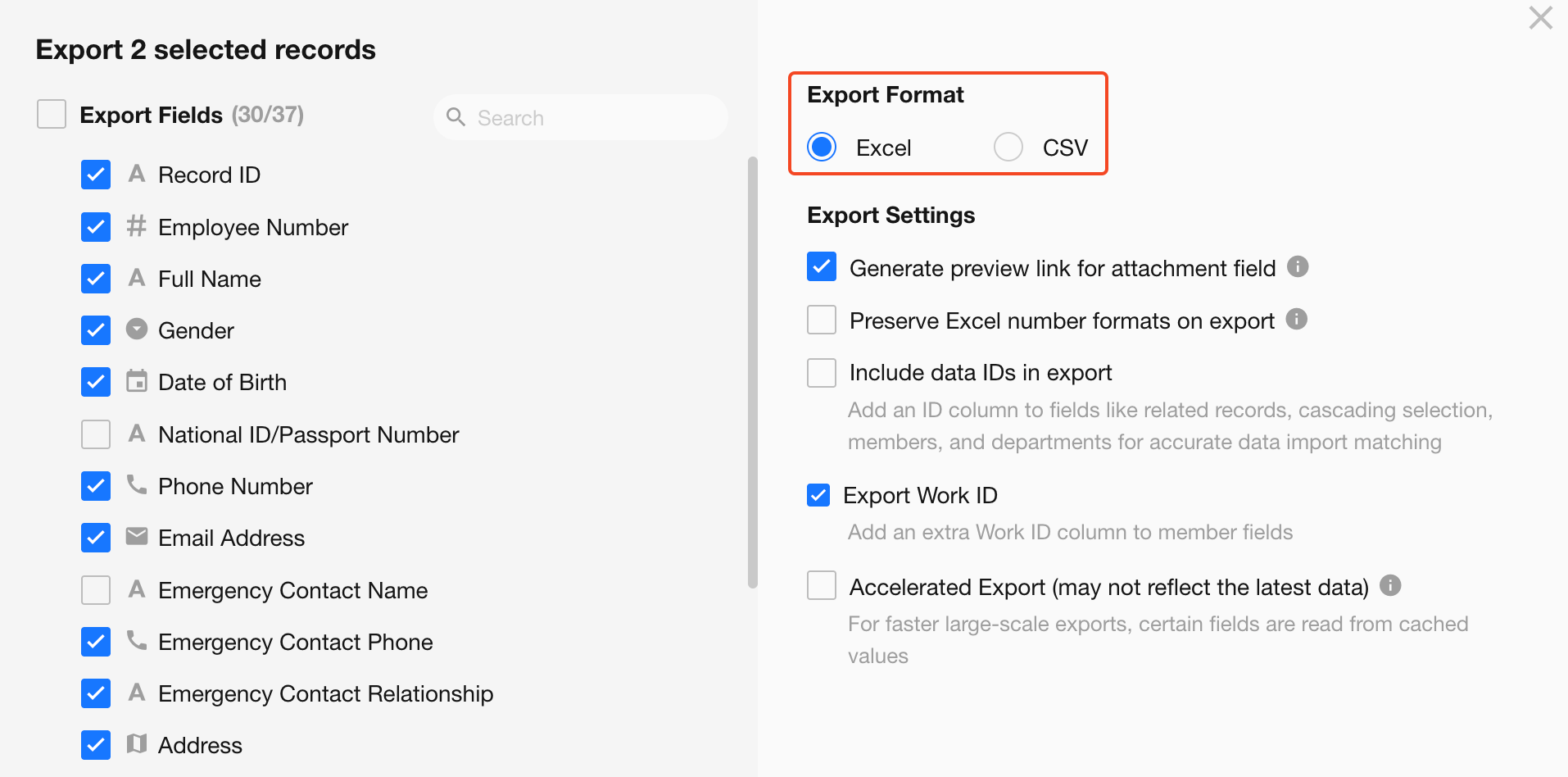
Records can be exported as an Excel or CSV file.
Export Values in Excel Numeric Format
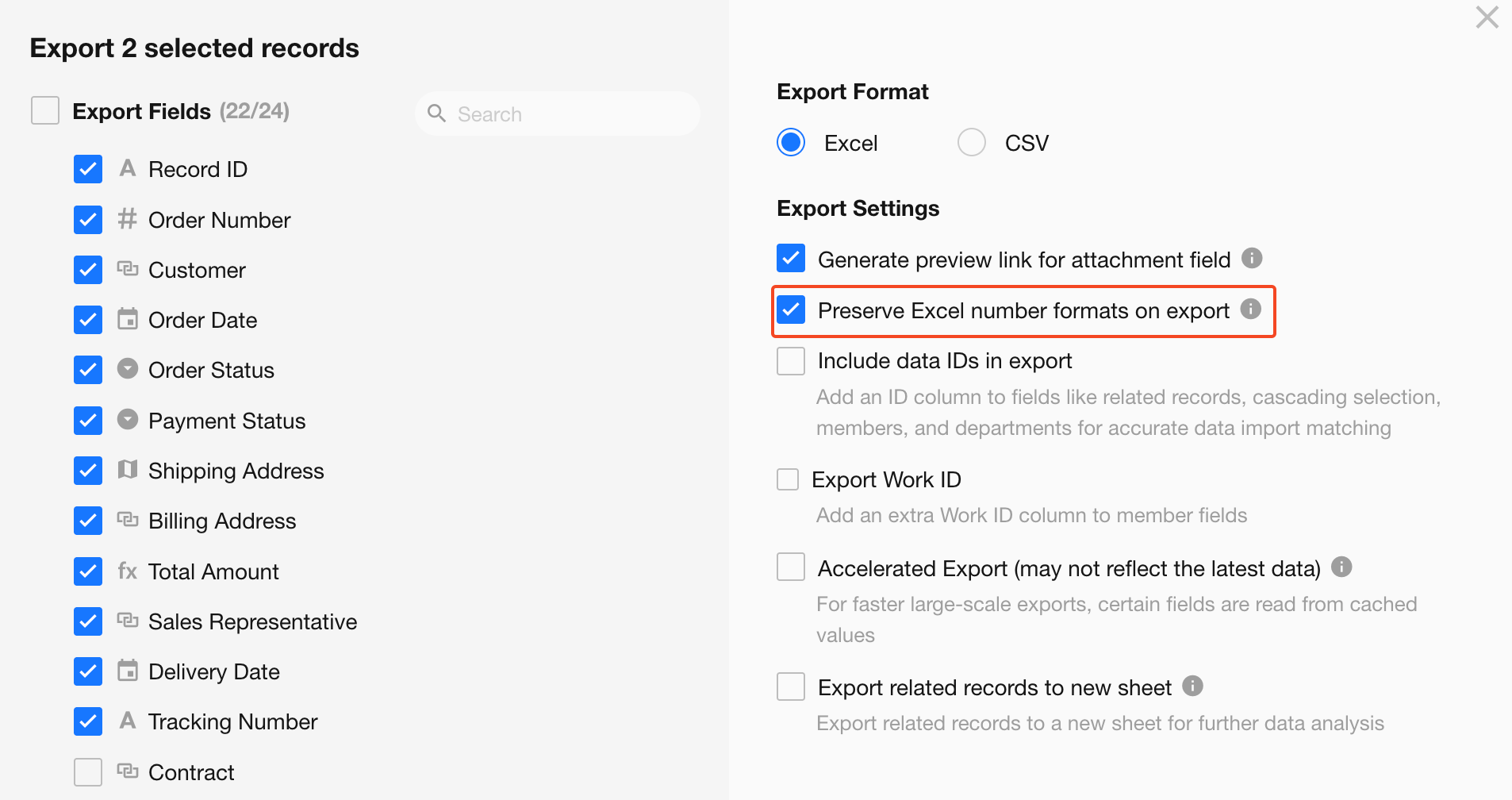
Enable Preserve Excel number formats on export to export values from the following field types as native numeric values in Excel:
- Number
- Currency
- Formula (numeric output)
- Rollup (numeric output)
- Level
If this option is disabled, values from these fields are exported as text and cannot be used directly in Excel calculations.
Export Assigned Option Values
For single-select and multi-select fields with assigned option values, enable this option to include the assigned value in an additional column.

Export Data IDs and Work IDs
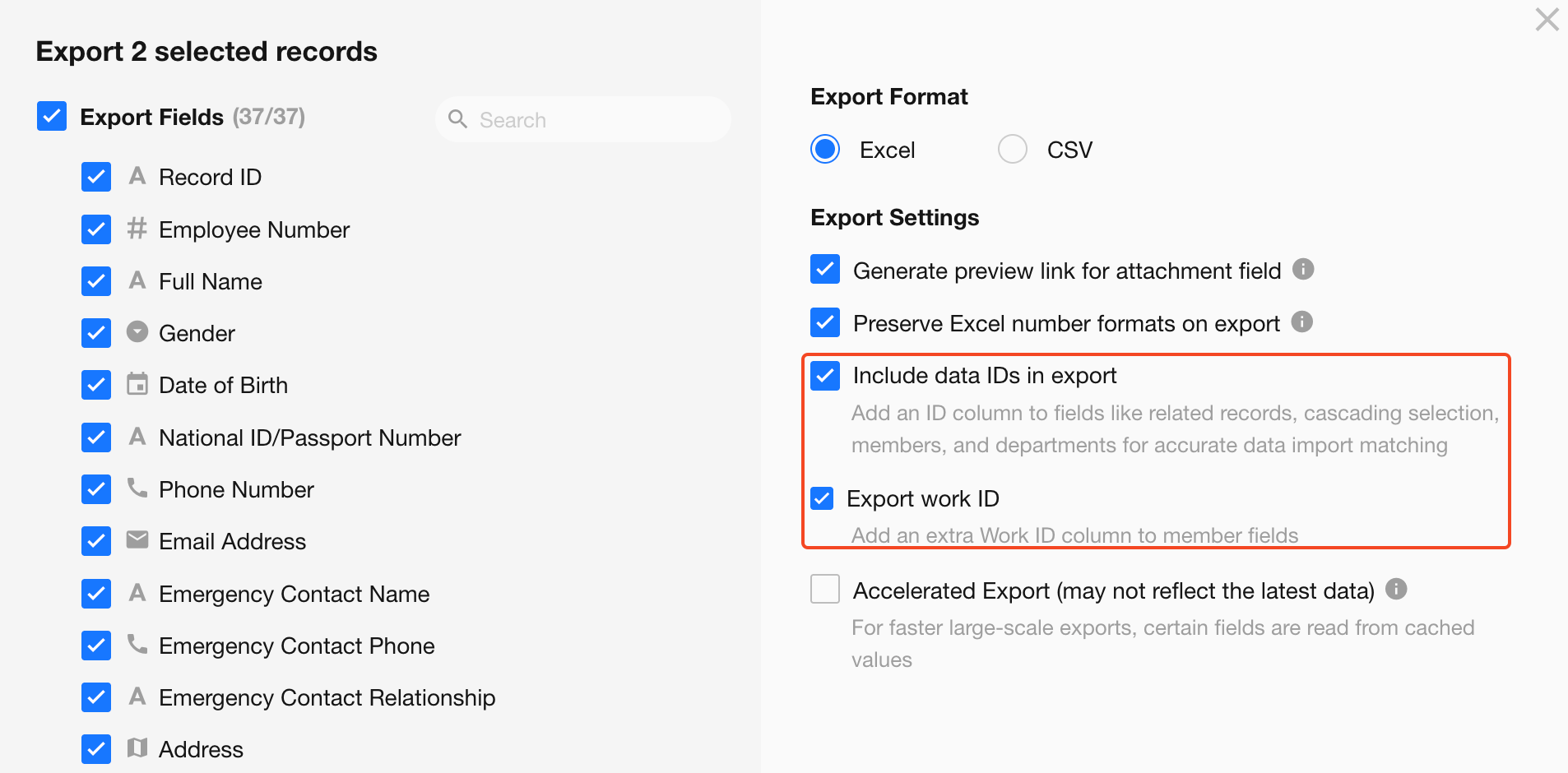
When exporting single-record relationship fields, cascading fields, member fields, or department fields, an additional ID column can be included alongside the displayed text. These IDs can be used for exact matching when the data is imported later.
For member fields, an additional Work ID column can also be included.
Recommendation: Include data IDs when duplicate names or values may exist.
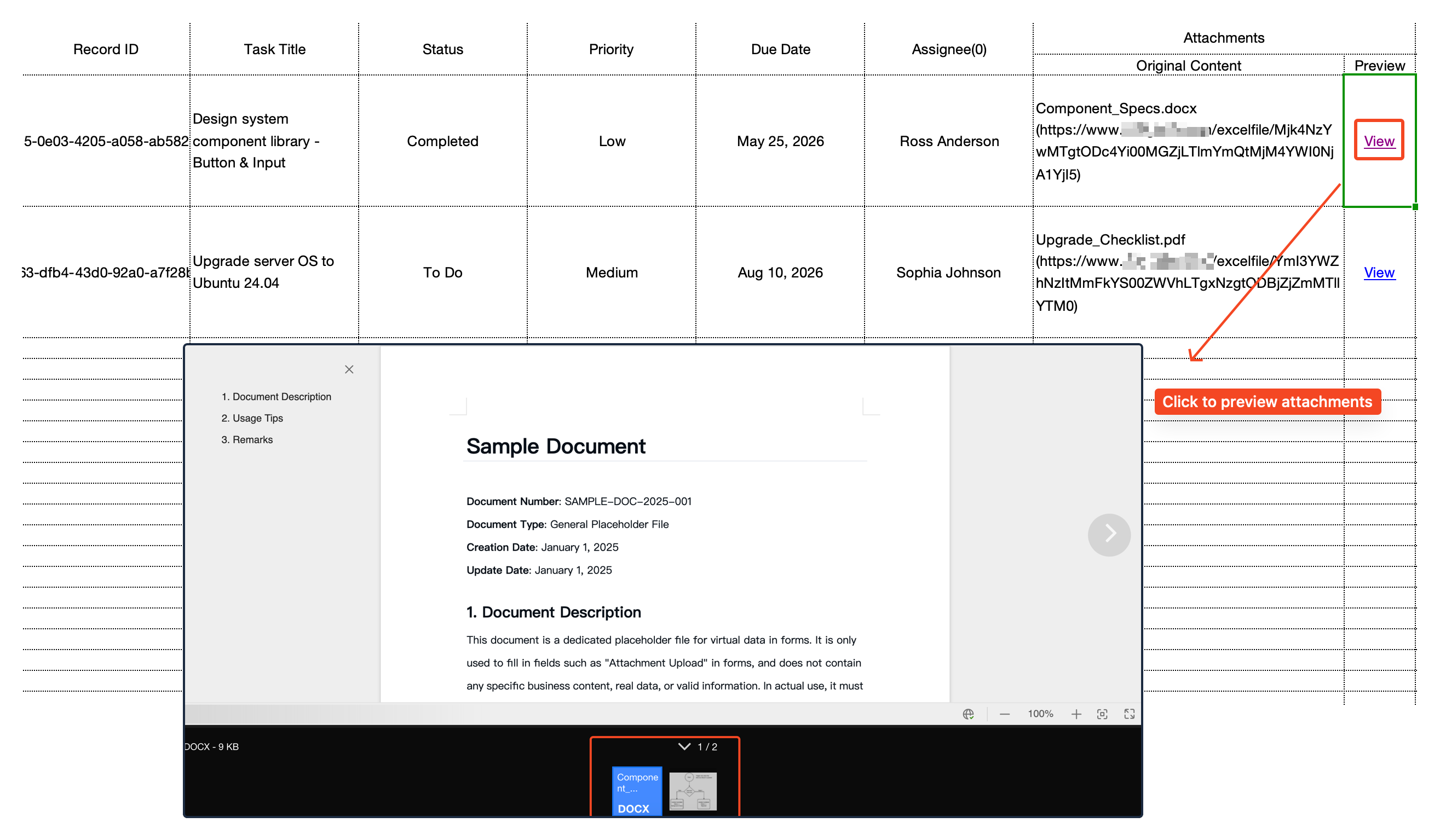
Generate Preview Links for Attachments
Enable Generate preview link for attachment field to include a preview link when attachments are exported to Excel. Users can open the link to preview the attachments associated with the record.
- If a record contains multiple attachments, users can switch between them in the preview.
- Users must sign in to access the preview. Access to records and attachments follows the user's existing permissions.
Save the Default Export Configuration
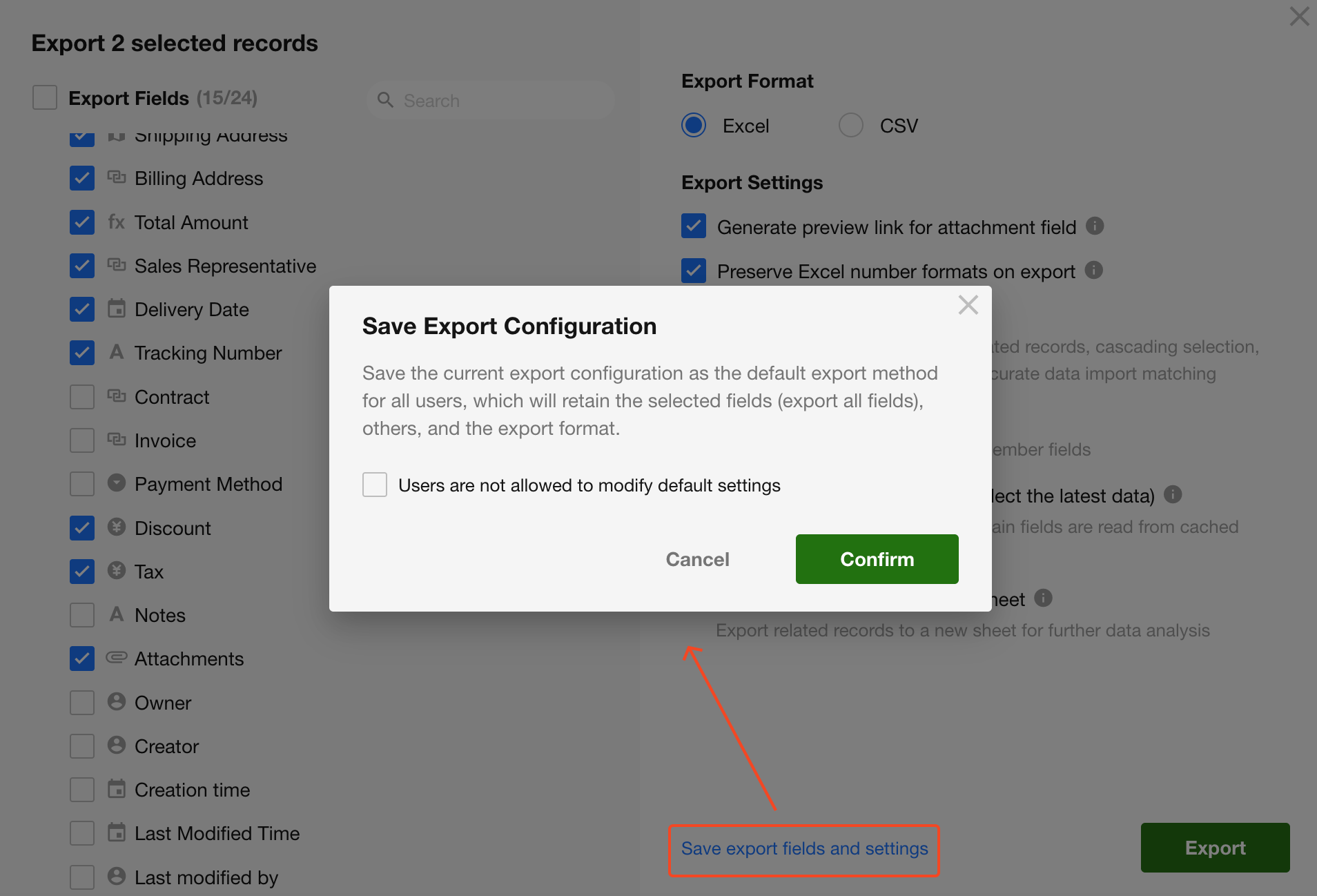
After selecting the fields, additional options, and export format, an app administrator can save the current settings as the default export configuration for all users.
The saved configuration includes:
- Selected fields, including whether all fields are exported
- Additional options, such as Column Statistics and related records
- Export format
When Users are not allowed to modify default settings is enabled, regular users can export records only with the saved configuration. When it is disabled, regular users can adjust the export settings before exporting.
Was this document helpful?