Scheduled Sync
In HAP Integration Center, users can sync data either at regular intervals or at specific times based on your configuration. The sync method can be set to either full overwrite or incremental update based on specified fields.
Currently, only SAP HANA data sources support scheduled sync. Other data sources support real-time sync only.
1. Create a Connector
Select the SAP HANA source and the destination data source type, then click Next.
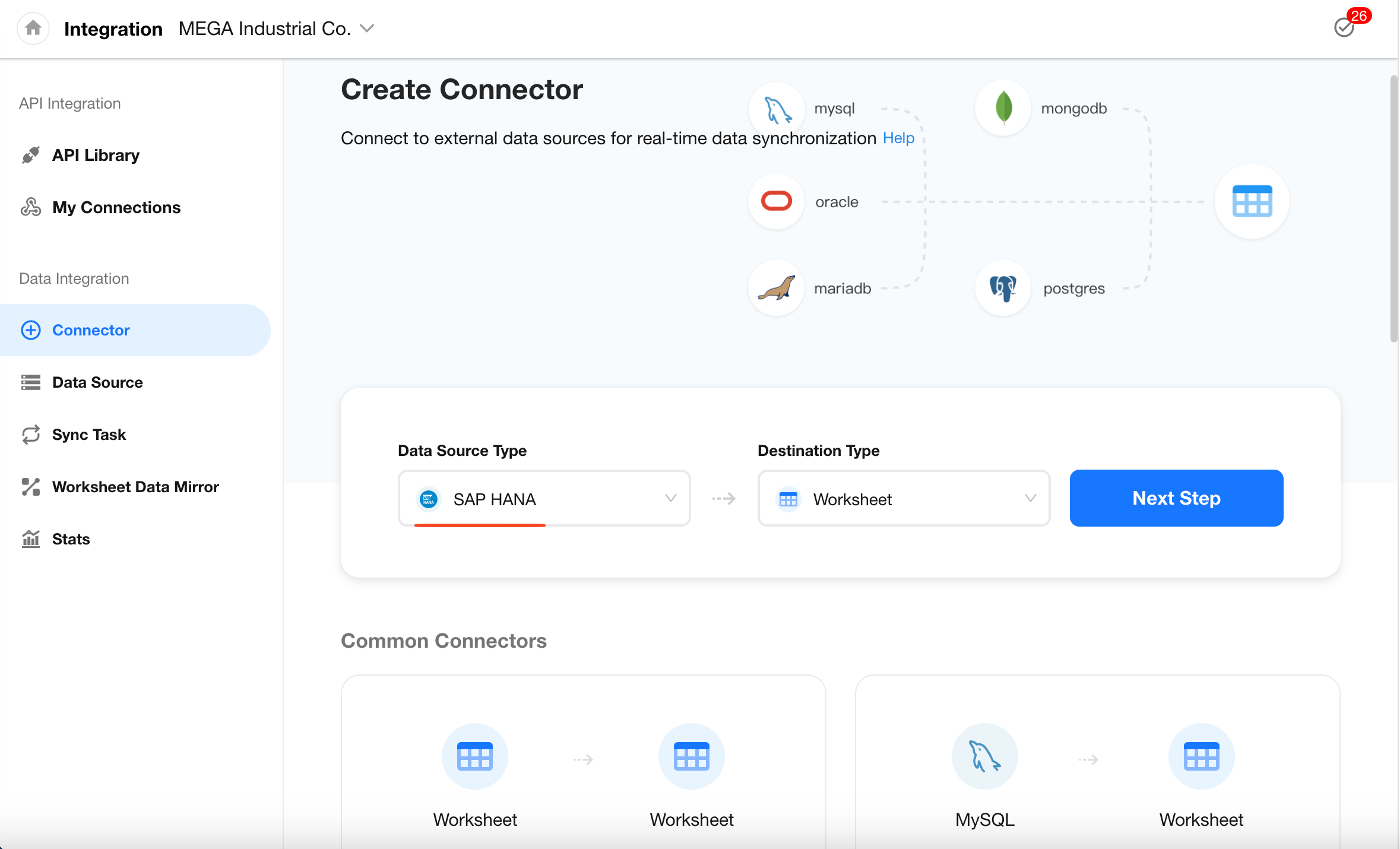
2. Select or Create a Data Source
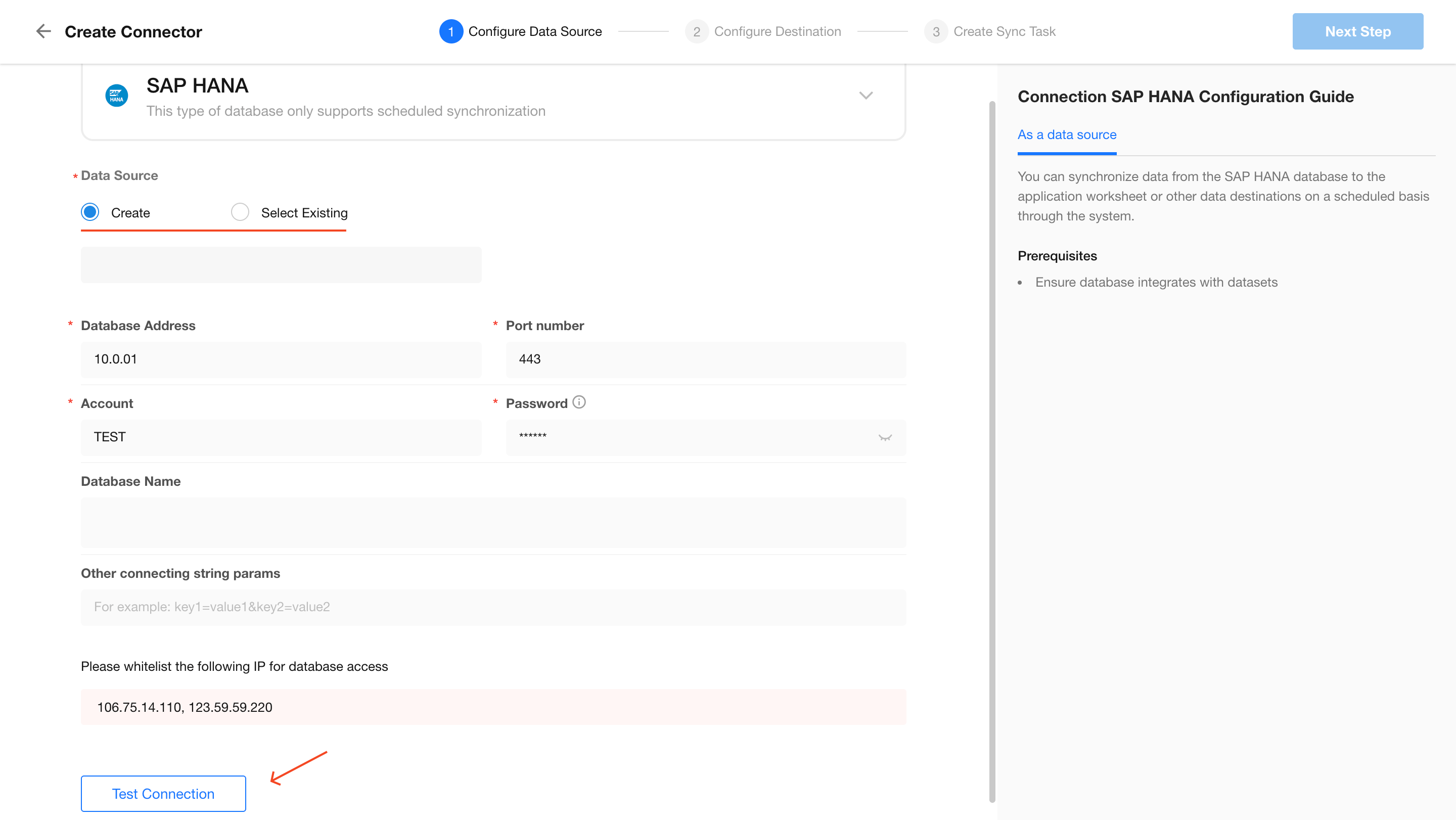
Create a new data source or select an existing one. Click Test Connection to verify, then click Next if the connection is successful.
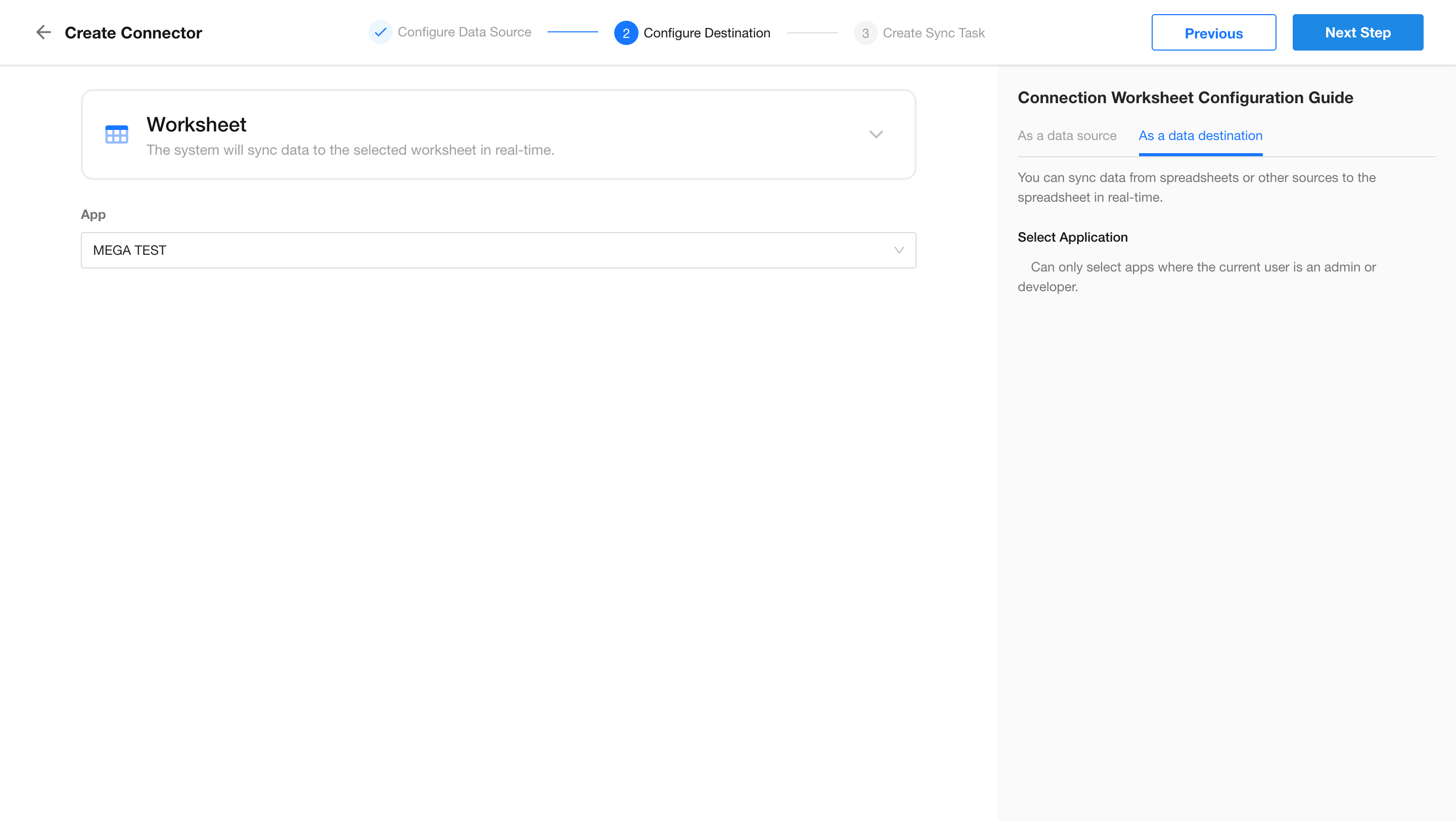
3. Select Destination Database
Choose the target database where the data will be synced.
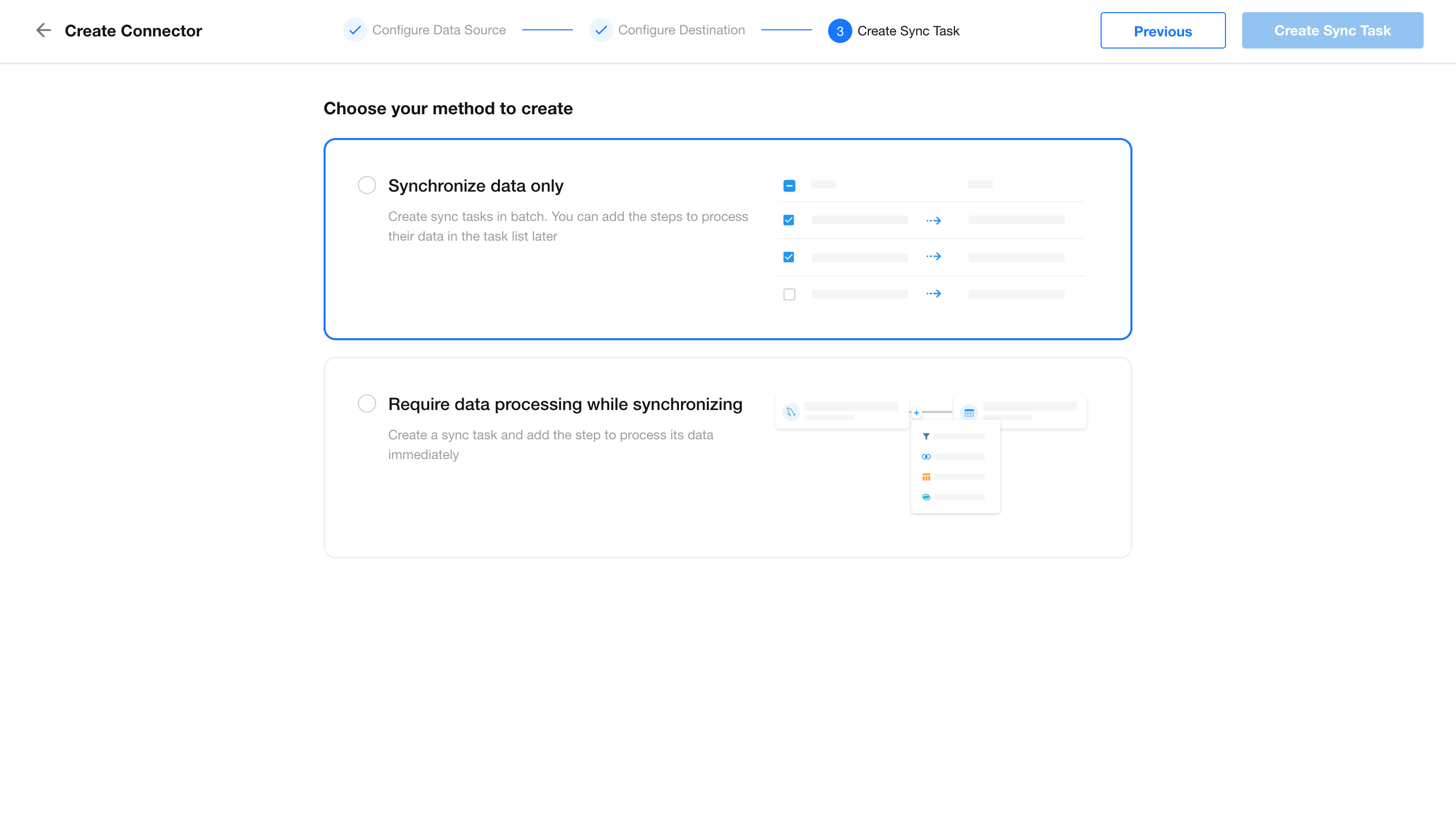
4. Choose a Sync Method
In this example, we demonstrate data-only sync.
5. Select the Source Database and Table
Choose the database and table from the source to be synced.
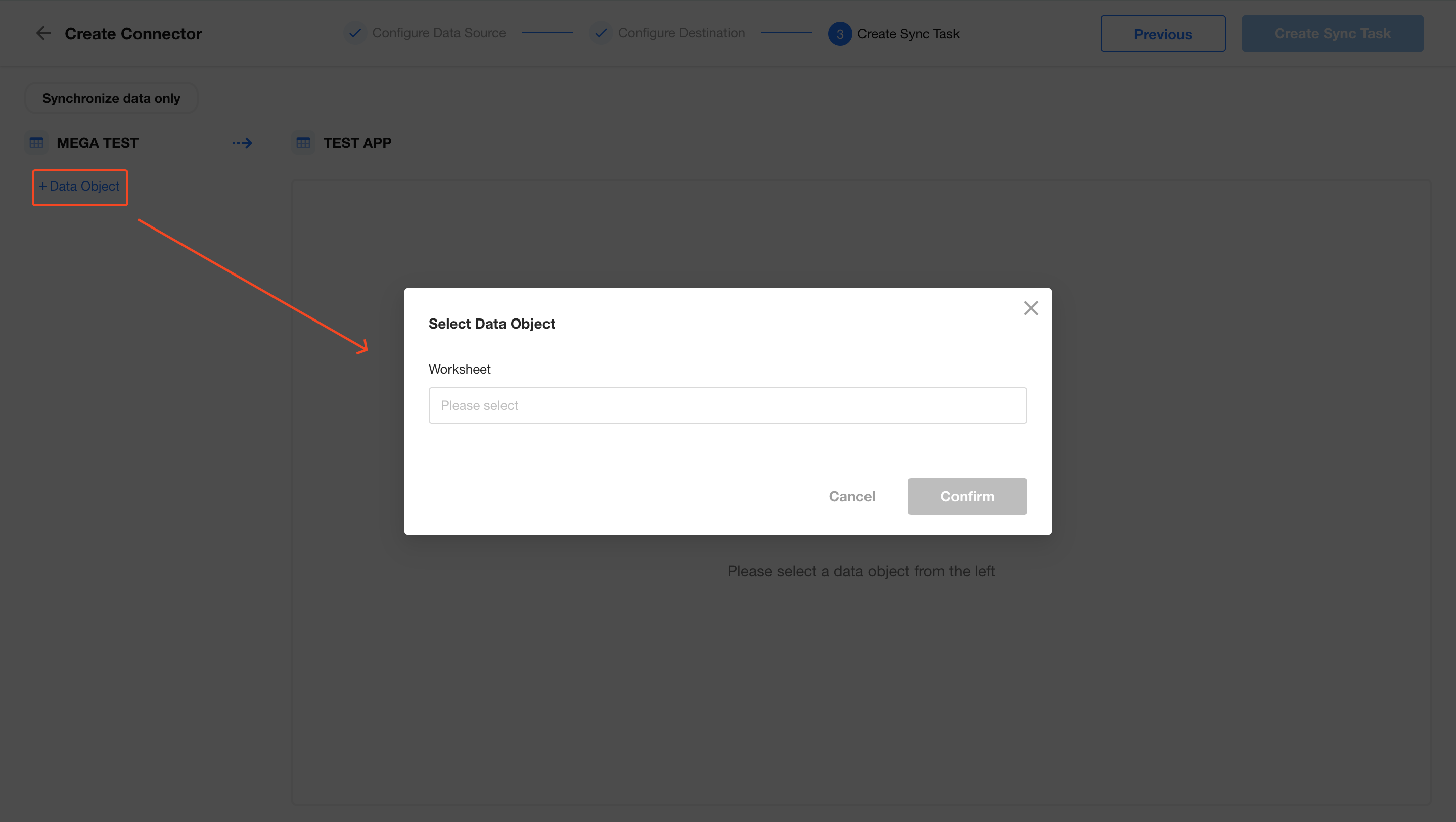
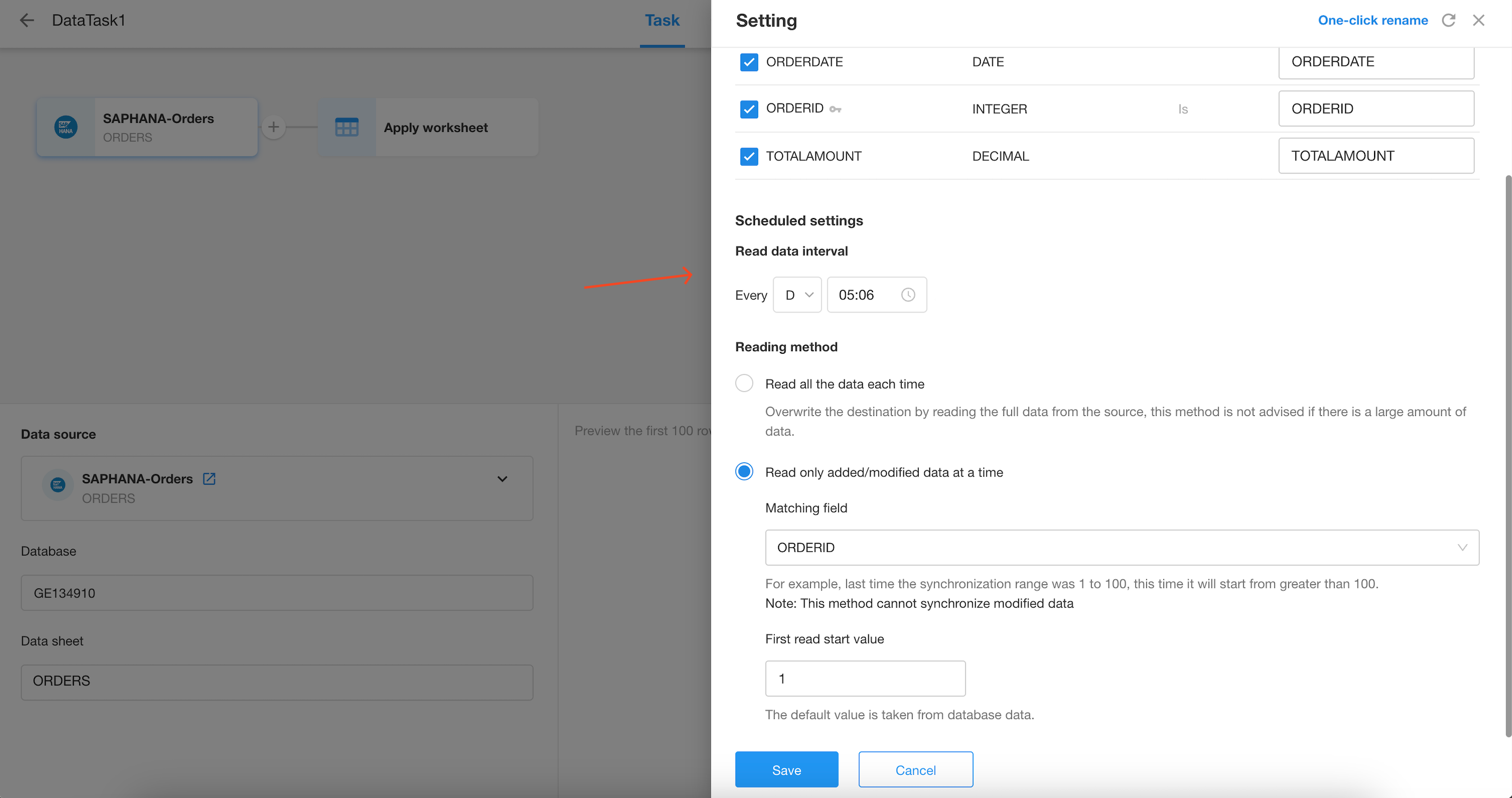
6. Configure Scheduled Sync Task
-
Sync Interval
You can choose to sync data every hour or at a specific time each day. -
Sync Method
-
Full Data Sync (Overwrite)
Requirement: The source table must include a primary key. All data from the source will be read and overwritten to the destination. -
Incremental Sync (New or Updated Data Only)
Requirement: The source table must contain at least one of the following: primary key, datetime/timestamp, or numeric field.-
Matching Field
This field will be used as the filter criterion for each sync. The dropdown will display all eligible fields (primary key, datetime/timestamp, numeric).-
Primary key / Numeric:
For example, if the last sync processed values from 1 to 100, the next sync will start from values greater than 100. -
Datetime / Timestamp:
For example, if the last sync was up to2024-06-14 00:29:49, the next sync will begin from that point onward. -
Initial Read Start Value:
Based on the selected matching field, the system will start reading from the minimum value in the database records.
-
-
-
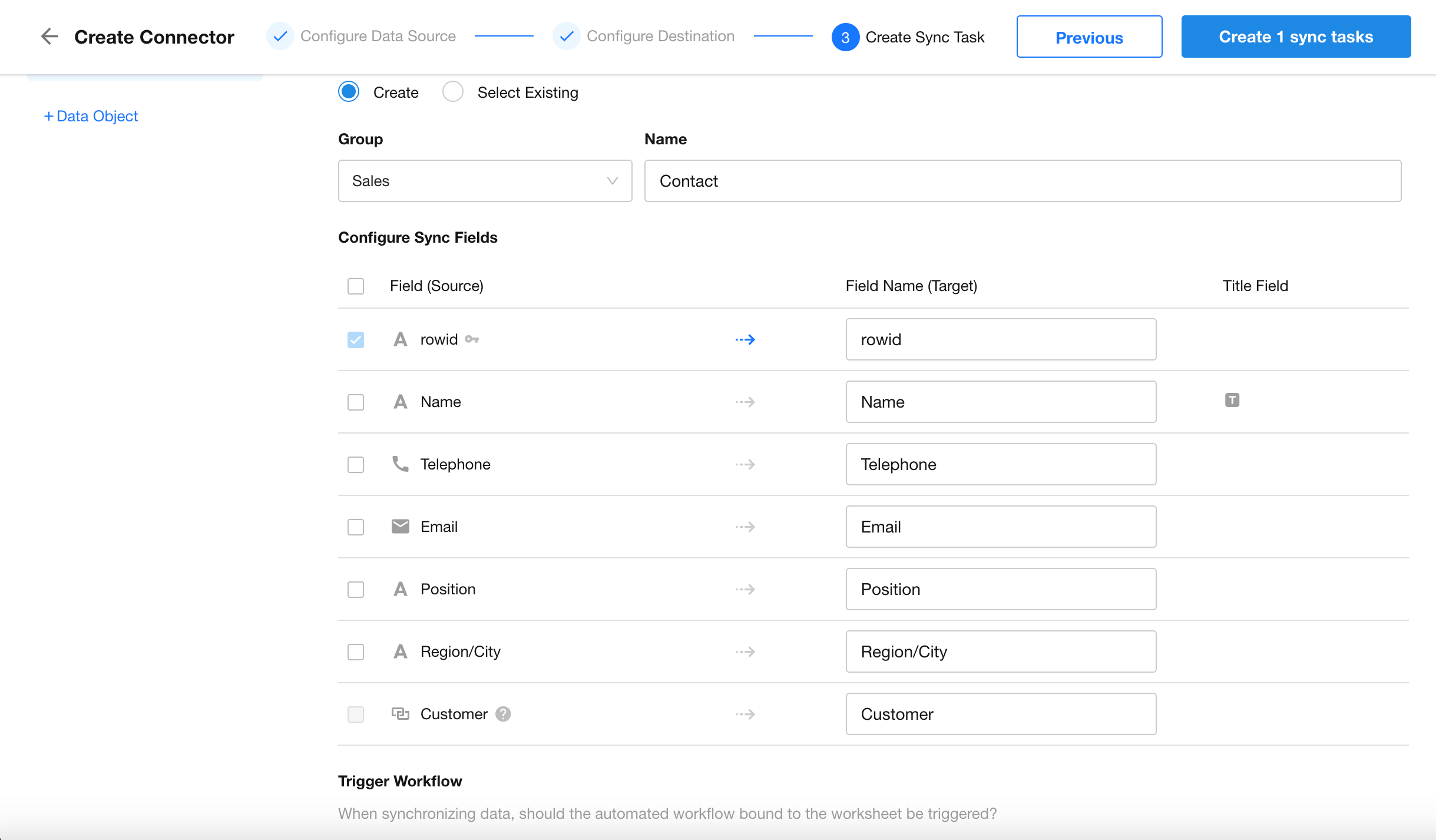
7. Configure Fields to Sync
Define the field mappings and other configurations. Once done, click the Create Sync Task button at the top right.
Was this document helpful?